Table of Contents >> Show >> Hide
- What a VPN Actually Does (and What It Doesn’t)
- Before You Connect: Choose the Right Type of VPN
- VPN Connection Methods: App vs Manual Setup
- How to Connect to a VPN on Windows (10/11)
- How to Connect to a VPN on macOS
- How to Connect to a VPN on iPhone and iPad
- How to Connect to a VPN on Android
- How to Tell Your VPN Is Working (Without Becoming a Network Detective)
- VPN Settings That Matter (and the Ones That Mostly Don’t)
- Troubleshooting: When Your VPN Won’t Connect
- Safety Tips: Don’t Turn “VPN” Into “Very Painful Nightmare”
- Conclusion: Connecting to a VPN Without the Drama
- Real-World Experiences: What It’s Like Using a VPN Day to Day (Extra Notes)
You’ve probably heard “Use a VPN!” tossed around like it’s the digital version of “Drink more water!”
(Useful advice, occasionally shouted by someone who also believes their phone is listening to them… which, honestly, sometimes it is.)
A VPNshort for virtual private networkcan help protect your internet traffic on sketchy Wi-Fi, keep work data safer while remote,
and add a layer of privacy by encrypting your connection.
This guide shows how to connect to a VPN on the most common devices, how to pick the right setup,
and what to do when the VPN inevitably chooses the worst possible time to misbehave (like five minutes before your video interview).
What a VPN Actually Does (and What It Doesn’t)
A VPN creates an encrypted “tunnel” between your device and a VPN server. That means your internet traffic is harder to snoop onespecially on public Wi-Fi.
It can also change the IP address websites see (because your traffic exits from the VPN server, not directly from your home network).
But a VPN is not an invisibility cloak. It won’t magically stop phishing, prevent every tracker, or fix weak passwords.
Think of it like wearing a seatbelt: helpful, smart, and still not a substitute for driving carefully.
Common reasons people use a VPN
- Safer public Wi-Fi use (airports, hotels, coffee shops, your neighbor’s “TotallyNotATrapNetwork”).
- Remote work access to company systems and files.
- Privacy and data protection from basic network snooping.
Important note
Use VPNs responsibly and follow your school/work rules, local laws, and service terms. This article focuses on privacy and secure connectionsnot bypassing restrictions.
Before You Connect: Choose the Right Type of VPN
1) Work/School VPN (remote access VPN)
If your employer or school provides a VPN, they’ll usually give you a server address, a required VPN protocol, and sign-in instructions (often with multi-factor authentication).
This is the “connect to internal resources” kind of VPN.
2) Consumer VPN (privacy-focused VPN service)
If you’re using a VPN for everyday browsingespecially on public Wi-Fiyou’ll typically subscribe to a VPN provider and install their app.
The app handles the setup so you don’t have to play “guess which field wants the pre-shared key.”
Quick checklist for choosing a VPN app/service
- Reputable vendor with a track record of security fixes and transparency.
- Strong protocols (for example, WireGuard or IKEv2; many services also support OpenVPN).
- Clear privacy policy and (ideally) independent audits.
- Security features like a kill switch and DNS leak protection (optional but nice).
- Download only from official app stores or the vendor’s official sitefake VPN apps are a real thing.
VPN Connection Methods: App vs Manual Setup
Option A: Use a VPN app (recommended for most people)
- Install the VPN app from the official store.
- Sign in (or scan a QR code if your work provides one).
- Tap Connect.
- Confirm the device permission prompt (this lets the OS route traffic through the VPN).
Option B: Manual setup (useful for work VPNs or advanced setups)
Manual configuration is common for corporate VPNs, some routers, and certain privacy setups.
You’ll enter details like server address, VPN type/protocol, username/password, and sometimes certificates.
How to Connect to a VPN on Windows (10/11)
Windows includes a built-in VPN client. If your VPN provider offers an app, that’s often easier. But for a work VPN, built-in setup is common.
Connect using a VPN app
- Install the provider’s Windows app.
- Sign in and choose a server/location (or your company gateway).
- Click Connect.
Connect using Windows built-in VPN settings
- Open Settings → Network & internet → VPN.
- Select Add VPN / Add a VPN connection.
- For provider, choose Windows (built-in) (if applicable).
- Enter the server name/address your employer or VPN provider gave you.
- Select the VPN type (protocol) if required.
- Enter your username/password (or leave blank if it prompts you later).
- Save, then select the VPN and click Connect.
Tip: If your job requires certificates or device compliance, you may need to install a certificate profile first.
When in doubt, use your organization’s instructionscorporate VPNs are picky for good reasons.
How to Connect to a VPN on macOS
macOS also supports VPN connections via System Settings. Many VPN providers offer a Mac app, but built-in setup is great for work connections.
Connect using a VPN app
- Install the VPN app from the vendor.
- Sign in, select a server, click Connect.
- Approve any macOS permission prompts.
Connect using macOS System Settings (manual)
- Open System Settings → Network (or search “VPN”).
- Choose Add VPN Configuration.
- Select the VPN type your provider/IT specifies.
- Enter the server address, account name, and authentication info (password, certificate, etc.).
- Save, then toggle the VPN On to connect.
Tip: If your VPN is for work, you may be given an “always on” profile or a configuration fileimporting that is usually smoother than manual typing.
How to Connect to a VPN on iPhone and iPad
On iOS/iPadOS, you can connect via a VPN app (most common) or by adding a VPN configuration in Settings (often used for work).
Connect using a VPN app
- Install the VPN app from the App Store.
- Sign in and tap Connect.
- Tap Allow when iOS asks to add VPN configurations.
- Look for the VPN icon in the status area (or confirm in Settings).
Connect using a manual VPN configuration (common for work)
- Open Settings → General → VPN & Device Management (naming varies by iOS version).
- Tap VPN → Add VPN Configuration.
- Choose the protocol/type required (commonly IKEv2 or IPsec for enterprise setups).
- Enter server, remote ID (if required), and authentication details from IT.
- Save, then toggle the VPN On.
Tip: If your organization uses device management (MDM), you might receive a profile that configures VPN automatically. That’s normaland usually safer.
How to Connect to a VPN on Android
Android supports VPNs through provider apps and through built-in settings. The app method is easiest; built-in settings are useful when your workplace provides details.
Connect using a VPN app
- Install the VPN app from Google Play.
- Sign in and tap Connect.
- Approve the VPN connection request.
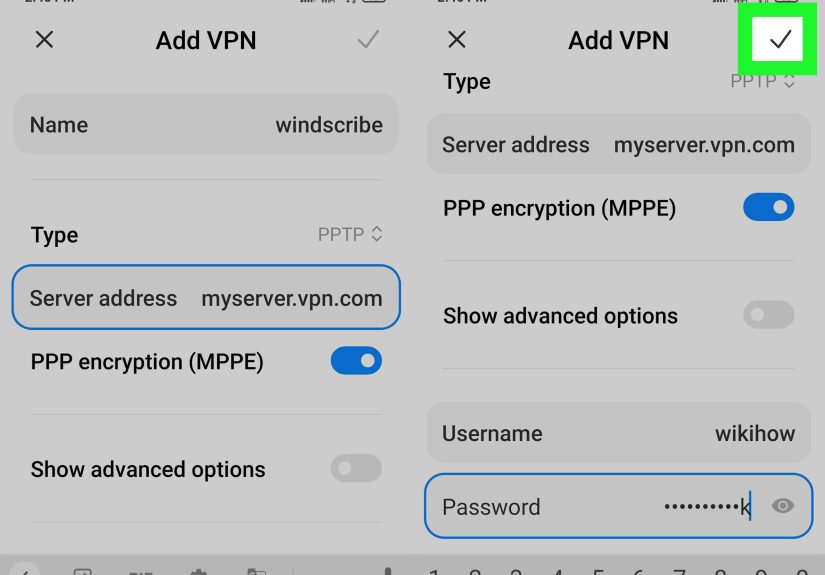
Connect using Android’s built-in VPN settings (manual)
- Open Settings → Network & internet → VPN (or search “VPN”).
- Tap Add VPN (often a “+” icon).
- Enter the server name/address, VPN type, and credentials provided by IT.
- Save, then select the VPN and tap Connect.
Always-on VPN (optional)
Some Android devices let you enforce “Always-on VPN” and “Block connections without VPN.” That can be useful for work devices or frequent travelers,
but it can also break certain apps or networks. Use it if you understand the trade-offs.
How to Tell Your VPN Is Working (Without Becoming a Network Detective)
Quick signs you’re connected
- The VPN app says “Connected” and shows a timer.
- Your device shows a VPN indicator (Windows/macOS system tray; iOS/Android status bar).
- Your organization’s internal sites/resources load (for work VPNs).
Simple verification steps
- Reconnect if it dropsespecially after switching Wi-Fi networks.
- Check if your VPN app has a kill switch option to prevent traffic from leaking outside the tunnel when connections flap.
- If you’re on public Wi-Fi, sign in to the Wi-Fi captive portal first (the “accept terms” page), then connect the VPN.
VPN Settings That Matter (and the Ones That Mostly Don’t)
Kill switch
A kill switch blocks internet traffic if the VPN disconnects unexpectedly. It’s great if you care about avoiding accidental “oops, I wasn’t protected” moments,
but it can be confusing when the VPN drops and everything suddenly stops working. (It’s not brokenit’s doing its job.)
Split tunneling
Split tunneling lets some traffic go through the VPN while other traffic goes directly to the internet.
It can improve speed and reduce VPN load, but it’s also a privacy trade-off. Many workplaces disable it.
Protocol choice (when you have it)
Modern VPNs commonly use protocols like WireGuard, IKEv2/IPsec, or OpenVPN. Older protocols (like PPTP) are generally considered outdated.
If your IT department specifies a protocol, use that. If you’re choosing in a consumer app, “Automatic” usually works well.
Troubleshooting: When Your VPN Won’t Connect
Problem: “Can’t connect” or it spins forever
- Check your internet first: open a normal website with VPN off.
- Restart the VPN app (or toggle airplane mode briefly on mobile).
- Try a different server (consumer VPN) or confirm the gateway address (work VPN).
- Update the app/OSVPNs are sensitive to outdated network components.
- Confirm the time/date on your device (wrong time can break certificate-based VPN logins).
Problem: VPN connects, but nothing loads
- Captive portal issue: disconnect VPN, sign into the Wi-Fi portal page, then reconnect VPN.
- DNS issue: try switching servers, or enable the VPN’s DNS protection option if available.
- Firewall conflicts: security software can interferetemporarily disable only if you know what you’re doing (and re-enable it after testing).
Problem: Everything is slow
- Choose a closer server (distance increases latency).
- Switch protocol (if your app allows it).
- Disable heavy extras (some VPN apps bundle ad-blocking or “threat protection” that can slow connections).
- Remember: encryption adds overhead. A small speed hit is normal; a huge one usually means the server is overloaded.
Safety Tips: Don’t Turn “VPN” Into “Very Painful Nightmare”
Stick to trusted downloads
Fake VPN apps and shady “free VPN” clones exist. Install only from official app stores or the vendor’s official site,
and be suspicious of apps with weird permissions or unclear ownership.
Use multi-factor authentication when available
Especially for work VPNs, MFA dramatically reduces the risk that a stolen password turns into a breached network.
Keep your device updated
VPN security depends on the underlying operating system and network stack. Updates aren’t glamorous, but neither is getting hacked.
Conclusion: Connecting to a VPN Without the Drama
Connecting to a VPN is usually simple: install an app, tap Connect, and let encryption do its quiet, helpful work in the background.
When you’re configuring a work VPN manually, it’s more like assembling furniture: easy if you follow the instructions, emotionally challenging if you freestyle it.
Use reputable providers, prefer modern protocols, turn on safety features like a kill switch if you need them, and troubleshoot with the basics first.
Real-World Experiences: What It’s Like Using a VPN Day to Day (Extra Notes)
Most people expect a VPN to feel like flipping on a magic “privacy mode” switch. In real life, it’s more like adding a security-minded roommate to your internet connection:
helpful, usually quiet, and occasionally the reason you’re yelling, “Why won’t this load?!”
The first thing many users notice is the connection routine. On a phone, it’s easytap Connect and forget about ituntil you walk from your home Wi-Fi to cellular,
or from one coffee shop network to another. Network changes can cause brief disconnects, which is why a VPN’s “auto-reconnect” feature feels like a small miracle.
If you enable a kill switch, you’ll also learn the difference between “VPN disconnected” and “internet is broken.” (It’s not broken. It’s protected.)
Then there’s the public Wi-Fi reality check. A VPN won’t stop you from accidentally clicking a sketchy link,
but it can reduce the risk of snooping on open networks. People who travel a lot often describe the VPN as a “habit”like washing your hands.
You do it automatically, not because you’re panicking, but because it’s a sensible baseline.
The most common travel-related hiccup? Captive portals. You connect to hotel Wi-Fi, the VPN turns on immediately, and the hotel’s sign-in page never appears.
The fix becomes muscle memory: disconnect VPN, accept the Wi-Fi terms, reconnect VPN, go on with your life.
Speed is another everyday experience. A good VPN usually feels “normal,” but sometimes a server gets crowded and suddenly your internet feels like it’s running in flip-flops.
Users learn to switch servers the same way they switch lanes in traffic: calmly, quickly, and with mild annoyance.
Some people also notice a bigger delay on video calls or online gaming, because latency matters more than raw download speed.
In those cases, split tunneling (if allowed) can helpsending the video call outside the tunnel while keeping browsing traffic encryptedthough it’s a trade-off.
Another real-world surprise is extra logins and security prompts. Some websites treat VPN IP addresses as higher risk,
which can trigger CAPTCHA puzzles or “We noticed a new sign-in” emails. It’s not necessarily badit’s often the site trying to protect youbut it can feel like a doorman who asks for ID
when you’re just trying to pick up your own package.
Finally, there’s the “VPN trust” mindset shift. People often start using a VPN to avoid being tracked by random networks,
then realize they’re placing trust in the VPN provider instead. That’s why experienced users pay attention to vendor reputation,
transparency, and whether the company has a history of responding quickly to security issues. Over time, connecting to a VPN becomes less about paranoia
and more about good digital hygiene: secure Wi-Fi habits, better account security, and a calmer feeling when you’re working or browsing away from home.