Table of Contents >> Show >> Hide
- Why This Works in the First Place
- Step 1: Open Ubuntu’s File Manager and Look for the Windows Volume
- Step 2: Identify the Correct Partition if Nothing Looks Familiar
- Step 3: Mount the Windows Partition Manually
- Step 4: Check Permissions and Use Caution Before Writing Files
- Step 5: Fix the “Windows Is Hibernated” or Fast Startup Problem
- Step 6: Watch for BitLocker Encryption
- Step 7: Make Access Easier Next Time
- Common Troubleshooting Tips
- Final Thoughts
- Experiences Related to Accessing Windows Files in Ubuntu
So, you booted into Ubuntu and suddenly your Windows files feel like they moved to a secret underground bunker. Relax. They did not vanish, they did not join witness protection, and they are probably sitting right where Windows left them. In most dual-boot setups, Ubuntu can read Windows partitions without much drama because Windows usually stores data on NTFS, and Ubuntu generally knows how to deal with NTFS just fine.
The catch is that “generally” is doing a lot of cardio here. Sometimes the Windows partition mounts instantly in Ubuntu’s file manager. Sometimes it acts shy. Sometimes Windows Fast Startup leaves the drive in a hibernation-style state, and Ubuntu responds with the digital equivalent of folded arms and a disapproving stare. And if BitLocker encryption is involved, the whole thing gets more serious, because encrypted drives do not hand over files just because you asked nicely.
This guide walks you through exactly how to access your Windows files in Ubuntu in seven practical steps. It covers the easy click-and-open method, the terminal method, the most common roadblocks, and a few habits that will save you from future headaches. Whether you just need one homework file, a photo folder, or your entire documents collection, this walkthrough will help you find it without turning your evening into a support-ticket origin story.
Why This Works in the First Place
Ubuntu and Windows speak different file-system dialects, but they are not sworn enemies. Windows commonly uses NTFS, while Ubuntu usually lives on ext4 or another Linux-native file system. Ubuntu can usually read NTFS volumes directly, which is why Windows partitions often appear in the sidebar of the Ubuntu file manager. That is the good news.
The less charming news is that access depends on the state of the Windows drive. If Windows shut down cleanly, Ubuntu can usually mount the partition and let you browse it. If Windows used Fast Startup, the partition may still look partly hibernated. If the drive is encrypted with BitLocker, Ubuntu may see the partition but still not provide ordinary file access until the encryption issue is handled. Translation: the files are there, but the door may or may not be unlocked.
Step 1: Open Ubuntu’s File Manager and Look for the Windows Volume
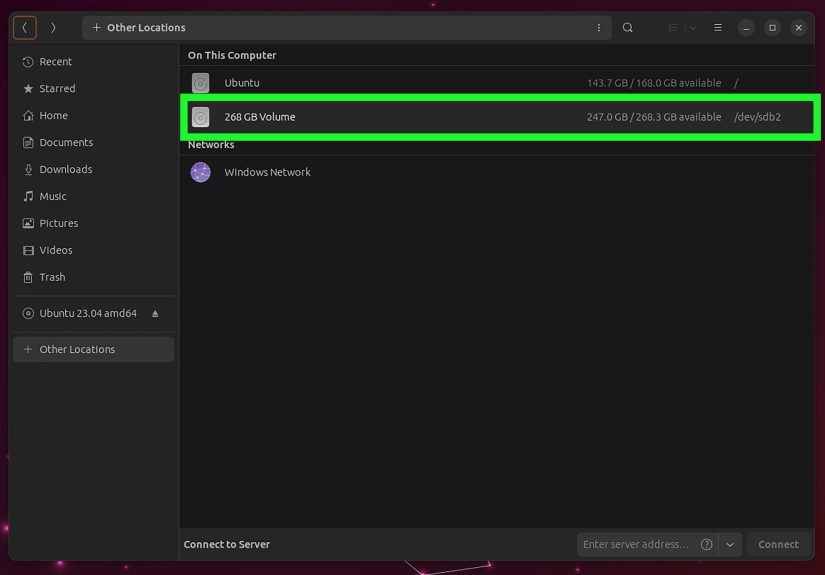
Start with the simplest method, because sometimes technology rewards optimism. Open Files in Ubuntu. In many cases, your Windows partition appears automatically in the left sidebar under something obvious like a drive name, volume label, or disk size. It might say “OS,” “Windows,” “Local Disk,” or something much less helpful like “500 GB Volume,” because computers love mystery novels.
Click the Windows volume once. If everything is normal, Ubuntu mounts the partition and opens it like any other folder. From there, you can browse directories such as:
- Users for your desktop, downloads, documents, and pictures
- Windows for system files you probably should admire from a distance
- Program Files if you need to inspect installed software folders
For personal files, the usual path is:
That is where the good stuff usually lives: Documents, Downloads, Desktop, Pictures, Videos, and other folders where real humans store real things, including the one PDF they desperately need five minutes before a deadline.
Step 2: Identify the Correct Partition if Nothing Looks Familiar
If the sidebar does not show a clear Windows volume, do not panic and definitely do not start clicking random partitions like a game show contestant. First, identify which partition belongs to Windows.
You can do this graphically with the Disks utility in Ubuntu, or from the terminal with:
This command lists drives, partitions, and file-system types. Look for a partition with an NTFS file system. On many machines, it will have a name like /dev/sda3 or /dev/nvme0n1p3. The file-system column often gives away the answer. If it says ntfs, you are probably getting warmer.
How do you confirm it is the Windows partition and not some random external drive or recovery slice? Check the size. Your main Windows partition is usually much larger than the tiny recovery or EFI partitions. If one NTFS partition is 400 GB and another is 600 MB, the 400 GB one is probably where your files live. The 600 MB one is not hiding your vacation photos. It is just being small and important.
Step 3: Mount the Windows Partition Manually
If clicking the drive in Files does nothing, the manual route usually solves the problem. First create a mount point, which is simply a folder Ubuntu uses as the access location for another file system.
Then mount the partition:
Replace /dev/sda3 with your actual Windows partition. Once mounted, open the folder:
If you see directories like Users, Windows, and Program Files, congratulations. You found the treasure chest, and no map was even required.
At that point, you can browse through the terminal or open the mount point in the file manager. A practical example looks like this:
This is especially helpful when the graphical file manager is being moody, or when you want a repeatable method that feels more professional than “I clicked things until hope returned.”
Step 4: Check Permissions and Use Caution Before Writing Files
Reading Windows files from Ubuntu is usually straightforward. Writing to them is also often possible, but that is where common sense should enter the chat. If you only need to copy a file from Windows into Ubuntu, great. If you plan to move, rename, or overwrite lots of files, slow down for a second.
Why? Because the safest workflow is usually to copy first, edit second, and verify third. If you are working on important school projects, work documents, game saves, or anything that would ruin your week if corrupted, make a copy into your Ubuntu home folder before changing it. That gives you a clean backup path and reduces the chance of learning a lesson through suffering.
If you hit a permissions issue, it may be because the drive mounted with settings that limit access. In many desktop setups, Ubuntu handles this automatically. In trickier cases, especially with manual mounts, you may need to revisit mount options or mount through the GUI so your current user owns the session. For casual users, the easiest strategy is still this: mount the drive, copy the needed files, work locally, and then copy back only when you are confident.
Step 5: Fix the “Windows Is Hibernated” or Fast Startup Problem
This is the classic dual-boot plot twist. You try to open the Windows partition in Ubuntu and get an error saying the NTFS partition is hibernated, unsafe, or not cleanly unmounted. Translation: Windows did not fully shut down.
The usual culprit is Fast Startup. In modern Windows, Fast Startup works somewhat like a partial hibernation process. It speeds up booting, but it also means the Windows system partition may not be left in the kind of clean shutdown state Ubuntu expects for safe mounting. Ubuntu then refuses to mount it normally, which is actually the responsible thing to do, even if it feels rude in the moment.
The proper fix is to boot back into Windows and do two things:
- Turn off Fast Startup in Power Options.
- Perform a full shutdown, not just a sleepy pseudo-shutdown.
After that, boot into Ubuntu again and try mounting the partition once more. In many cases, the problem disappears instantly. This single setting causes a surprising number of “Ubuntu cannot access my Windows files” complaints, which is why experienced dual-boot users tend to treat Fast Startup the way people treat glitter: attractive in theory, inconvenient everywhere else.
Step 6: Watch for BitLocker Encryption
If your Windows drive is protected by BitLocker, the rules change. Ubuntu may detect the partition, but the files are not simply waiting in plain view. BitLocker is designed to protect data at rest, so a locked encrypted volume is not something Ubuntu can casually browse as though it were a public photo album.
How do you know BitLocker might be the problem? A few clues:
- The partition appears, but it does not mount like a normal NTFS volume
- Windows shows the drive as encrypted
- You previously enabled device encryption or BitLocker in Windows
In that situation, your cleanest path is usually to return to Windows, confirm the encryption status, and unlock or manage the drive there first. The important point is simple: if the partition is encrypted, Ubuntu is not being difficult. It is encountering a locked vault and behaving accordingly.
So if the drive refuses to act like ordinary NTFS and you know encryption is enabled, do not waste an hour blaming Ubuntu. The problem is not “Linux cannot see my files.” The problem is “my files are encrypted,” which is a very different and much more grown-up sentence.
Step 7: Make Access Easier Next Time
Once you successfully access your Windows files in Ubuntu, take thirty extra seconds to make future-you happier. You have a few good options.
Option A: Bookmark the mounted folder
Open the mounted Windows folder in Files and bookmark it. That makes it easier to jump back in next time without playing detective again.
Option B: Give the drive a consistent mount point
Keep using something simple like /mnt/windows. A predictable location is helpful if you use scripts, terminal commands, or just enjoy not reinventing your workflow every Tuesday.
Option C: Configure automatic mounting
Advanced users can set up automatic mounting with an /etc/fstab entry using the partition UUID instead of the device name. That can be convenient, but only do it after you are certain the partition mounts correctly and cleanly. The idea is convenience, not a boot-time mystery.
If you are new to Linux, there is no shame in sticking with the manual or click-to-mount method. Plenty of smart people prefer a system they understand over one that is technically elegant but emotionally hostile.
Common Troubleshooting Tips
The drive shows up but will not open
Check whether Windows Fast Startup or hibernation is still enabled. That is the first suspect and the most common one.
The partition does not show up in Files
Use lsblk -f or the Disks utility to confirm the partition exists and identify its device name.
The terminal says the file system is busy or cannot be mounted
Double-check that you chose the correct partition and that it is not already mounted somewhere else.
You can read files but should not edit them directly
Copy them into Ubuntu first, especially when working with important files or large projects.
The drive is encrypted
Handle the encryption status in Windows before expecting ordinary access in Ubuntu.
Final Thoughts
Accessing your Windows files in Ubuntu is usually much easier than people expect. In the best-case scenario, you click one volume in the file manager and carry on with your day. In the second-best scenario, you use lsblk, mount the partition manually, and feel like a wizard for approximately fifteen minutes. In the worst common scenario, Fast Startup or BitLocker slows you down, but at least now you know what is happening and why.
The real trick is understanding that the files are rarely “gone.” They are usually on an NTFS partition Ubuntu can read, provided Windows left that partition in a clean, accessible state. Once you understand the relationship between NTFS, mounting, Fast Startup, and encryption, the whole process becomes much less mysterious.
So the next time Ubuntu boots and your Windows files seem hidden, remember this guide. Start simple, identify the right partition, mount it carefully, and do not let one cranky shutdown setting make you doubt your intelligence. The files are probably fine. The computer is just being a computer.
Experiences Related to Accessing Windows Files in Ubuntu
For many people, the first experience of trying to access Windows files in Ubuntu is a mix of curiosity and mild panic. They install Ubuntu alongside Windows, open the desktop, and immediately wonder where everything went. The wallpaper is different, the app menu is different, and their familiar Documents folder seems to have retired early. Then they open Files, click a volume in the sidebar, and suddenly there it is: the entire Windows user folder sitting quietly in place. That moment feels a little like discovering your house has a second front door you never noticed before.
Another common experience is confusion caused by names. In Windows, people think in terms of “C drive” and “D drive.” In Ubuntu, they run into names like /dev/sda3 and wonder whether the computer has started speaking in license plates. Once they learn that partitions can be identified by file-system type and size, things get much easier. The mystery fades, and what felt intimidating starts to look logical. Not exactly romantic, but logical.
A lot of users also run into the Fast Startup problem at least once. Everything seems perfect until Ubuntu refuses to mount the Windows partition and throws up a message about hibernation or unsafe shutdown. The first reaction is usually, “What do you mean hibernated? I literally shut it down.” Then comes the discovery that Windows can perform a hybrid shutdown that is not quite the dramatic final curtain people assume it is. Once Fast Startup is disabled, many users feel equal parts relieved and betrayed.
There is also the practical side of the experience. Students often boot into Ubuntu to code, then need a file buried in a Windows Downloads folder. Photographers jump into Ubuntu for performance or software reasons and still need access to older images stored under their Windows profile. Office users want one spreadsheet, one PDF, one presentation, and suddenly find themselves learning about mount points before breakfast. It is rarely glamorous, but it is very real.
Over time, most users get more comfortable. They learn where their files live, how to check partitions, and when to copy data instead of editing it in place. That confidence matters. What starts as “How do I get my files back?” often turns into “I know exactly where everything is.” And that is the real win. Not just file access, but the feeling that Ubuntu stopped being a strange guest and started becoming a system you actually understand.