Table of Contents >> Show >> Hide
- Why Accent Marks Matter in Microsoft Word
- The Fastest Way to Add Accents in Word on Windows
- How to Insert Accented Characters with the Symbol Menu
- Using Alt Codes and Unicode in Word
- How to Add Accents in Word on a Mac
- How to Type Accents in Word on Mobile
- Should You Use an International Keyboard Layout?
- Best Method for Different Types of Users
- Troubleshooting: Why Accents May Not Work in Word
- Practical Examples of Adding Accents in Word
- How to Work Faster with Accents in Word
- Final Thoughts on How to Add Accents in Word
- Real-World Experiences with Adding Accents in Word
- SEO Tags
If you have ever typed resume when you meant résumé, or turned cafe into a sad little accent-free tragedy instead of café, welcome. You are among friends. Microsoft Word gives you several easy ways to add accents, special characters, and diacritical marks, but the best method depends on your device, your keyboard, and how often you need those characters.
This guide breaks down exactly how to add accents in Word on Windows, Mac, and mobile. You will learn the fastest keyboard shortcuts, how to use the Symbol menu, when Alt codes and Unicode can save the day, and what to do if Word seems determined to act like accents are optional. Spoiler: they are not. In names, foreign words, academic writing, and professional documents, accent marks matter for accuracy, readability, and credibility.
Why Accent Marks Matter in Microsoft Word
Accent marks are not decorative confetti. They change pronunciation, meaning, and sometimes the entire tone of a word. In English writing, you may see accents in borrowed terms like fiancé, façade, naïve, jalapeño, and São Paulo. In academic, multilingual, and business writing, using the correct accented characters shows attention to detail and respect for names and languages.
Word makes this easier than many people realize. You do not need to copy and paste every accented letter from a search result like it is 2009. You can type them directly, insert them from built-in menus, or set up your keyboard so accents become second nature.
The Fastest Way to Add Accents in Word on Windows
If you use Microsoft Word on Windows and only need accented letters now and then, keyboard shortcuts are usually the fastest method. These shortcuts work by pressing a punctuation-style key combination first, then typing the letter you want to accent.
Common Word Accent Shortcuts for Windows
| Accent Type | Shortcut Pattern | Example |
|---|---|---|
| Grave | Ctrl + `, then letter | Ctrl + `, then e = è |
| Acute | Ctrl + ‘, then letter | Ctrl + ‘, then e = é |
| Circumflex | Ctrl + Shift + ^, then letter | Ctrl + Shift + ^, then o = ô |
| Tilde | Ctrl + Shift + ~, then letter | Ctrl + Shift + ~, then n = ñ |
| Umlaut / Dieresis | Ctrl + Shift + :, then letter | Ctrl + Shift + :, then u = ü |
| Cedilla | Ctrl + ,, then c | Ctrl + ,, then c = ç |
To create a capital letter with an accent, use the same shortcut and then type the uppercase letter. For example, after the acute-accent shortcut, type a capital E to get É.
This method is perfect for writers who need a few accented words here and there. It is quick, built into Word, and does not require you to change your entire keyboard layout. In other words, it is the “I just need to finish this paragraph without opening three extra tabs” option.
How to Insert Accented Characters with the Symbol Menu
If keyboard shortcuts feel like a secret handshake you keep forgetting, use Word’s Symbol feature. It is slower than shortcuts, but it is easy, visual, and great for rare characters.
Steps to Insert Accents in Word Using Symbols
- Place your cursor where you want the accented letter.
- Click Insert on the Ribbon.
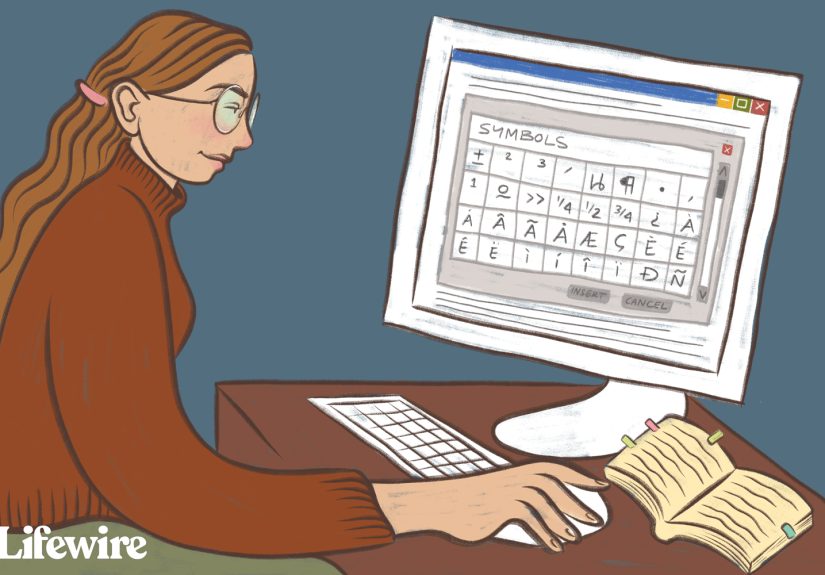
- Select Symbol, then choose More Symbols.
- Browse the character list or choose the right font and subset.
- Click the accented character you want.
- Click Insert or double-click the symbol.
This method works especially well when you need letters you do not use often, such as œ, ø, or a less common accented vowel. It also helps when your laptop lacks a numeric keypad, making traditional Alt codes more annoying than helpful.
Another perk: Word often remembers recently used symbols, so the next time you need é or ñ, it may already be waiting for you near the top of the Symbol menu like a tiny digital assistant who actually understands your needs.
Using Alt Codes and Unicode in Word
If you like precise methods or work with specialized characters, Word also supports Alt codes and Unicode-based entry. These are especially useful for people who type in multiple languages, handle linguistic material, or need characters beyond the usual French-and-Spanish greatest hits.
Alt Codes in Word
On Windows, you can hold the Alt key and type a numeric code on the numeric keypad to create a character. For example, many users rely on patterns like these:
- Alt + 0225 = á
- Alt + 0233 = é
- Alt + 0241 = ñ
- Alt + 0252 = ü
The catch is simple: this works best with a dedicated numeric keypad. If you are on a compact laptop keyboard, Alt codes may be inconvenient or unavailable. That is why many Word users switch to the Symbol menu or Word shortcuts instead.
Unicode with Alt + X
Word also lets you type certain Unicode values and then press Alt + X to convert them into characters. This is incredibly handy for less common letters and scholarly writing. If you know the Unicode value of a character, Word can often turn it into the finished symbol without much drama.
This method is more advanced, but it is powerful. It is the kind of trick that makes you look suspiciously competent in front of coworkers.
How to Add Accents in Word on a Mac
Mac users have a very friendly option: the press-and-hold accent menu. In many cases, you can simply hold down a letter key, and a small menu appears with accented versions of that letter.
The Easiest Mac Method
- Open your Word document.
- Press and hold a letter like e.
- Wait for the accent menu to appear.
- Select the version you want, such as é, è, or ê.
This is ideal for occasional use because it is intuitive and requires almost no memorization. If you type accents frequently, Mac also supports Option-key combinations, which many experienced users prefer because they are faster once learned.
Popular Mac Accent Shortcuts
- Option + e, then letter = acute accent, as in é
- Option + `, then letter = grave accent, as in è
- Option + i, then letter = circumflex, as in ê
- Option + n, then letter = tilde, as in ñ
- Option + u, then letter = umlaut, as in ü
- Option + c = ç
If you forget these combinations, the Keyboard Viewer on Mac can help you see what appears when you press modifier keys like Option and Shift. It is essentially a cheat sheet built into the system, which is lovely because your memory has better things to do.
How to Type Accents in Word on Mobile
If you use Word on a phone or tablet, the easiest method is usually the on-screen keyboard. Tap and hold the base letter, and your device will display available accented versions.
For example, press and hold e and you may see options such as é, è, ê, and ë. Slide your finger to the one you want, release, and keep typing. This is simple, fast, and probably the least stressful way to add accents in Word.
If you mostly write on mobile, this method is enough for everyday use. No code tables. No keyboard setup. No emotional support group required.
Should You Use an International Keyboard Layout?
If you type in another language regularly, setting up an international keyboard layout can make life much easier. On Windows, the United States-International keyboard is a popular choice. It lets you create accents by typing a punctuation key followed by the letter, such as an apostrophe plus e for é.
This approach is excellent for bilingual users, students, translators, editors, and anyone who writes names or terms with accents every day. It feels more natural over time because accented characters become part of your usual typing flow instead of special events.
That said, some users find international keyboards slightly disruptive at first. Punctuation keys may behave differently, and you may accidentally create accents when you only wanted a quote mark. It is not hard to learn, but it does require a short adjustment period.
Best Method for Different Types of Users
For Casual Users
Use Word keyboard shortcuts on Windows or the press-and-hold accent menu on Mac and mobile. These methods are quick and require very little setup.
For Students and Academic Writers
Use the Symbol menu for rare characters and Word shortcuts for common accents. This combination works well when writing essays, language assignments, and research papers.
For Frequent Multilingual Typing
Set up an international keyboard or language-specific input source. It takes a little effort upfront, but it saves time over the long run.
For Power Users
Learn shortcuts, Unicode entry, and a few backup Symbol menu tricks. This gives you speed, flexibility, and the quiet satisfaction of knowing exactly what you are doing.
Troubleshooting: Why Accents May Not Work in Word
If Word refuses to cooperate, the issue is usually one of a few predictable problems.
- Your shortcut sequence is off, and you are pressing everything at once instead of pressing the accent shortcut first, then the letter.
- You are using Alt codes without a numeric keypad.
- Your keyboard layout changed, so the punctuation keys are not where you expect.
- Your laptop function settings are interfering with input.
- You are trying a system-wide shortcut inside an app that has its own input behavior.
If shortcuts fail, do not wrestle with them for twenty minutes out of principle. Open the Symbol menu, insert the character, and move on with your day. Technology should support your writing, not become a side quest.
Practical Examples of Adding Accents in Word
Here are a few everyday examples where adding accents in Word makes your text more accurate and polished:
- résumé instead of resume
- café instead of cafe
- naïve instead of naive
- fiancée instead of fiancee when appropriate
- jalapeño instead of jalapeno
- façade instead of facade
- Señor García instead of Senor Garcia
These details matter in resumes, cover letters, academic papers, travel writing, recipes, marketing copy, and professional correspondence. Small marks, big difference.
How to Work Faster with Accents in Word
If this is something you do often, efficiency matters. Start by choosing one main method and sticking with it. Constantly switching between shortcuts, copy-paste, and symbols is like trying to cook dinner with three different recipes open at the same time. It can be done, but it is not elegant.
A smart workflow looks like this:
- Use keyboard shortcuts for common accents.
- Use the Symbol menu for rare characters.
- Switch to an international keyboard if you type in another language every day.
- Keep Word’s recently used symbols handy for repeat characters.
You can also build a personal cheat sheet for the accents you use most. After a week or two, many shortcuts become muscle memory, and suddenly typing José or Crème brûlée feels wonderfully ordinary.
Final Thoughts on How to Add Accents in Word
Learning how to add accents in Word is one of those small digital skills that pays off immediately. It makes your writing more accurate, more professional, and more respectful of the words and names you use. Whether you rely on Word keyboard shortcuts, the Insert Symbol tool, Alt codes, Unicode, or a full international keyboard layout, there is a method that fits your workflow.
If you only need accents occasionally, keep it simple and use built-in shortcuts or the Symbol menu. If you write in multiple languages often, invest a little time in a better keyboard setup. Either way, once you stop hunting online for “copy this é please,” your future self will be grateful.
Real-World Experiences with Adding Accents in Word
One of the most common experiences people have with accents in Word starts with good intentions and ends with an embarrassing typo. Someone is updating a résumé, writing a college paper, or sending a polished email and suddenly realizes that the plain keyboard does not naturally offer é, ñ, or ç. The first instinct is usually copy and paste. That works for a while, but it gets old fast. After the third time you search for é, it begins to feel less like productivity and more like a scavenger hunt.
Students often notice this first in language classes. A professor may be perfectly kind about grammar mistakes, but the missing accents still stand out. Once students learn the basic Word shortcuts, their writing speed usually improves almost overnight. Instead of interrupting their thoughts to search for a symbol, they stay in the sentence. That matters more than people expect. Writing flows better when your tools stop getting in the way.
Professional users run into the same thing with names. Maybe you are typing José, Anaïs, Beyoncé, or François in a report, proposal, or event program. Leaving off the accent may seem minor, but names deserve accuracy. Many people describe the moment they finally learned Word shortcuts as oddly satisfying because it solved a tiny recurring problem that had been quietly annoying them for years.
Mac users usually report a gentler learning curve because the press-and-hold menu is so approachable. Windows users, on the other hand, often fall into two camps: shortcut loyalists and Symbol menu realists. Shortcut loyalists love the speed. Symbol menu realists love not having to remember whether the umlaut shortcut is a colon or a semicolon. Both camps are valid. The best method is the one you will actually use.
Another frequent experience involves the international keyboard. At first, it feels brilliant. Then you type a quotation mark and accidentally create a dead key situation that makes you question your life choices. After a few days, though, most regular multilingual users adjust and become much faster. It is a classic case of “annoying on Tuesday, indispensable by Friday.”
In the end, people usually discover the same truth: adding accents in Word is not hard once you stop treating it like obscure computer magic. A few shortcuts, one backup method, and a little practice are enough. After that, accented words stop being obstacles and start being just another normal part of polished writing.