Table of Contents >> Show >> Hide
- What Is an iPhone Serial Number, Exactly?
- Method 1: Find Your iPhone Serial Number in Settings
- Method 2: Use Your Apple Account or a Computer
- Method 3: Check the Original Box, Receipt, or the Device Itself
- Common Mistakes People Make
- What If Your iPhone Is Lost, Broken, or Won’t Turn On?
- When You Will Most Likely Need the Serial Number
- Quick FAQ
- Real-World Experiences: Why These 3 Methods Matter
- Conclusion
- SEO Tags
If you have ever been asked for your iPhone serial number at the exact worst moment, welcome to the club. It usually happens when you are setting up a repair, checking warranty status, filing an insurance claim, preparing a trade-in, or trying to prove that the mysterious slab of glass in your hand is, in fact, your iPhone. Suddenly, your brain forgets everything except how to blink.
The good news is that finding your iPhone serial number is not difficult. In most cases, it takes less than a minute. Even better, there are several ways to track it down, whether your phone is in your hand, connected to a computer, or hiding somewhere in the house while you stare at the empty box and question your life choices.
In this guide, you will learn three quick and easy methods to find an iPhone serial number, plus a few extra tips to avoid common mix-ups with your IMEI, model number, or other device identifiers. Let’s make this painless.
What Is an iPhone Serial Number, Exactly?
An iPhone serial number is a unique identifier assigned to your specific device. Think of it as your phone’s individual fingerprint. While thousands or even millions of iPhones may share the same model name, storage size, and color, the serial number is what separates your exact device from all the others.
This number matters more than many people realize. You may need it to:
- Check Apple warranty or AppleCare coverage
- Verify your device during support or repair
- Complete a trade-in or resale listing
- File an insurance claim
- Confirm device ownership records
- Match your phone to its box or purchase documents
One important detail: your serial number is not the same as your IMEI. People mix these up all the time, mostly because Apple keeps several identifying numbers in the same general neighborhood inside Settings. They are related, but not interchangeable. So before you send the wrong number to support and accidentally create a mini crisis, it helps to know which one you actually need.
Method 1: Find Your iPhone Serial Number in Settings
This is the fastest and easiest option when your iPhone is working and unlocked. If your phone is in your hand right now, this is probably your winner.
Steps
- Open the Settings app.
- Tap General.
- Tap About.
- Scroll until you see Serial Number.
That’s it. No treasure map. No secret handshake. Just a few taps.
On the same screen, you may also see other identifiers such as your model name, model number, IMEI, EID, and ICCID. This is useful, but it is also where people get distracted and copy the wrong line. Stay focused. The one you want is labeled Serial Number.
If you need to paste the serial number into a repair form, warranty page, or email, you can usually press and hold the number to copy it. That saves you from typing a string of letters and numbers by hand and wondering whether you entered an O instead of a zero. A classic tech tragedy.
Why this method is best
If your phone turns on and you can unlock it, using Settings is the most direct route. It is quick, accurate, and available without needing another device, the original box, or a computer cable from 2014 that may or may not still exist in your desk drawer.
Method 2: Use Your Apple Account or a Computer
What if your iPhone is not turning on, has been misplaced, or is currently refusing to cooperate like a tiny overdramatic actor? That is where your Apple Account or computer comes in handy.
This method is especially useful when you do not have physical access to the iPhone but still need the serial number.
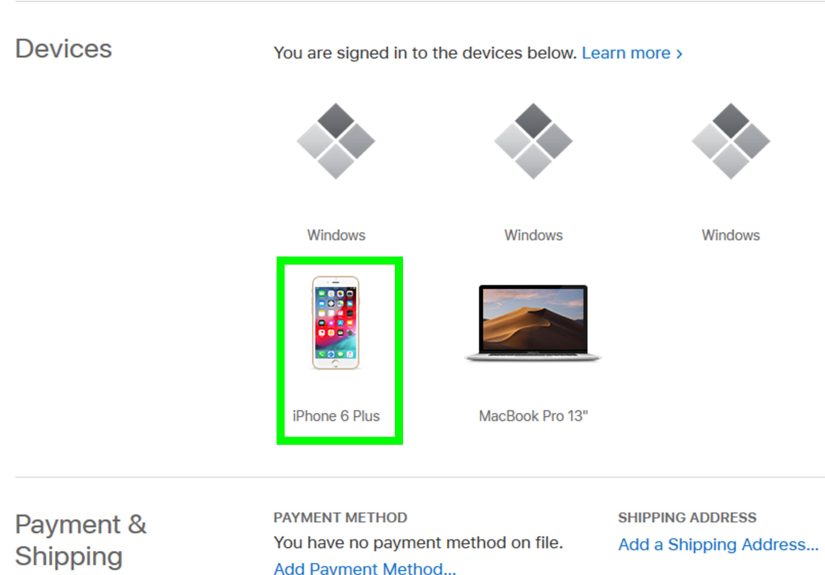
Option A: Find it through your Apple Account
If the iPhone is signed in to your Apple Account, you can often find its serial number from another device or in a web browser.
- Sign in to your Apple Account in a browser.
- Go to the Devices section.
- Select the iPhone you want.
- View the device details, including the serial number.
You can also do this from another Apple device signed in to the same account. On an iPhone or iPad, tap your name in Settings, scroll down to your device list, and tap the iPhone you need. The serial number should appear in the device details.
Option B: Find it on a Mac or Windows PC
If your iPhone has been connected to a computer before, or if you can connect it now, you may be able to view the serial number there too.
- On a Mac with macOS Catalina or later, open Finder.
- On a Windows PC, open the Apple Devices app or iTunes.
- Select your iPhone.
- Look under the device summary or general information section for the serial number.
This method can be a lifesaver if the iPhone screen is cracked, the battery is dead, or the device is not easy to navigate. It is also one of the best fallback solutions when you are helping a family member who says something like, “My phone is broken, but I need that number right now,” which is usually followed by panic and a half-eaten granola bar.
Why this method is useful
Using your Apple Account or a computer is ideal when the phone is unavailable, damaged, or out of reach. It also keeps you from digging through old packaging before coffee.
Method 3: Check the Original Box, Receipt, or the Device Itself
If you still have your iPhone’s original packaging, congratulations: you are the kind of organized person the rest of us secretly admire. Apple commonly places the serial number on the barcode label on the original box. In some cases, it may also appear on the original purchase receipt or invoice.
Where to look
- Original iPhone box: check the barcode sticker
- Receipt or invoice: some sellers include the serial number
- Older iPhone models: the serial number may appear on the device itself, such as on the SIM tray or back housing
This is an excellent option if the phone will not power on or has already been reset, packed away, traded, or handed off for repair. Many people forget that the box can be just as useful as the phone when it comes to serial number lookup.
That said, physical markings on the iPhone itself are mostly relevant to older models. On modern iPhones, software-based lookup is typically easier and more reliable. If you do check the device body or SIM tray on an older model, prepare for tiny text. You may need good lighting, reading glasses, or the courage of a thousand support agents.
Why this method still matters
Packaging and receipts are often the best backup when the phone is unavailable. They are also helpful for resale, trade-in paperwork, and verifying that the box matches the device in your hand.
Common Mistakes People Make
Finding an iPhone serial number is easy, but a few common mistakes keep tripping people up.
1. Confusing the serial number with the IMEI
The IMEI is another important identifier, but it is not the same thing. If a trade-in site or Apple support asks for the serial number, send the serial number, not the IMEI.
2. Assuming every iPhone shows the serial number on the outside
Some older iPhones have identifying information on the hardware, but many newer ones do not display the serial number in an obvious place. That is why Settings, your Apple Account, and the original box are safer bets.
3. Using the wrong Apple device in your account list
If you own more than one iPhone, iPad, or Mac, make sure you tap the correct device in your Apple Account. Otherwise, you may end up copying the serial number for your old phone and wondering why nothing matches.
4. Sharing the number too freely
While a serial number is not the same as a password, it is still best treated like private device information. Share it only when needed for trusted support, warranty, insurance, or resale purposes.
What If Your iPhone Is Lost, Broken, or Won’t Turn On?
This is where people often assume they are out of options. Luckily, you still have several.
If your iPhone is lost, broken, or dead, try these in order:
- Check your Apple Account device list.
- Use another Apple device signed in to the same account.
- Look for the original box, receipt, or invoice.
- Use a previously paired Mac or PC.
In other words, a non-working phone does not automatically mean a dead end. It just means your search moves from the phone screen to your account, computer, or paperwork.
When You Will Most Likely Need the Serial Number
Most people do not search for their iPhone serial number for fun. This usually happens when something else is going on. Common situations include:
- Checking warranty coverage before a repair
- Setting up AppleCare or confirming eligibility
- Preparing a carrier trade-in
- Selling your phone online
- Matching the phone to a receipt or box
- Speaking with Apple Support
If you are the proactive type, it is smart to save the serial number somewhere secure before you urgently need it. A password manager, encrypted note, or secure digital file works well. Future You will be thrilled.
Quick FAQ
Can I find my iPhone serial number by dialing a code?
Not usually for the serial number itself. Dialer shortcuts like *#06# are typically used to display IMEI information, not the serial number. For the serial number, use Settings, your Apple Account, a computer, or the original box.
Is the serial number the same as the model number?
No. The model number identifies the type of iPhone. The serial number identifies your exact unit.
Can I use the serial number to check warranty coverage?
Yes. Apple offers a coverage-check tool where the serial number can be used to review eligibility for support and warranty-related information.
Can I find the serial number if the screen is broken?
Yes. If the phone is still recognized by your Apple Account or a computer, or if you have the original box or receipt, you can still get the serial number without using the screen.
Real-World Experiences: Why These 3 Methods Matter
In real life, people usually do not search for “how to find an iPhone serial number” because they are relaxing on a peaceful Sunday with tea and a perfect Wi-Fi signal. They search because something has gone sideways. Maybe the screen cracked after a dramatic meeting with the sidewalk. Maybe a trade-in deadline is looming. Maybe Apple Support asked for the number and suddenly every menu on the phone looks unfamiliar, even though you have used that device 4,000 times.
One of the most common experiences is the repair rush. A person heads to a repair appointment, gets asked for the serial number, and realizes they never wrote it down. In that moment, Method 1 is the hero. Settings, General, About, done. It is fast, clean, and requires almost no technical knowledge. For working phones, this method feels like discovering the answer was in your pocket all along, because it literally was.
Then there is the “my iPhone won’t turn on” experience, which is where panic tries to steal the show. This is when Method 2 becomes incredibly valuable. People are often surprised that they can still find device details through their Apple Account or a computer. That surprise usually turns into relief. It also teaches an important lesson: your device information is not trapped inside the phone itself. Apple’s device ecosystem can provide a backup path, which is a beautiful thing when your iPhone decides to take an unscheduled nap.
Another real-world scenario involves selling or trading in an iPhone. Buyers and trade-in programs may ask for the serial number to verify the device. This is also when people discover whether they kept the original box like a thoughtful adult or tossed it during a spring-cleaning frenzy. If you still have the box, Method 3 feels almost magical. You do not even need to power on the phone. You just read the barcode label and move on with your day like the organized legend you are.
There is also a quieter experience many people have: helping someone else. Maybe it is a parent, spouse, or friend who says, “Can you find something on my iPhone?” Those situations are rarely simple. Maybe the phone is old. Maybe the battery is dead. Maybe they have three Apple devices with very similar names. In those moments, knowing all three methods saves time and cuts down on confusion. It turns a vague tech emergency into a checklist.
The biggest takeaway from real-life use is simple: no single method works best for every situation. That is why these three methods matter together. Settings is best when the phone works. Apple Account or computer access is best when the phone is unavailable. The box or receipt is best when everything else fails. Once you understand that trio, finding your iPhone serial number stops feeling like a scavenger hunt and starts feeling like basic digital housekeeping.
Conclusion
If you need to find an iPhone serial number, the easiest method is usually Settings > General > About. If the phone is not available, your Apple Account, another Apple device, or a Mac or Windows PC can often help. And if you still have the original box or receipt, that can save the day too.
The real trick is not just knowing one method. It is knowing the right method for the situation you are in. Once you do, this task becomes quick, easy, and far less dramatic than it first appears.
So yes, the serial number may be a small string of letters and numbers. But when you need it, it suddenly becomes the star of the show. Thankfully, now you know exactly where to find it.