Table of Contents >> Show >> Hide
- What Does Double-Sided Printing in Word Actually Mean?
- Automatic vs. Manual Double-Sided Printing
- How to Print Double Sided in Word Automatically on Windows
- How to Print Double Sided in Word Manually on Windows
- How to Print Double Sided in Word on Mac
- Why the Double-Sided Option Is Missing in Word
- How to Fix Common Duplex Printing Problems
- Best Use Cases for Double-Sided Printing in Word
- Smart Tips Before You Print the Whole Document
- Experience-Based Advice: What Actually Helps in Real Life
- Conclusion
- SEO Tags
Printing double sided in Word sounds like one of those tasks that should take five seconds, require zero brain cells, and never inspire dramatic sighing. And yet, here we are. One printer says it can do duplex printing, another swears it cannot, and Word sits in the middle like a calm office manager pretending everything is fine.
The good news is that printing on both sides of the page in Microsoft Word is usually simple once you know which path you are taking. There are really only two roads here: automatic double-sided printing, where your printer handles the flipping for you, and manual double-sided printing, where you become part of the machinery and feed the paper back in yourself. Glamorous? Not exactly. Effective? Yes.
In this guide, you will learn how to print double sided in Word on Windows and Mac, how to choose between flip on long edge and flip on short edge, what to do when the duplex option is missing, and how to avoid the classic disaster of printing page two upside down. We will also cover practical examples, troubleshooting tips, and real-world printing experiences so your document comes out looking intentional instead of haunted.
What Does Double-Sided Printing in Word Actually Mean?
Double-sided printing, also called duplex printing or two-sided printing, means your printer places content on both the front and back of each sheet of paper. It is a simple trick with big benefits: you use less paper, documents look neater, and thick reports stop resembling a small brick.
For students, duplex printing is perfect for essays, reading packets, and handouts. For office users, it makes proposals, contracts, manuals, and meeting materials easier to carry. For home users, it is great for recipes, travel itineraries, budgets, and anything else you would rather not print on 47 separate sheets like it is 1998.
Word supports both automatic and manual methods, but the exact options you see depend on your printer model, printer driver, paper type, and whether your system recognizes that the printer has duplex capability.
Automatic vs. Manual Double-Sided Printing
Automatic double-sided printing
This is the easy mode. If your printer has a built-in duplex unit, Word or your printer settings will usually show an option such as Print on Both Sides, Two-Sided, or Duplex Printing. You choose the binding style, hit print, and the printer flips the paper internally. You get to feel efficient without lifting more than one finger.
Manual double-sided printing
This is the DIY version. Your printer prints one side first. Then you take the stack, flip or rotate it the correct way, place it back in the tray, and print the second side. It works well, but only if you test the paper direction first. Otherwise, you may create a document that reads like a puzzle created by an overconfident stapler.
How to Print Double Sided in Word Automatically on Windows
If your printer supports automatic duplex printing, Word on Windows usually makes the process pretty straightforward.
Step-by-step instructions
- Open your Word document.
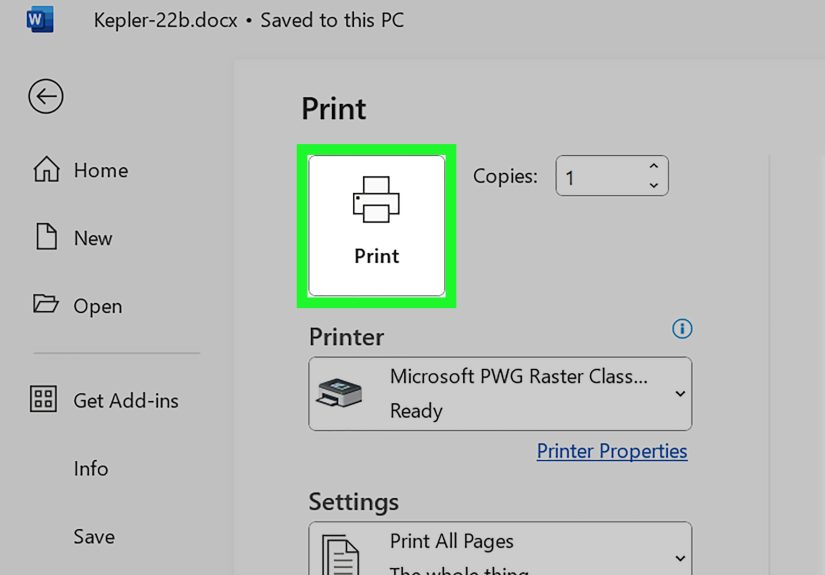
- Click File, then Print.
- Select the correct printer.
- Under Settings, click the menu that may say Print One Sided.
- Choose Print on Both Sides if available.
- Select your preferred flip option, usually Flip pages on long edge or Flip pages on short edge.
- Review the preview pane, then click Print.
If you see automatic two-sided printing in Word, congratulations: your printer and driver are cooperating like mature adults. That is not always the case, so enjoy the moment.
When to use long edge vs. short edge
Flip on long edge is the standard choice for most portrait documents, such as reports, letters, school papers, and resumes. Think of it like turning pages in a normal book.
Flip on short edge is better for documents that are meant to flip upward, like notepads or some landscape presentations. If you choose the wrong one, the back side may print upside down. Your printer did exactly what you asked. It just chose chaos because the setting told it to.
How to Print Double Sided in Word Manually on Windows
If your printer does not support auto duplex, Word still gives you a manual workaround.
Method 1: Use “Manually Print on Both Sides”
- Open the document in Word.
- Go to File > Print.
- Under Settings, click the menu that says Print One Sided.
- Select Manually Print on Both Sides.
- Print the first side.
- When prompted, reinsert the printed pages according to your printer’s paper path.
- Continue printing the reverse side.
This is the easiest manual option because Word guides the process. It is still smart to test with a two-page document first, because different printers feed paper in different directions.
Method 2: Print odd pages, then even pages
This method is especially useful when Word’s manual prompt is not behaving the way you want.
- Go to File > Print.
- Under Settings, choose Only Print Odd Pages.
- Print the document.
- Take the printed stack and reinsert it correctly.
- Return to File > Print.
- Choose Only Print Even Pages.
- Print again.
If the page order comes out wrong, Word also includes advanced print options that let you control whether pages print on the front or back of the sheet for manual duplex jobs. This matters more than people expect, especially with printers that stack pages in reverse order.
How to Print Double Sided in Word on Mac
Word for Mac handles duplex printing a little differently, but the overall idea is the same.
Automatic duplex printing on Mac
- Open your Word document.
- Click File > Print.
- In the print dialog, choose the correct printer.
- Open the settings menu and choose Layout if needed.
- Find the Two-Sided option.
- Select Long-Edge binding or Short-Edge binding.
- Click Print.
On some versions of macOS, the wording may differ slightly. You might see printer-specific menus rather than a neat, universal duplex button. Mac likes to keep you humble that way.
Manual duplex printing on Mac
- Click File > Print.
- From the menu in the print dialog, choose Microsoft Word.
- Select Odd pages only.
- Print the odd pages.
- Reinsert the stack in the correct orientation.
- Repeat the process and choose Even pages only.
Mac users should pay close attention to how pages are reloaded, because some printers require the stack to be rotated or reordered before printing the second side. A two-page test file can save you from a twenty-page regret spiral.
Why the Double-Sided Option Is Missing in Word
If you open Word, click Print, and the glorious double-sided option is nowhere to be found, there are a few likely reasons.
Your printer does not support automatic duplexing
Some printers can print double sided only manually. In that case, Word may show a manual option rather than an automatic one, or the duplex control may live inside the printer’s own preferences window.
The printer driver is incomplete or outdated
This is incredibly common. Your computer may have installed a generic driver that lets the printer print, but not intelligently. If the driver does not report the duplex unit properly, Word may assume the feature does not exist.
The duplex unit is not enabled in printer properties
Some printer drivers require you to mark the duplex module as installed in the device settings. If that setting is off, the software may hide two-sided printing even when the hardware supports it.
The selected paper or print mode blocks duplexing
Some printers allow automatic duplex printing only with certain paper sizes or plain paper. Heavy stock, special media, labels, or unusual page sizes may disable the option.
How to Fix Common Duplex Printing Problems
Problem: The back side prints upside down
Fix: Switch between long edge and short edge. Most standard portrait documents should use long-edge binding.
Problem: The double-sided option is grayed out
Fix: Open printer preferences or properties and check whether duplex is installed and enabled. Then update the printer driver from the manufacturer.
Problem: Pages print in the wrong order during manual duplex
Fix: Test with a short document first. In Word on Windows, review advanced print settings related to printing on the front or back of the sheet. On Mac, you may also need to use reverse print order depending on how your printer stacks pages.
Problem: Paper jams or poor print quality
Fix: Use clean, uncurled paper. Straighten curled pages before reinserting them. Manual duplex printing is more likely to jam if the paper is thin, wrinkled, or already slightly bent from the first pass.
Problem: The document no longer fits on one page
Fix: Some printers slightly reduce the printable area during duplex printing. If your layout shifts, check margins, scaling, or page setup before printing the full document.
Best Use Cases for Double-Sided Printing in Word
- Business reports: cleaner and more professional
- School papers: less bulk in backpacks and binders
- Training manuals: easier to handle and cheaper to print
- Draft documents: saves paper during editing rounds
- Booklets and handouts: easier to read when bound correctly
- Household printouts: recipes, checklists, travel plans, and budgets stay compact
If you print often, double-sided printing is one of the easiest habits to build. It reduces waste, cuts storage clutter, and makes you look far more organized than you may actually feel on a Tuesday afternoon.
Smart Tips Before You Print the Whole Document
Run a two-page test first
This is the best printing advice on the internet. Before printing a 60-page document, test pages 1 and 2 to confirm the orientation, flip edge, and reload direction.
Check the preview pane
Word’s preview will not solve every duplex mystery, but it can catch obvious layout problems before paper gets involved.
Use plain paper for the first test
If you are printing something important on nice paper, confirm the settings with regular paper first. Fancy stationery deserves better than becoming a duplex experiment.
Watch for landscape pages
Mixed orientation documents can complicate two-sided printing. If part of the file is landscape, test carefully to make sure the back side reads properly.
Experience-Based Advice: What Actually Helps in Real Life
Now for the part no one tells you in a neat software dialog: printing double sided in Word is often less about the software and more about learning your particular printer’s personality. Some printers are obedient golden retrievers. Others are moody cats with a power cord.
In real-world use, the biggest breakthrough usually comes from doing one tiny experiment and writing down the result. For example, print a two-page file and mark the first sheet with a pencil note in the corner: “top side up” or “printed face down.” Then reload it for the second pass. Once you figure out the correct direction, keep a sticky note near the printer tray. It sounds small, but it can save you from repeating the same mistake every single time. Office veterans know this. They may not brag about it, but they know.
Another common experience is discovering that Word is not always the villain when duplex printing fails. Sometimes the printer driver is the real troublemaker. You click “print on both sides,” nothing appears, and you assume Word forgot how printers work. Then you update the driver, enable the duplex unit in printer properties, and suddenly the option appears like it was there all along. Mildly insulting, yes. But also fixable.
Manual duplex printing also teaches patience in a very old-fashioned way. If you are printing lecture notes, client drafts, church programs, scripts, or workshop packets, the odd-page and even-page method can work beautifully once you understand the feed direction. The first attempt may go sideways. Maybe literally. But after that, the process becomes reliable. Many people end up preferring manual duplex for certain jobs because it gives them more control over order, orientation, and paper handling.
There is also a practical lesson about expectations. A duplex print job may slightly change margins or printable area depending on the printer. So if your document is designed right to the edge, or if page breaks are already hanging on by a thread, switching to two-sided printing can change the look more than expected. That is why experienced users always preview and test before printing the final version of something important, especially resumes, event booklets, legal drafts, and presentation materials.
And then there is the emotional side of printing, which is rarely discussed but very real. Nothing humbles a person faster than confidently printing 80 double-sided pages only to discover every second page is upside down. The solution is not shame. The solution is a two-page test, the right flip setting, and perhaps a respectful apology to the recycling bin. Over time, you learn that double-sided printing in Word is not difficult; it is just a mix of software settings, printer behavior, and one or two lessons earned the slightly annoying way.
Once you get it right, though, it feels oddly satisfying. Your document is slimmer, cleaner, and more professional. You waste less paper, spend less time shuffling sheets, and stop treating printing like a coin toss. That is a pretty good payoff for mastering one humble office skill. Not glamorous, sure, but neither is flossing, and that still matters too.
Conclusion
Learning how to print double sided with Word is mostly about understanding whether your printer supports automatic duplex printing or whether you need the manual duplex method. Once you know that, the rest becomes much easier: choose the right printer, pick the correct binding edge, test with a short file, and adjust the driver settings if the option is missing.
For most everyday Word documents, flip on long edge is the safest choice. If automatic duplex is unavailable, Word’s manual print tools and odd/even page settings still make two-sided printing very doable. With a little testing, you can turn a frustrating office chore into a repeatable process that saves paper, reduces clutter, and makes your documents look far more polished.
In other words, your printer may still be dramatic, but you no longer have to be.