Table of Contents >> Show >> Hide
- Before You Uninstall AVG: A Few Quick Checks
- Part 1: How to Uninstall AVG on Windows (3 Easy Ways)
- Part 2: How to Uninstall AVG on Mac (3 Easy Ways)
- How to Make Sure AVG Is Really Gone
- Common Mistakes When Uninstalling AVG (and How to Avoid Them)
- Conclusion
- Real-World Experiences and Extra Tips for Uninstalling AVG
If you’ve ever tried to break up with AVG AntiVirus and it refused to leave your computer like a clingy ex, you’re not alone. Many people find that uninstalling AVG on Windows or macOS isn’t as simple as dragging an icon to the trash. Done wrong, you can end up with nagging pop-ups, leftover system extensions, or a Windows security warning that makes your heart skip a beat.
The good news: there are clean, safe, and easy ways to uninstall AVG completely from both PC and Mac. In this guide, we’ll walk through six straightforward methodsthree for Windows, three for macOSplus practical tips to avoid common mistakes. By the end, you’ll know exactly how to remove AVG, clean up leftovers, and keep your device protected.
Before You Uninstall AVG: A Few Quick Checks
- Know which AVG product you have. AVG AntiVirus FREE and AVG Internet Security uninstall in almost the same way, but the name you see in Settings/Applications may differ.
- Make sure you’re signed in as an administrator. Both Windows and macOS won’t fully remove security software without admin permissions.
- Plan your “backup” security. On Windows, Microsoft Defender (built into Windows Security) usually reactivates automatically once third-party antivirus is gone. On Mac, consider whether you want a replacement antivirus or if built-in protections plus careful browsing are enough for you.
Part 1: How to Uninstall AVG on Windows (3 Easy Ways)
Way 1: Use Windows Settings (Windows 10 & 11)
This is the “official” and easiest way to uninstall AVG on modern Windows versions. It works for AVG AntiVirus FREE, AVG Internet Security, and related consumer products.
- Quit AVG first (optional but helpful).
In the system tray (bottom-right of the screen), right-click the AVG icon and choose Quit AVG or similar. - Open Settings.
Click the Start button > Settings > Apps. - Find AVG.
Under Installed Apps or Apps & features, scroll until you see AVG AntiVirus FREE or AVG Internet Security. - Uninstall.
Click the three dots (⋯) or select the entry and choose Uninstall. Confirm any prompts. - Follow the AVG uninstaller wizard.
Choose Uninstall in the AVG window and wait for the process to complete. This may take a few minutes. - Restart your PC.
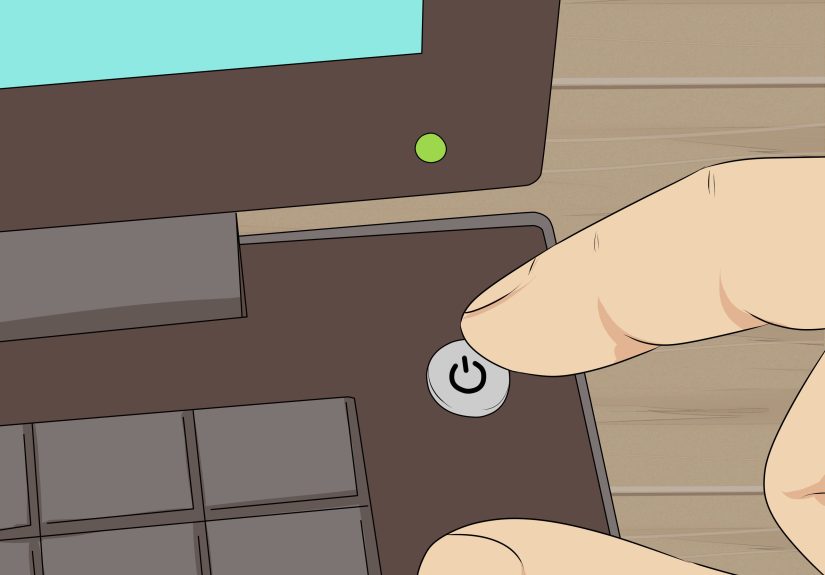
Reboot when prompted so Windows can clean up any remaining files.
When to use this: This should be your first choice if AVG is working normally and shows up in the Apps list.
Way 2: Use Control Panel (Older Windows or Power Users)
If you’re on Windows 7, or you just prefer the old-school way, you can uninstall AVG from the classic Control Panel. AVG still documents this approach for older systems and some enterprise-like setups.
- Press Win + R, type
control, and press Enter. - Click Programs > Programs and Features (or directly Programs and Features depending on your view).
- Find AVG AntiVirus FREE or AVG Internet Security in the list.
- Right-click and choose Uninstall or Change, then pick Uninstall in the AVG window.
- Let the wizard finish, then restart your computer.
Pro tip: If you see more than one AVG entry (for example, AVG Secure Browser or AVG TuneUp), uninstall each product individually to keep your system clean.
Way 3: Use the AVG Clear (Remover) Tool for Stubborn Installs
Sometimes AVG refuses to uninstall: the process gets stuck, you get mysterious errors, or after uninstalling, pieces of AVG still pop up. That’s when you bring out the “big hammer”: the AVG Clear (also called AVG Remover) tool.
Important: AVG recommends using this tool only if the standard uninstall fails. It removes leftover registry items, installation files, and user settingsgreat for deep cleaning, but not something you casually run for fun.
- Download AVG Clear.
Go to AVG’s official site and download the AVG Clear tool for Windows. - Restart in Safe Mode (recommended).
Many guides and support threads recommend running the tool in Safe Mode to avoid conflicts with active services. - Run the tool.
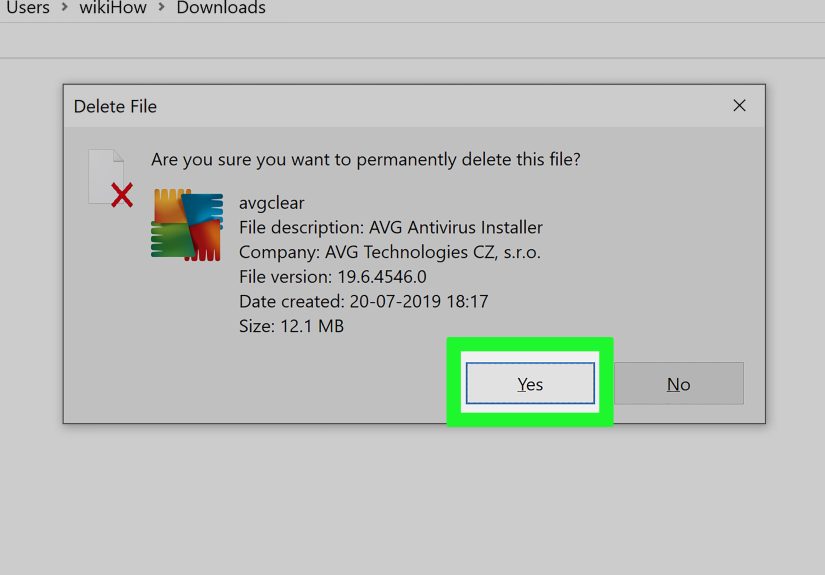
Double-click the downloaded file. When the AVG Clear window appears, choose the product you want to remove (if it doesn’t auto-detect). - Select Uninstall.
Confirm that you want to remove AVG completely. The tool will remove files, services, and registry entries associated with AVG products. - Restart your PC.
Reboot when prompted to finish the cleanup.
When to use this: If AVG doesn’t show in Apps & Features, the uninstall crashes, or you keep getting messages that AVG is still installed.
Part 2: How to Uninstall AVG on Mac (3 Easy Ways)
Way 4: Use the Built-In AVG Uninstaller on macOS
On a Mac, dragging antivirus straight to the Trash is temptingbut with AVG, that can leave behind system extensions and other components that macOS won’t let you delete easily. AVG’s own uninstaller is the cleanest method.
- Open AVG AntiVirus for Mac.
Use Spotlight search or launch it from the Applications folder. - Go to the menu bar.
In the top-left corner, click AVG AntiVirus in the menu bar. - Select “Uninstall AVG AntiVirus” or “Uninstall AVG Security”.
The exact wording may vary by version, but you’ll see an uninstall option. - Click Continue to begin uninstall.
Follow the on-screen prompts. AVG will remove the app and associated components. - Restart your Mac.
When the uninstaller finishes, restart to fully unload system extensions and background processes.
Why this is best: AVG’s Mac uninstaller is designed to remove system extensions and background services that simple drag-and-drop uninstallers often miss.
Way 5: Drag to Trash, Then Manually Clean Leftovers
If the built-in uninstaller is missing or AVG never fully installed, you might need the old-fashioned approach: remove the main app, then hunt down leftovers. Mac users who tried only dragging to Trash often discover stray AVG files in Library folders or SystemExtensions.
Step 1: Remove the main app
- Open Finder > Applications.
- Locate AVG AntiVirus.
- Drag it to the Trash, or right-click and choose Move to Trash.
- Right-click the Trash and select Empty Trash.
Step 2: Clean up leftover support files
- In Finder, click Go in the menu bar > Go to Folder….
- Type
/Library/Application Support/and press Enter. - Look for any AVG folder and delete it, then empty Trash again.
- You can also check:
/Library/LaunchAgents/Library/LaunchDaemons/Library/Preferences
for files starting with
com.avgand remove them carefully.
Warning: Don’t delete random files if you’re not sure what they are. Stick to clearly AVG-related files (names starting with avg or com.avg).
Way 6: Use a Third-Party Uninstaller (AppCleaner, AppZapper, etc.)
Some Mac users prefer using dedicated uninstall utilities to catch stray files. Tools like AppCleaner or AppZapper scan for related preferences, caches, and support files when you drag an app onto them.
General steps (example with an app cleaner):
- Download and install a reputable Mac uninstaller (e.g., AppCleaner).
- Quit AVG completely if it’s still running.
- Open the uninstaller and drag AVG AntiVirus into its window.
- Review the list of files it plans to deletecheck that they’re clearly AVG-related.
- Confirm removal, then restart your Mac.
Note: Third-party uninstallers are very helpful, but they’re only as safe as your judgment. Always double-check that you’re not deleting unrelated system files.
How to Make Sure AVG Is Really Gone
After uninstalling AVG, you’ll want to confirm that everything’s clean and your system is still protected.
On Windows
- Check Settings > Apps or Control Panel > Programs and Features to make sure no AVG entries remain.
- Open Windows Security (search for it in the Start menu) and confirm that Virus & threat protection is activeusually Microsoft Defender will be turned on automatically once AVG is gone.
- If you still see AVG pop-ups or services, run AVG Clear again in Safe Mode to finish cleanup.
On Mac
- Look in Applications to confirm that AVG is gone.
- Check for any stubborn
com.avgitems in/Library/Application Supportand similar folders. - If macOS keeps telling you that an AVG system extension is still there, a restart often clears it. In rare cases, support forums suggest using Safe Mode to remove specific SystemExtensions.
Common Mistakes When Uninstalling AVG (and How to Avoid Them)
- Dragging to Trash only (Mac). This leaves behind system extensions and can cause “already installed” errors when you try another antivirus. Always prefer the built-in uninstaller first.
- Interrupting the uninstall. Canceling halfway through or shutting down the computer mid-uninstall is a great way to end up with a half-broken security suite.
- Running two full antiviruses at once. Installing a new antivirus before fully removing AVG can cause performance issues and false positives.
- Ignoring reboot prompts. Those restart requests are there for a reasonsystem drivers and services often need a reboot to be fully removed.
Conclusion
Uninstalling AVG AntiVirus on PC or Mac doesn’t have to turn into a late-night troubleshooting marathon. Start with the simplest optionSettings on Windows or the built-in uninstaller on macOSand only move up to tools like AVG Clear or manual cleanup if you hit problems.
The key things to remember are:
- Always try the normal uninstall flow first.
- Use AVG’s own tools (AVG Clear on Windows, built-in uninstaller on Mac) before going fully manual.
- Double-check that you’re still protected afterward, either with Windows Defender or another trusted security solution.
Once AVG is gone and your device is running smoothly, you’re free to choose a lighter antivirus, rely on built-in protections, or just enjoy the peace and quiet of fewer pop-ups. Your computerand your patiencewill thank you.
SEO Metadata
meta_title: How to Uninstall AVG AntiVirus on PC & Mac
meta_description: Learn 6 easy ways to completely uninstall AVG AntiVirus on Windows and Mac, remove leftovers, and keep your device protected.
sapo: Want to break up with AVG AntiVirus but it keeps clinging to your PC or Mac? This in-depth guide walks you through six easy ways to uninstall AVG on Windows and macOSfrom standard removal in Settings and Control Panel to AVG Clear for stubborn installs and safe cleanup of leftovers on Mac. You’ll learn how to avoid common mistakes, confirm AVG is really gone, and make sure your device stays protected with either built-in tools or a new antivirus solution.
keywords: uninstall AVG, remove AVG completely, uninstall AVG on Mac, uninstall AVG on Windows 11, AVG Clear tool, uninstall antivirus, remove AVG Internet Security
Real-World Experiences and Extra Tips for Uninstalling AVG
The “official” instructions are nice, but real life is messier. Here are some experience-based insightscollected from tech forums, user stories, and IT prosthat can save you time and frustration when removing AVG.
1. When AVG Won’t Show Up in the Programs List
One of the most common complaints is: “AVG isn’t in Apps & Features, but Windows says it’s still installed.” This usually happens after a partial or failed uninstall, a system crash during setup, or a “manual” deletion of program files.
What usually works best:
- Run AVG Clear in Safe Mode. Even if the normal uninstaller has nothing to hook onto, AVG Clear often detects remnants by scanning for service names, registry entries, and install folders.
- If Windows Security is confused and shows a “partially installed” antivirus, a reboot after running AVG Clear usually resolves the status.
IT technicians often keep AVG Clear (and similar tools for other vendors) on a USB stick for exactly this kind of situationit’s faster than digging through the registry by hand.
2. The “Already Installed” Error When Switching Antivirus
A very real-world scenario: you uninstall AVG, start installing another antivirus, and the new installer says something like, “Another antivirus product is already installed. Please remove it first.” This can happen on both Windows and Mac when small AVG components are still present.
Practical fixes that users report working:
- On Windows, run AVG Clear and restart. Most competing antivirus installers check a set of known registry keys that AVG Clear removes.
- On Mac, use Go to Folder… and search
/Library/Application Supportand other Library paths forAVGorcom.avgfiles, then carefully delete them. Empty Trash and reboot.
Once those traces are gone, the new antivirus usually installs without further drama.
3. Mac System Extensions That Refuse to Die
Some Mac users report that even after uninstalling AVG, they see messages about an AVG system extension or kernel extension that “needs to be updated” or “won’t load.” These leftovers often sit in places like /Library/SystemExtensions or /Library/StagedExtensions.
Experienced Mac troubleshooters typically recommend:
- Boot into Safe Mode, which limits which extensions load.
- Remove clearly labeled AVG folders from the relevant Library locations.
- Restart normally and verify that the extensions are gone.
This is more advanced territory, so if you’re not comfortable poking around in system folders, it’s totally reasonable to ask an Apple technician or an experienced friend for help.
4. Why Tech Pros Almost Always Use Vendor Tools First
On tech forums, professionals who manage dozens or hundreds of machines often repeat the same advice: use the vendor’s removal tool whenever possible. For AVG, that means the built-in uninstaller and AVG Clear.
The reasons are simple:
- Security software digs deep into the system (services, drivers, scheduled tasks).
- Manual removal is slow and easy to mess up.
- Automated tools are updated to handle new versions and new components.
If a professional who manages hundreds of endpoints trusts the official tool instead of manual deletion, it’s a strong signal that you should, too.
5. Performance Boosts After Removal
Many users notice that their system feels lighter and faster after removing a heavy antivirus suite. AVG is not the worst offender by any means, but if your device is older or low on RAM, even one large security suite can make it feel sluggish.
Once AVG is gone and Windows Defender takes over, you may see:
- Faster boot times
- Less fan noise during everyday browsing
- Fewer pop-ups and background scans
On Mac, removing overlapping or redundant security tools can also smooth out weird glitchesthings like browser slowdowns or excessive disk usage from background scanning.
6. A Simple Strategy Going Forward
After uninstalling AVG, many people adopt a simpler, lower-maintenance setup:
- Windows users: Stick with Microsoft Defender plus smart browsing habits and maybe a reputable anti-malware scanner for occasional manual checks.
- Mac users: Rely on built-in macOS protections, only install apps from trusted sources, and keep macOS updated.
The bottom line: uninstalling AVG doesn’t just remove one programit’s a good opportunity to reset your overall security strategy, streamline your system, and pick tools that match how you actually use your computer.