Table of Contents >> Show >> Hide
- The 10-second answer: the fastest ways to add a GIF
- Before you start: attachment vs inline (choose your GIF destiny)
- Method 1: Insert a saved GIF inline (classic Outlook for Windows desktop)
- Method 2: Drag-and-drop (the fastest desktop move)
- Method 3: Copy/paste (works sometimes, but “sometimes” is doing a lot of work)
- Method 4: Outlook on the web (Outlook.com / Microsoft 365 in a browser)
- Method 5: Use a GIF add-in (search + insert without downloading)
- Make sure the GIF actually plays (aka: prevent the “frozen first frame” tragedy)
- Best practices: make your Outlook GIF look good (and not like a chaotic screensaver)
- Common problems and quick fixes
- Conclusion: Outlook + GIFs can be fast (with the right method)
- Experiences: what using GIFs in Outlook looks like in the real world (500-ish words)
GIFs are the espresso shot of email: tiny, fast, and capable of waking up even the sleepiest inbox. The good news? Adding a GIF to Microsoft Outlook is usually easyonce you know which “Outlook” you’re using (classic desktop, new Outlook, or Outlook on the web) and whether you want the GIF attached (paperclip) or inline (visible right in the message).
This guide walks you through the fastest ways to attach or insert GIFs in Outlook, plus how to avoid the classic “why is my GIF frozen?” moment. Expect practical steps, a few opinionated tips, and just enough humor to keep your mouse hand from filing a complaint with HR.
The 10-second answer: the fastest ways to add a GIF
- Fastest (desktop): Drag and drop the .gif file into the email body to place it inline.
- Fastest (anywhere): Save the GIF to your device, then use Insert > Pictures to add it inline.
- Fastest (web + reactions): Use a GIF add-in (like GIPHY) so you can search and insert without downloading files.
- Fastest (attachment-only): Use the paperclip / Attach button and pick the .gif file.
Before you start: attachment vs inline (choose your GIF destiny)
Outlook gives you two main ways to share a GIF, and they behave differently:
Option A: Attach the GIF (paperclip)
The GIF shows up as a file the recipient can download or open. This is best when the GIF is a deliverable (for example: “Here’s the animated banner for approval”) or when your company blocks inline images. It’s also the least “fun,” but sometimes “least fun” is exactly what compliance wants.
Option B: Insert the GIF inline (in the email body)
The GIF appears inside the message like a normal image. This is what most people mean when they say “put a GIF in an email.” It’s perfect for quick reactions, mini demos, or lightweight instructions as long as your recipient’s Outlook setup actually plays the animation (we’ll cover that).
Method 1: Insert a saved GIF inline (classic Outlook for Windows desktop)
If you’re using the traditional Outlook desktop app (the one that’s been around forever and has opinions about everything), inserting a GIF is basically the same as inserting a photo.
- Save the GIF to your computer first (Downloads is fine).
- Open Outlook and click New Email.
- Place your cursor where you want the GIF to appear.
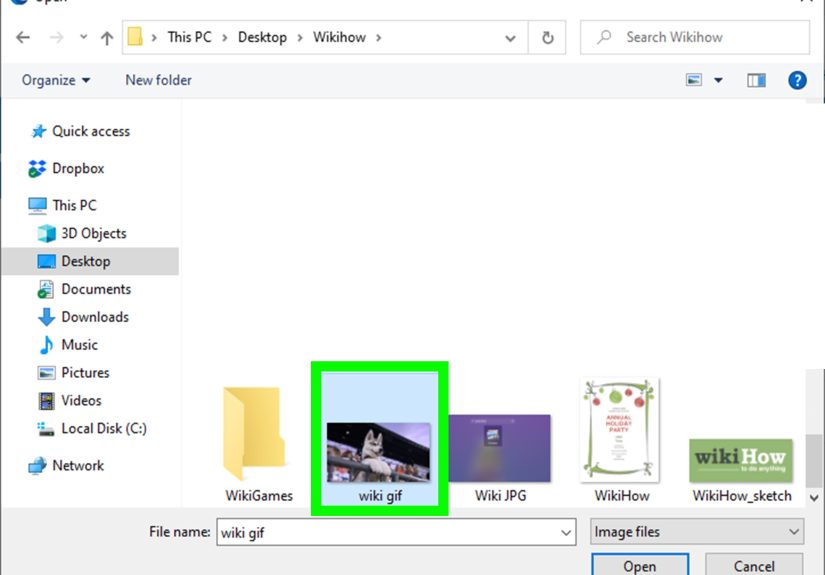
- Go to Insert > Pictures (or Pictures > This Device, depending on your ribbon).
- Select the .gif file and click Insert.
- (Optional) Click the image and use the corner handles to resize itdon’t stretch it like taffy.
Quick pro tip: If your GIF is meant to communicate something important (a CTA, a step number, a “click here” arrow), make sure that information is visible in the first frame. Some Outlook versions and settings will show only the first frame instead of the full animation.
Method 2: Drag-and-drop (the fastest desktop move)
When you need speed, dragging a GIF into the message is often faster than clicking through menus.
Drag to insert inline
- Open a new email in Outlook.
- Find the GIF file in File Explorer (Windows) or Finder (Mac).
- Drag the GIF into the email body (the big text area where you type).
Drag to attach instead
If you drag the file to the attachment area (or if Outlook decides it’s feeling “attachment-y” that day), you may see it appear as a paperclip file. If you specifically need it inline, undo, then drag it into the message body againor use Insert > Pictures.
Method 3: Copy/paste (works sometimes, but “sometimes” is doing a lot of work)
Copy/paste can be quick, but it’s also the method most likely to turn your animated GIF into a sad, frozen screenshotespecially if you copy from a website that serves GIF-like animations as video files (MP4) or previews.
A safer copy/paste approach
- On the website where you found the GIF, right-click it and choose Save image as… (wording varies).
- Save it as a .gif file.
- Insert it into Outlook using Insert > Pictures (or drag-and-drop).
If you insist on pasting: Try copying the image itself (not the page link) and pasting into the email body. Then send yourself a test email and open it in the exact Outlook version your recipients use. If it animates, congrats you’re living in the future. If it doesn’t, you’re living in Outlook.
Method 4: Outlook on the web (Outlook.com / Microsoft 365 in a browser)
Outlook in the browser is often the easiest place to insert images inlineespecially if you don’t want to wrestle the desktop ribbon for dominance.
- Go to Outlook in your browser and click New message.
- Place your cursor where the GIF should appear.
- Click the Insert pictures inline (image) icon in the compose toolbar.
- Select your GIF file and insert it.
- Resize if needed, then send yourself a test message to verify it animates.
Method 5: Use a GIF add-in (search + insert without downloading)
If you add GIFs oftenand especially if you want reaction GIFs without a separate browser tab farm a GIF add-in is the smoothest workflow. One popular option is the GIPHY add-in, which lets you search and insert GIFs directly into an email.
How to add and use a GIF add-in in Outlook
- Start a new email message.
- Open the add-ins/apps area (wording varies by Outlook version: Get Add-ins, More apps, or similar).
- Search for a GIF provider (for example, “GIPHY”).
- Add it, then open it from the message toolbar.
- Search for a GIF and click one to insert it into your email.
Office reality check: Some workplaces restrict add-ins. If “Get Add-ins” is missing or locked down, your admin may have disabled it. In that case, saving the GIF and inserting it as a picture is your best backup plan.
Make sure the GIF actually plays (aka: prevent the “frozen first frame” tragedy)
If your recipient sees only a static image, the issue is usually one of these:
- They’re using an older Outlook version that doesn’t animate GIFs and shows only the first frame.
- Animations are disabled in Outlook or Windows accessibility/visual settings.
- Images aren’t downloading automatically because Outlook is blocking external content.
- The message is being read as plain text, which strips formatting and images.
Fix 1: Enable GIF animations (when it’s an option)
In some Outlook builds, there’s a setting that controls whether animated GIFs play. If your Outlook has it, it’s typically in File > Options > Advanced under a Display section.
Fix 2: Check Windows “Show animations” settings
On newer setups, Outlook can follow Windows’ accessibility preferences. If Windows animations are off, Office apps may stop playing animations too. In Windows 10/11, look under Accessibility or Visual Effects for an “Animation effects” / “Show animations” style toggle.
Fix 3: Make sure Outlook is actually displaying images
If the GIF is hosted externally (common in newsletters and marketing emails), Outlook may block images until the user allows downloads. Users can adjust this in Trust Center settings (Automatic Download settings).
Fix 4: Confirm the message isn’t being read as plain text
Outlook can be set to read mail as plain text. When that happens, images won’t show the way you expect. If you’re troubleshooting internally, check whether “Read all standard mail in plain text” is enabled.
Good-to-know: some Outlook setups pause GIFs after a few loops
Even when animated GIFs are supported, some versions don’t loop forever. The animation may play a few times, then pause and show a replay/play control. That’s not your GIF failingthat’s Outlook being Outlook.
Best practices: make your Outlook GIF look good (and not like a chaotic screensaver)
1) Keep file size reasonable
Big GIFs can bloat emails, load slowly on mobile, and trigger eye-rolls from anyone on hotel Wi-Fi. If your GIF is huge, consider trimming frames, reducing dimensions, or exporting a lighter version.
2) Design the first frame as a fallback
Because some Outlook environments show only the first frame, treat it like a poster: it should still make sense as a static image. Put key text, CTAs, or arrows right there.
3) Use GIFs for clarity, not chaos
The best email GIFs do one job: demonstrate a tiny process (like “click this menu”), highlight a before/after, or add a quick reaction in a casual thread. If your GIF is trying to tell a full novel, it’s going to lose.
4) Don’t forget accessibility
Add meaningful alt text when possible, avoid rapid flashing, and keep motion gentle. A GIF should help someone understand your message fasternot make them reach for sunglasses and a migraine tablet.
Common problems and quick fixes
Problem: “My GIF shows up as an attachment, not inside the email.”
Use Insert > Pictures or drag the file directly into the email’s message body (not the header/attachment area).
Problem: “It animates on my phone, but not on desktop Outlook.”
That’s often a version/support issue. Some older desktop Outlook versions only show the first frame, while mobile and web clients commonly animate GIFs.
Problem: “The GIF is blank or looks broken.”
First, verify the file is actually a .gif and not a renamed video. Next, send yourself a test email and open it in the same Outlook environment as your audience. If your organization blocks image downloads or forces plain text reading, you’ll see it there.
Problem: “Recipients say they don’t see images at all.”
They may have image downloads blocked, or Outlook may be preventing automatic downloads for external content. Ask them to click “Download Pictures” or adjust the Trust Center automatic download settings if appropriate.
Conclusion: Outlook + GIFs can be fast (with the right method)
If you want the quickest path, save the GIF and insert it inline via Insert > Picturesor drag and drop it straight into the message. If you’re a frequent GIF-sender (no judgment), a GIF add-in can be even faster. And if your GIF stubbornly refuses to animate, the fix is usually one of three things: an older Outlook version, animations disabled, or images blocked.
Final rule of GIF club: always send yourself a test email first. Outlook is powerful, widely used, and occasionally behaves like it was designed by a committee that met in 2009 and never fully adjourned.
Experiences: what using GIFs in Outlook looks like in the real world (500-ish words)
In everyday office life, GIFs in Outlook tend to fall into two camps: “helpful micro-demo” and “emotional support raccoon.” Both can be surprisingly effectiveif you use them with a little strategy.
One common scenario is internal how-to email. Someone sends “Click File > Options > Advanced…” and half the team replies, “Where is Advanced?” A small GIF that shows the cursor moving through the menus can solve that problem instantly. The trick is to keep it short and readable: zoom in on the relevant UI, slow the motion slightly, and make sure the first frame clearly shows the starting point. That way, even if a recipient’s Outlook only displays a static first frame, they still get value.
Another scenario: project updates. A quick “before/after” GIF can be an easy way to show a design change, a dashboard improvement, or a new feature in action. It’s like a mini product demo without asking anyone to click a link, attend a meeting, or pretend to have “just one quick question” afterward. The best ones are tiny: a two- to four-second loop that highlights a single change. If your GIF requires a narrated director’s cut, it belongs in a screen recording, not an email.
Then there’s the “reaction GIF” use caseespecially in less formal teams. Used well, it can reduce tension: a lighthearted GIF after a tough thread can signal, “We’re still humans here.” Used poorly, it becomes a workplace landmine. A safe rule: keep reaction GIFs work-appropriate, skip anything that could be interpreted as mocking, and avoid overly loud or frantic motion (because not everyone loves surprise movement in their inbox). If your company culture is formal, treat GIFs like hot sauce: a drop can improve the meal; a full bottle will ruin it.
Real-world friction also shows up quickly: the sender sees a beautiful animation, and the recipient sees a frozen image. That’s why experienced teams develop a simple habit: test on at least one desktop Outlook and one mobile client before sending widely. When an email goes to customers, external partners, or a large list, the first frame becomes the “poster version” of the message. Put the headline, CTA, or key instruction there, and let the animation be a bonus rather than the only way to understand the content.
Finally, GIFs can be a subtle branding tool. A small, tasteful animationlike a product rotating once, or a progress bar filling can make your email feel modern without feeling like a carnival. The sweet spot is “clear and polished,” not “my inbox is now Times Square.” If you aim for clarity first, humor second, and file size always, you’ll get the benefits of GIFs in Outlook without the downsides.