Table of Contents >> Show >> Hide
- What Does “Switch Cells in Excel” Actually Mean?
- Method 1: Switch Cells in Excel by Dragging with the Shift Key
- Method 2: Switch Cells Using Cut and Insert Cut Cells
- Method 3: Switch Cells with Sort, Helper Columns, or Transpose
- Which Method Should You Use?
- Common Mistakes When Switching Cells in Excel
- Practical Example: Switching Cells in a Sales Report
- Extra Experience: Real-World Lessons from Switching Cells in Excel
- Conclusion
Switching cells in Excel sounds like it should be as easy as swapping seats at lunch. But anyone who has accidentally overwritten a carefully built formula knows the truth: Excel is powerful, patient, and occasionally dramatic. One careless drag, and your tidy worksheet becomes a tiny spreadsheet crime scene.
The good news is that learning how to switch cells in Excel is not difficult once you know the right method for the job. Whether you want to swap two cells, move a row without replacing data, switch columns, or rearrange a whole table, Excel gives you several practical options. The trick is knowing when to drag, when to cut and insert, and when to use sorting or Transpose like a spreadsheet wizard with a clean keyboard.
In this guide, we will cover three reliable ways to switch cells in Excel: using drag-and-drop with the Shift key, using Cut and Insert Cut Cells, and using helper columns or Transpose for larger rearrangements. Along the way, you will get examples, safety tips, and real-world advice so your data moves exactly where you want itwithout taking half your worksheet hostage.
What Does “Switch Cells in Excel” Actually Mean?
Before we start clicking around, let’s define the goal. When people say they want to “switch cells” in Excel, they usually mean one of several things:
- Swap the contents of two individual cells
- Move a cell or range to another location without overwriting existing data
- Switch two rows or two columns
- Rearrange columns into a new order
- Rotate data from rows to columns or columns to rows
Excel can handle all of these, but not always with the same button. A simple two-cell swap may need a temporary blank cell. Moving a column may work best with Shift-drag. Rearranging ten columns may be faster with a helper row and left-to-right sorting. In other words, Excel is not being difficult; it is simply asking you to choose the right tool from the toolbox. Very polite. Very Microsoft.
Method 1: Switch Cells in Excel by Dragging with the Shift Key
The fastest way to switch cells, rows, or columns in Excel is often the drag-and-drop method. This is ideal when you want to move data to a new location and push the surrounding cells out of the way instead of replacing them.
Best For
This method works well for moving adjacent cells, rows, columns, and small ranges. It is especially useful when you want to switch columns in Excel without using copy and paste.
How to Use Shift-Drag to Move Cells
- Select the cell, range, row, or column you want to move.
- Move your mouse pointer to the border of the selected area until the cursor changes to a four-sided arrow.
- Press and hold the Shift key.
- While holding Shift, drag the selection to the new location.
- Release the mouse button first, then release Shift.
When done correctly, Excel inserts the moved cells into the new position and shifts the existing data aside. This is the important part. If you drag without Shift, Excel may overwrite the destination cells, which is a bit like parking your car on top of someone else’s sandwich.
Example: Switching Two Columns
Imagine you have a table with these columns:
| A | B | C |
|---|---|---|
| Product | Price | Category |
You want “Category” to appear before “Price.” Select column C, hover over its border, hold Shift, and drag it between Product and Price. Excel moves the entire column and shifts Price to the right. No formulas harmed. No dramatic screaming from the spreadsheet.
Important Tips for Shift-Dragging
Always grab the border of the selected range, not the tiny fill handle in the corner. The fill handle is for copying patterns, formulas, and sequences. The border is for moving data. They are neighbors, not twins.
If drag-and-drop does not work, check whether Excel’s drag-and-drop editing is enabled. In many desktop versions, this setting is found under Excel Options in the Advanced editing options. If it is turned off, Excel will refuse to drag cells, which can feel personal but is really just a setting.
Method 2: Switch Cells Using Cut and Insert Cut Cells
The second reliable way to switch cells in Excel is the classic Cut and Insert Cut Cells method. This approach is excellent when you want more control and less mouse gymnastics. It is also helpful for people who prefer keyboard shortcuts, because not everyone wants to drag columns around like they are rearranging furniture in a tiny apartment.
Best For
Use this method when moving rows, columns, or ranges to a precise location. It is also a safer option if you are working on a large worksheet and want Excel to insert the moved data instead of pasting over existing cells.
How to Switch a Row or Column with Insert Cut Cells
- Select the cell, range, row, or column you want to move.
- Press Ctrl + X to cut it.
- Right-click the destination where you want the data to appear.
- Choose Insert Cut Cells.
Excel inserts the cut data at the chosen position and shifts the existing cells, rows, or columns accordingly. This avoids the common mistake of simply pressing Ctrl + V and replacing whatever was already there.
Example: Switching Two Rows
Suppose row 4 contains “March Sales” and row 8 contains “April Sales,” but they are in the wrong order. You can select row 8, press Ctrl + X, right-click row 4, and choose Insert Cut Cells. Excel places April above March and shifts the other rows down.
To complete a true two-row swap, you may still need to move the other row afterward, depending on your table layout. For simple swaps, many users create a temporary blank row, move one row there, move the other row into place, and then move the temporary row back. It is the spreadsheet version of musical chairs, except nobody gets eliminated.
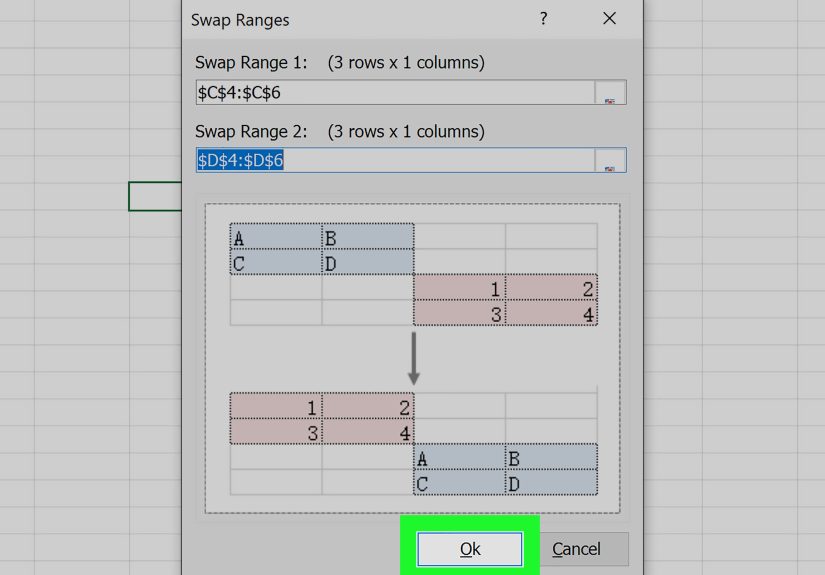
How to Swap Two Individual Cells
Excel does not have a built-in “swap these two cells instantly” button for ordinary cells. The most dependable manual method is to use a temporary blank cell:
- Copy or cut the value from Cell A into a temporary blank cell.
- Move the value from Cell B into Cell A.
- Move the temporary value into Cell B.
For example, if A2 contains “Blue” and B2 contains “Green,” place “Blue” temporarily in C2, move “Green” to A2, then move “Blue” from C2 to B2. It is not flashy, but it works, and spreadsheets appreciate dependable behavior.
Formula Warning
When switching cells that contain formulas, be careful. Excel may update relative references automatically depending on how you move the cells. This is usually helpful, but if your formulas rely on exact locations, double-check the results. If needed, use absolute references such as $A$1 to lock a formula reference before moving data.
Method 3: Switch Cells with Sort, Helper Columns, or Transpose
The third method is best for bigger rearrangements. If you need to switch many columns, reorder a table, or rotate data from rows to columns, manual dragging can become slow. At that point, Excel offers smarter options: helper rows, left-to-right sorting, and Transpose.
Option A: Use a Helper Row to Rearrange Columns
If you have many columns and want to switch their order, a helper row can save time. This method is especially useful when rearranging a report with several fields such as Name, Email, Phone, City, Status, and Notes.
- Insert a blank row above your header row.
- Enter numbers showing the order you want the columns to appear in.
- Select the full data range, including the helper row.
- Go to Data and choose Sort.
- Select Options, then choose Sort left to right.
- Sort by the helper row.
- Delete the helper row when finished.
For example, if your current columns are Product, Region, Sales, and Month, but you want Month, Region, Product, Sales, you can number the helper row as 3, 2, 4, 1 above the existing columns. Sorting left to right rearranges the columns based on those numbers.
This technique is wonderfully efficient for wide spreadsheets. Instead of dragging columns one by one and hoping your wrist survives, you give Excel a numbered map and let it do the moving.
Option B: Use Transpose to Switch Rows and Columns
Sometimes “switch cells” means changing the orientation of your data. Maybe your data is listed across a row, but you need it down a column. Or your categories are vertical, but your report template wants them horizontal. That is where Transpose comes in.
- Select the range you want to switch.
- Press Ctrl + C to copy it.
- Select a blank destination area.
- Use Paste Special and choose Transpose.
Transpose rotates your copied data so rows become columns and columns become rows. For instance, a row containing January, February, and March can become a vertical list with those months stacked in a column.
This is not the same as swapping two cells, but it is one of the most useful ways to switch the structure of Excel data. It is popular because it turns “I need to retype all of this” into “Never mind, Excel did it.”
Option C: Use the TRANSPOSE Function
For dynamic workbooks, the TRANSPOSE function can create a linked, rotated version of a range. This means the transposed output can update when the original data changes. In modern Excel versions that support dynamic arrays, you can enter a formula such as:
The result spills into nearby cells automatically if there is enough empty space. This is excellent for dashboards, reporting templates, and situations where the source data keeps changing.
Which Method Should You Use?
The best way to switch cells in Excel depends on what you are moving. Here is a simple guide:
| Goal | Best Method |
|---|---|
| Move one cell or small range | Shift-drag or Cut and Insert Cut Cells |
| Switch two rows or columns | Shift-drag or temporary blank row/column |
| Rearrange many columns | Helper row and Sort left to right |
| Turn rows into columns | Paste Special Transpose or TRANSPOSE function |
| Protect formulas and formatting | Cut and Insert Cut Cells, then verify references |
Common Mistakes When Switching Cells in Excel
Mistake 1: Dragging Without Holding Shift
Dragging without Shift may replace the destination data. If you see a warning that data already exists, stop and think before clicking OK. Excel is basically saying, “Are you absolutely sure you want to do this?” Listen to the spreadsheet. It has seen things.
Mistake 2: Forgetting About Hidden Rows or Columns
If your worksheet contains hidden rows or columns, moving a large range may include data you cannot currently see. Before switching cells in a complex workbook, unhide relevant areas or make a backup copy.
Mistake 3: Moving Only Part of a Table
If you move one column of a table without moving related columns, your records can become mismatched. A customer name may end up beside the wrong email address, which is how newsletters start greeting people as “Invoice #4821.” Always select the full related range when needed.
Mistake 4: Ignoring Formulas
Formulas can change when moved. After switching cells, scan formulas, totals, charts, and conditional formatting rules. A quick check now can prevent a confusing report later.
Practical Example: Switching Cells in a Sales Report
Let’s say you manage a small sales report with columns for Salesperson, Region, Product, Revenue, and Month. Your manager wants Month moved next to Region, and Product moved after Revenue. You could drag columns one at a time, but the helper row method may be cleaner.
Add a blank row above the headers and assign the desired order. If Salesperson should remain first, give it 1. Region becomes 2. Month becomes 3. Revenue becomes 4. Product becomes 5. Then sort left to right by that helper row. Excel rearranges the table in one move.
For a smaller fix, such as moving Month one column left, Shift-drag is faster. For a more controlled edit in a shared workbook, Cut and Insert Cut Cells is often safer because it makes the movement more deliberate.
Extra Experience: Real-World Lessons from Switching Cells in Excel
After using Excel for everyday reports, school projects, business lists, budgets, content calendars, and the occasional “why is this formula yelling at me?” worksheet, one lesson becomes clear: switching cells is easy, but switching cells safely is the real skill.
The first experience many users have is the accidental overwrite. You select a cell, drag it somewhere else, and suddenly Excel replaces data that was already sitting there peacefully. This is why the Shift key becomes your best friend. Holding Shift while dragging tells Excel to insert the moved cells instead of smashing them into the destination like a shopping cart with one bad wheel.
Another practical lesson is to slow down when working with formulas. Values are simple. If you move “Apples” from A1 to B1, it is still Apples. Formulas are more sensitive. A formula like =A1+B1 may adjust when moved, depending on relative references. That can be useful, but it can also create unexpected results. Before switching formula cells, it is smart to understand whether references should move with the formula or stay locked. Absolute references are not glamorous, but neither is explaining why the quarterly report now thinks February has 900 days.
For larger worksheets, the helper row method feels like a secret shortcut. Many people try to rearrange ten or twenty columns manually, dragging each one into place. That works, but it is slow and easy to mess up. Numbering the desired order and sorting left to right is cleaner. It also gives you a visible plan before Excel moves anything. That little helper row is like a GPS for your columns.
Another useful habit is making a backup copy before major rearrangements. This does not have to be dramatic. Just duplicate the worksheet tab or save a copy of the file. Then, if the switch goes wrong, you can return to the original without bargaining with the Undo button. Undo is helpful, but it is not a full disaster recovery strategy. It is more like a seatbelt: wonderful, but you still should not drive into a wall.
When switching cells in shared files, communication matters too. If multiple people use the same workbook, moving columns may confuse formulas, charts, pivot tables, or coworkers who expect data to be in a certain place. In those cases, add a note, update headers clearly, and check dependent sheets. Excel workbooks often have invisible relationships, and moving one column can affect another tab you forgot existed.
Finally, the best Excel users do not rely on one method. They choose based on the situation. Shift-drag is fast. Cut and Insert Cut Cells is controlled. Sort left to right is excellent for large rearrangements. Transpose is perfect when the layout itself needs to change. Once you understand these options, switching cells becomes less like guessing and more like giving Excel calm, specific instructions. And Excel, despite its occasional mood swings, usually rewards calm instructions.
Conclusion
Knowing how to switch cells in Excel can save time, protect your data, and make your worksheets easier to manage. For quick moves, use Shift-drag. For controlled rearranging, use Cut and Insert Cut Cells. For large layout changes, use helper rows, left-to-right sorting, or Transpose. The key is to move data intentionally, check formulas afterward, and avoid overwriting important information.
Excel may look like a grid of tiny rectangles, but once you know how to move those rectangles properly, it becomes a flexible workspace instead of a digital puzzle box. And honestly, any day you can rearrange a spreadsheet without breaking it deserves at least a small victory snack.