Table of Contents >> Show >> Hide
- Before You Start: Avoid the “Well, That Was My Entire Library” Moment
- Method 1: Transfer Purchased Music from the iPod to an Authorized Computer
- Method 2: Re-Download Purchased Music Instead of Copying It Off the iPod
- Method 3: Manually Copy the Hidden Music Folder from an Older iPod
- Method 4: Use a Trusted Third-Party iPod Transfer Tool
- Which Method Should You Choose?
- Troubleshooting Tips That Save a Lot of Groaning
- Experience Corner: What Rescuing Music from an Old iPod Really Feels Like
- Final Thoughts
Finding an old iPod in a drawer is a little like opening a musical time capsule. One click later, you are suddenly face-to-face with high school playlists, gym mixes with aggressive names, and that one album you swore was “life-changing” in 2011. The problem, of course, is that your computer may no longer have those songs. Maybe the hard drive died. Maybe iTunes vanished into the digital mist. Maybe your music library moved out and left no forwarding address.
The good news is that copying music from your iPod to your computer is still possible. The less-good news is that the best method depends on what kind of iPod you have and where the music originally came from. Purchased songs, ripped CDs, downloaded MP3s, and tracks trapped on an old iPod classic all behave a little differently. That is why a one-size-fits-all answer usually ends with frustration and dramatic muttering.
In this guide, you will learn four practical ways to copy music from your iPod to your computer, including the easiest official options and the old-school hidden-folder trick that still saves the day for many legacy iPods. We will also cover what to do before you connect your device, which method works best for which situation, and how to avoid the classic disaster of accidentally syncing and wiping the very songs you wanted to save.
Before You Start: Avoid the “Well, That Was My Entire Library” Moment
Before you try anything, pause for one deeply calming breath. Then follow these basic rules.
1. Identify your iPod model
An iPod touch behaves more like an iPhone or iPad. An iPod classic, nano, or shuffle often requires older-style syncing or manual file recovery. This matters because the transfer method changes depending on the device.
2. Do not click Sync, Restore, or anything that looks eager
If your only good copy of the music lives on the iPod, treat the device like a fragile museum artifact. Connecting it and blindly approving prompts can overwrite or erase content. Your first goal is preservation, not enthusiasm.
3. Know what kind of music you are saving
If the songs were bought from the iTunes Store, you may be able to transfer purchases or simply re-download them. If they were ripped from CDs or imported from MP3 files, you will likely need the hidden-folder method or a third-party utility.
4. Create a destination folder on your computer first
Make a folder such as iPod Music Recovery on your desktop or in your Music folder. This keeps your rescued tracks organized and helps you avoid the delightful chaos of 2,000 files landing in random places.
Method 1: Transfer Purchased Music from the iPod to an Authorized Computer
This is the cleanest official method when the music was purchased through the iTunes Store. If your iPod contains purchased tracks tied to your Apple account, an authorized computer can often pull those purchases over without forcing you into complicated file digging.
How it works
You authorize the computer with the Apple account used for the purchases, connect the iPod, and transfer eligible purchased content into your library. This method is especially useful if you are working with an iPod touch or a device that still contains store purchases you no longer have on the computer.
Basic steps
- Open iTunes on the computer you want to copy music to.
- Sign in with the correct Apple account and authorize the computer.
- Connect the iPod with a USB cable.
- Look for the option to transfer purchases from the device.
- Let iTunes copy the purchased songs into your library.
Why this method is great
It is simple, relatively safe, and does not require you to decode folders full of song files with names that look like a cat walked across the keyboard. If your library was mostly built from store purchases, this can be the least stressful route by far.
Its biggest limitation
This does not recover everything. Music ripped from CDs, downloaded from elsewhere, or manually added outside the store may not transfer this way. Think of it as a smart shortcut, not a magical all-music vacuum.
Method 2: Re-Download Purchased Music Instead of Copying It Off the iPod
Yes, this article is about copying music from your iPod to your computer, but sometimes the fastest solution is not really “copying” at all. If the songs were purchased from Apple, you may be able to re-download them directly to your computer. This saves time and avoids turning your weekend into a file-recovery documentary.
When this method makes sense
Use it when:
- Your iPod contains purchased tracks from the iTunes Store.
- You no longer have the original files on your computer.
- You want a clean library with proper filenames and metadata.
- You would rather not poke around hidden folders like a digital archaeologist.
How to do it
Open the Music app on a Mac or the Apple Music app or iTunes on Windows, sign in with the Apple account used for the purchases, go to your purchased music section, and download the songs or albums you want again. If your computer needs authorization, do that first.
Why people love this option
Because it is tidy. The songs arrive with correct names, artist info, and album data. There is no mystery folder, no scrambled filenames, and no wondering whether a file called FJTK.mp3 is jazz or a ringtone from 2008.
What it will not recover
This method will not restore tracks that came from CDs, old downloads, or other non-purchased sources. It also does not solve the problem of sentimental playlists you built on a legacy iPod unless those playlists already exist in your library elsewhere.
Method 3: Manually Copy the Hidden Music Folder from an Older iPod
Now we arrive at the classic rescue technique. If you have an older iPod classic, nano, or shuffle, the music is often still stored on the device in a hidden folder. Apple did not exactly roll out a red carpet to this folder, but it exists, and for many users it is the difference between “music saved” and “guess I’ll re-rip 400 CDs.”
When this method works best
This is usually the best option when:
- You have a legacy iPod rather than an iPod touch.
- The songs were ripped from CDs or imported from MP3 files.
- You want the actual audio files back on your computer.
- You are comfortable using File Explorer or Finder.
What you will see
Inside the iPod, there is typically a hidden folder called iPod_Control, and inside that another folder called Music. Within the Music folder are subfolders often labeled things like F00, F01, F02, and so on. The filenames may look scrambled, but the song metadata is often still intact. Once imported into a music app, the tracks usually sort themselves out.
How to copy the files on Windows
- Connect the iPod to your PC.
- Make sure the device appears as a drive.
- Turn on the display of hidden files and folders in File Explorer.
- Open the iPod drive, then open iPod_Control, then Music.
- Copy all the folders inside to your recovery folder on the computer.
- Open iTunes or your preferred music app and import the copied folder.
How to copy the files on Mac
- Connect the iPod to your Mac.
- Open Finder and show hidden files.
- Browse to the iPod’s iPod_Control folder.
- Open the Music folder and copy all subfolders to your Mac.
- Import the copied files into the Music app or another library manager.
The catch
This method usually restores the songs, but not always the polish. Play counts, ratings, and playlists may not come back cleanly. It is excellent for saving audio files, but not always perfect for rebuilding your entire music ecosystem.
Method 4: Use a Trusted Third-Party iPod Transfer Tool
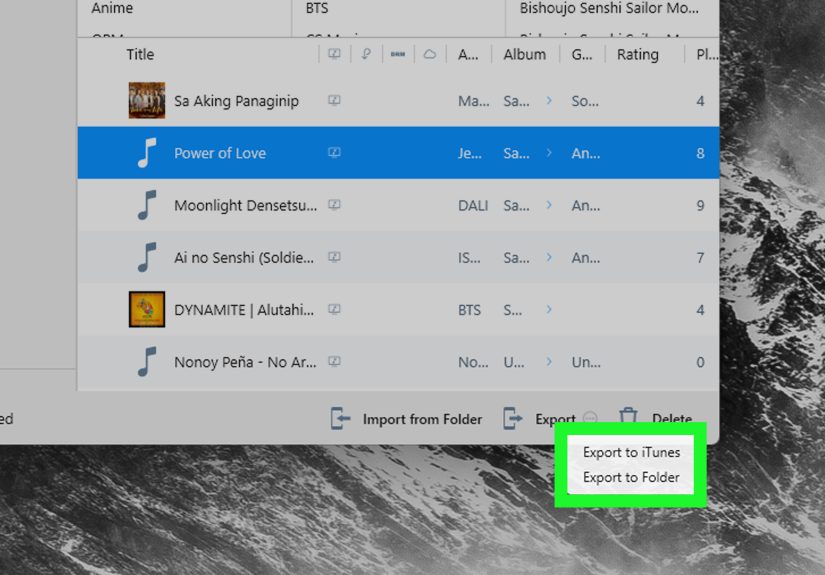
If you want something easier than digging through hidden folders, a third-party transfer utility may be your best friend. These tools have been around for years because they solve a very specific problem: moving music from an iPod back to a computer in a way Apple never made especially convenient.
Why people use these tools
A good transfer app can often:
- Show your songs with proper titles instead of scrambled file names
- Copy music directly to a folder or into iTunes
- Preserve playlists and metadata better than manual drag-and-drop
- Make recovery much faster for large libraries
What to look for
Choose software that clearly states compatibility with your iPod model and current operating system. Read recent support notes. Avoid anything that looks abandoned, overly aggressive, or suspiciously cheerful about “repairing” your device before letting you copy files. Your goal is recovery, not drama.
When this method is worth it
This is ideal if you have hundreds or thousands of songs, want to preserve playlists, or just prefer a cleaner interface. It is also useful when the manual hidden-folder method works but feels like a punishment for crimes you did not commit.
The downside
Some tools are paid, some are old, and some are better on one platform than another. Always verify compatibility before installation. On an ancient iPod and a modern computer, the software itself can be the biggest compatibility puzzle in the room.
Which Method Should You Choose?
If your music was purchased from the iTunes Store, start with Method 1 or Method 2. Those are the safest and most official options.
If your songs came from CD rips, MP3 downloads, or a long-lost old library, go straight to Method 3. That is the classic recovery path for older iPods.
If you care a lot about playlists, metadata, and convenience, or if manual copying makes your eye twitch, choose Method 4.
In real life, many people use a combination: re-download what Apple can restore, manually copy what Apple cannot, and use a utility if the library is huge or messy.
Troubleshooting Tips That Save a Lot of Groaning
Your iPod does not appear on the computer
Try a different cable, use a direct USB port instead of a hub, restart the device, and make sure your software is up to date. On some systems, older iPods are picky in the same way a retired rock star is picky about hotel towels.
You cannot see the iPod_Control folder
It is usually hidden. Enable hidden files. On some older models, disk use or manual management may also need to be enabled so the device mounts like a storage drive.
The songs have weird filenames
That is normal. Import the files into a music app and let the metadata do the heavy lifting. Artist names, album titles, and track info are often still embedded correctly.
You are scared the iPod will sync and erase everything
That fear is not irrational. If the device holds your only library, avoid syncing until the files are safely copied. Recovery first, organization later.
Experience Corner: What Rescuing Music from an Old iPod Really Feels Like
There is a strange emotional side to this process that tech guides rarely mention. Copying music from an iPod to a computer is not just a file transfer. It is often a reunion. You connect the device for practical reasons, maybe because your laptop died or because you are cleaning out a closet, and then suddenly you are staring at the soundtrack of a different version of yourself.
You remember the era when putting songs on an iPod felt intentional. You did not stream everything. You chose tracks. You built playlists with names that were either deeply poetic or hilariously embarrassing. There was always at least one playlist called something like Late Night Vibes, which turned out to contain three breakup songs, one movie soundtrack, and an aggressive amount of pop-punk.
The first surprise is usually how much music is still on the device. The second is how badly you want it back once you realize those files may not exist anywhere else. That is when the mission changes. You are no longer “testing an old gadget.” You are rescuing artifacts. Suddenly even the weird songs matter. Especially the weird songs.
The actual process can be funny in a very specific nerdy way. You open hidden folders and find file names that look like they were generated by a sleepy robot. You drag a stack of mystery tracks to your desktop and think, “Excellent, I have recovered 700 files with the naming elegance of alphabet soup.” Then you import them, and like magic, the metadata snaps into place. Song titles return. Albums reappear. Your library begins to look like a library again instead of digital debris.
There is also a small but real thrill in outsmarting old tech limitations. The iPod was designed in an era when music largely moved one way: from computer to device. So when you successfully pull songs back the other direction, it feels like a tiny rebellion. A polite one, sure, but still a rebellion. You are telling your old hardware, “Nice try, but I would like my songs back now.”
And then there is the nostalgia bomb. A single recovered track can send you straight back to a car ride, a college dorm, a summer job, or an old relationship you had not thought about in years. That is the hidden power of this topic: you are not just copying files. You are restoring context, memory, and a version of your personal history that streaming services never quite recreate the same way.
So yes, the process can be technical. Yes, it can involve hidden folders, authorization prompts, and one or two muttered insults toward outdated software. But it is also worth it. When the transfer is finished and your recovered songs are safely sitting on your computer, you are left with more than a backup. You get continuity. You get your collection back. And if all goes well, you get to listen to that wildly overdramatic playlist from 2009 with the dignity it absolutely does not deserve.
Final Thoughts
If you want to copy music from your iPod to your computer, the best method depends on the source of the music and the model of iPod in your hand. Purchased songs are easiest to recover through Apple’s ecosystem. Older iPods often surrender their libraries through the hidden iPod_Control folder. And when convenience matters, a trusted transfer utility can save a lot of time.
The key is to move carefully, avoid accidental syncing, and choose the method that fits your situation instead of forcing the wrong one. Do that, and your old iPod can become more than a relic. It can become your emergency backup, your nostalgia machine, and maybe the unexpected hero of your music library.