Table of Contents >> Show >> Hide
- What Is a DICOM File?
- What’s Inside a DICOM File?
- Why DICOM Matters More Than a Regular Image File
- How to Open a DICOM File
- How to Open a DICOM File on Windows
- How to Open a DICOM File on Mac
- How to Open DICOM Files from a CD, DVD, or USB
- Can You Convert a DICOM File to JPG, PNG, or PDF?
- Common Problems When Opening a DICOM File
- DICOM vs. JPG vs. PNG vs. PDF
- When You Should Keep the Original DICOM Files
- Real-World Experiences With DICOM Files
- Conclusion
If you have ever received medical images on a CD, USB drive, download portal, or mysterious folder from a hospital, chances are you have met a DICOM file. It may not look flashy. It may not have the celebrity status of JPG or PDF. It may even sit there on your desktop like it pays rent. But in the world of medical imaging, DICOM is a very big deal.
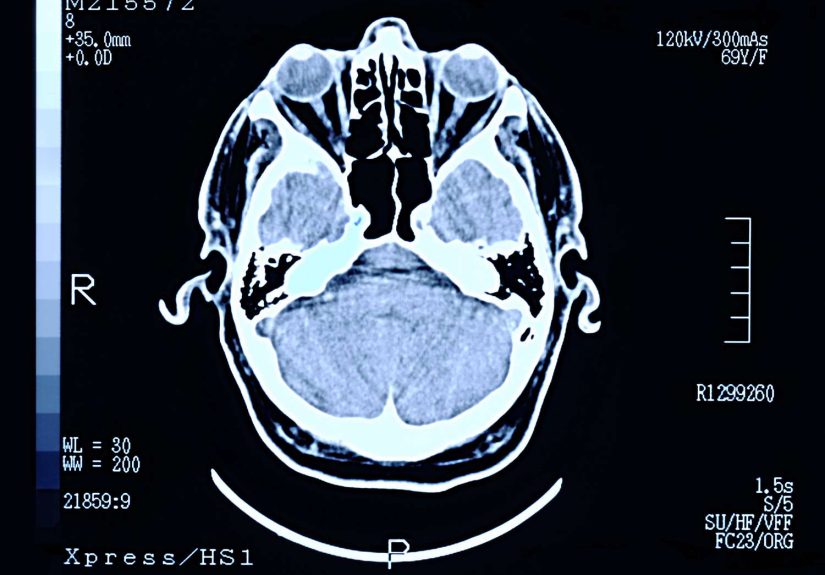
DICOM files are used to store and share medical images such as X-rays, CT scans, MRIs, ultrasounds, mammograms, and more. They do more than hold a picture. A DICOM file can also carry important details about the image, the scan settings, the study, and the patient. In other words, it is not just a photo. It is more like a photo with a resume, passport, and filing cabinet attached.
In this guide, you will learn exactly what a DICOM file is, why healthcare systems use it, how to open one safely, what software works best, and what to do when the file refuses to cooperate like a moody printer on a Monday morning.
What Is a DICOM File?
DICOM stands for Digital Imaging and Communications in Medicine. It is both a file format and a standard for handling and exchanging medical imaging information. That combination matters. A regular image format like JPG mainly focuses on the picture itself. DICOM is built for clinical workflows, where images need context, consistency, and interoperability.
A DICOM file often uses the .dcm extension, but not always. In some exported studies, you may see a folder full of files with odd names, plus a file called DICOMDIR. That directory file helps software understand how the imaging study is organized. So if you open a medical imaging disc and feel like you have walked into a tiny digital labyrinth, you are not imagining things.
Healthcare providers use DICOM because it helps imaging systems from different vendors store, retrieve, transmit, and display scans in a standardized way. That is the secret sauce. A scan created on one machine can often be read by another compliant system without turning into gibberish.
What’s Inside a DICOM File?
A DICOM file usually contains two main ingredients:
1. The image data
This is the actual scan or image frame. Depending on the exam, it may be one image or one slice in a much larger series. A CT or MRI study may include hundreds of related DICOM files, each representing a slice in the full stack.
2. The metadata
This is where DICOM gets interesting. Metadata can include details such as the imaging modality, scan date, pixel spacing, orientation, body part examined, series description, and other technical information that helps software display the images correctly. Depending on the workflow, DICOM metadata may also include identifying information related to the patient and the exam.
That metadata is one reason DICOM is so useful in medicine and research. It is also one reason you should treat DICOM files carefully. They are not casual vacation snapshots. They may contain sensitive information and should be handled with appropriate privacy in mind.
Why DICOM Matters More Than a Regular Image File
A JPG can show you that an image exists. A DICOM file can help a clinical viewer understand how that image was acquired, where it belongs in a study, and how it should be displayed alongside other slices or related objects.
That is why hospitals, radiology centers, and research archives rely on DICOM. It supports consistent viewing, sharing, archiving, and integration with larger imaging systems. It is also why opening a DICOM file with the wrong app can feel like trying to read sheet music in a toaster. The file may technically open, but that does not mean the result will be useful.
How to Open a DICOM File
The best way to open a DICOM file depends on where it came from and what you need to do with it. Here are the most practical options.
Use the viewer that came with the study
If your provider gave you a CD or DVD, it may include a built-in viewer. Many discs contain the DICOM files, a DICOMDIR file, and a simple viewing program. This is often the easiest route for patients because the viewer is packaged to work with that study.
Open the disc, look for a launcher or viewer application, and start there. If the viewer works, great. If it does not, welcome to the club. Medical discs can be useful, but they do not always age gracefully.
Use a dedicated DICOM viewer
If the included viewer is missing, outdated, or refuses to cooperate, use dedicated DICOM software. A proper DICOM viewer can read the files as a study, preserve the series structure, and let you scroll through images the way they were intended to be seen.
Desktop tools are often the most reliable choice when you have a folder of files from a CD, USB drive, or export package. These viewers can import a folder, read the study organization, and display the images as a stack rather than as random disconnected files.
Use a browser-based viewer when available
Some organizations use web-based imaging viewers. These are convenient because there is no big software install, and you can often view images right in your browser. In modern clinical and research workflows, browser viewers are increasingly tied to DICOMweb or other institutional sharing systems.
For patients, this usually means the easiest web option is whatever portal or image-sharing system your provider already offers. If your hospital gives you access through an imaging portal, use that first. It is usually simpler and less dramatic than wrestling with files manually.
Can Windows Photos or Mac Preview open a DICOM file?
Sometimes they may display something. Usually they are not the right tool. Standard image apps are built for everyday formats such as JPG, PNG, and HEIC. DICOM studies involve metadata, image series, and medical display expectations that those apps are not designed to manage. So while curiosity is admirable, a dedicated DICOM viewer is the smarter move.
How to Open a DICOM File on Windows
- Locate the folder or disc that contains the imaging study.
- Check whether it includes a viewer application or launcher.
- If that fails, install a trusted DICOM viewer.
- Import the entire folder, not just one random file.
- Look for the study, series, or patient list inside the viewer.
- Open the series you want and scroll through the images.
Tip: if you see a DICOMDIR file, import the whole study folder rather than cherry-picking individual files. That usually gives the viewer enough structure to organize the exam correctly.
How to Open a DICOM File on Mac
- Open the imaging folder or mounted disc.
- Try the included viewer first if the provider supplied one.
- If not, use DICOM software made for Mac or a web-based institutional viewer.
- Import the study folder so the software can detect the full exam.
- Choose the study and series you want to review.
Mac users often hit the same wall as Windows users: the file is not broken, it is just specialized. Once you use actual DICOM software, the mystery usually disappears fast.
How to Open DICOM Files from a CD, DVD, or USB
This is one of the most common real-world scenarios. A doctor’s office gives you a disc and says, “Here are your images.” Then you get home and discover the disc contains forty-seven files, two folders, one viewer, and the emotional energy of a 2007 software installer.
Here is the sensible approach:
- Look for a viewer or launcher first.
- If nothing useful appears, copy the study folder to your computer.
- Open that folder in a dedicated DICOM viewer.
- Keep the folder structure intact whenever possible.
- Do not rename files unless you know exactly what you are doing.
If the disc viewer fails to run, that does not automatically mean the images are unreadable. Often the DICOM files themselves are fine, and the bundled viewer is the weak link.
Can You Convert a DICOM File to JPG, PNG, or PDF?
Yes, but with a catch. Once you convert DICOM to a regular image or document format, you often lose the richer medical context. That means the converted file may be fine for presentations, emails, or quick reference, but it is not a full substitute for the original study.
Convert a DICOM file only when you actually need a simpler output for sharing or illustration. For example:
- JPG or PNG: good for slides, websites, or basic visual reference
- PDF: useful for reports or image snapshots
- Original DICOM: best for clinical review, second opinions, research, or archiving
The safest workflow is simple: keep the original DICOM files, then export copies in other formats if needed. Think of DICOM as the master file and JPG as the souvenir postcard.
Common Problems When Opening a DICOM File
The file will not open
Most often, the wrong program is being used. Try a dedicated DICOM viewer and import the whole folder.
You only see one image
Many imaging exams are made up of a series of files. Opening one file by itself may show only one slice. Import the full study directory instead.
The viewer says the file is unsupported
Some studies include specialized objects or compressed formats that not every viewer handles equally well. In that case, try another dedicated viewer or use the software provided by the institution.
The CD viewer does nothing
Older viewer software may not play nicely with current operating systems or security settings. Copy the files to your computer and open them with a modern DICOM viewer.
You are worried about privacy
That concern is valid. DICOM files can include personal and exam-related metadata. If the files are for research or broader sharing, use tools and workflows that support anonymization or de-identification before distributing them.
DICOM vs. JPG vs. PNG vs. PDF
| Format | Best For | Strength | Limitation |
|---|---|---|---|
| DICOM | Medical imaging workflows | Includes image data plus clinical and technical metadata | Needs specialized software |
| JPG | General image sharing | Easy to open almost anywhere | Loses DICOM context and study structure |
| PNG | High-quality screenshots and graphics | Good image clarity | Still not a medical imaging workflow format |
| Reports and simple exports | Easy to send and archive | Not ideal for reviewing full image series |
When You Should Keep the Original DICOM Files
Keep the original files if you are getting a second opinion, sharing scans with another provider, participating in research, preserving a full imaging study, or comparing future imaging to past exams. In those cases, the DICOM files are the real deal. Exported JPGs are helpful, but they are not the whole story.
Also, if you receive a portal download or image disc from a clinic, it is smart to store a backup copy in a secure location. Medical imaging can be surprisingly hard to recreate on demand when you need it quickly.
Real-World Experiences With DICOM Files
Most people do not go looking for DICOM files for fun. They usually meet one because life suddenly got serious. Maybe it is after an MRI, a CT scan, a specialist referral, or a parent’s hospital visit. The first experience is often the same: you expect a normal image file, then discover a folder that looks like it belongs to a spaceship.
One common experience is the patient who gets a disc from the imaging center and assumes it will open like family photos. Instead, they find file names that make no emotional effort to be friendly. They click one, nothing useful happens, and for a brief moment they consider majoring in radiology out of pure necessity. Once they learn to open the whole study in a DICOM viewer, the confusion fades fast. The problem was not the scan. It was the expectation that a medical file behaves like a vacation selfie.
Another common situation involves caregivers. A son, daughter, spouse, or sibling may be asked to help move scans from one doctor to another. In that moment, DICOM becomes less about file formats and more about logistics. They may need to copy a study from a CD, upload it to a portal, or hand it to another specialist. That is where DICOM’s standardization becomes quietly brilliant. It is not glamorous, but it helps important medical information move from place to place with structure intact.
Students and researchers have their own DICOM initiation ceremony. At first, the files seem intimidating. Then they realize DICOM is actually one of the reasons large imaging projects are possible at all. The metadata makes it easier to sort studies, understand modalities, organize series, and build analysis workflows. Yes, there is still a learning curve. Yes, there will be at least one afternoon where a folder import goes sideways for mysterious reasons. But once the workflow clicks, DICOM starts to feel less like a puzzle and more like a dependable system.
Clinicians and imaging professionals often experience DICOM differently. For them, a good DICOM workflow is like good plumbing: when it works, nobody writes poetry about it, but when it breaks, everybody notices. They rely on DICOM because it keeps imaging studies usable across devices, departments, and institutions. The file is not just a picture. It is part of a larger conversation between scanners, archives, viewers, and healthcare teams.
Then there is the emotional side. Medical images are not abstract for the people who receive them. A DICOM file may represent uncertainty, relief, follow-up, or answers after a long wait. That is why simple access matters. When patients can actually open their images and share them without chaos, the technology stops being a barrier and starts doing its job.
So if your first experience with DICOM feels awkward, you are in very good company. Nearly everyone starts with a little confusion. The good news is that the file format is not the enemy. It is just specialized, and once you use the right viewer and understand the study structure, it makes a lot more sense.
Conclusion
A DICOM file is the standard workhorse of medical imaging. It stores more than a picture, supports interoperability, and helps healthcare systems manage scans in a meaningful way. If you need to open one, the safest strategy is to use the viewer supplied by your provider, a dedicated DICOM viewer, or an institutional web portal designed for imaging studies.
The big takeaway is simple: do not treat a DICOM file like an ordinary photo. Keep the original study, open it with the right tool, and convert it only when you need a simplified copy. Do that, and the once-mysterious DICOM file becomes much less intimidating and a lot more useful.