Table of Contents >> Show >> Hide
- What Google Vids Is (and What It Isn’t)
- What’s New: The Free Version (and the Paid AI “Power-Ups”)
- Why This Matters: Google Is “Docs-ifying” Video
- How Vids Fits Into Google Drive (and Your Existing Workflow)
- What You Can Make With the Free Google Video Editor
- Limitations to Know Before You Promise Anyone “A Quick Video”
- Google Vids vs. Other Online Video Editors
- Tips to Get Better Results (Without Spending Money)
- of Real-World “Experience” With a Free Browser-Based Editor
- Conclusion
For years, “quick video edit” has been code for: download a heavyweight app, accept a surprise watermark, or
sacrifice an afternoon to the timeline gods. Google is now trying a different pitch: open a tab, start editing,
and don’t pay a cent. Google’s browser-based video editorGoogle Vidshas expanded beyond paid Google Workspace
plans and is now available in a free, consumer-friendly version (with a few important caveats).
If you’ve ever wished Google Docs could just… become a video editor when inspiration strikes, that’s basically
the vibe here. Vids feels less like “Hollywood post-production” and more like “Slides, but moving.” In this deep
dive, we’ll break down what’s actually free, what’s still behind a paywall, where Vids fits in the online video
editor universe, and how to get the best results without turning your laptop fan into a leaf blower.
What Google Vids Is (and What It Isn’t)
Google Vids is a web-based video creation and editing tool built for simple, shareable videosthink training
clips, explainers, internal updates, product demos, and “here’s what we shipped” recaps. The interface is designed
to feel familiar if you’ve used Google Slides: templates, drag-and-drop media, scenes or sections, and a workflow
that favors structure over chaos.
What it does well
- Browser-based editing: No install, no “update required” pop-ups mid-project.
- Templates: A fast way to go from zero to “this looks intentional.”
- Stock media and music: Built-in library options so you’re not hunting for B-roll at 1 a.m.
- Simple timeline-style edits: Trim clips, add text, layer audio, and adjust transitions.
- Collaboration: Google-style sharing and co-editing (the “Docs effect,” but for video).
- Exports: Download shareable files (like MP4), so you can publish outside the Google ecosystem.
What it’s not trying to be
Vids is not aiming to replace professional editors like Premiere Pro, Final Cut, or DaVinci Resolve. If you need
advanced color grading, deep audio mixing, multi-cam workflows, or frame-by-frame control, Vids will feel like a
friendly scooter next to a race car. The point is speed, accessibility, and collaborationnot a cinematic masterpiece
with twelve layers of motion graphics and the emotional arc of a prestige drama.
What’s New: The Free Version (and the Paid AI “Power-Ups”)
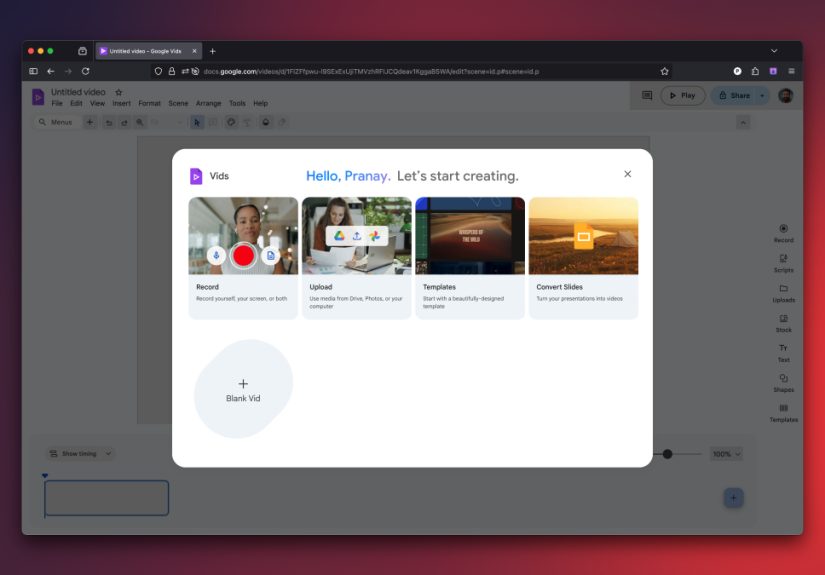
The headline is simple: Google introduced a no-cost option so anyone with a Google account can use the basic Vids
editor. The key word is basic. The free version focuses on the core editing experiencetemplates, assembling
scenes, adding media, and exportingwhile many of the flashier generative AI features remain tied to paid tiers.
What free users get
- Core editor: Build a video from templates or start from scratch.
- Import and assemble: Use your existing clips and assets (especially those already living in Drive).
- Basic edits: Trim, reorder, add text, adjust pacing, add music, and polish with simple transitions.
- Sharing: Collaborate and share similarly to other Google productivity tools.
- Download: Export a finished video file to share elsewhere.
What paid users get (the AI extras)
Paid Workspace tiers and certain Google AI subscriptions unlock more advanced featuresespecially the generative AI
tools that make Vids feel like a “video assistant.” Depending on plan and rollout timing, those can include things like:
- AI-assisted creation: Prompt-based outlines or storyboards that help structure a video quickly.
- Image-to-video: Turning still images into short video clips using Google’s video models (where available).
- AI avatars: Pre-made avatars that can deliver a script so you don’t have to be on camera for every update.
- Transcript-based cleanup: Tools that identify filler words and awkward pauses for quicker tightening.
Translation: the free version is a capable online video editor for everyday work, school, and content needs. The paid
version is where you’ll find the “make it faster with AI” featuresuseful, but not required to produce a good video.
Why This Matters: Google Is “Docs-ifying” Video
Google already dominates everyday writing, spreadsheets, and presentations for millions of people. Video has been the
missing piece in that productivity puzzle. With Vids, Google is basically saying: “If you can make a deck, you can
make a video.” That’s a big deal because video is increasingly the default format for:
- Team updates and training (especially for distributed teams)
- Customer onboarding and how-to explainers
- School projects and presentations
- Product demos and quick marketing clips
- Internal announcements that people will actually watch (sometimes)
The free browser-based editor also lowers the barrier for people who don’t want yet another subscriptionor who just
need to trim a clip, add titles, and move on with their day.
How Vids Fits Into Google Drive (and Your Existing Workflow)
One of Vids’ most practical perks is how naturally it connects to Google Drive. Many people already store raw video
in Drivescreen recordings, meetings, product footage, event clipsbecause it’s easy to share. Google has been
tightening that loop so you can jump from “Drive preview” to “edit this video” with fewer steps.
Typical “Drive to Vids” scenarios
- Quick trim: Cut dead air at the beginning/end of a clip before sharing it.
- Add context: Title cards, labels, or a callout arrow so viewers know what they’re looking at.
- Turn slides into video: If your message already exists as a deck, converting it into a video format can be faster than rebuilding from scratch.
- Build a mini-series: Reuse scenes or templates to produce consistent updates week over week.
This is where Google’s “productivity DNA” shows up: Vids is less about creative experimentation and more about
repeatable communication. It’s the difference between “art project” and “message delivered.”
What You Can Make With the Free Google Video Editor
Let’s get specific. The free version is best when your goal is clarity, speed, and shareability. Here are examples
that work especially well in a browser-based editor:
1) A team update that doesn’t feel like homework
Combine a short webcam intro, a screen recording of a dashboard or prototype, and a closing slide with next steps.
Add captions or on-screen text for key numbers. Keep it under two minutes, because attention spans are a precious,
endangered species.
2) A simple product demo
Start with a “problem statement” title card, show the workflow in 2–3 scenes, then end with a quick summary and
where to learn more. Add light background music if it doesn’t compete with narration. (If your soundtrack makes
people feel like they’re in a spy movie, your product better be amazing.)
3) A classroom explainer
Students can turn a standard presentation into a narrated video: a hook, a few key points, supporting visuals,
and a conclusion. The template-first approach makes it easier to focus on the content instead of the editing.
4) A “how to” walkthrough
Record your screen, then cut the pauses, add callouts, and insert a short intro/outro. The browser-based workflow
is perfect for videos that are mostly informational and don’t require complex effects.
Limitations to Know Before You Promise Anyone “A Quick Video”
Every free tool comes with tradeoffs. Vids’ limitations are less about “gotcha” paywalls and more about its identity:
it’s built for lightweight, structured editing and collaboration.
Common constraints
- Not a pro suite: Don’t expect advanced color correction, deep audio engineering, or complex motion graphics.
- Browser performance varies: Large projects can feel slower on older machines or with many assets.
- Feature availability can roll out gradually: Google often staggers releases, so two people may see slightly different options.
- Duration/limits: Vids has published limits (for example, maximum duration) that can change over time.
- AI features differ by plan: The free version emphasizes non-AI editing; advanced AI tools typically require paid access.
The best mindset: treat Vids like your “fast, clean editor” for communication videos. If you need cinematic polish,
you can still start in Vids for structure and then export assets into a heavier editor later.
Google Vids vs. Other Online Video Editors
The online video editor market is crowded: creators have options ranging from ultra-simple to semi-pro. Vids stands out
less by having the most features and more by sitting inside a place people already live all dayGoogle Workspace and Drive.
Where Vids wins
- Frictionless access: It’s in the browser and tied to your Google account.
- Collaboration: Sharing and teamwork feel familiar if you use Docs/Slides.
- Template-first speed: Great for repeatable business and school videos.
- Drive integration: Your assets don’t have to “move” to start working.
Where others may win
- Creator-first effects: Some tools focus heavily on trendy transitions, filters, and social templates.
- Advanced editing: Dedicated editors offer more granular control and professional toolsets.
- Specialized workflows: Some platforms are built specifically for shorts, captions-first editing, or repurposing long videos.
A practical way to choose: if your video is a message (training, update, explainer), Vids is a great fit. If your video
is a performance (highly stylized social content), you may prefer a tool designed for that genre.
Tips to Get Better Results (Without Spending Money)
Start with a template, then edit ruthlessly
Templates help you move fastbut don’t let them overtalk. Delete extra scenes, remove filler slides, and keep your
storyline tight. If you wouldn’t say it out loud to a friend, don’t put it in the video.
Think in scenes, not minutes
Vids works best when each scene does one job: introduce, demonstrate, summarize. If a scene tries to do three jobs,
it becomes the video equivalent of a cluttered junk drawer.
Prioritize audio clarity
Viewers will tolerate slightly imperfect visuals. They won’t tolerate audio that sounds like it was recorded inside
a running dishwasher. Use a decent mic if you can, record in a quiet room, and keep background music subtle.
Use on-screen text like a highlighter, not a novel
Add short callouts: numbers, labels, “Step 1,” and “Key takeaway.” Avoid paragraphs. People are here to watch, not
to read a scroll.
Keep your “edit folder” organized in Drive
Put raw footage, logos, music, and images in one folder. Name files clearly. Your future self will thank you, and your
collaborators will stop DM’ing you “which version is final-final-FINAL.”
of Real-World “Experience” With a Free Browser-Based Editor
Even if you’ve never touched Google Vids before, the experience is surprisingly familiar if you’ve built anything in
Docs or Slides. The first moment you open it feels like walking into a clean, well-lit room where someone has already
labeled the drawers. You’re not staring at a complicated panel of knobs wondering which one launches your video into
the sun. You’re picking a template, dropping in media, and moving scenes around like you’re rearranging note cards on a desk.
The biggest “aha” is how quickly you can go from idea to something watchable. In practice, the free version shines for
those moments when you need a video now, not “after I learn a new editing app.” Imagine a student who has a
presentation due tomorrow: they can take a Slides deck, convert it into a video structure, add a voiceover, and export
a clean MP4 without downloading software on a school-issued laptop. Or picture a small business owner who wants a simple
product walkthrough: a few phone clips in Drive, a title card, three short scenes explaining features, and a closing
slide with where to buy. Done.
There’s also a quiet confidence boost that comes from a tool that doesn’t punish beginners. Traditional editors can feel
like you’re trying to fly a helicopter after watching one motivational TikTok. With Vids, you can make sensible choices
fast: trim the awkward start, add text so viewers understand what they’re seeing, drop background music under narration,
and keep transitions simple. It’s not “effects-heavy,” but it’s “presentation-smart”and for most real-world videos,
clarity beats confetti cannons.
Collaboration is where the browser-based approach really earns its keep. The experience of sharing a work-in-progress
video feels like sharing a Doc: send a link, let someone comment, and iterate. In team settings, that matters because
videos are often bottlenecked by one person who “has the file.” Vids nudges video closer to how modern teams actually
communicate: quickly, collaboratively, and with fewer “can you export that again?” messages.
The free tier does come with an obvious emotional moment: you’ll see hints of AI-powered features and realize some of the
flashier automations live in paid plans. But if you treat the free editor as your baseline tool for clean, structured
videos, it holds up. It feels like Google’s bet that video should be as easy as making a deckbecause sometimes the best
editing feature isn’t a fancy effect. It’s the ability to finish the project before your motivation evaporates.
Conclusion
Google’s decision to make its browser-based video editor available for free is a meaningful shift: video editing moves
closer to the everyday productivity stack, right next to Docs and Slides. The free version of Google Vids won’t replace
professional editing softwareand it doesn’t need to. It’s built for the most common real-world use case: communicating
clearly with video, fast, from anywhere, using tools that feel familiar.
If you’re already living in Google Drive, the appeal is obvious: your assets are there, your collaborators are there,
and now your editor is there, too. For creators, students, and teams who want simple, polished results without a download
or a subscription, Google Vids’ free option is exactly the kind of “finally” that doesn’t require a tutorial marathon.