Table of Contents >> Show >> Hide
- Quick sanity check: what do you mean by “add Safari to the Home Screen”?
- 1) Add Safari from the App Library (the classic “it’s still there” fix)
- 2) Use Search (Spotlight) to locate Safari fast, then put it where you want
- 3) Put Safari in your Dock (aka the “VIP lane” at the bottom)
- 4) Unhide Safari if it’s on a hidden Home Screen page (or in the Hidden folder)
- 5) Check Screen Time restrictions (Safari might be “grounded”)
- 6) Create a Home Screen Safari icon (either restore Safari or add a one-tap website shortcut)
- Extra troubleshooting (because iPhones are adorable drama queens)
- Conclusion: pick the simplest fix, then make it permanent
- Real-World “Been There, Tapped That” Experiences (Common Scenarios & What Actually Helps)
Safari didn’t vanish. It’s just playing hide-and-seek like a toddler who thinks closing their eyes makes them invisible. Whether your Safari icon is missing, buried, restricted, or you simply want a one-tap shortcut to your favorite website, you can get “Safari on the Home Screen” back in minuteswithout summoning the Genius Bar or sacrificing your patience to the iOS gods.
This guide covers six practical, beginner-friendly ways to add Safari to your iPhone or iPad Home Screen. We’ll also troubleshoot the common “why can’t I see the Add to Home Screen option?” mystery, and wrap up with real-world tips that save you from doing the same dance twice.
Quick sanity check: what do you mean by “add Safari to the Home Screen”?
People usually mean one of two things:
- Restore the Safari app icon (because it’s missing from the Home Screen).
- Add a Safari website shortcut (a “web app” icon that opens a specific site directly in Safari).
Good news: you can do eitheror both. Let’s start with the simplest wins.
1) Add Safari from the App Library (the classic “it’s still there” fix)
If Safari isn’t on your Home Screen, it’s often still on your devicejust living in the App Library like it pays rent there.
Steps (iPhone & iPad)
- Swipe left past all your Home Screen pages until you reach App Library.
- Use the search bar (top) or scroll the category folders to find Safari.
- Press and hold the Safari icon.
- Tap Add to Home Screen.
Pro tip: If “Add to Home Screen” doesn’t show up, don’t panic. Try dragging the icon onto your Home Screen insteadsame result, fewer taps.
2) Use Search (Spotlight) to locate Safari fast, then put it where you want
Search is like a flashlight for your apps. If Safari is on a hidden page, lost in a folder, or just not where your thumb expects it, Search finds it instantly.
Steps
- From the Home Screen, swipe down from the middle (or tap the Search field if your iOS shows it at the bottom).
- Type Safari.
- If Safari appears, you can tap it to openor press and hold the icon for more options.
- If you see Add to Home Screen, tap it. If not, note where it lives (App Library / folder) and use Method #1.
Why this works: Even if Safari is sitting on a hidden Home Screen page, Search can still locate itand that’s half the battle.
3) Put Safari in your Dock (aka the “VIP lane” at the bottom)
Adding Safari to the Home Screen is great. Adding it to the Dock is betterbecause it stays visible no matter which page you’re on. If you open Safari daily (or hourly… no judgment), the Dock is your best friend.
Steps
- Touch and hold any empty area on the Home Screen until apps start wiggling.
- Find Safari (Home Screen or App Library) and drag it to the Dock.
- If the Dock is full, drag another app out of the Dock to make space.
- Tap Done (or tap the background) to save your layout.
Bonus: On iPad, Dock space and behavior can differ a bit, but the idea is the same: put Safari where it’s always one tap away.
4) Unhide Safari if it’s on a hidden Home Screen page (or in the Hidden folder)
Sometimes Safari isn’t goneit’s just on a Home Screen page you hid months ago during a “minimalist era.” (We’ve all been there. The monochrome wallpaper phase is real.)
A) Unhide the Home Screen page that contains Safari
- Touch and hold an empty area on the Home Screen until apps wiggle.
- Tap the page dots at the bottom (or choose the page editing option).
- Look for pages with unchecked circles and check them to unhide.
- Tap Done.
B) Check the Hidden folder (newer iOS privacy feature)
If your iPhone supports hiding apps, Safari may be in the Hidden folder inside App Library. Hidden apps don’t show in Search, which makes them feel extra “missing.”
- Go to App Library (swipe left past all Home Screens).
- Scroll down to find the Hidden folder.
- Tap it and authenticate with Face ID / Touch ID / passcode.
- Press and hold Safari, then choose the option that stops hiding it (wording varies), and add it back to Home Screen if needed.
Tip: If you can’t hide built-in apps on your device, then Safari won’t be in Hiddenmove on to the next method.
5) Check Screen Time restrictions (Safari might be “grounded”)
If Safari isn’t showing upor won’t openScreen Time settings are a top suspect. This often happens on family devices, kid phones, work-issued iPhones, or anytime you toggled restrictions to “be productive,” then forgot you did that.
Steps to allow Safari again
- Open Settings > Screen Time.
- Tap Content & Privacy Restrictions (enter passcode if asked).
- Look for Allowed Apps (or similar), then ensure Safari is turned on.
- If you also have web content restrictions, review them to ensure browsing isn’t being blocked globally.
Reality check: If you don’t know the Screen Time passcode, you’ll need whoever set it up (parent, admin, your past self with too much ambition).
6) Create a Home Screen Safari icon (either restore Safari or add a one-tap website shortcut)
This method is for two scenarios: (1) Safari was removed (possible in certain regions or setups), or (2) you want an “app-like” icon that opens a specific website in Safarithink Gmail, your bank portal, your favorite news site, or that recipe blog you swear you’ll stop visiting at midnight.
A) If Safari was deleted: restore it from the App Store
- Open the App Store.
- Search for Safari (use the exact name).
- Tap the download / re-download button.
- Once installed, use Method #1 to add Safari back to the Home Screen.
Note: In many places, Safari can’t truly be removed like a normal appso if you can’t find it in the App Store, it’s likely hidden, restricted, or simply not on your Home Screen.
B) Add a website to your Home Screen (Safari “web app” shortcut)
This is the “I want one tap to open my favorite site” trick. It creates an icon that looks like an app and launches directly to that page in Safari.
- Open Safari and go to the website you want (example: your company dashboard or a daily planner).
- Tap the Share button (or the menu button, depending on your Safari layout).
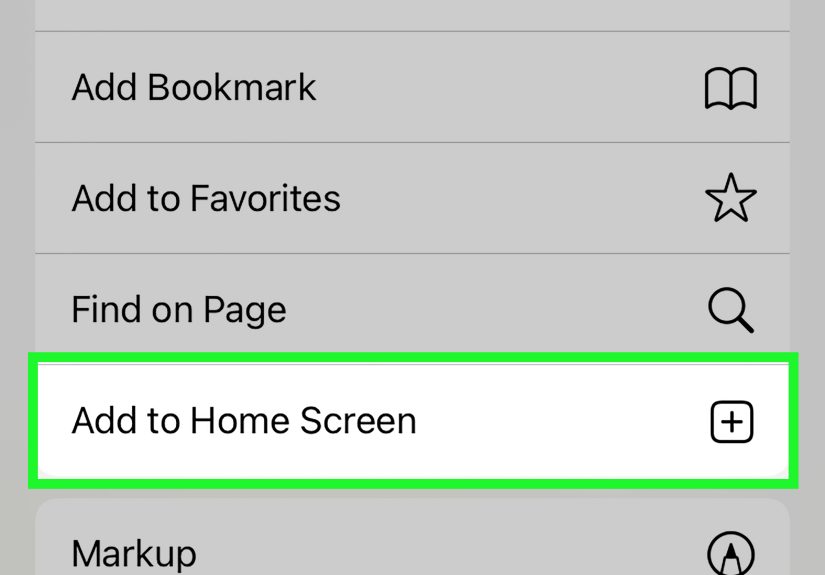
- Scroll and tap Add to Home Screen.
- Edit the name if you want (keep it short so it doesn’t look like a novel under the icon).
- Tap Add.
What if “Add to Home Screen” is missing?
- Scroll to the bottom of the Share sheet and tap Edit Actions (or “Edit” on some versions).
- Find Add to Home Screen and add/enable it.
- Try again from the Share sheet.
C) Make a Safari launcher icon with the Shortcuts app (the “DIY button”)
If you want a custom icon (or a big obvious Safari button for a less techy family member), Shortcuts can place an icon on your Home Screen that opens Safarior opens a specific URL.
- Open Shortcuts and create a new shortcut.
- Add an action like Open App (choose Safari) or Open URLs (paste a website link).
- Open the shortcut details, then tap Add to Home Screen.
- Customize the name and icon image if you want, then tap Add.
Extra troubleshooting (because iPhones are adorable drama queens)
Reset your Home Screen layout (the “nuclear, but neat” option)
If Safari is missing and you’re tired of scavenger hunts, resetting the Home Screen layout can snap everything back to a predictable arrangement. It removes custom folders and reorders apps (downloaded apps usually end up alphabetized after Apple’s defaults), so use this if you’re okay with a fresh start.
- Go to Settings > General > Transfer or Reset iPhone.
- Tap Reset > Reset Home Screen Layout.
If you’re on Android…
Safari isn’t available on Android. If you’re trying to “add Safari” there, your closest match is using Chrome, Firefox, or another browser and adding a website shortcut to the Home Screen from that browser’s menu.
Conclusion: pick the simplest fix, then make it permanent
If Safari is missing, start with the fastest options: App Library (Method #1) and Search (Method #2). If Safari is blocked, fix Screen Time restrictions (Method #5). And if what you really wanted was “Safari, but preloaded to my favorite website,” use the Add to Home Screen web shortcut (Method #6B) and enjoy your new one-tap life.
Once Safari is back, do your future self a favor: put it in the Dock (Method #3). Future you will say thank youprobably while doomscrolling responsibly.
Real-World “Been There, Tapped That” Experiences (Common Scenarios & What Actually Helps)
In everyday use, the Safari Home Screen problem usually shows up in three very human moments: right after a Home Screen “cleanup,” right after a big iOS update, or right when you’re in a hurry and your brain has decided today is the day it will forget how phones work.
The most common “experience” people describe is the accidental Remove from Home Screen tap. You hold the Safari icon too long, the quick menu pops up, you’re aiming for something else, and suddenly Safari is gone. The good news is that removal from the Home Screen doesn’t necessarily mean deletion. The App Library is basically a safety net for moments like thisso if you think you “deleted Safari,” what you often did was just hide it from view.
The second big scenario is the minimalist Home Screen phase. People hide entire pages to make things look cleaner, then months later they forget those pages exist. When Safari was living on Page 3, and Page 3 gets hidden, Safari feels like it evaporated. The fix is simple: edit your Home Screen pages and unhide the page. What’s tricky is remembering that you can hide pages at all. That’s why Method #4 (unhide pages) is such a lifesaverespecially on devices that get “organized” by multiple people.
Then there’s the “my kid was using my phone” or “my phone is managed by work” experience. This is where Screen Time becomes the plot twist. Safari can be disabled as an allowed app, which makes it disappear or stop functioning normally. Folks often assume the phone is broken, when it’s actually just obeying rules. If Safari is missing and you also notice other odd restrictionslike apps not installing, or web content getting blockedScreen Time is the first place to look.
Another real-world pattern: people don’t always want the Safari iconthey want one-tap access to a specific site they use constantly. That’s where the “Add to Home Screen” shortcut shines. It’s especially popular for web-based tools (timesheets, school portals, banking dashboards, restaurant ordering pages). The experience feels “app-like” because it opens straight to the page you saved. The only gotcha is naming: long titles look messy under icons. Renaming the shortcut to something short (“Bank,” “Work,” “Meals,” “Docs”) makes the Home Screen feel clean instead of chaotic.
Finally, there’s a sneaky frustration: the “Add to Home Screen” option is missing. This is usually a Share sheet customization issuepeople scroll right past “Edit Actions” and assume Apple removed the feature. In practice, it’s just hidden or disabled, and enabling it is quick. Once it’s back, most people say some version of: “Wow, that was it? I spent 20 minutes for a button?”
The best long-term habit is simple: once Safari is back, put it in the Dock. When it’s always visible, you stop losing time to Home Screen archaeology. And if your Home Screen is shared with family, consider adding a Shortcuts-based Safari launcher icon labeled “INTERNET” in all caps. Is it elegant? No. Does it prevent tech support calls? Absolutely.