Table of Contents >> Show >> Hide
- Quick cheat sheet: the 3 easiest ways
- Way #1: Block the sender directly (the “instant relief” option)
- Way #2: Create rules (and use Sweep) to auto-delete or auto-move emails
- Way #3: Adjust Junk Email settings (blocked list, safe list, and filtering strength)
- Common questions (because inbox chaos is a universal language)
- Conclusion: Your inbox can be peaceful again
- Real-world experiences: what people usually run into (and how they fix it)
Hotmail spam has a special talent: it arrives at the exact moment you’re trying to be productivelike a toddler with a drum set.
The good news is you don’t have to live like this. Whether you still rock an @hotmail.com address or you’ve migrated to Outlook.com,
you can shut down annoying senders in minutesno tech wizard robe required.
Below are three easy, reliable ways to block unwanted emails on Hotmail, plus a few “spam-proofing” tricks that make your inbox feel
less like a garage sale and more like a calm, adult place where bills and important messages can be found.
Quick cheat sheet: the 3 easiest ways
- Way #1: Block the sender directly (fastest “make it stop” button).
- Way #2: Create a rule (or use Sweep) to auto-delete or auto-move messages.
- Way #3: Tweak Junk Email settings (blocked/safe lists + stronger filtering).
Tip: You can combine all three. Think of it like home security: a lock, a camera, and a dog that barks at leaves.
Overkill? Maybe. Peaceful? Absolutely.
Way #1: Block the sender directly (the “instant relief” option)
If an email makes you sigh loudly enough to scare your houseplant, blocking the sender is your first move.
Blocking usually means future messages from that address (or domain) get routed to Junk instead of your inbox.
It doesn’t rewrite historyyour existing messages won’t magically disappearso you may want to delete the current thread too.
On Hotmail/Outlook.com in a web browser
- Open a message from the sender you want to block.
- Look for the three dots (More actions) or a Junk option.
- Select Block or Block sender, then confirm.
Prefer the “set it and forget it” settings route? You can also add addresses or entire domains to your blocked list:
- Click the gear icon (Settings).
- Select View all Outlook settings.
- Go to Mail → Junk email.
- Under Blocked senders and domains, click Add and enter an email or domain.
- Click Save.
Example: If the spam comes from [email protected], block that address.
If they keep changing addresses (promo1, promo2, promo-please-stop), block the domain: sketchydeals.example.
In the Outlook app on Windows (new Outlook / classic Outlook)
If you access Hotmail through the Outlook desktop app, you can block a sender from a message:
- Select the unwanted email.
- Choose Junk (or Block depending on your ribbon) on the toolbar.
- Click Block Sender and confirm.
If you want to manage the blocked list from settings, look for Settings → Mail → Junk email
(new Outlook) or Junk E-mail Options (classic Outlook).
On Outlook mobile (iPhone/Android)
The mobile app usually puts blocking under the “Report junk” flow:
- Open the message.
- Tap the three dots (More options).
- Select Report Junk, then choose Block Sender (or similar).
One small annoyance: depending on the app version, blocking/reporting may work best one message at a time, not in bulk.
If you’re trying to multi-select 47 spam emails (respect), you may need to block the sender from an opened message first.
Mini “don’t get fooled” note: blocking isn’t a force field
Blocking is powerful, but spammers often rotate addresses or spoof names. If you’re getting near-identical junk from new senders,
jump to Way #2 (rules) and Way #3 (Junk settings) so you’re not stuck playing spam whack-a-mole until retirement.
Way #2: Create rules (and use Sweep) to auto-delete or auto-move emails
Blocking is great for a specific sender. Rules are better for patternslike “anything that says ‘CONGRATS WINNER’ in the subject”
or “all messages from this domain go straight to a folder called ‘Later (Never)’.”
Option A: Make an inbox rule on Outlook.com (Hotmail) web
Rules are perfect when:
- A sender changes addresses but keeps the same domain.
- You want messages deleted immediately (not just routed to Junk).
- You want to move email to a folder (newsletters, receipts, alerts).
How to set up a rule:
- Open Outlook.com and click the gear icon (Settings).
- Select View all Outlook settings.
- Go to Mail → Rules.
- Click Add new rule.
-
Pick conditions (like From, Subject includes, or Body includes) and actions
(like Delete or Move to folder). - Save the rule.
Practical rule examples:
-
“Delete instantly” rule: If From contains sketchydeals.example → Delete.
Great for repeat offenders. -
“Quarantine folder” rule: If Subject includes “invoice” AND From is not your known vendor domains
→ move to a folder named Suspicious for quick review. -
“Newsletter sanity” rule: If From contains newsletter or no-reply → move to Read Later.
Your inbox stops looking like a digital flyer wall.
Option B: Use Sweep (the “clean out everything from this sender” power tool)
Sweep is a built-in cleanup tool in Outlook on the web that’s especially handy when you already have a pile of messages from a sender
and want to delete or organize them in one goplus optionally automate it for the future.
How Sweep typically works:
- Select a message from the sender.
- Choose Sweep.
-
Pick what you want, such as:
- Delete all messages from that sender (including future ones)
- Keep only the latest message and delete the rest
- Delete messages older than a set window (commonly “older than 10 days”)
When Sweep beats Rules: When you want instant cleanup plus a simple automation without thinking too hard.
When Rules beat Sweep: When you need more precise logic (multiple conditions, specific folders, exceptions, etc.).
Way #3: Adjust Junk Email settings (blocked list, safe list, and filtering strength)
If spam keeps slipping past your quick blocks, it’s time to tune the engine. Junk Email settings let you:
- Maintain a Blocked senders and domains list.
- Maintain a Safe senders list so important mail doesn’t land in Junk.
- Control how aggressive filtering is (especially in Outlook desktop apps).
On Outlook.com / Hotmail web: manage blocked and safe lists
- Open Settings (gear icon).
- Select View all Outlook settings.
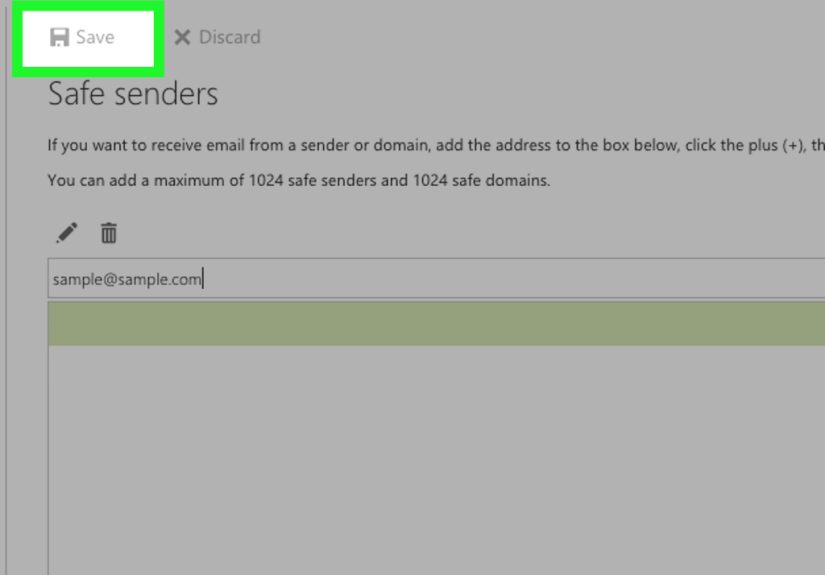
- Go to Mail → Junk email (or “Block or allow” depending on interface).
-
Add entries to:
- Blocked senders and domains (send them to Junk)
- Safe senders and domains (help keep them out of Junk)
- Save your changes.
Pro tip: If you ever wonder “Why did this legit email land in Junk?” add that sender (or domain) to your safe list,
then check your Junk folder occasionally. Spam filters are helpful, but they’re not psychic.
In Outlook desktop: set stricter junk protection (carefully)
Desktop Outlook versions often let you choose the junk protection level. Higher protection catches more junkbut can also mislabel legitimate emails.
If you go stricter, make it a habit to glance at Junk occasionally so you don’t miss something important (like a real invoice, a school email,
or that appointment reminder you actually needed).
A balanced approach:
- Step 1: Increase filtering one notch.
- Step 2: Add known contacts/domains to Safe Senders.
- Step 3: Check Junk weekly for false positives.
Report junk and phishing (this helps you and everyone else)
When an email is more than annoyingwhen it’s clearly a scam, credential grab, or “click here to claim your astronaut scholarship”use the
Report phishing or Report junk option instead of only deleting it. Reporting helps improve filtering and also reduces
the odds you’ll see the same campaign again.
If you’re unsure whether something is phishing, treat it as suspicious:
- Don’t click links or open attachments.
- Look at the sender’s full email address (not just the display name).
- If it claims urgency (“your account will be closed in 7 minutes”), pause. Real companies rarely do that.
Common questions (because inbox chaos is a universal language)
Will blocking stop the sender from emailing me entirely?
Usually, blocking means messages from that address/domain get diverted to Junk rather than reaching your inbox.
The sender can still “send,” but you don’t have to see it in your main inbox.
Why do I still get spam from someone I blocked?
The most common reasons:
- They switched to a new address (same spam, new costume).
- You blocked an address, but you needed to block the domain.
- The sender name is spoofed; the real source changes constantly.
Fix: Block the domain, add a rule for keywords, and report as junk/phishing when appropriate.
How do I unblock someone?
Go back to Settings → Mail → Junk email and remove them from the blocked list.
(You can also do this from Outlook desktop settings if you blocked them there.)
Conclusion: Your inbox can be peaceful again
If you remember nothing else: block fast, rule smart, and tune junk settings.
That trio handles most Hotmail spam without turning your life into a part-time “email bouncer” job.
Start with Way #1 for immediate relief. Add Way #2 if the spam follows patterns. Lock it in with Way #3 so legitimate emails stay visible,
and the nonsense gets quietly escorted out.
Real-world experiences: what people usually run into (and how they fix it)
People rarely set out to “optimize their Hotmail inbox.” It usually happens after one too many mornings of scrolling past
“Congratulations! You’ve been selected!” while trying to find a real message from a real human. Based on common patterns users report,
here are a few situations that show why the three methods above work best when you mix them.
Experience #1: The “I blocked them… and they came back” saga
A classic: someone blocks [email protected], celebrates briefly, and then gets email from [email protected],
[email protected], and eventually [email protected]. The mistake isn’t your blocking skills
it’s that the sender is rotating addresses. The fix is simple: block the domain (the part after the @) and add a rule for recurring
subject lines like “limited time,” “winner,” or “urgent action required.” This is where Way #1 (block) plus Way #2 (rules) stops the merry-go-round.
Experience #2: The “my important email went to Junk” panic
On the other side of the spectrum: someone turns junk filtering way up (understandable) and then misses something importantlike a delivery notice,
a school update, a password reset they actually requested, or a time-sensitive bill reminder. The fix isn’t “turn filtering off and accept inbox doom.”
The fix is Safe Senders. Add your bank domain, your employer domain, your kid’s school domain, and any must-have services to your safe list.
Then do the grown-up thing none of us want to do: check the Junk folder once a week for false positives. It’s a 30-second habit that saves
you from the “Why didn’t anyone tell me?!” email mystery later.
Experience #3: The newsletter avalanche (aka “I didn’t subscribe to 900 things… did I?”)
Sometimes the problem isn’t malicious spamit’s legitimate marketing that multiplied while you weren’t looking. People sign up for one discount,
then get daily emails forever. This is where Sweep becomes your best friend: pick one message from that sender, Sweep the entire backlog,
and choose an option like “keep the latest” or “delete all.” If you still want the emails occasionally, create a rule that moves them to a folder
(like “Newsletters”) instead of deleting them. That way your inbox stays functional, and you can browse promotions on your termslike a human,
not a captive audience.
Experience #4: The “is this phishing or just annoying?” moment
Lots of people hesitate because they’re not sure what counts as dangerous. A practical approach is: if an email pressures you to act fast,
asks for sensitive info, or wants you to “confirm” a password or payment method, treat it as suspicious. Don’t click anything. Report it as phishing
if the option exists. Blocking is helpful, but reporting is what trains the filter to recognize similar attacks in the future. Think of reporting as
turning on the porch light for your whole neighborhood.
The main lesson from these experiences is simple: blocking is tactical, rules are strategic, and junk settings are structural.
Use all three and you won’t just reduce spamyou’ll keep your inbox usable long-term, even when spammers change their costumes.