Table of Contents >> Show >> Hide
- Why Hidden Apps Confuse So Many iPhone Users
- How to Delete Hidden Apps on iPhone: 11 Steps
- Step 1: Figure out what “hidden” means on your iPhone
- Step 2: Check whether your iPhone is running iOS 18 or later
- Step 3: Open the App Library
- Step 4: Tap the Hidden folder if you see it
- Step 5: Confirm the exact app you want to remove
- Step 6: Decide whether you want to delete it or just unhide it
- Step 7: Unhide the app first if it is in the Hidden folder
- Step 8: Find the app in the App Library search list
- Step 9: Long-press the app icon and choose Delete App
- Step 10: Confirm the deletion
- Step 11: Troubleshoot if Delete App does not appear
- Common Mistakes to Avoid
- What About Hidden Apps on Older iPhones?
- Final Thoughts
- Real-World Experiences With Hidden Apps on iPhone
- SEO Tags
If you have ever “hidden” an app on your iPhone and then tried to delete it later, you already know the experience can feel a little like playing hide-and-seek with a very smug robot. The app vanishes from the Home Screen, your brain assumes it is gone, and then your storage says, “Cute theory.”
Here is the big truth: a hidden app is usually not a deleted app. In iOS 18, Apple lets you hide certain downloaded apps in a locked Hidden folder inside the App Library. In older versions of iOS, you could remove apps from the Home Screen so they were out of sight, but they still lived happily on the phone. That means if you want to delete hidden apps on iPhone, you need to do more than make them disappear.
This guide walks you through the process in 11 simple steps, explains the difference between hidden and removed apps, and helps you avoid the classic mistake of thinking “Remove from Home Screen” means “goodbye forever.” Spoiler: it does not.
Why Hidden Apps Confuse So Many iPhone Users
Apple now gives iPhone users more privacy tools, which is great. But those tools also create a tiny bit of chaos. You can hide an app, lock an app, remove an app from the Home Screen, offload an app, or fully delete an app. Those are not the same thing. That is five different roads leading to six different emotional reactions.
For this article, we are focused on one specific mission: permanently removing an app that has been hidden, whether it is tucked inside the Hidden folder in iOS 18 or just lurking in the App Library after being removed from your Home Screen.
How to Delete Hidden Apps on iPhone: 11 Steps
Step 1: Figure out what “hidden” means on your iPhone
Before you delete anything, identify what kind of hidden app you are dealing with. On iOS 18, a truly hidden app is placed in the Hidden folder in the App Library and protected by Face ID, Touch ID, or your passcode. On older iPhones, or on phones where you simply cleaned up the Home Screen, the app may only be removed from view and still sitting in the App Library.
This matters because the steps are slightly different. If you skip this part, you may spend ten minutes swiping around your phone like a detective in a low-budget crime show.
Step 2: Check whether your iPhone is running iOS 18 or later
Go to Settings > General > About and look at your iOS version. If your iPhone is on iOS 18 or later, hidden apps can live in the special Hidden folder. If you are on iOS 17 or earlier, the app is probably not “hidden” in the new privacy sense. It is more likely just removed from the Home Screen.
Knowing your version helps you avoid following the wrong set of steps. iPhones are smart, but they are not psychic. Sadly.
Step 3: Open the App Library
From the Home Screen, swipe left past all your pages until you reach the App Library. This is where your installed apps still hang out even after you remove them from the Home Screen. Think of it as the iPhone’s storage attic, except less dusty and far more judgmental.
If the app was only removed from the Home Screen, you may find it here immediately through the search bar or app list. If it is truly hidden in iOS 18, keep going.
Step 4: Tap the Hidden folder if you see it
In iOS 18, scroll to the bottom of the App Library and look for the Hidden folder. Tap it. You will be asked to authenticate with Face ID, Touch ID, or your passcode. Once unlocked, the hidden apps inside become visible.
If you do not see the Hidden folder, the app may not be hidden in the iOS 18 sense. Try the App Library search field instead, or check Settings > Apps > Hidden Apps to see a list of apps hidden with Apple’s privacy feature.
Step 5: Confirm the exact app you want to remove
This sounds obvious, but it is worth doing carefully. Many apps have similar icons, especially finance, messaging, shopping, and photo-editing apps. Deleting the wrong one is an excellent way to turn a two-minute cleanup into a “Why did all my drafts disappear?” kind of afternoon.
If the app stores important local files, downloads, or media, open it first and back up anything you need. Deleting an app usually removes its app data from the phone as well. Some cloud-based content will remain tied to your account, but locally saved files may not.
Step 6: Decide whether you want to delete it or just unhide it
Pause for one second and decide what outcome you actually want. Do you want the app gone, or do you just want it visible again? A lot of people search for how to delete hidden apps on iPhone when what they really need is to unhide the app and put it back on the Home Screen.
If you still use the app, simply unhide it. If you never want to see it again, proceed to full deletion. Marie Kondo would approve. Probably.
Step 7: Unhide the app first if it is in the Hidden folder
Press and hold the hidden app, then choose Don’t Require Face ID, Don’t Require Touch ID, or the equivalent prompt on your device. This removes the hidden status and returns the app to normal visibility in the App Library. On some setups, you may also see an option to add it back to the Home Screen.
This step is useful because the cleanest, most reliable deletion method is usually to remove the app once it is back in its regular App Library state. In plain English: unhide first, delete second, headache never.
Step 8: Find the app in the App Library search list
Now tap the App Library search field so you can view the alphabetical list of installed apps. Scroll to the app or type its name. This list is often the easiest place to delete apps because it is simple, direct, and does not require you to hunt through Apple’s auto-sorted categories.
If the app still does not appear, check Settings > Apps and search for the app name there. If you see it in Settings, it is still installed. If you do not, there is a good chance it was already deleted and only needs to be redownloaded if you want it back.
Step 9: Long-press the app icon and choose Delete App
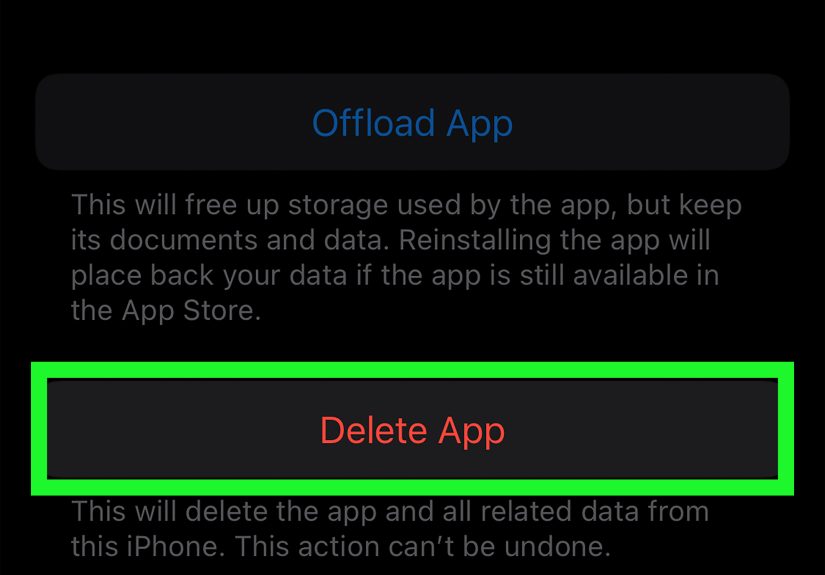
Touch and hold the app icon in the App Library. A menu should appear. Tap Delete App. This is the moment of truth. Not “Remove from Home Screen.” Not “Maybe Later.” Not “Let me think about it.” You want Delete App.
If you are deleting from the Home Screen instead, the correct path is Remove App > Delete App. But remember, if you tap Remove from Home Screen, the app stays installed and simply moves out of sight.
Step 10: Confirm the deletion
When your iPhone asks you to confirm, tap Delete again. That removes the app from the iPhone. In most cases, it also removes app data stored locally on the device, though account-based data may still exist in iCloud or on the app developer’s servers.
This is also the point where you may realize you were holding onto an app “just in case” for two years. Congratulations. You are now officially lighter by one unused app and approximately six ounces of digital guilt.
Step 11: Troubleshoot if Delete App does not appear
If your iPhone refuses to show a delete option for a third-party app, check Screen Time restrictions. Go to Settings > Screen Time > Content & Privacy Restrictions. If app deletion is blocked, allow it and try again. Parental controls often cause this exact problem.
Also note that some apps that come with the iPhone cannot be hidden in the first place, and some built-in Apple apps cannot be deleted like normal third-party apps. If you are trying to remove one of those, your iPhone is not being stubborn for fun. It is just following Apple’s rules.
Common Mistakes to Avoid
- Confusing “Remove from Home Screen” with deletion: this only hides the icon from view.
- Forgetting the App Library exists: many “missing” apps are just sitting there calmly, waiting to be found.
- Skipping the backup check: downloaded files inside an app may disappear after deletion.
- Ignoring subscriptions: deleting an app does not always cancel a paid subscription connected to your Apple ID or the developer.
- Blaming your phone immediately: sometimes the issue is just Screen Time restrictions, not a glitch.
What About Hidden Apps on Older iPhones?
If your iPhone is on iOS 17 or earlier, you do not have the dedicated Hidden folder for apps. In most cases, “hidden” simply means the app was removed from the Home Screen or buried in a folder. To delete it, open the App Library, search for the app, long-press it, and tap Delete App.
You can also go to Settings > General > iPhone Storage, tap the app, and review whether you want to Delete App or Offload App. Offloading frees up storage while keeping documents and data for later. Deleting removes the app itself. If your goal is to clean house, deleting is the stronger move.
Final Thoughts
Deleting hidden apps on an iPhone is not hard once you know Apple’s little naming tricks. The main rule is simple: hidden does not mean deleted. If an app is tucked away in the Hidden folder or lingering in the App Library, it is still installed until you choose Delete App.
So the next time your Home Screen looks spotless but your storage says otherwise, do not panic. Open the App Library, unlock the Hidden folder if necessary, and show that mystery app the door. Politely, of course. We are trying to be organized, not dramatic.
Real-World Experiences With Hidden Apps on iPhone
One of the most common experiences people have with hidden apps on iPhone is pure confusion. They hide an app for privacy, or remove it from the Home Screen to make their phone look cleaner, and weeks later they forget what they actually did. Then they go into Settings and notice storage is still being used. That is usually the moment when the app goes from “out of sight, out of mind” to “why are you still living in my phone rent-free?”
Another common experience happens with parents, students, and anyone who shares a device for short periods. Someone hides a social media app, a shopping app, or a chat app thinking it will be easy to manage later. But when it is time to delete it, they realize the app is not showing up on the Home Screen, Spotlight search is not helping much, and the App Library categories seem to organize apps according to mysterious laws written by tech wizards. In real use, this is why the App Library search field becomes the hero of the story.
People also run into emotional confusion, which sounds silly until it happens to you. For example, some users hide an app because they want fewer distractions, not because they want the app gone forever. Later, when they decide to delete it, they discover they still have a soft spot for it. Suddenly a five-second cleanup job turns into an internal debate about whether they might need that meal-planning app, language app, photo filter app, or game “someday.” Hidden apps are sneaky that way. They do not just hide on your phone. They hide in your decision-making.
There are also practical experiences tied to privacy. Some users like the iOS 18 Hidden folder because it adds a layer of protection when handing their phone to a friend, child, or coworker. Others discover that hidden does not mean magical invisibility cloak. They learn that an app may still be reflected in places like device storage, purchase history, or other usage clues. That usually leads people to a more realistic mindset: hiding is useful, but deleting is cleaner if you truly do not want the app on the device anymore.
Then there is the classic Screen Time roadblock. Plenty of people long-press an app, expecting to see the delete option, only to find it missing. At that point they assume iOS is broken, the app is cursed, or Apple has personally decided to ruin their afternoon. In reality, deletion restrictions are often the culprit. Once those are turned off, the whole process suddenly works as expected, which is both relieving and mildly annoying.
Finally, many users report that once they understand the difference between hidden, offloaded, and deleted apps, managing an iPhone becomes much easier. They stop treating the Home Screen as proof of what is installed. They learn to check the App Library, review iPhone Storage, and think of privacy tools and storage tools as separate things. That small mental shift makes a big difference. In practice, the best experience comes from using the right action for the right goal: hide apps for privacy, remove from Home Screen for visual simplicity, offload for temporary space savings, and delete when you are truly done. Once that clicks, the iPhone feels a lot less mysterious and a lot more under your control.