Table of Contents >> Show >> Hide
- What Is a MAC Address?
- Before You Start: Make Sure You Have Permission
- Method 1: Find Your Own MAC Address on Windows
- Method 2: Find Your Own MAC Address on macOS
- Method 3: Find Your Own MAC Address on Linux
- Method 4: Find a MAC Address on iPhone or iPad
- Method 5: Find a MAC Address on Android
- Method 6: Find MAC Addresses from Your Router
- Method 7: Use ARP to Find a MAC Address from an IP Address
- Method 8: Use a Network Scanner on Your Own Network
- Common Reasons You Need to Find a MAC Address
- Why Private and Random MAC Addresses Can Confuse You
- Best Practices for Managing MAC Addresses
- Troubleshooting: Why Can’t I Find the MAC Address?
- Real-World Experience: What Actually Works When the Network Gets Messy
- Conclusion
Finding a MAC address on a network sounds like something only a sleep-deprived IT admin would enjoy, but it is actually a practical skill for almost anyone who manages Wi-Fi at home, school, or work. Maybe your router shows a mystery device named “Unknown.” Maybe your printer refuses to print because it has apparently joined the witness protection program. Or maybe you need to reserve an IP address for a smart TV, laptop, camera, or gaming console. In all of those cases, knowing how to find a MAC address on a network can save time, reduce confusion, and help you keep your devices organized.
A MAC address, short for Media Access Control address, is a unique hardware identifier assigned to a network interface. In plain English, it is like a name tag for the Wi-Fi or Ethernet adapter inside a device. Your laptop may have one MAC address for Wi-Fi and another for Ethernet. Your phone may show a different MAC address on each Wi-Fi network because modern privacy features often use randomized or private addresses. That little detail matters, because the address you see in your router may not always match the “factory” MAC address printed on a device label.
This step-by-step guide explains how to find a MAC address on Windows, macOS, Linux, iPhone, Android, routers, and local network tools. It also explains how to match a MAC address to a device, when to use ARP tables, why private Wi-Fi addresses can confuse your device list, and how to avoid common mistakes. The goal is not to turn your home network into a spy movie control room. The goal is simply to help you identify devices on a network you own or are authorized to manage.
What Is a MAC Address?
A MAC address is a 48-bit identifier usually displayed as six groups of letters and numbers, such as 3C:52:82:A1:B7:9D or 3C-52-82-A1-B7-9D. The format may use colons or hyphens depending on the operating system or router interface, but the value represents the same kind of identifier.
MAC addresses work at the local network level. Your IP address helps devices communicate across networks, while your MAC address helps devices communicate inside the local network segment. Think of the IP address as a mailing address and the MAC address as the physical apartment buzzer. Both can be useful, but they do different jobs.
MAC Address vs. IP Address
An IP address can change often, especially when your router uses DHCP to assign addresses automatically. A MAC address is generally tied to the network adapter, although modern privacy features can create randomized MAC addresses for Wi-Fi connections. This is why a router may show the same phone with different MAC addresses after reconnecting, forgetting the network, or joining with privacy settings enabled.
In daily troubleshooting, the IP address tells you where a device currently is on the network. The MAC address helps you identify which device or network adapter it is. When you combine both, you get a much clearer picture of what is connected.
Before You Start: Make Sure You Have Permission
Only look for MAC addresses on networks you own, manage, or have permission to troubleshoot. Checking your home router, office network, lab network, or classroom network with authorization is normal. Scanning random public Wi-Fi networks is not a good idea, and it is also a wonderful way to make security teams very interested in your laptop.
For most users, the safest methods are built-in tools: router admin pages, device settings, Command Prompt, Terminal, and system network settings. These methods are enough for most home and small business networks.
Method 1: Find Your Own MAC Address on Windows
Windows gives you several easy ways to find your MAC address. The fastest method is Command Prompt.
Using Command Prompt
- Press Windows + R, type cmd, and press Enter.
- Type ipconfig /all and press Enter.
- Find the adapter you are using, such as Wireless LAN adapter Wi-Fi or Ethernet adapter Ethernet.
- Look for Physical Address. That is the MAC address.
Example:
You can also use this command:
The getmac command lists MAC addresses for network adapters and can be easier to read when you only need the physical address. However, ipconfig /all gives more context, including the adapter name, IP address, gateway, and DNS details.
Method 2: Find Your Own MAC Address on macOS
On a Mac, you can find the MAC address through System Settings or Terminal.
Using System Settings
- Click the Apple menu.
- Open System Settings.
- Click Network.
- Select Wi-Fi or Ethernet.
- Click Details.
- Open the Hardware section.
- Look for the MAC Address.
Using Terminal
Open Terminal and run:
Look for the active interface. On many Macs, Wi-Fi appears as en0 or en1. The MAC address is usually shown next to ether.
One important note: newer Apple devices may use private Wi-Fi addresses. If private address mode is enabled, the MAC address shown to a specific Wi-Fi network may be different from the device’s hardware MAC address. That is normal and designed to improve privacy.
Method 3: Find Your Own MAC Address on Linux
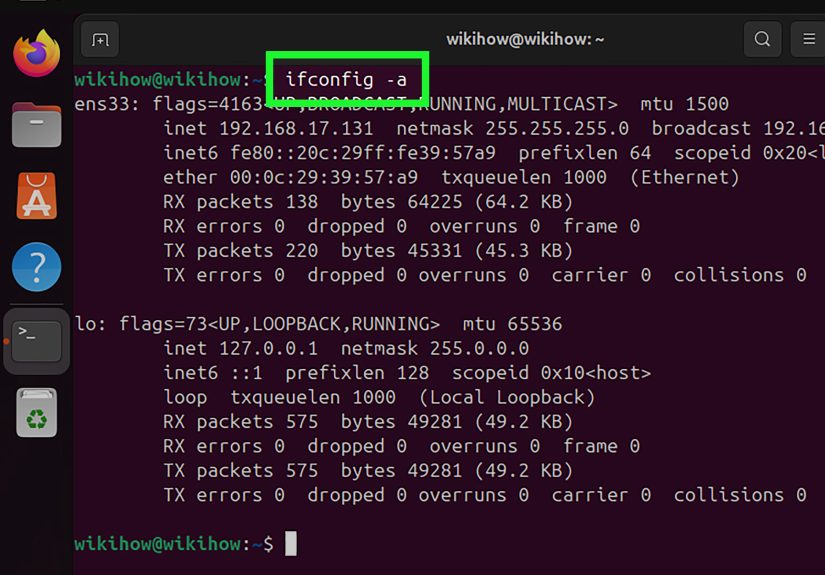
Linux users can find MAC addresses quickly with the ip command.
Look for the line that begins with link/ether. That value is the MAC address for the interface.
Common interface names include wlan0, wlp3s0, eth0, and enp0s3. If your system has both Wi-Fi and Ethernet, check the active connection. The MAC address for Wi-Fi and Ethernet will usually be different.
Method 4: Find a MAC Address on iPhone or iPad
On iPhone and iPad, Apple refers to the Wi-Fi MAC address as the Wi-Fi Address. To find it:
- Open Settings.
- Tap General.
- Tap About.
- Look for Wi-Fi Address.
To see the MAC address used for a specific Wi-Fi network:
- Open Settings.
- Tap Wi-Fi.
- Tap the information icon next to the connected network.
- Look for the Wi-Fi address or private address setting.
If private address is enabled, your iPhone may use a unique MAC address for that network. This is helpful for privacy, but it can confuse router device lists, parental controls, and MAC-based access rules.
Method 5: Find a MAC Address on Android
Android menus vary by manufacturer, but the general path is similar:
- Open Settings.
- Tap About phone.
- Tap Status or Device identifiers.
- Look for Wi-Fi MAC address or Device Wi-Fi MAC address.
For the MAC address used on the current Wi-Fi network:
- Open Settings.
- Tap Network & Internet or Connections.
- Tap Wi-Fi.
- Tap the gear icon next to the connected network.
- Look for MAC address, Privacy, or MAC address type.
Many Android devices support randomized MAC addresses. If you are registering a device on a school, hotel, or office network, you may need to choose Use device MAC for that specific network, depending on the network policy.
Method 6: Find MAC Addresses from Your Router
The easiest way to find MAC addresses for multiple devices is often your router’s admin page. This is the network version of checking the guest list at the door.
Steps for Most Home Routers
- Connect to your Wi-Fi or Ethernet network.
- Open a browser.
- Enter your router’s IP address, commonly 192.168.1.1, 192.168.0.1, or 10.0.0.1.
- Log in with the router admin username and password.
- Look for a section called Attached Devices, Connected Devices, Client List, Device List, LAN Status, or DHCP Clients.
- Review the device name, IP address, and MAC address.
Router menus differ by brand, but the idea is the same. NETGEAR routers often show attached devices. TP-Link routers may show wired and wireless clients or an ARP list. Mesh Wi-Fi apps such as Eero, Google Nest WiFi, ASUS, and TP-Link Deco usually show connected devices inside the mobile app.
How to Match a Router Entry to a Real Device
Router device names are not always helpful. A laptop may show up as “DESKTOP-9X4QZ,” a smart plug may appear as a manufacturer name, and a light bulb may look like a tiny network goblin with no clear identity. To match entries:
- Compare the IP address shown on the device with the IP address in the router.
- Turn one device off and refresh the router list.
- Check the manufacturer name from the first half of the MAC address.
- Rename devices in the router app once you identify them.
- Use DHCP reservations to keep important devices organized.
Method 7: Use ARP to Find a MAC Address from an IP Address
If you know a device’s IP address and want its MAC address, use the ARP table. ARP stands for Address Resolution Protocol. It maps IP addresses to MAC addresses on a local network.
Windows ARP Command
You may see output like this:
macOS and Linux ARP Command
On Linux, you can also use:
If the device does not appear, ping it first:
Then run the ARP command again. Your computer usually needs to communicate with the device before it appears in the local ARP cache.
Method 8: Use a Network Scanner on Your Own Network
For larger home networks or small offices, a network scanner can list active devices, IP addresses, MAC addresses, and sometimes vendor names. Use these tools only on networks you own or are authorized to manage.
A common command-line example is:
This performs a simple discovery scan on the local subnet. Replace 192.168.1.0/24 with your actual network range. You can find your range by checking your IP address and default gateway. For example, if your computer is 192.168.0.25 and your router is 192.168.0.1, your home subnet is often 192.168.0.0/24.
Network scanner apps can be convenient, but router lists and built-in commands are usually enough for everyday troubleshooting.
Common Reasons You Need to Find a MAC Address
1. Setting Up DHCP Reservations
A DHCP reservation tells your router to give the same IP address to a device every time it connects. This is useful for printers, NAS devices, security cameras, game consoles, and home servers.
2. Identifying Unknown Devices
If your router shows an unfamiliar device, checking the MAC address can help you determine whether it is your phone, a smart appliance, a guest device, or something that should not be there.
3. Troubleshooting Printers and Smart Devices
Printers are famous for disappearing from networks like they have dramatic personalities. Finding the MAC address can help you confirm whether the printer is connected, which IP address it received, and whether it needs a reserved IP.
4. Managing Access Controls
Some networks use MAC addresses for device registration, parental controls, or network access rules. MAC filtering is not strong security by itself, but it can be useful for organization when combined with better protections like strong Wi-Fi encryption and a good router password.
Why Private and Random MAC Addresses Can Confuse You
Modern phones, tablets, and laptops often use private or randomized MAC addresses on Wi-Fi networks. This helps reduce tracking across networks. For privacy, that is great. For a parent trying to label “Ava’s iPhone” in the router app, it can feel like the device is wearing a fake mustache.
If a device keeps appearing as new, check whether private Wi-Fi address or randomized MAC mode is enabled. You can usually turn it off for a specific trusted network, such as your home Wi-Fi, while keeping it on for public networks. Do not disable privacy features everywhere unless you have a clear reason.
Best Practices for Managing MAC Addresses
- Label devices in your router: Rename “Unknown” devices as soon as you identify them.
- Keep a simple inventory: Record device name, MAC address, IP address, and owner.
- Use DHCP reservations: Reserve IPs for printers, cameras, NAS devices, and servers.
- Do not rely only on MAC filtering: Use WPA2 or WPA3 encryption and strong passwords.
- Review your device list monthly: Remove old guest devices and check for anything unusual.
- Understand private addresses: A changing MAC address does not always mean something suspicious.
Troubleshooting: Why Can’t I Find the MAC Address?
The Device Is Offline
If the device is powered off, sleeping, or disconnected, it may not appear in the router’s active device list. Turn it on and reconnect it.
You Are Looking at the Wrong Adapter
A laptop with Wi-Fi and Ethernet has multiple MAC addresses. Make sure you are checking the adapter actually connected to the network.
The Device Uses a Private MAC Address
Phones and tablets may use a different MAC address for each Wi-Fi network. Check the Wi-Fi network details on the device, not just the general About screen.
The Router List Is Stale
Some routers keep old devices in the list for a while. Refresh the page, restart the router if needed, or check the DHCP lease table.
The Device Is Behind an Extender or Mesh Node
Range extenders, mesh systems, and powerline adapters can sometimes make device identification harder. Check the main router, mesh app, and extender management page if available.
Real-World Experience: What Actually Works When the Network Gets Messy
In real troubleshooting, finding a MAC address is rarely a perfect textbook moment. It usually starts with someone saying, “The Wi-Fi is broken,” which is the networking equivalent of saying, “Something somewhere is unhappy.” The fastest path is not always the fanciest command. It is often a simple process of narrowing the mystery.
One useful habit is to start with the router’s connected-device list. This gives you the broadest view of what the network currently sees. If the router shows an unknown device with an IP address, write down the IP, MAC address, connection type, and device name. Then compare that information against the devices physically near you. Phones, tablets, laptops, TVs, speakers, smart plugs, printers, and cameras are the usual suspects. The mystery device is almost never a hacker in a hoodie. More often, it is a smart thermostat named after its chipset manufacturer.
Another practical trick is the “one-device pause.” If you are trying to identify a device, disconnect it from Wi-Fi for a minute and refresh the router list. If one entry disappears, you found it. This works especially well with smart TVs, streaming sticks, printers, and game consoles. For phones, remember that private MAC settings can create confusion. A phone may appear under a private address on your home Wi-Fi while showing a different hardware address in the general About screen.
For Windows computers, ipconfig /all remains one of the most reliable commands because it shows the physical address beside the adapter details. That context matters. A user may accidentally copy the Bluetooth adapter MAC address instead of the Wi-Fi adapter MAC address. When that happens, the router will never match it, and everyone gets to enjoy ten unnecessary minutes of confusion. On macOS and Linux, Terminal commands are quick, but the visual settings menus are easier for non-technical users who only need to copy one value.
Printers deserve special mention because they can be wonderfully stubborn. When a printer keeps changing IP addresses, find its MAC address and create a DHCP reservation in the router. After that, install the printer using the reserved IP address. This simple step can prevent the classic “printer offline” problem that appears five minutes before someone needs to print a shipping label, homework assignment, or office document.
For smart homes, create a small network inventory. It does not need to be fancy. A spreadsheet with columns for device name, room, MAC address, IP address, and notes is enough. Add entries as you install devices. Later, when your router shows “Unknown ESP_4A91C2,” you can check your list and remember that it is not an intruder; it is the smart plug behind the coffee machine, quietly waiting for its big moment.
The best experience-based advice is this: do not treat a MAC address as a magic security shield. MAC addresses help with identification and organization, but they are not secret passwords. For real network security, use a strong Wi-Fi password, update router firmware, enable WPA2 or WPA3, disable old insecure features you do not use, and keep guest devices on a guest network. Use MAC addresses as labels, not locks.
Once you understand the pattern, the process becomes easy: find the device’s IP address, check the router or ARP table, match the MAC address, rename the device, and document it. That is the practical rhythm of network housekeeping. It is not glamorous, but neither is untangling a drawer full of old charging cablesand both make life better when done properly.
Conclusion
Learning how to find a MAC address on a network is a small skill with a big payoff. It helps you identify unknown devices, organize your router, troubleshoot printers, reserve IP addresses, and understand what is really connected to your Wi-Fi. Whether you use Windows, macOS, Linux, iPhone, Android, router settings, or ARP commands, the key is to match the right MAC address to the right network adapter.
Remember that modern devices may use private or randomized MAC addresses, especially on Wi-Fi. That feature is designed for privacy, not to ruin your afternoon, although it may occasionally try. For home and small business networks, the best approach is simple: check the router, verify on the device, label what you find, and keep a basic inventory. With that routine, your network becomes easier to manage, easier to secure, and much less mysterious.