Table of Contents >> Show >> Hide
- What TikTok Really Means by "Couldn't Upload Video"
- Before You Troubleshoot: A 60-Second Sanity Check
- 12 Tips to Fix TikTok’s "Couldn't Upload Video" Error
- 1) Check if TikTok is down (so you don’t blame your phone for TikTok’s mood)
- 2) Switch networks (Wi-Fi ⇄ cellular) and test your signal
- 3) Restart TikTok (and then restart your phone)
- 4) Update TikTok (and your phone’s OS)
- 5) Clear TikTok’s cache (the “digital lint” that builds up over time)
- 6) Free up storage (uploads need elbow room)
- 7) Turn off VPNs, proxies, “Private DNS,” and overly aggressive ad blockers
- 8) Check TikTok permissions (storage/photos + cellular data)
- 9) Make your video upload-friendly (format, export, and file size matter)
- 10) Remove “problem children”: certain effects, filters, sounds, or drafts glitches
- 11) Log out and log back in (and consider a deeper reset on Android)
- 12) Reinstall TikTok (last resort) or upload another way
- Prevent the Error Next Time: Small Habits That Save Big Headaches
- Experiences From the Real World: What Actually Worked (and Why)
- The “It Uploads on My Friend’s Phone, Not Mine” Situation
- The “Stuck at 95%” Situation
- The “It Only Fails on Wi-Fi” Situation
- The “My Video Is Too High-Quality for Its Own Good” Situation
- The “I Reinstalled TikTok and My Drafts Vanished” Situation
- The “Nothing Works… Until It Suddenly Does” Situation
- Conclusion
You hit Post. TikTok thinks for a second. And thenbam“Couldn’t upload video.” If your phone could talk, it would probably say: “I swear I tried.” If TikTok could talk, it would say: “No ❤️.” Either way, you’re stuck staring at an error message like it just personally insulted your creativity.
The good news: this error is usually fixable. The better news: you don’t need to be a network engineer who moonlights as a phone mechanic. Most of the time, it’s one of a handful of culpritsconnection, cache, storage, file format, permissions, or TikTok having a temporary meltdown.
What TikTok Really Means by “Couldn’t Upload Video”
TikTok’s upload process is basically a relay race. Your phone has to package the video, TikTok has to accept it, your connection has to stay stable long enough to deliver it, and then TikTok has to process it on the other side. If any part of that chain breaks, you get the same blunt message.
Common reasons include:
- Unstable internet (Wi-Fi that “works” until it doesn’t, or weak cellular signal)
- Server issues (TikTok is down or glitchy in your region)
- Too little storage (your phone can’t create temporary upload files)
- App problems (outdated version, corrupted cache, or a stuck background process)
- Video file issues (unsupported codec, giant file size, odd export settings)
- Permissions (TikTok can’t access your photos/storage or can’t use cellular data)
- Account/feature restrictions (age settings, parental controls, temporary limits)
Before You Troubleshoot: A 60-Second Sanity Check
Do these quick checks first. They solve an embarrassing number of upload failures:
- Try uploading a short test clip (5–10 seconds). If that uploads, your original file is the issue.
- Switch from Wi-Fi to cellular (or the other way around) and try again.
- Check your phone storage. If you’re down to crumbs, uploads can fail even if TikTok seems fine.
- Close TikTok completely and reopen it (not “minimize,” but fully close).
12 Tips to Fix TikTok’s “Couldn’t Upload Video” Error
1) Check if TikTok is down (so you don’t blame your phone for TikTok’s mood)
Sometimes the problem isn’t youit’s TikTok. When servers have issues, uploads can fail across the board. A quick way to confirm is to check an outage tracker or see if people are complaining on social media. If there’s a widespread outage, your best “fix” is to wait and try later.
Pro tip: if videos won’t upload on both Wi-Fi and cellular, and your other apps work fine, this is a strong sign TikTok is the culprit.
2) Switch networks (Wi-Fi ⇄ cellular) and test your signal
Uploading is more sensitive than scrolling. Your feed might load on a shaky connection, but uploading needs sustained stability. Try:
- Switching from Wi-Fi to cellular data (or vice versa)
- Moving closer to the router
- Turning Airplane Mode on for 10 seconds, then off (this refreshes your connection)
Example: hotel Wi-Fi often has strict security rules that mess with uploads. If your video refuses to go up on Wi-Fi, cellular data is your quickest reality check.
3) Restart TikTok (and then restart your phone)
Yes, the oldest trick in the tech book still worksbecause it clears stuck processes. Close TikTok fully (swipe it away from the app switcher), then open it again. If that doesn’t work, restart your phone.
Why it helps: uploads can get “stuck” in the background, especially if you switched apps mid-upload or lost signal. A restart gives the upload pipeline a clean slate.
4) Update TikTok (and your phone’s OS)
TikTok updates often include bug fixes for uploads, camera roll access, and processing glitches. If you’re running an old version, you’re basically asking the app to juggle while wearing oven mitts.
- Update TikTok from the App Store or Google Play
- Update iOS/Android if your phone is behind on system updates
If the upload error started right after an update, don’t paniccontinue through the fixes below (cache + storage usually help).
5) Clear TikTok’s cache (the “digital lint” that builds up over time)
TikTok stores temporary filesthumbnails, previews, bits of videos, and other cached data. If that cache gets bloated or corrupted, uploads can fail. Clearing cache is safe and usually doesn’t delete your account or posted videos.
In the TikTok app (typical path):
- Profile → Menu (☰) → Settings and privacy
- Find “Free up space” (or Cache & Cellular/Cache & Mobile)
- Clear cache
Try uploading again right after clearing cache. This fix is especially effective if your upload gets stuck at a certain percentage (like 95%).
6) Free up storage (uploads need elbow room)
Even if your video is already recorded, TikTok often creates temporary files while uploading and processing. If your phone storage is nearly full, you can get upload errors, failed processing, or “stuck” uploads.
- Delete or offload unused apps
- Clear large downloads you don’t need
- Move big videos/photos to cloud storage if you’re comfortable doing so
On iPhone, using the built-in storage screen (Settings → General → iPhone Storage) can reveal which apps are hoarding space. On Android, check Storage settings and clear app cache where appropriate.
7) Turn off VPNs, proxies, “Private DNS,” and overly aggressive ad blockers
VPNs and some DNS/privacy tools can break the connection TikTok needs for uploadingespecially if the VPN server is slow, overloaded, or blocked. Even if you love your VPN (and honestly, same vibe), turn it off long enough to upload.
Also check for:
- Private DNS settings on Android
- Firewall or “network protection” features in security apps
- Wi-Fi networks with strict filtering (schools, offices, some cafes)
8) Check TikTok permissions (storage/photos + cellular data)
If TikTok can’t access your photos/storage, it can fail during the upload handoff. If it can’t use cellular data, switching networks won’t help.
Quick checklist:
- Photos/Storage: allow access so TikTok can read the video file
- Cellular data: make sure TikTok is allowed to use mobile data
- Background data (Android): allow if uploads keep failing when you leave the app
Example: if you recently changed privacy settings or installed a system update, permissions can get reset. TikTok may still open, but uploads can break.
9) Make your video upload-friendly (format, export, and file size matter)
TikTok supports a range of formats, but uploads are happiest when your file is simple and standard. If your video was exported from a desktop editor or shot in high-bitrate 4K, it can be more likely to failespecially on slower networks.
Safer export settings to try:
- Format: MP4 (most compatible), or MOV if needed
- Codec: H.264 (widely supported)
- Resolution: 1080 × 1920 (vertical 9:16)
- Frame rate: 30 fps (60 fps can be fine, but increases file size)
If your file is huge, try trimming a few seconds, exporting at 1080p instead of 4K, or using a “high quality” preset instead of “max.” Your viewers will survive without your video being the size of a small planet.
10) Remove “problem children”: certain effects, filters, sounds, or drafts glitches
Sometimes the issue isn’t the video fileit’s what’s attached to it. If your upload fails repeatedly, try duplicating the project and simplifying:
- Remove one effect/filter and try again
- Switch to a different sound (then re-add the original later)
- Delete and re-add captions if they seem bugged
If you’re uploading a draft that’s been sitting forever, it may be corrupted. Saving it to your device (if possible) and re-uploading as a “fresh” file can fix stubborn failures.
11) Log out and log back in (and consider a deeper reset on Android)
Account tokens can occasionally glitch, especially after password changes, security checks, or switching accounts. Logging out and back in forces a fresh connection to TikTok’s services.
On Android, if the problem is extreme and nothing else works, you can try clearing app storage/data from system settings (not just cache). Warning: this logs you out and resets app settings, so it’s more disruptive than clearing cache.
12) Reinstall TikTok (last resort) or upload another way
If TikTok’s installation is corrupted, reinstalling can fix persistent upload errors. But read this twice: reinstalling can delete drafts because drafts are typically stored locally on the device. If your drafts matter, try to save/export them first (for example, by posting “Only me” with “Save to device” enabled when available).
If reinstalling feels too risky, try an alternative upload method:
- Upload from a different device (quick test to isolate whether it’s your phone)
- Try TikTok’s web upload if it’s available in your region/account
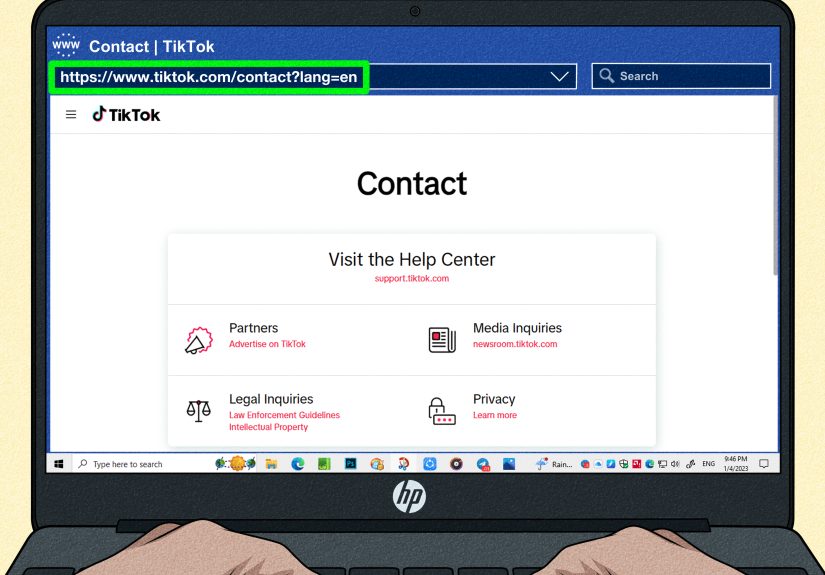
- Report the issue through TikTok’s in-app support if you suspect an account-specific restriction
Prevent the Error Next Time: Small Habits That Save Big Headaches
- Keep 2–5 GB free storage so your phone can handle temporary upload files.
- Export at 1080 × 1920 and avoid ultra-high bitrates unless you truly need them.
- Clear TikTok cache occasionally (especially if the app feels sluggish).
- Don’t upload on “barely there” Wi-Fiuploads hate uncertainty.
- Save important drafts before major updates or reinstalls.
Experiences From the Real World: What Actually Worked (and Why)
Troubleshooting advice is great in theory, but uploads fail in the real worldat the worst timeslike when you’re trying to post something timely, your battery is at 11%, and your phone is giving you that “storage almost full” warning it’s been politely sharing for three weeks.
Here are a few common “creator situations” and what tends to fix them. Think of these as patterns you can match to your own problem.
The “It Uploads on My Friend’s Phone, Not Mine” Situation
This usually points to an app-level or device-level issue, not TikTok servers. In many cases, the fix is a combination of clearing cache and freeing storage. Phones that are low on storage can fail uploads even when they still have enough space to record short clips. TikTok needs breathing room to create temporary files, generate previews, and package the upload. Once creators clear a few gigabytes (old downloads, unused apps, huge photo bursts), uploads mysteriously “start working again,” like your phone suddenly remembered it’s supposed to be helpful.
The “Stuck at 95%” Situation
The 95% freeze is famous. It’s often a sign that the file transferred but processing is chokingeither due to cache corruption or a flaky connection that cuts out during the final handshake. Two fixes show up again and again:
- Clear TikTok cache and try again immediately.
- Switch networks (Wi-Fi to cellular), then re-upload.
Creators also report that restarting the phone helps more than restarting the app alone, because it resets background networking and clears “stuck” upload sessions.
The “It Only Fails on Wi-Fi” Situation
This is classic café/school/office Wi-Fi behavior. Many public networks block or throttle uploads, even if they let you browse and stream. If TikTok fails repeatedly on Wi-Fi but works on cellular, you’ve found the culprit. The practical fix is to upload on cellular, or switch to a different Wi-Fi network (home router, hotspot, etc.).
In some cases, turning off a VPN or Private DNS is the missing piecebecause certain networks don’t play nicely with encrypted tunnels.
The “My Video Is Too High-Quality for Its Own Good” Situation
A lot of upload failures happen with videos edited outside TikTokespecially those exported in 4K, high frame rates, or massive bitrates. These files can be perfectly playable on your phone and still upload poorly because:
- The file is too large to transfer reliably on average mobile networks.
- The codec/export settings are uncommon or harder for TikTok to process quickly.
The fix that tends to work: export again using MP4 (H.264) at 1080 × 1920, and keep the file size reasonable. It’s not “downgrading your art”it’s making sure your art actually leaves your camera roll and reaches Earth.
The “I Reinstalled TikTok and My Drafts Vanished” Situation
This one hurts. Drafts are often stored locally on the device, so reinstalling can wipe them. Creators who learned this the hard way often start doing one simple preventive habit: if a draft matters, they save a copy to their device before major changes (big updates, storage cleanups, reinstall attempts). When the upload error is severe and reinstalling is the only fix, having a saved copy means you can re-upload latereven if TikTok eats your drafts like it’s on a strict no-leftovers diet.
The “Nothing Works… Until It Suddenly Does” Situation
When none of the local fixes work, it can be a temporary server hiccup, a regional issue, or a short-lived account restriction. In these cases, creators typically succeed by:
- Waiting 30–60 minutes and trying again
- Uploading at a different time (off-peak hours can be smoother)
- Posting a short test clip to confirm uploads are working at all
If you’re consistently blocked from uploading while everything else works, use TikTok’s in-app reporting tools. It’s not the fastest path, but it’s the right one when the issue appears account-specific.
Conclusion
TikTok’s “Couldn’t upload video” error is frustratingbut it’s usually not permanent. Start by checking whether TikTok is down, then work through the high-impact fixes: switch networks, restart the app/device, update TikTok, clear cache, and free up storage. If your file is big or oddly exported, re-save it as a standard MP4 (H.264) at 1080 × 1920. And if you ever have to reinstall, protect your drafts first.
Once you’ve done these steps, you’ll be back to posting instead of arguing with an error message that has the emotional range of a brick.