Table of Contents >> Show >> Hide
- Before You Start: A 60-Second Storage Reality Check
- Method 1: Free Up Space on Your PS4 (No Purchase Required)
- Method 2: Use an External USB Drive as PS4 Extended Storage (Best “Bang for Effort”)
- Method 3: Upgrade the Internal PS4 Drive (Clean Setup, Long-Term Storage Fix)
- Which Method Should You Use?
- Quick FAQ
- Real-World Experiences (): What PS4 Owners Usually Notice After Each Method
- Conclusion
If your PS4 storage is always “mysteriously” full, welcome to the club. One day you’ve got room for a couple games, some screenshots, and a victory clip you swear you’ll edit later. The next day, your console is basically yelling: “You shall not download!”
The good news: you don’t need wizardry to get more PS4 storage space. You need a plan. Below are three practical, step-by-step methodsstarting with free cleanup, moving into external extended storage, and finishing with the “new internal drive” glow-up (HDD or SSD).
Before You Start: A 60-Second Storage Reality Check
PS4 games are huge, updates can be chunky, and capture files add up faster than you think (especially if you’re the “record everything” type). Before you change anything, take a quick look at what’s actually eating your space.
Check what’s taking up space
- On your PS4, go to Settings > Storage.
- Look at categories like Applications, Capture Gallery, and Saved Data.
- Mentally note the “usual suspects” (big games, big clips, multiple installs you don’t play anymore).
Pro tip: If you’re trying to download a big game, PS4 may require more free space than the game’s listed size because it needs room to download and unpack files. So yessometimes a 70GB game feels like it demands a small apartment.
Method 1: Free Up Space on Your PS4 (No Purchase Required)
This method is the fastest and cheapest way to get more storage on PS4: remove what you don’t need, move what you want to keep, and stop your capture folder from becoming a digital junk drawer.
Step 1: Delete games (applications) you’re not playing
You can always re-download digital titles later from your Library, so deleting a game is usually less dramatic than it feels.
- Go to Settings > Storage > System Storage > Applications.
- Sort by size and pick the biggest “I haven’t touched this in months” items.
- Select what you want to remove, press Options, then choose Delete.
If you’re nervous about losing progress: most game progress is in saved data, not the install files. Which leads us to…
Step 2: Back up (or move) your saved data
Saved data is usually smaller than games, but it’s the part you actually care about. If you want extra safetyor you’re planning a bigger upgrade latercopy saves to a USB drive or cloud storage (PlayStation Plus).
- Go to Settings > Application Saved Data Management.
- Choose Saved Data in System Storage > Copy to USB Storage Device (or upload to online storage if available).
- Select the game(s), choose files (or Select All), then copy.
Step 3: Clean up Capture Gallery (the silent storage assassin)
Video clips are storage bullies. They look harmless, then suddenly you’ve got 40 clips of the same boss fight. “This one is the run.” Sure, champ.
- Open Capture Gallery from the content area.
- Press Options to sort and delete video clips or screenshots.
- Optional: copy clips/screenshots to a USB drive if you want to keep them.
Step 4: Do a “light move” instead of a “hard delete”
If you’re not ready to delete a game completely, you still have options:
- Move the game to an external drive (Method 2 below).
- Delete and re-download later if you have decent internet (still less painful than constant storage errors).
- Keep only your “rotation” games installed: 2–5 active games, everything else archived.
If Method 1 gets you enough space, congratsyou just saved money. If you’re still juggling installs every week, it’s time for the easiest real upgrade.
Method 2: Use an External USB Drive as PS4 Extended Storage (Best “Bang for Effort”)
This is the most popular way to add more storage to PS4: plug in a compatible external drive, format it as extended storage, and install/move games to it. No screwdriver. No tiny mystery screws. No “why is this panel not coming off” stress.
What you need (compatibility checklist)
- Your PS4 must be on system software 4.50 or later.
- A USB drive that supports SuperSpeed USB (5Gbps or later).
- Capacity between 250GB and 8TB.
Important nuance: Extended storage is for applications and add-ons (i.e., games). You can’t store game saved data, themes, or screenshot/video clips on extended storagethose stay on system storage, though you can copy saves/captures to a regular USB device separately.
Step 1: Pick the right drive (HDD vs SSD)
Any compatible drive can work, but your experience changes depending on what you choose:
- Portable HDD: cheaper per terabyte, powered by USB, great for large libraries.
- Desktop HDD: often faster and larger, but needs its own power adapter (extra cable clutter).
- External SSD: faster load and transfer times, more expensive, best if you value speed and portability.
If your main goal is “stop deleting games,” a 2TB–4TB portable HDD is usually the sweet spot. If your main goal is “make loading less painful,” consider SSD (especially if you move big games a lot).
Step 2: Format the drive as Extended Storage
Formatting erases the drive. If it has anything important on it, back it up first.
- Plug the drive directly into a PS4 USB port (don’t use a USB hub).
- Go to Settings > Devices > USB Storage Devices.
- Select your drive, then choose Format as Extended Storage.
- Follow the prompts until the PS4 confirms it’s ready.
Step 3: Make the external drive your default install location
If you want new downloads to go straight to the external drive (highly recommended):
- Go to Settings > Storage.
- Press Options.
- Select Application Install Location > Extended Storage.
Step 4: Move existing games to Extended Storage
Want your biggest games off the internal drive ASAP? Move them over.
- Go to Settings > Storage.
- Select System Storage > Applications.
- Press Options > choose Move to Extended Storage.
- Select the games, then choose Move.
Step 5: Disconnect safely (avoid corruption)
If you yank the drive out like you’re unplugging a toaster, you risk corrupting data. Do the safe stop:
- Quick Menu: Sound/Devices > Stop Using Extended Storage, or
- Settings > Devices > USB Storage Devices > Stop Using This Extended Storage
If Method 2 solves your storage problem, you might never need Method 3. But if you want everything internal (or your external-drive setup is starting to look like a science fair project), keep going.
Method 3: Upgrade the Internal PS4 Drive (Clean Setup, Long-Term Storage Fix)
Replacing the internal hard drive is the “make it feel new again” method. It’s also the cleanest setupno extra drive next to the consoleplus it’s a great excuse to switch to a faster drive (like an SSD) if you’re chasing shorter load times.
What you’ll need
- A compatible internal drive (commonly a 2.5-inch drive with a 9.5mm height limit).
- A small Phillips screwdriver.
- A USB drive for backups (formatted as FAT32 or exFAT).
- A USB flash drive for the PS4 system software reinstall file.
- Optional but smart: PlayStation Plus online storage for saves.
Step 1: Back up what matters (saves and/or full system)
You have two main backup paths:
- Minimum: back up saved data (fast, small, protects progress).
- Full backup: use PS4 Backup and Restore (bigger, takes longer, restores more settings/data).
Option A: Back up saved data
- Go to Settings > Application Saved Data Management.
- Copy saves to a USB device (and/or upload to online storage if available).
Option B: Create a full PS4 backup
- Use a USB drive formatted as FAT32 or exFAT.
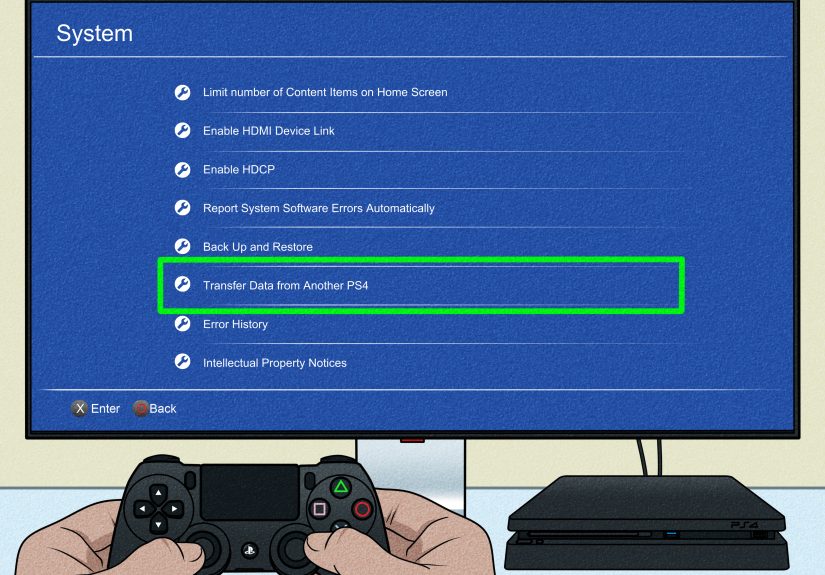
- Go to Settings > System > Back Up and Restore > Back Up.
- Select what to include and start the backup (don’t turn off the console during this).
Step 2: Swap the internal drive
The exact panel location varies by PS4 model, but the core idea is the same: open the HDD bay, slide out the drive caddy, swap the drive, and put everything back. Take your timethis is a “measure twice, screw once” moment.
Step 3: Reinstall PS4 system software (Safe Mode)
After you replace the internal drive, the PS4 needs system software reinstalled from a USB drive.
- On a computer, format a USB drive as FAT32 or exFAT.
- Create folders: PS4 (uppercase) and inside it UPDATE (uppercase).
- Download the reinstallation file and save it as PS4UPDATE.PUP inside the UPDATE folder.
- Plug the USB into the PS4.
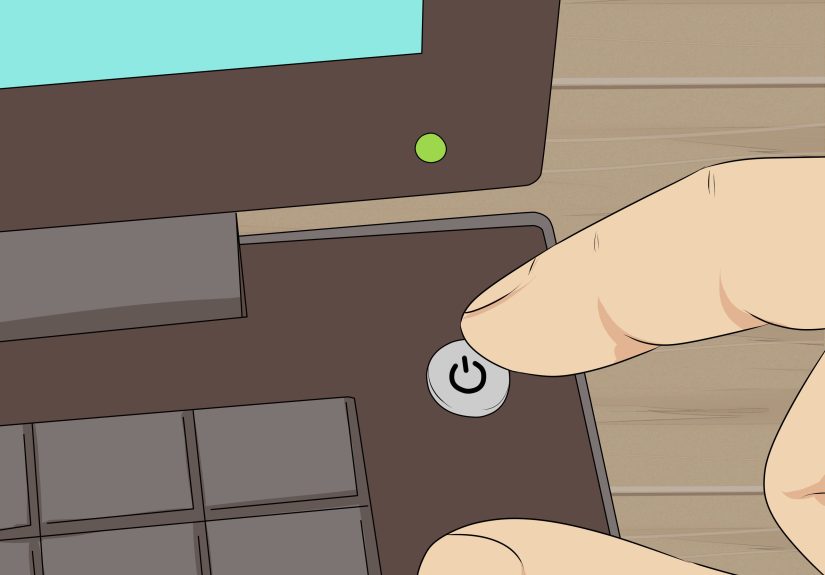
- Start PS4 in Safe Mode: press and hold the power button and release after the second beep.
- Select Initialize PS4 (Reinstall System Software) and follow prompts.
If the PS4 can’t find the file, it’s usually the folder names or file namedouble-check uppercase spelling.
Step 4: Restore your data
- If you made a full backup: Settings > System > Back Up and Restore > Restore PS4.
- If you backed up saves only: copy them back via Application Saved Data Management.
- Re-download games from your Library (or install from disc).
Bonus: Is an SSD worth it on PS4?
An SSD won’t magically transform your PS4 into a PS5, but many players notice snappier menus, faster texture streaming in some games, and shorter load timesespecially on PS4 Pro models. If your priority is storage capacity per dollar, HDD wins; if your priority is speed and responsiveness, SSD is your friend.
Which Method Should You Use?
- Choose Method 1 if you just need space today and don’t mind re-downloading games later.
- Choose Method 2 if you want the easiest big storage upgrade with minimal risk.
- Choose Method 3 if you want a clean setup (no external box) or want an SSD internal upgrade.
Quick FAQ
Can I use a USB flash drive for PS4 extended storage?
Sometimesif it meets the same requirements (SuperSpeed USB and the right capacity range). But many flash drives aren’t built for constant large installs and game updates, so an external HDD/SSD is usually a better long-term pick.
Can PS4 save game saves to extended storage?
Noextended storage is for applications and add-ons. You can still copy saved data to a regular USB storage device or use online storage (PlayStation Plus) depending on your setup.
What if I unplug my extended storage without stopping it first?
You can corrupt the drive’s data, which can lead to repair prompts or missing games. Always use “Stop Using Extended Storage” before unplugging.
Real-World Experiences (): What PS4 Owners Usually Notice After Each Method
Most PS4 owners start with Method 1 because it’s free and feels like a quick winuntil they realize their “quick win” is actually a recurring subscription to Storage Anxiety. The first cleanup is usually satisfying: uninstall two giant games you haven’t launched since your last “new year, new me” phase, delete a stack of 15-minute clips, and suddenly you’ve got breathing room. But the feeling is temporary if you regularly play big modern titles, because the next major update rolls in like a moving truck and asks for space it doesn’t intend to pay rent for.
Method 2 (external extended storage) is where a lot of people feel the biggest lifestyle upgrade. The common experience is: “Oh. That’s it?” You plug in a drive, format it, move your largest games, and the internal drive stops being the single point of failure for your gaming schedule. Players often notice they keep a “core rotation” on the internal storage (maybe one multiplayer staple and one story game) while using extended storage as a giant game pantry. The pantry metaphor is accurate: you don’t need everything on the kitchen counterjust what you’re cooking right now. And when friends suggest trying a new game, you don’t have to negotiate with your storage like it’s a hostage situation.
There are a few real-world gotchas with external drives that come up again and again. One is cable discipline: if the drive is knocked loose, disconnected during rest mode, or unplugged without using the “Stop Using Extended Storage” option, people report needing to repair the drive or re-download content. Another is placement: if you tuck the drive behind the PS4 with no airflow and a tight cable bend, you can invite disconnects or weird behavior. Many owners end up placing the drive a little farther away from the console than they expected, with a relaxed cable looplow-tech, high-success.
Method 3 (internal drive replacement) tends to be chosen by people who want an all-in-one, tidy setup, or who are ready to squeeze extra performance out of the system with an SSD. The common experience here is a mix of pride and relief: pride because you opened your console and it still works, relief because you’re no longer juggling installs weekly. Players who switch to an SSD often describe the PS4 interface as feeling “less sticky”menus respond faster, loading screens shorten in some games, and big open-world titles can feel smoother when pulling in assets. It’s not universal magic, but it’s the kind of quality-of-life boost that’s hard to give up once you’ve lived with it.
The most consistent “wish I knew this earlier” lesson across all methods is simple: treat storage like a system, not a one-time chore. Keep captures trimmed, archive what you’re not actively playing, and decide whether you want your PS4 to behave like a minimalist studio apartment (Method 1) or a home with a garage and extra closets (Methods 2 and 3). Your future selfstaring down a massive downloadwill thank you.
Conclusion
Getting more storage on PS4 doesn’t have to be a tech saga. Start by cleaning house (Method 1), then graduate to external extended storage for the easiest big upgrade (Method 2). If you want the cleanest setup or a speed boost, swap the internal drive (Method 3). Pick the method that matches your budget, your patience, and how often you say “I’ll totally re-download that later.”