Table of Contents >> Show >> Hide
- First, what does “Accessibility Mode” usually mean on a Samsung phone?
- Fastest fixes (try these first)
- If TalkBack is on: how to navigate long enough to turn it off
- If it’s not TalkBack: other “accessibility” features that feel like a glitch
- Why this happens (so you don’t repeat the same horror movie)
- Stop it from happening again (highly recommended)
- Troubleshooting: “I still can’t get out of accessibility mode”
- Quick FAQ
- Conclusion
- Real-world experiences (the “why is my phone talking to me?” edition)
- SEO tags
Your Samsung phone is suddenly talking nonstop, every tap feels “wrong,” and you’re one accidental swipe away from launching the Settings app into the
stratosphere. Congrats: you’ve likely entered what people loosely call “Accessibility Mode.”
The good news? Your phone isn’t broken. The even better news? You can usually get back to normal in under a minuteonce you know the secret handshake.
Let’s fix it.
First, what does “Accessibility Mode” usually mean on a Samsung phone?
Samsung doesn’t label one single switch as “Accessibility Mode.” Most of the time, when someone says it, they mean one of these is turned on:
- TalkBack / Screen reader / Voice Assistant (the big oneyour phone reads everything out loud)
- Accessibility shortcut (a button or key combo that turns features on/off quickly)
- Magnification (zoom that makes everything huge and hard to navigate)
- Interaction control / Assistant menu (touch can feel limited, “locked,” or you get a floating person icon/menu)
- Easy Mode (not technically accessibility, but often confused with itbigger icons, simpler layout)
We’ll cover the fast exits first, then the “my screen is basically possessed” methods, then how to stop this from happening again.
Fastest fixes (try these first)
1) Use the volume-key shortcut to turn off TalkBack
On many Samsung Galaxy devices, the quickest way to disable the screen reader is a hardware shortcut:
- Press and hold Volume Up + Volume Down at the same time for about 3 seconds.
- Listen for a confirmation sound/voice.
- If a prompt appears, select Turn off (or Stop) and confirm.
If this works, your phone should immediately return to normal single-tap behavior. If it doesn’t, don’t panicSamsung devices can be configured to use a
different shortcut (we’ll cover that next), or the feature turned on might not be TalkBack.
2) Try the Side button + Volume Up shortcut (on newer setups)
Some Samsung phones are set up so Side button + Volume Up (pressed together) opens a “Direct access” panel or toggles an accessibility
feature.
- Press Side button + Volume Up at the same time.
- If a menu appears, choose TalkBack (or Screen reader) and turn it off.
This shortcut is especially common when “Side and Volume up keys” has been configured under Accessibility’s advanced settings.
3) Use your voice: Google Assistant or Bixby
If your phone is reading the screen and touching feels impossible, voice can save the dayespecially if “Hey Google” or “Hi Bixby” is enabled.
- Say: “Hey Google, turn off TalkBack.”
- Or: “Hi Bixby, turn off TalkBack.”
You may need to confirm on-screen. If TalkBack is on, remember: single tap highlights and double tap activates.
If TalkBack is on: how to navigate long enough to turn it off
TalkBack changes how touch works. Once you understand the rules, it stops feeling like your phone is trolling you.
- Single tap = highlight/select focus (it reads what you tapped)
- Double tap = activate the highlighted item (this is the “real tap”)
- Two-finger swipe = scroll (one-finger swipes often change focus instead)
Turn off TalkBack from Settings (the reliable method)
- Open Settings.
- Go to Accessibility.
- Tap TalkBack (or Screen reader on some versions).
- Toggle it Off.
- Confirm Turn off.
Tip: If TalkBack is active while you do this, remember: highlight with one tap, then double tap to open/toggle/confirm.
Locked out? Here’s how people get unstuck
A common pain point is turning TalkBack off when the phone is locked. Many people think they can’t unlockwhen really it’s just different:
- PIN unlock: tap each number (to focus), then tap OK / Enter and double-tap to activate.
- Pattern unlock: touch each dot in sequence without lifting (TalkBack will announce as you go).
Once you’re in, use the volume shortcut or Settings path above.
If it’s not TalkBack: other “accessibility” features that feel like a glitch
Sometimes your phone isn’t reading the screen at all, but navigation still feels off. Here are the usual suspects on Samsung devices.
Magnification (everything is zoomed in)
If your screen looks like it’s been filmed with a microscope, Magnification may be enabled. Samsung often lets you magnify by triple tapping
or using an accessibility shortcut.
Turn it off:
- Settings > Accessibility
- Go to Visibility enhancements (or sometimes “Vision enhancements”)
- Tap Magnification and switch it Off
If you can’t find it, use Settings search and type Magnification. That’s usually faster than spelunking through menus.
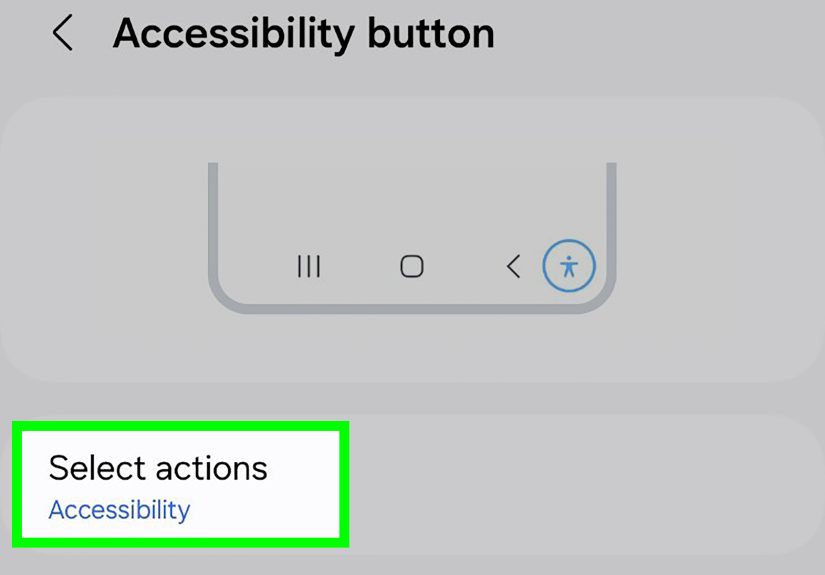
The floating person icon / Accessibility button (bottom corner)
If there’s a little “person” icon floating on your screen or sitting in the navigation bar, that’s typically the Accessibility button.
It’s designed to quickly launch an accessibility servicebut it’s also famous for being activated accidentally.
Remove or disable it:
- Settings > Accessibility
- Tap Advanced settings
- Tap Accessibility button
- Set it to None (or unselect the assigned service)
Assistant menu (a bigger floating menu)
Assistant menu is under Interaction and dexterity. It can be helpful for one-handed access or reduced dexteritybut if you didn’t mean to turn it on, it can
feel like an uninvited guest that moved into your screen.
Turn it off:
- Settings > Accessibility
- Tap Interaction and dexterity
- Tap Assistant menu
- Toggle it Off
Interaction control (parts of the screen stop responding)
Interaction control is meant to keep you focused on one app by blocking parts of the screen and certain inputs. If it’s enabled accidentally, it can feel like
your phone “stopped accepting taps” in random places.
Turn it off:
- Settings > Accessibility
- Tap Interaction and dexterity
- Tap Interaction control
- Turn it Off (or disable its shortcut)
If the feature was enabled via a shortcut, look for a “shortcut” toggle inside the Interaction control settings and disable it so it won’t reappear later.
Easy Mode (often mistaken for accessibility mode)
Easy Mode makes text bigger and the home screen simpler. It’s great for some users, but if you didn’t ask for it, it can feel like your phone aged itself 30
years overnight.
Switch back to Standard mode:
- Settings > Display
- Tap Easy mode
- Turn it Off (or select Standard mode)
Why this happens (so you don’t repeat the same horror movie)
Accessibility features are designed to be easy to turn onbecause the people who need them shouldn’t have to solve a puzzle to get basic access.
The downside: they’re also easy to turn on by accident.
- Accidental key combo: volume keys (or side+volume) get long-pressed in a pocket or bag.
- Accessibility button got enabled during setup, a software update, or “exploring settings.”
- A child discovered TalkBack and immediately promoted themselves to IT manager of your household.
- Device migration: some settings copy over when switching phones.
Stop it from happening again (highly recommended)
If TalkBack turning on is a one-time oops, great. If it keeps happening, you’ll want to shut down the shortcut that keeps re-enabling it.
Disable the volume-key shortcut (or change it)
- Settings > Accessibility
- Tap Advanced settings
- Tap Volume up and down buttons
- Set the shortcut to None (or choose a different feature you actually want)
Disable the Side button + Volume Up shortcut (if enabled)
- Settings > Accessibility
- Tap Advanced settings
- Tap Side and Volume up keys
- Set to None or remove extra assigned services
Remove the on-screen Accessibility button
If you keep tapping the person icon by accident (or it’s just visually annoying), set the Accessibility button to “None” as described earlier.
Troubleshooting: “I still can’t get out of accessibility mode”
Use Settings search instead of digging through menus
In Settings, use the search bar and type one of these exact terms:
TalkBack, Screen reader, Accessibility button, Magnification,
Assistant menu, Interaction control, or Easy mode.
If you want a clean slate: reset accessibility settings
When multiple accessibility features are toggled on (or shortcuts are set in ways you don’t recognize), a reset can restore normal behavior without wiping your
phone.
Typical path on Samsung:
- Settings > General management
- Tap Reset
- Tap Reset accessibility settings
This removes accessibility preferences (like TalkBack settings and related options), but it’s not the same as a factory reset.
Quick FAQ
What’s the fastest way to turn off TalkBack on Samsung?
Most of the time: press and hold Volume Up + Volume Down for ~3 seconds. If your phone is configured differently, try
Side button + Volume Up or turn it off from Settings.
Why does my phone need double-taps all of a sudden?
That’s classic TalkBack behavior: one tap focuses, double tap activates. Turn off TalkBack to restore normal tapping.
Will turning off accessibility features hurt anything?
If you rely on features like captions, hearing aid support, magnification, or screen readers, keep what you need. The goal is to disable what you
accidentally enablednot to remove helpful tools from people who use them intentionally.
Conclusion
“Accessibility Mode” on Samsung isn’t a single mystery settingit’s usually TalkBack (screen reader) or a shortcut that triggered it. Start with the
Volume Up + Volume Down shortcut, then use Settings > Accessibility to disable TalkBack, remove the accessibility button, or turn off
magnification/assistant features. Finally, prevent repeat incidents by setting accessibility shortcuts to None in Advanced settings.
Once you know the patternssingle tap vs double tap, two-finger scroll, and where Samsung hides the shortcut togglesthis becomes a quick fix instead of an
all-day struggle.
Real-world experiences (the “why is my phone talking to me?” edition)
If you’ve never experienced TalkBack turning on unexpectedly, it’s hard to explain how disorienting it feels. People often describe it as “my phone is lagging”
or “the touchscreen is broken,” because their usual muscle memory suddenly doesn’t work. The most common moment? It happens when you’re trying to do something
fastlike pulling up a boarding pass, paying with a QR code, or replying to a text while walking.
One classic scenario: someone presses the volume buttons in their pocket to silence a notification, holds them a little too long, and the phone cheerfully
responds by enabling a screen reader. Now the phone announces every icon out loudusually at full confidence and questionable timing. The user taps an app,
nothing opens, they tap again, and instead of launching, the phone keeps narrating. That’s because TalkBack is waiting for a double tap to activate,
and the person doesn’t know the rules have changed.
Another experience people report: “I can’t scroll!” They swipe up or down with one finger and the phone just hops focus from item to item like it’s playing
a game. The fix is a two-finger swipe to scrollsimple once you know, maddening when you don’t. The same thing happens inside Settings: someone tries to scroll
to Accessibility, but focus jumps around and they feel trapped in a menu maze. This is why the hardware shortcut is so valuable: it gets you out without needing
perfect navigation.
Then there’s the floating accessibility buttonthe little person icon. People describe it as “a weird new app bubble” or “something I can’t delete.” It often
appears after an update or after toggling a visibility or hearing enhancement that adds quick access to the navigation bar. It’s not harmful, but it can feel like
your phone suddenly grew a permanent UI tattoo. Once users learn it’s tied to Accessibility > Advanced settings > Accessibility button, they’re relieved
that “None” is an actual option and not a myth.
Easy Mode confusion is its own category of experience. Someone sets up a phone for a parent, enables Easy Mode intentionally, then later the owner says, “My phone
is stuck in accessibility mode.” What they really mean is: icons are huge, layout is different, and the home screen looks unfamiliar. The fix is straightforward
(Display > Easy mode), but the emotional experience is realwhen your interface changes unexpectedly, it can feel like you lost control of the device.
The most helpful mindset shift people mention after learning these fixes is this: accessibility features aren’t glitchesthey’re power tools.
If you accidentally turned one on, your job isn’t to “repair the phone,” it’s to turn off the tool and disable the shortcut that keeps summoning it. Once you do,
the phone goes back to normaland you can go back to living your life instead of auditioning for a role in “Fast & Furious: Settings Menu Drift.”