Table of Contents >> Show >> Hide
- Quick Answer: How Raise to Listen Works on iPhone
- How to Turn On Raise to Listen for Audio Messages
- How to Listen to iPhone Audio Messages by Raising the Phone to Your Ear
- Why This iPhone Feature Is Actually Useful
- What to Do if Raise to Listen Is Not Working
- Common Reasons People Think the Feature Is Broken
- How to Keep Audio Messages from Disappearing
- Extra Tips for Listening to Audio Messages More Comfortably
- Privacy, Convenience, and the Slightly Awkward Side of Raise to Listen
- Final Thoughts
- Real-World Experiences with Raise to Listen on iPhone
- SEO Tags
If you have ever opened an audio message in iMessage while standing in a quiet office, on a crowded train, or in that terrifyingly silent doctor’s waiting room, you already know the stakes. One wrong tap and your phone starts broadcasting somebody’s voice note to the public like it is hosting a tiny podcast. Fortunately, Apple built in a more private option: you can listen to iPhone audio messages by simply raising the phone to your ear.
It is called Raise to Listen, and once you know how it works, it feels surprisingly natural. Instead of tapping around or switching to speaker playback, you hold your iPhone the way you would during a phone call. The audio message then plays through the earpiece, which keeps the sound much more private. It is one of those iPhone features that can feel invisible until the moment you need it, and then suddenly it becomes a daily convenience.
In this guide, you will learn exactly how to use Raise to Listen for iPhone audio messages, how to turn it on if it is off, what to do if it stops working, and how to avoid the common problems that make people think the feature is broken when it is really just being dramatic.
Quick Answer: How Raise to Listen Works on iPhone
To listen to an audio message privately on iPhone, open the conversation in the Messages app and make sure Raise to Listen is enabled in your settings. Then bring the phone to your ear like you are answering a call. The message should play through the earpiece instead of the louder bottom speaker.
If you want to reply with your own voice message, lower the iPhone and raise it to your ear again. After the tone, you can record your response. In other words, Apple turned your iPhone into a tiny walkie-talkie, but with better grammar and more group-chat chaos.
How to Turn On Raise to Listen for Audio Messages
If the feature is not working, the first thing to check is whether it is enabled. On newer versions of iOS, the setting lives in the Messages area of the Settings app.
Steps to enable Raise to Listen
- Open Settings.
- Tap Apps.
- Tap Messages.
- Scroll until you see Raise to Listen.
- Turn it on.
Once that is enabled, return to the Messages app and test it with a recent audio message. If you do not have one handy, ask a friend to send you a quick note. Preferably not one that begins with, “Ignore the background noise.”
How to Listen to iPhone Audio Messages by Raising the Phone to Your Ear
1. Open the conversation in Messages
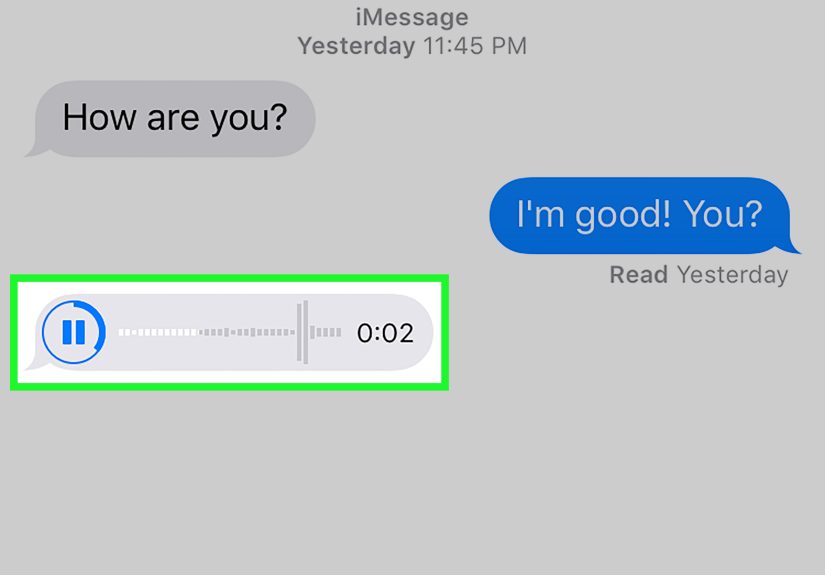
Find the chat that contains the audio message. You should see the voice note as a waveform or audio bubble in the conversation.
2. Make sure the message is ready to play
In many cases, you can simply raise the phone to your ear when the audio message is selected or newly received. If needed, tap the message once so iPhone clearly knows which audio note you want to hear.
3. Raise the iPhone to your ear
Hold the phone naturally, just as if you were taking a normal phone call. When the feature works correctly, the audio plays through the earpiece speaker near the top of the display. That means the message is less likely to be heard by everyone within a ten-foot radius.
4. Lower and raise again to reply
One of the clever parts of this feature is that it can also help you respond. After listening, lower the phone and then bring it back to your ear again. When you hear a tone, start speaking. Your reply records hands-free, which is convenient when your other hand is busy holding coffee, groceries, or your last shred of patience.
Why This iPhone Feature Is Actually Useful
At first glance, Raise to Listen sounds like one of those features you shrug at and forget. Then real life happens. Maybe you are in a meeting hallway and cannot blast a voice note on speaker. Maybe you are in bed and do not want to wake anyone. Maybe the audio message contains private details and you would rather not turn your phone into a loud public announcement system.
That is where this feature shines. It adds privacy, speed, and a more natural listening experience. It also feels familiar because it copies a motion people already understand: raising a phone to the ear. Good design often works that way. It does not ask you to learn a whole new routine. It simply removes friction from something you already do.
What to Do if Raise to Listen Is Not Working
If your iPhone audio messages are not playing through the earpiece, do not assume the feature vanished into the tech afterlife. Usually, one of a handful of issues is causing the problem.
Check the setting again
Yes, this sounds obvious. Yes, it still solves a surprising number of problems. Make sure Raise to Listen is still turned on. After software updates or setting changes, it is worth checking.
Restart the iPhone
Sometimes the fastest fix is the least glamorous one. Restarting your iPhone can clear temporary glitches that affect motion detection, audio routing, or Messages behavior.
Remove the case or screen protector temporarily
Raise to Listen relies on sensors near the top of the iPhone. A thick case, a poorly aligned screen protector, or debris around the earpiece area can interfere with how the phone detects that it is near your face. If the feature keeps failing, remove accessories and test again.
Clean the earpiece area
If audio sounds faint, muffled, or weirdly far away, the top speaker may need cleaning. Dust and lint love sneaking into small openings, and your receiver grille is prime real estate for pocket fuzz.
Turn up the volume while the message is playing
The earpiece volume can feel quieter than the bottom speaker, especially in noisy spaces. While the audio message is playing through the ear speaker, press Volume Up to make sure the sound level is high enough.
Check Bluetooth or other audio output connections
If your iPhone is connected to AirPods, a Bluetooth headset, a car system, or another audio device, playback may route somewhere other than the phone itself. Disconnect those devices or confirm the playback destination before testing again.
Update iOS
If Messages has been acting strangely in general, installing the latest iOS update can help. Audio-message behavior, playback controls, and system settings do change over time, and Apple occasionally smooths out bugs through updates.
Common Reasons People Think the Feature Is Broken
Sometimes Raise to Listen is working exactly as designed, but the situation around it is confusing. Here are a few common misunderstandings:
The audio is playing, but it is too quiet
This usually points to low receiver volume, a partially blocked earpiece, or a noisy environment. If you are testing in a busy street, your iPhone is not failing you. It is just losing a fight against traffic.
The phone starts recording instead of just playing
This can happen because Raise to Listen also supports replying. If you lower the phone and bring it back to your ear again, iPhone may interpret that as a request to record a response. Handy when you want it, mildly chaotic when you do not.
The message plays on speaker instead of the earpiece
This may happen if the phone does not detect proximity correctly, if Bluetooth is taking over, or if the Raise to Listen setting is disabled.
The message disappears later
This is not a Raise to Listen issue at all. Audio messages in Messages may expire unless you keep them. More on that in the next section.
How to Keep Audio Messages from Disappearing
Apple’s Messages app can automatically remove audio messages after a period of time, which surprises a lot of users. So if you listen to a great message and then it vanishes later, do not panic. It may simply be following the current expiration setting.
To keep a single audio message
Tap Keep below the message. That saves the voice note in the conversation.
To save audio messages more permanently
- Open Settings.
- Tap Apps.
- Tap Messages.
- Find Expire under Audio Messages.
- Select Never if you want them to remain instead of expiring automatically.
You can also touch and hold some audio messages and save them to Voice Memos, which is useful if the note contains information you really want to keep, like an address, a sentimental message, or that one hilarious family update you know will age beautifully.
Extra Tips for Listening to Audio Messages More Comfortably
Use playback controls when needed
If you do not want to raise the phone to your ear, you can simply tap the audio message to play it through the speaker. For longer messages, this may feel easier, especially if you want to replay parts.
Try playback speed controls
Some iPhone users speed up longer audio messages to save time. If your friend sends voice notes that sound like mini documentaries, faster playback can be a sanity-saving option.
Adjust Accessibility audio settings
If you hear better in one ear or want more balanced sound, explore Settings > Accessibility > Audio & Visual. Features like Mono Audio and stereo balance adjustments can make listening easier.
Use speaker playback when privacy is not a concern
Raise to Listen is excellent for private listening, but it is not mandatory. Sometimes tapping Play on speaker is faster. The best method is the one that matches your surroundings.
Privacy, Convenience, and the Slightly Awkward Side of Raise to Listen
There is one thing worth knowing: the same feature that makes private listening easy can also make it easier to start a reply by accident. Some people love the convenience. Others discover it while walking around with their phone near their face and suddenly notice they are recording unplanned audio like a behind-the-scenes documentary.
That does not make Raise to Listen a bad feature. It just means you should know what it does. If you like the private playback but do not love accidental recordings, be more deliberate with how you lower and raise the phone after listening. If you hate the feature altogether, you can always turn it off and just tap audio messages manually.
Final Thoughts
If you have been wondering how to listen to iPhone audio messages by raising the phone to your ear, the good news is that the process is simple once you know where the setting lives and how the motion works. Turn on Raise to Listen, open your audio message, and hold the phone to your ear as if you were on a call. That is the core trick.
What makes the feature genuinely helpful is not just the novelty. It is the privacy. It lets you hear a voice message without sharing it with the room. It also makes replying feel fast and natural. And when it does not work, the fix is often straightforward: check the setting, clean the top speaker area, remove a blocking case or screen protector, verify your audio output, and test again.
In short, Raise to Listen is one of those small iPhone features that feels almost too minor to matter until you use it in real life. Then suddenly it becomes the difference between a discreet private listen and accidentally turning your grocery line into a live audio event.
Real-World Experiences with Raise to Listen on iPhone
One reason this feature keeps coming up in conversations about iPhone tips is that it solves a very ordinary problem in a very human way. People do not always have the perfect moment to sit still, tap Play, and carefully listen to a voice note through the main speaker. Real life is messy. You are carrying bags, crossing a parking lot, waiting for coffee, riding an elevator, or standing beside someone who absolutely does not need to hear your cousin explain family drama in surround sound.
In those moments, Raise to Listen feels less like a hidden trick and more like a common-sense shortcut. Many users discover it by accident. They receive an audio message, instinctively lift the phone to their ear, and suddenly the message starts playing privately. That first moment can feel a little magical, mainly because it is one of the rare tech features that behaves the way your body expected it to.
Another common experience is frustration when it works beautifully for months and then seems to stop. Usually the culprit is not some mysterious iPhone curse. It is often a new case, a slightly crooked screen protector, lint near the earpiece, or Bluetooth audio being routed somewhere else. People understandably assume the software broke, but the fix can be as simple as cleaning the top speaker or disconnecting wireless earbuds.
Then there is the accidental-reply phenomenon, which deserves its own tiny comedy award. A person listens to an audio message, lowers the phone, raises it again absentmindedly, and suddenly the iPhone starts recording. This can be useful if you meant to respond quickly. It can also be an awkward surprise if you are muttering to yourself, talking to your dog, or narrating your grocery shopping like the star of a low-budget documentary.
There are also users who appreciate the accessibility side of the feature. Private earpiece listening can be easier in noisy environments than speaker playback, and paired with audio accessibility settings, it can make voice messages more comfortable to hear. For some people, it turns audio messages from an annoying format into a practical one.
Perhaps the most relatable experience is this: once someone learns how Raise to Listen works, they start using audio messages more confidently. They stop avoiding voice notes in public. They stop fumbling with volume. They stop panicking that every message will blast into the room. It is a small confidence boost, but a real one.
That is why this feature sticks around in people’s routines. It is not flashy. It is not a headline-grabbing iPhone innovation. It just quietly makes everyday communication easier, which may be the most useful kind of feature there is.
SEO Tags
Note: Th:is article is formatted as body-only HTML in standard American English for easy web publishing, with unnecessary citation artifacts removed.