Table of Contents >> Show >> Hide
- First, the big confusion: where Game Center lives now
- What you need before you log in
- How to log in to Game Center on iPhone or iPad
- How to log in to Game Center on Mac
- How to log in to Game Center on Apple TV
- Common Game Center login problems (and fixes that don’t require wizardry)
- Best practices: keep Game Center from becoming “Game Chaos”
- Quick FAQ
- Conclusion
- Real experiences: what Game Center login looks like in the wild
If you’re trying to log in to Game Center and your iPhone is acting like Game Center is a myth invented by
Big Trophies, you’re not alone. Apple’s Game Center is real, it still powers leaderboards, achievements,
and multiplayer matchmaking… but it doesn’t always look like an “app” anymore.
This guide walks you through signing in on iPhone, iPad, Mac, and Apple TV, plus the most common
“Why won’t it log in?” moments (and how to fix them without sacrificing your phone to the nearest Wi-Fi router).
First, the big confusion: where Game Center lives now
Game Center used to be a standalone app. Then Apple retired the app and folded Game Center into the operating system.
Translation: you usually log in through Settings (or in newer software, sometimes through Apple’s
Games hub) instead of hunting for a green icon on your Home Screen.
That also means different games can behave differently. One game might greet you with “Welcome back” and show your
achievements instantly, while another barely acknowledges Game Center exists. That’s not youit’s how developers
choose to integrate Game Center features.
What you need before you log in
- An Apple Account (Apple ID) with a password you know.
- Internet access (Wi-Fi or cellular data). Multiplayer and syncing especially need it.
- Two-factor authentication ready to go if Apple prompts for verification.
- A moment to double-check which Apple Account you wantbecause using different accounts across devices can scramble saved progress.
How to log in to Game Center on iPhone or iPad
On iPhone and iPad, the most reliable path is through Settings. Think of it as the backstage entrance to your gaming identity.
Method 1: Log in through Settings (most common)
- Open Settings.
- Scroll down and tap Game Center.
- Turn Game Center ON (toggle).
- If prompted, sign in with your Apple Account.
- Customize your profile (nickname and avatar) if you want, and choose your privacy/sharing options.
Once you’re signed in, your nickname, avatar, and scores can still be visible to other Game Center users,
while other activity sharing options may be adjustable depending on your settings.
Method 2: Log in through the Apple Games app (if your device has it)
Apple introduced a dedicated Games hub on newer versions of iOS/iPadOS/macOS. If you see an
Apple Games app on your device:
- Open the Apple Games app.
- Tap Continue when prompted.
- If asked, sign in to your Apple Account, then complete Game Center sign-in.
- Open your profile area to confirm your nickname/avatar and activity settings.
This is especially handy if you want a more “game-first” view of your profile, achievements, challenges, and friendswithout living in Settings.
How to confirm you’re actually logged in (iPhone/iPad)
- Go back to Settings > Game Center and look for your signed-in account details.
- Open a Game Center-enabled game and watch for a quick “Welcome back” style banner or profile pop-in.
- Check whether leaderboards/achievements appear in-game (the UI varies by title).
How to log in to Game Center on Mac
On Mac, Game Center settings are built into System Settings. If you’re used to the older macOS days,
yes, this moved aroundmacOS loves a good rearrangement.
Mac login steps
- Click the Apple menu and open System Settings.
- Scroll the sidebar and click Game Center.
- Turn Game Center on if it’s off.
- If prompted, sign in with your Apple Account.
- Review options like profile customization and sharing/privacy settings.
After you sign in, you can also adjust features like activity sharing and (depending on settings and software version)
friend discovery options.
How to log in to Game Center on Apple TV
If you play Apple Arcade or any Game Center-supported title on Apple TV, signing in mattersotherwise your progress may stay on the couch… metaphorically.
Apple TV login steps (typical path)
- Open Settings on Apple TV.
- Select Accounts.
- Select Game Center.
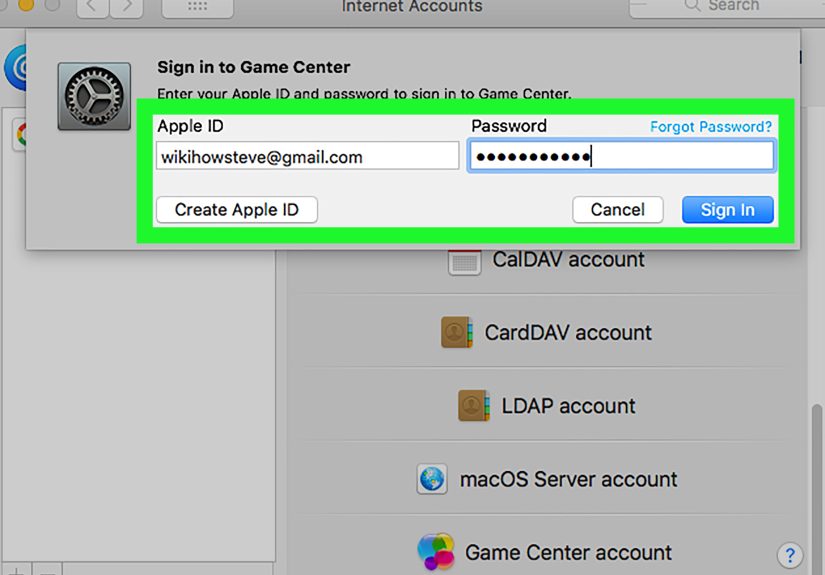
- Choose Sign In and enter your Apple ID and password.
Tip: If multiple people share the Apple TV, make sure you’re signed into the correct user profile first.
Apple TV’s user switching can affect which account is used for game progress and related services.
Common Game Center login problems (and fixes that don’t require wizardry)
1) “I can’t find Game Center”
You’re probably looking for the old standalone app. Instead, go to:
Settings > Game Center (iPhone/iPad) or System Settings > Game Center (Mac).
If your device includes Apple’s newer Games hub, you can also manage sign-in there.
2) You’re signed in… but your progress is missing
This is the #1 real-world issue: your game progress is tied to the Game Center account you used when you first played.
If you sign in with a different Apple Account later, the game may treat you like a brand-new player.
Fix: verify that Game Center is using the same Apple Account you’re using for iCloud on your devices,
especially if you’re trying to sync progress across iPhone/iPad/Mac.
3) Sign-in spins forever or fails randomly
When login hangs, it’s often one of these: server issues, network problems, outdated software, or incorrect device date/time.
Try this checklist:
- Check Apple’s System Status if services are down.
- Switch networks (try cellular instead of Wi-Fi, or another Wi-Fi).
- Update your device software to the latest available version.
- Confirm Date & Time are set automatically for your time zone.
- Restart your device (classic, but effective).
4) Screen Time restrictions are blocking Game Center
If Game Center login works for you but not for your child (or your own phone is locked down like Fort Knox),
Screen Time restrictions may be limiting Game Center features such as adding friends, multiplayer, or friend list sharing.
Adjust Game Center restrictions on iPhone/iPad
- Go to Settings > Screen Time.
- Tap Content & Privacy Restrictions and turn it on.
- Tap App Store, Media, Web & Games.
- Scroll to Game Center and adjust items like Multiplayer Games, Adding Friends, or Nearby Multiplayer.
If you’re managing a family device, you can apply these restrictions under the child’s Screen Time profile.
These controls only affect games that use Game Center features, so a game with its own account system may ignore them.
5) You signed into the “wrong” Apple Account on one device
It happens. Maybe you used a work Apple ID on your Mac, a personal Apple ID on your iPhone, and now your achievements are living separate lives.
The fix is simple but should be done carefully:
- On iPhone/iPad: go to Settings > Game Center, then Sign Out.
- Sign in again with the Apple Account you actually want for gaming.
- Repeat on other devices if you’re aiming for synced progress.
Warning (friendly, not dramatic): Switching accounts back and forth can confuse game saves in some titles.
If a game is precious to you (or your high score is basically your personality), stick to one account when possible.
Best practices: keep Game Center from becoming “Game Chaos”
Use one Apple Account across devices (if you want syncing)
If you want gameplay progress to follow you across iPhone, iPad, Mac, and Apple TV, consistency matters:
use the same Apple Account for iCloud and Game Center wherever you play.
Set your profile once, then forget about it (in a good way)
After you log in, take 30 seconds to set a nickname you won’t regret, pick an avatar you can live with,
and review sharing/privacy options. Future-you will thank present-youquietly, because future-you is busy gaming.
Know what Game Center can (and can’t) do
- Game Center can: track achievements, show leaderboards, support certain multiplayer features, and help sync progress for supported games.
- Game Center can’t: magically sync every game ever. Some games use their own accounts (email/password, “Sign in with Apple,” etc.) and only partially use Game Centeror not at all.
Quick FAQ
Do I need a separate Game Center account?
Not usually. Game Center typically uses your Apple Account. You may see it described as signing in to Game Center,
but the credentials are your Apple ID.
Can I log in to Game Center inside a game?
Sometimes. Many games authenticate automatically if you’re already signed in at the system level.
Others show an in-game prompt or a “Sign in to Game Center” button.
Why does one game show my achievements and another doesn’t?
Because Game Center features are optional for developers. A game might use leaderboards but not achievements,
or it might support neither even if it’s a great game.
Is it safe to turn Game Center off?
Turning it off won’t delete your Apple Account, but it can affect how supported games save or display progress,
leaderboards, or multiplayer access. If you rely on Game Center saves, keep it on.
Conclusion
Logging into Game Center is mostly about knowing where Apple hid the switch this year:
Settings > Game Center on iPhone/iPad, System Settings > Game Center on Mac,
and Settings > Accounts > Game Center on Apple TV. Once you’re signed in, the real secret is consistency:
use the same Apple Account across devices if you want your progress to follow you.
And if Game Center refuses to cooperate? Check your network, confirm Apple services are up, update your software,
and make sure Screen Time isn’t quietly vetoing your fun. (Screen Time has strong “I’m not mad, I’m disappointed” energy.)
Real experiences: what Game Center login looks like in the wild
The clean, step-by-step login instructions are the “textbook” version of Game Center. Real life is more like:
you’re on a new iPhone, your old phone is at 2% battery, and you’re trying to restore a puzzle game streak that has become,
somehow, a core pillar of your identity.
One of the most common experiences is the “new device, who dis?” moment. You sign into iCloud, download your favorite game,
and expect your progress to appear like magic. Instead, the game starts at level one and cheerfully explains the tutorial
like you’ve never seen a match-3 board in your life. In almost every case, the fix is boring but effective:
check Settings > Game Center and confirm the email/account is the same one you used before.
People are often surprised to find Game Center signed into a different Apple ID than iCloudespecially if they’ve used a work account
on a Mac, a personal account on an iPhone, or an older family Apple ID years ago that still haunts the device like a friendly ghost.
Another very real scenario: the “hotel Wi-Fi betrayal.” Game Center login can fail on networks that block certain connections,
require a captive portal sign-in, or behave like they were built from chewing gum and hope. The quickest fix tends to be switching networks
(cellular hotspot, another Wi-Fi, or even turning Wi-Fi off and using cellular data). It’s not glamorous, but it beats trying the same login
ten times while your phone silently judges you.
Parents run into a different flavor of issue: everything is “working,” but multiplayer features won’t. A child can log into Game Center,
but can’t add friends, can’t play nearby multiplayer, or keeps getting blocked inside games that rely on Game Center invites.
This is usually a Screen Time restriction doing its job a little too enthusiastically. The experienced move is to check the
Game Center section under Screen Time settings and make sure multiplayer/friends permissions match what you actually want.
Parents often assume the game is broken, when the phone is simply following the family rules like a tiny digital hall monitor.
Then there’s the “I swear I’m logged in” problem. You’re signed into Game Center in Settings, but a game still prompts you to log in.
This tends to happen in games that show their own in-game Game Center button or require you to tap “Continue” or “Allow” in a pop-up
the first time it tries to authenticate. The practical fix is to open the game, look for a settings/profile menu, and trigger the sign-in flow
againafter confirming you’re already signed in system-wide. It feels redundant, like showing your ID to enter a club and then being asked
for your ID again once you reach the dance floor, but it’s usually just the game’s UI being extra.
Finally, the most painful experience: switching accounts to “fix” something and accidentally creating a new blank identity.
People do this when a game isn’t syncing, and suddenly their achievements vanish. Usually they didn’t vanishthey’re attached to the original
account. The best real-world advice is: if your progress matters, change accounts only when you’re sure which Apple ID originally held the saves.
If you’re not sure, pause, check other devices, and verify which account is listed under Game Center before you hit Sign Out.
Your future self will appreciate not having to become a detective over a virtual trophy.