Table of Contents >> Show >> Hide
- First: Identify Your Windows Version (So You Don’t Chase the Wrong Steps)
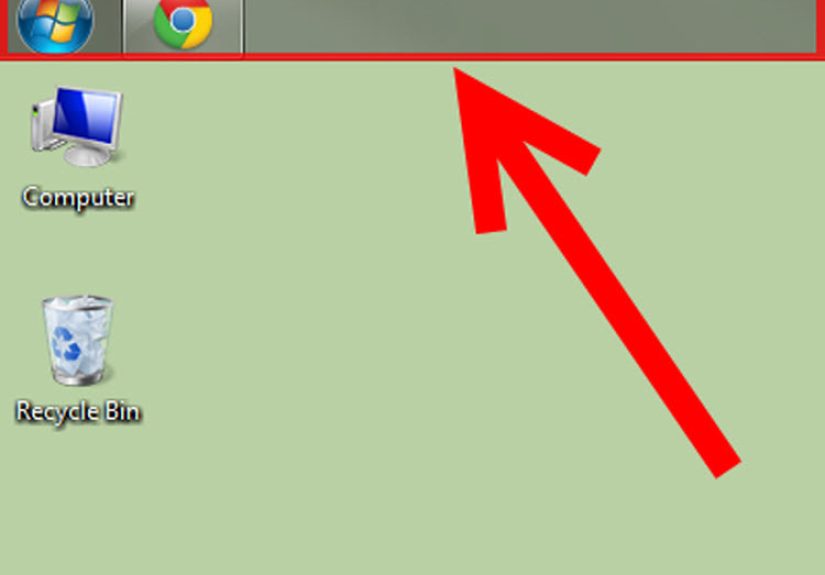
- Windows 10: Move the Taskbar to the Top (The Official, Easy Way)
- Windows 11: The Honest Truth About Moving the Taskbar to the Top
- Windows 11 Workarounds: 3 Practical Ways to Get a Top Taskbar
- Multi-Monitor Notes (Because Taskbars Love to Complicate Things)
- Troubleshooting: When the Taskbar Refuses to Move (Or Gets Weird)
- Is a Top Taskbar Actually a Good Idea?
- Experience Section: What It’s Like Living With a Top Taskbar (500+ Words)
- Conclusion
Your taskbar is stuck at the bottom of the screen like it signed a long-term lease… and forgot to read the “no penthouse” clause.
The good news: on Windows 10, moving the taskbar to the top is quick, easy, and fully supported.
The more complicated news: on Windows 11, Microsoft redesigned the taskbar and removed the built-in optionso getting a top taskbar usually means using a workaround.
This guide walks you through both worlds (Windows 10 and Windows 11), with practical steps, realistic trade-offs, and safe ways to undo changes if you decide
“actually, the bottom isn’t so bad” after all.
First: Identify Your Windows Version (So You Don’t Chase the Wrong Steps)
How to check (takes 20 seconds)
- Press Windows + I to open Settings.
- Go to System → About.
- Look for Windows specifications (Windows 10 vs. Windows 11) and note your version (like 22H2, 23H2, 24H2, etc.).
Why this matters: Windows 10 lets you dock the taskbar to any edge (top included). Windows 11 generally does notat least not with built-in Settings.
So if your friend says “Just drag it up,” and you’re on Windows 11… your mouse is innocent. It’s not ignoring you. It’s being overruled.
Windows 10: Move the Taskbar to the Top (The Official, Easy Way)
If you’re on Windows 10, congratulations: this is the “two-clicks and a drag” timeline.
There are two reliable methodsdragging it, or using Taskbar Settings.
Method 1: Drag the taskbar to the top
- Right-click an empty area of the taskbar.
- Click Lock the taskbar to turn it off (it should be unchecked).
- Click and hold an empty area of the taskbar, then drag it to the top edge of your screen.
- Release your mouse when the taskbar snaps to the top.
- Right-click the taskbar again and enable Lock the taskbar (optional, but recommended).
Method 2: Use Taskbar Settings (no dragging required)
- Right-click the taskbar and select Taskbar settings.
- Scroll to the setting labeled Taskbar location on screen.
- Select Top.
Pro tip: If you’re on a laptop touchpad and dragging feels like playing a precision platformer, Method 2 is usually calmer and less rage-inducing.
What to expect after moving it
- Your Start button and pinned apps appear at the top (same icons, new address).
- Maximized windows will start below the taskbar (as they should).
- Muscle memory may rebel for a day or twototally normal.
Windows 11: The Honest Truth About Moving the Taskbar to the Top
On Windows 11, Microsoft rebuilt the taskbar and removed the built-in ability to dock it to the top, left, or right.
In most Windows 11 versions, the only official “position” control is taskbar alignment (center vs. left).
What you can do in Windows 11 (officially)
- Right-click the taskbar and choose Taskbar settings.
- Open Taskbar behaviors.
- Change Taskbar alignment to Left (if you want a more classic layout).
If your goal is “stop the icons from being centered like they’re posing for a group photo,” alignment might solve 80% of the annoyance.
But if your goal is truly “taskbar at the top,” keep readingWindows 11 needs a different approach.
Windows 11 Workarounds: 3 Practical Ways to Get a Top Taskbar
Before you pick a method, here’s the reality checklist:
- Safest + most stable: a reputable taskbar customization tool that restores Windows 10-style behavior.
- Flexible + modular: a mod framework that specifically adds “taskbar on top.”
- Most DIY: a registry tweak. This may work on some builds, break on others, and can be undonebut it’s the least predictable.
No matter which option you choose, do yourself a favor first:
Safety step (strongly recommended): Create a restore point
- Open Start and search Create a restore point.
- Select your system drive (usually C:), then click Create.
- Name it something memorable like Before Taskbar Top Adventure.
Option 1: Use a taskbar customization tool (best balance for most people)
Several well-known tools bring back Windows 10-style taskbar features on Windows 11, including the ability to dock the taskbar at the top.
The exact clicks vary by tool, but the workflow is usually:
- Download the tool from its official site or official release page.
- Install it, then open its settings panel.
- Choose a taskbar style (often “Windows 10-style taskbar” or similar).
- Set Taskbar location to Top.
- Restart File Explorer (most tools have a button for this) or sign out and sign back in.
Why this option is popular: it’s usually more stable than registry-only tweaks because the tool is designed to manage the changes and recover after updates.
What to watch for: major Windows updates can temporarily disable or uninstall customization tools, and you may need to reinstall or update the tool afterward.
Option 2: Use a mod framework (Targeted “taskbar on top” without full replacement)
If you like the idea of “add only what I need,” mod frameworks can apply a specific “taskbar on top” modification rather than replacing your whole taskbar experience.
The typical process looks like this:
- Install the mod framework from its official source.
- Search for a mod named something like Taskbar on top.
- Enable the mod and apply changes.
- Restart Explorer or sign out/in when prompted.
Trade-off: This can be cleaner than a full taskbar replacement, but compatibility can vary by Windows 11 build and update cycle.
If the mod stops working after an update, you’ll typically disable it until a fix is released.
Option 3: The registry tweak (DIY, reversible, but not always reliable)
There is a long-running registry method that changes taskbar docking behavior by editing a binary registry value.
It has worked on certain Windows 11 builds and scenarios, and it’s widely discussedbut it can also cause odd UI behavior on newer builds.
If you try this approach, do it carefully and keep it reversible. Here’s the safest way to attempt it:
Step A: Back up the registry key you’ll edit
- Press Windows + R, type regedit, and press Enter.
- Navigate to:
HKEY_CURRENT_USERSoftwareMicrosoftWindowsCurrentVersionExplorerStuckRects3 - Right-click StuckRects3 → choose Export, and save the file somewhere easy to find.
Step B: Edit the Settings value
- In the same key, double-click the binary value named Settings.
- Locate the byte that controls taskbar position. In many guides, this is described as a value that is commonly set to 03 (bottom) and can be changed to 01 (top).
- Change the value as directed, then click OK.
Step C: Restart Explorer (so the change actually takes effect)
- Press Ctrl + Shift + Esc to open Task Manager.
- Find Windows Explorer.
- Right-click it and choose Restart.
If it works: your taskbar may jump to the top.
If it’s glitchy: you may see misaligned elements, weird spacing, or a taskbar that behaves inconsistently after updates.
That’s why many people prefer a dedicated tool instead of a pure registry hack.
How to undo the registry method
- Revert the edited value back to its original state (often changing 01 back to 03), then restart Explorer.
- Or, double-click your exported .reg backup file to restore the original key, then restart Explorer.
- Worst case: use your System Restore point.
Multi-Monitor Notes (Because Taskbars Love to Complicate Things)
If you use more than one display, Windows 10 usually handles a top taskbar cleanly across monitors.
Windows 11 workarounds vary:
- Customization tools often provide separate settings for primary vs. secondary monitor taskbars.
- Registry edits may not apply uniformly across monitors (and can require additional keys), which is where people run into “Top on monitor 1, bottom on monitor 2” headaches.
If you need consistent behavior across multiple displays, a dedicated tool is generally the smoother path than registry-only changes.
Troubleshooting: When the Taskbar Refuses to Move (Or Gets Weird)
Problem: “I can’t drag the taskbar in Windows 10.”
- Make sure Lock the taskbar is turned off.
- Drag from an empty area of the taskbar (not from an icon).
- If you’re in tablet mode or using certain full-screen apps, switch back to desktop view and try again.
Problem: “My top taskbar is covering parts of apps.”
- Toggle Automatically hide the taskbar off (or on, if you want it hidden most of the time).
- Restart Explorer to refresh layout behavior.
- Check if a third-party tool has a “reserve screen space” or “proper docking” option enabled.
Problem: “After a Windows 11 update, my top taskbar stopped working.”
- This is common with customization tools after major updates. Update the tool to its latest version or reinstall it.
- If you used a mod framework, disable the mod until it’s updated for your Windows build.
- If you used the registry method, revert it and consider switching to a dedicated tool for stability.
Is a Top Taskbar Actually a Good Idea?
For some people, moving the taskbar to the top is a productivity upgrade. For others, it’s a 48-hour “why did I do this” phase followed by acceptance.
Here’s the quick pro/con breakdown:
Pros
- Faster pointer travel if you already live near the top (browser tabs, address bars, app ribbons).
- Muscle memory if you used macOS or older Windows setups with top-focused workflows.
- More consistent UI scanningyour “controls row” lives in one zone.
Cons
- Some apps already crowd the top area (tabs, toolbars), so it can feel busy.
- On Windows 11, official support isn’t there, so you may rely on workarounds.
- Major updates can interrupt third-party customization until you update your tools.
Experience Section: What It’s Like Living With a Top Taskbar (500+ Words)
The first time you move your taskbar to the top, there’s a weirdly emotional moment where your screen looks “wrong,” even though nothing is actually wrong.
It’s like someone rotated the furniture in your living room. Same couch. Same TV. But now you’re walking into the coffee table for no reason.
That’s your brain, trying to find the Start button where it used to live, like an NPC stuck in an old quest loop.
Day one usually comes with two surprises: (1) you keep overshooting the taskbar with your mouse because you’re used to stopping at the bottom edge,
and (2) you realize how often you glance down without thinking. It’s not dramatic, but it’s constantchecking the time, peeking at open apps,
spotting a notification badge. With the taskbar on top, your eyes do less “down and back” ping-pong. Everything important is now up where your attention already hangs out.
By day two, the top taskbar starts to feel strangely efficientespecially if you work in a browser all day.
Your tabs are at the top. Your bookmarks bar is near the top. Many web apps put their navigation at the top.
So when the Windows taskbar joins the party, you end up with a “control strip” across the top edge where your mouse naturally travels anyway.
It’s like your UI is finally admitting it has a favorite side.
Then comes the “busy top” debate. Some people love it; others feel like the top edge gets crowded.
If you keep a lot of pinned icons, or you run apps that already have thick title bars and toolbars, the top can look like a downtown skyline.
But there’s a trick: be intentional about what lives on the taskbar. If you pin everything you’ve ever opened even once, it’ll feel cluttered no matter where it sits.
If you pin only daily essentials, the top taskbar looks clean and purposefullike a well-organized tool belt instead of a junk drawer.
The funniest moment is when you maximize a window and instinctively “flick” your mouse to the bottom to switch apps… and nothing is there.
Your hand is doing the old dance, but the stage moved. This fades faster than you’d think, especially if you commit for a full week.
After a few days, your brain rewires. You stop hunting and start aiming. The Start menu becomes effortless again, and Alt+Tab feels like less of a rescue tool and more of a preference.
On Windows 10, the experience is mostly smooth sailing. On Windows 11, the emotional arc depends on your method.
If you used a stable customization tool, you can forget it’s even “custom”it just works, and you go back to focusing on your actual life.
If you used a DIY registry tweak, you might spend more time than you’d like restarting Explorer and wondering why the taskbar suddenly looks offended.
The top taskbar lifestyle is great, but it’s best enjoyed when it isn’t fragile.
The real win, though, is psychological. A top taskbar makes Windows feel more “yours,” like you’ve tuned the workspace to match how you think.
And once you get used to it, going back to bottom placement can feel oddly slowlike your workflow has to take an extra step just to check what’s open.
Not everyone will love it, but if you do, you’ll wonder why the taskbar ever insisted on living downstairs in the first place.
Conclusion
If you’re on Windows 10, moving the taskbar to the top is simple: unlock it, drag it, and lock it back.
If you’re on Windows 11, there’s typically no built-in “taskbar to top” optionso you’ll need either a reputable customization tool,
a targeted mod, or (if you’re comfortable) a carefully backed-up registry tweak.
Pick the approach that matches your comfort level. The best solution is the one that gives you a top taskbar without turning your computer into a weekend project.