Table of Contents >> Show >> Hide
- Does Minecraft Java Edition support Xbox controllers on Windows 10?
- What you need before you start
- Method 1: Use Steam Input for Minecraft Java
- Method 2: Use a controller mod for a better Java experience
- Method 3: Use controller-mapping software
- Best controller settings for Minecraft Java on Windows 10
- Troubleshooting common problems
- Should you just use Minecraft for Windows instead?
- What the experience is actually like
- Final thoughts
- SEO Tags
If you grew up mining diamonds with a controller in your hands, switching to Minecraft Java Edition on a Windows 10 PC can feel a little like being told to build a castle with oven mitts on. Java is brilliant, flexible, and packed with mods, but it is not exactly famous for native Xbox controller support. So if you launched the game, pressed every button on your controller, and got absolutely nothing in return except emotional damage, you are not doing anything wrong.
The good news is that playing Minecraft Java with an Xbox controller on Windows 10 is completely possible. The catch is that Java usually needs some help. In plain English, that means you will either use Steam Input, a controller-mapping program, or a dedicated controller mod. Each option works a little differently, and the best choice depends on whether you want the simplest setup, the smoothest in-game feel, or the most “console-like” experience.
This guide walks through the cleanest ways to do it, explains what actually works in 2026, and saves you from the classic mistake of spending 45 minutes tweaking a stick dead zone only to realize the real problem is that Java does not speak controller out of the box. Let’s fix that.
Does Minecraft Java Edition support Xbox controllers on Windows 10?
Here is the short version: not natively. If you want a plug-and-play controller experience on PC, Minecraft for Windows (the Bedrock version) is the easier route. Java Edition, however, is the version people love for mods, custom servers, shaders, and endless tinkering. That freedom is wonderful right up until you realize the game expects a keyboard and mouse.
That does not mean controller play is off the table. It just means you need a workaround. On Windows 10, the three most practical methods are:
- Steam Input for a no-mod, relatively simple setup
- A controller mod for the most polished Java experience
- Keyboard-and-mouse mapping software if you want extra customization outside Steam
If your goal is “sit back, relax, and build a suspiciously square mansion from the couch,” you have options.
What you need before you start
Before you jump into setup, make sure you have the basics covered:
- A genuine or compatible Xbox controller
- A Windows 10 PC with Minecraft Java Edition installed
- A USB cable, Bluetooth, or Xbox Wireless connection
- The latest Minecraft Launcher
- A little patience, because PC gaming loves a tiny side quest before the main quest
If possible, use a wired USB connection for the first setup. It is the least fussy option. Bluetooth works too, but wired is usually the easiest way to avoid pairing issues, random disconnects, or that awkward moment when your controller decides today is the day it will become decorative.
How to connect your Xbox controller to Windows 10
You can connect your Xbox controller three main ways:
- USB cable: Plug it in and let Windows detect it automatically.
- Bluetooth: Turn the controller on, hold the Pair button until the Xbox light flashes, then go to Settings > Devices > Bluetooth & other devices on Windows 10 and add it.
- Xbox Wireless Adapter: Useful if your PC supports it or you already own the adapter.
Once connected, install or open the Xbox Accessories app. This is worth doing even if you are in a hurry. Updating controller firmware can solve weird input issues, and the app also lets you customize certain controller behaviors. No, it will not magically turn Java into Bedrock, but it can make your hardware behave better before you start mapping buttons.
Method 1: Use Steam Input for Minecraft Java
If you want to play Minecraft Java with an Xbox controller on Windows 10 without diving into mod loaders right away, Steam Input is usually the easiest place to start. Steam can translate controller presses into keyboard and mouse inputs, which is exactly what Java expects.
Step 1: Add Minecraft to Steam
Open Steam and click Games > Add a Non-Steam Game to My Library. From there, add the Minecraft Launcher. In many cases, that is enough to get started.
There is one small wrinkle: some non-Steam games with their own launcher can be quirky with the Steam overlay. Since Minecraft launches through its own launcher, you may need to test whether Steam is hooking into the actual game properly. If the controller works in the launcher but not in the game, that is your clue that the launcher handshake went sideways.
Step 2: Enable controller support in Steam
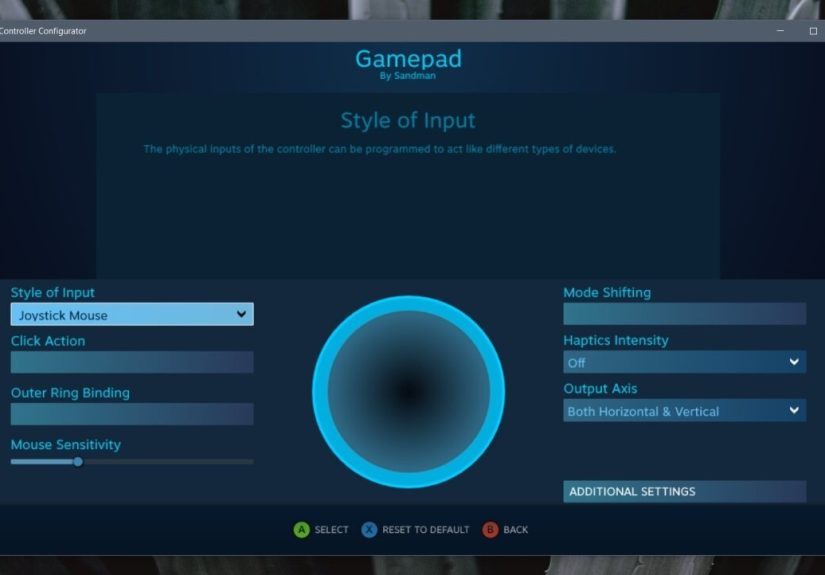
In Steam, open Settings > Controller. Make sure your Xbox controller is recognized. Then launch Minecraft through Steam so Steam Input can do its thing.
If you like a TV-friendly interface, you can also use Big Picture mode. Steam’s controller tools were basically built for this style of setup, and it makes layout editing much less annoying.
Step 3: Create a usable button layout
Because Java does not have native controller prompts, Steam Input works by translating controller actions into keyboard and mouse commands. A good starter layout looks something like this:
- Left stick: WASD movement
- Right stick: Mouse look
- A: Jump
- B: Sneak or crouch
- X: Inventory
- Y: Drop item or swap utility key
- RT: Attack or mine
- LT: Use item or place block
- RB/LB: Scroll through hotbar
- Menu button: Escape or pause
- Left stick click: Sprint
This setup is not sacred stone tablet material. It is just a smart starting point. The big adjustment is the right stick, because it is emulating a mouse rather than acting like a true native camera stick. That means you may need to lower or raise sensitivity until it stops feeling like your character drank six espressos.
When Steam Input is the best choice
Choose Steam Input if you want a setup that is:
- Easy to test without changing your Minecraft install
- Good for vanilla play
- Flexible enough for custom layouts
- Perfectly acceptable if you do not mind some menu clunkiness
The downside is simple: it can feel more like a smart workaround than true built-in controller support. It works, but sometimes it feels like you hired a translator who is excellent at nouns and slightly confused by verbs.
Method 2: Use a controller mod for a better Java experience
If you want the best way to play Minecraft Java with an Xbox controller, a dedicated controller mod is usually the winner. This is where things start feeling less like a patch job and more like a proper feature.
Popular controller mods for Minecraft Java
Right now, the most talked-about options include:
- Controlify – one of the most feature-rich choices, with broad controller support and a polished feel
- Controllable – a long-running favorite for Java players who want gamepad support
- MidnightControls – especially attractive if you use Fabric or Quilt and want strong mod compatibility
These mods are popular for a reason. Compared with plain keyboard emulation, they tend to offer a more natural controller experience, cleaner button mapping, and better handling for modded keybinds. Some also include quality-of-life extras that make Java feel much closer to a console-friendly version.
How to install a controller mod
The exact process depends on the mod, but the basic workflow is usually:
- Choose the mod you want and make sure it matches your Minecraft version.
- Install the required mod loader, such as Fabric, Quilt, NeoForge, or Forge, depending on the mod.
- Download the mod file and place it in your mods folder.
- Launch Minecraft using the correct modded profile in the launcher.
- Open the mod’s settings and map your Xbox controller.
If that sounds slightly more involved than Steam Input, that is because it is. But it often pays off with a better in-game result. If you already use shaders, minimaps, performance mods, or other Java extras, adding a controller mod usually feels like a natural next step rather than a scary technical ritual.
Why controller mods usually feel better
Here is the key difference: a good controller mod is built for Minecraft Java gameplay, not just generic desktop input. That often means:
- More natural stick behavior
- Cleaner inventory handling
- Better support for extra actions and modded controls
- Less “this button technically works, but why is it so weird?” energy
If you plan to play a lot of Java with a controller, mods are usually worth the extra setup.
Method 3: Use controller-mapping software
The third option is dedicated remapping software. Programs in this category convert controller input into keyboard and mouse input, much like Steam Input does, but outside the Steam ecosystem. This route can be useful if Steam is not behaving, if you want more control over profiles, or if you just prefer separate software for gamepad configuration.
The tradeoff is that you are still not getting native Minecraft Java controller support. You are teaching your controller to pretend it is a keyboard and mouse. That can work very well, especially for basic survival play, but menus and precision tasks may still feel rougher than with a true controller mod.
This method makes sense if you want a middle ground between “I do not want mods” and “Steam is being dramatic again.”
Best controller settings for Minecraft Java on Windows 10
No matter which method you choose, a few settings will make your life easier:
- Lower right-stick sensitivity at first, then raise it slowly
- Add a small dead zone to prevent camera drift
- Bind sprint to left stick click if that feels natural to you
- Keep inventory on one face button so you can open it quickly
- Use bumpers for hotbar movement if you dislike D-pad cycling
- Map pause to the Menu button so Esc is always easy to reach
If your setup uses mouse emulation for camera control, do not expect perfect one-to-one console smoothness. You are aiming for comfortable and reliable, not divine perfection delivered from the heavens by the Redstone gods.
Troubleshooting common problems
My Xbox controller works in Windows but not in Minecraft Java
This usually means your setup tool is not actually attached to the game. If you are using Steam, launch Minecraft from Steam and make sure the overlay is active. If you are using a mod, double-check that the correct mod loader and game version are selected.
The controls feel laggy or weird over Bluetooth
Try a wired USB connection first. It is the easiest way to rule out pairing and wireless stability issues. Also update your controller firmware through the Xbox Accessories app.
Menus are annoying to navigate
That is common with keyboard-emulation methods. Mods usually handle menus better, so if this drives you crazy, a controller mod is often the upgrade you want.
My mod is installed, but nothing happens
Check for a version mismatch. Minecraft Java mods are notoriously picky. A mod built for one release may refuse to cooperate with another. If the loader, API, or game version is off, the mod may sit there like a brick with ambition.
Should you just use Minecraft for Windows instead?
Maybe. If your only priority is playing Minecraft on PC with an Xbox controller and you do not care about Java-exclusive mods or servers, Minecraft for Windows is the easier route. It is the more controller-friendly edition on PC, and it demands far less setup drama.
But if you love Java for its modding scene, private servers, custom clients, or long-established worlds, then it is absolutely worth setting up controller support instead of jumping ship. Java is still the king of customization. It just makes you work a little harder for couch comfort.
What the experience is actually like
So what does it really feel like to play Minecraft Java with an Xbox controller on Windows 10? In a word: surprisingly good, once you stop expecting it to behave exactly like Bedrock from the first minute.
The first session is usually a little awkward. You load into a world, move the left stick, look around with the right stick, and immediately realize your camera is either too slow, too twitchy, or somehow both. That is normal. Java was built around mouse precision, so there is always a brief adjustment period while you tune the sensitivity and teach your thumbs what is going on. The good news is that after ten or fifteen minutes, your brain starts adapting. Suddenly chopping wood, placing torches, and hopping across a river feel much more natural.
The biggest difference shows up in inventory management. With a keyboard and mouse, inventory handling in Java is fast and precise. With a controller, especially through Steam Input or remapping software, inventory movement can feel like trying to sort a toolbox while wearing boxing gloves. It is still playable, but not as elegant. This is where dedicated controller mods tend to shine. They make the entire experience feel less improvised and more intentionally designed.
Exploration, though, is where controller play becomes genuinely cozy. Walking through a forest at sunset, steering a boat down a river, or strip-mining while leaning back in your chair feels fantastic with an Xbox pad. Long sessions can also feel easier on the wrists for players who do not love keyboard-and-mouse posture. That comfort factor is a huge reason people keep looking for a good Java controller setup in the first place.
Combat is a mixed bag. Fighting zombies, skeletons, or creepers is totally manageable, but fast PvP or super-precise bow shots can still favor mouse and keyboard. That does not mean controller combat is bad. It just means it feels different. If you are mostly playing survival, building, exploring, farming, or relaxing in a solo world, controller play can be excellent. If you are trying to sweat through competitive combat like your monitor owes you money, keyboard and mouse still has the edge.
There is also a small emotional victory in getting it all working. Java players are no strangers to tinkering, but controller setup has a special flavor. When you finally nail the layout and the controls click, it feels less like you installed a workaround and more like you customized the game to fit you. That is a very Java thing, honestly. The edition has always rewarded players who are willing to adjust, mod, tweak, and personalize.
And that is probably the best way to frame the whole experience. Playing Java with an Xbox controller is not usually the fastest route, but it can absolutely be a satisfying one. It turns Minecraft into a softer, more laid-back PC experience. You can kick back, wander your world, and build ridiculous block palaces without staying glued to a desk like you are filing digital taxes. Once the setup is dialed in, it stops feeling like a compromise and starts feeling like your version of the game.
Final thoughts
If you want to know how to play Minecraft Java with Xbox controller on Windows 10, the answer is simple: use the method that matches your patience level.
- Use Steam Input if you want the quickest no-mod test.
- Use a controller mod if you want the best long-term Java experience.
- Use remapping software if you want extra control outside Steam.
Java may not offer native controller support the way Bedrock does, but it is still absolutely possible to make it work well. And once you do, you get the best of both worlds: the flexibility of Java and the comfort of an Xbox controller. Not bad for a setup that starts with, “Why is literally nothing happening when I press A?”