Table of Contents >> Show >> Hide
- First: What Do You Mean by “Factory Settings,” Exactly?
- Quick Decision Map: Pick Your Reset Like a Responsible Adult
- Before You Reset: The “I’ll Thank Myself Later” Checklist
- Method 1: Reset from Windows Settings (Windows 11 & Windows 10)
- Method 2: Reset When Windows Won’t Boot (WinRE / Advanced Startup)
- Method 3: The Gateway Recovery Hotkey (Alt + F10) If Your Model Supports It
- Method 4: Clean Install with Windows Installation Media (The “Nuclear Option”)
- After the Reset: What to Do First (So Life Is Normal Again)
- Troubleshooting: Common Reset Problems (and How to Get Unstuck)
- FAQ
- Conclusion
- Real-World Experiences Resetting a Gateway Laptop (500+ Words of “Been There, Learned That”)
Sometimes a laptop just needs a fresh startlike you after deleting 37 browser toolbars and “accidentally” installing
TotallyNotAVirus_Final_FINAL.exe. Whether you’re fixing glitches, selling your Gateway, or trying to make Windows behave
like it’s had its morning coffee, a factory reset can put you back to square one (the good kind, not the “why is my printer screaming?” kind).
This guide walks you through the most reliable ways to factory reset a Gateway laptopon Windows 11 or Windows 10
including what to do if your laptop won’t boot, how the “Keep my files” option really works, and which reset choices make sense
when you’re donating or selling.
First: What Do You Mean by “Factory Settings,” Exactly?
On most modern Gateway laptops, “factory reset” usually means using Windows’ built-in reset feature to reinstall Windows.
Depending on your choices, it can:
- Keep personal files but remove apps and settings, or
- Remove everything (files, apps, settings) and start over like it’s Day 1.
Some systems also offer an OEM recovery option (often accessed during startup) that restores a manufacturer recovery imagewhen it exists.
The steps below cover both the Windows reset route (most common) and the Gateway/Acer-style recovery key method (when available).
Quick Decision Map: Pick Your Reset Like a Responsible Adult
If you want the laptop to feel “new” again (but you’re keeping it)
- Choose: Reset this PC → Keep my files
- What happens: Windows reinstalls, your personal files stay, apps you installed disappear, settings reset.
- Best for: Slowness, weird errors, Windows acting haunted.
If you’re selling, donating, or handing it to a cousin who downloads everything
- Choose: Reset this PC → Remove everything → (optional) Clean the drive
- What happens: Data is removed; drive cleaning makes casual recovery much harder (but takes longer).
- Best for: Privacy and a clean handoff.
If Windows won’t boot
- Choose: Windows Recovery Environment (WinRE) → Troubleshoot → Reset this PC
- Backup plan: If reset fails, use Windows installation media for a clean install.
Before You Reset: The “I’ll Thank Myself Later” Checklist
A factory reset is like renovating your kitchen: exciting in theory, chaotic in practice, and you will misplace something important if you don’t plan.
Do this prep and you’ll avoid the classic “Wait… where did my photos go?” moment.
1) Back up what you can’t replace
- Copy key folders (Documents, Desktop, Pictures, Downloads) to an external drive or cloud storage.
- Export browser bookmarks (Chrome/Edge/Firefox) if you don’t sync them.
- Save app data you care about (game saves, design files, project folders).
2) Know your sign-in situation
- If you sign in with a Microsoft account, make sure you remember the password (and have your 2FA device).
- If you use a local account, write down the username/password (or be ready to reset after the reinstall).
3) Check for drive encryption (Device Encryption / BitLocker)
Many Windows laptops can have encryption enabled. If your reset process asks for a recovery key, you’ll want access to it.
If you’re signed in with a Microsoft account, that key is often backed up to your account. If you’re on a work/school device,
your organization may manage it.
4) Plug in power and (preferably) stable internet
- Keep your laptop plugged in. A reset + battery death is a recipe for drama.
- If you choose Cloud download, you’ll need a solid connection.
5) Unplug extra devices
External drives, printers, and “mystery USBs from a conference” can complicate things. Keep it simple.
Method 1: Reset from Windows Settings (Windows 11 & Windows 10)
This is the most common, most straightforward optionand usually the one you want if your laptop still boots into Windows.
Windows 11 steps
- Open Settings (press Windows + I).
- Go to System → Recovery.
- Next to Reset this PC, click Reset PC.
- Choose Keep my files or Remove everything.
- Choose Cloud download or Local reinstall.
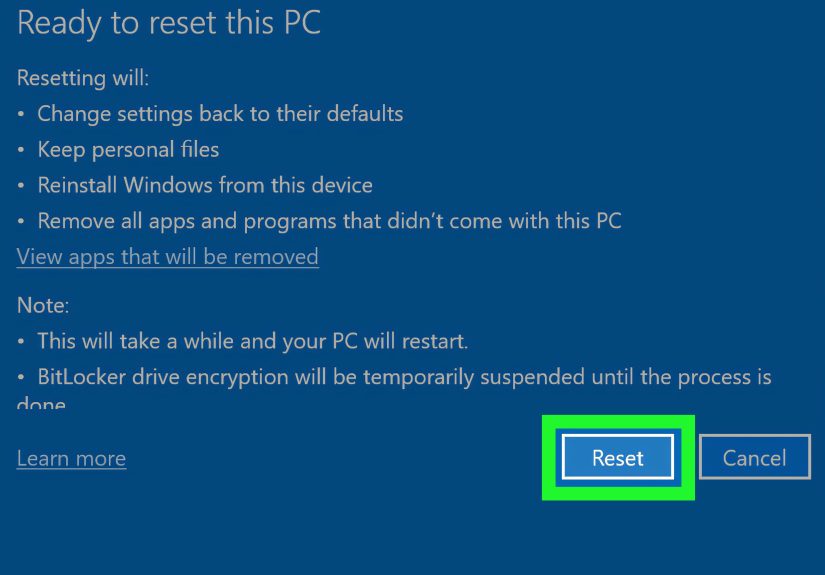
- Review the summary (Windows will tell you what gets removed), then click Reset.
Windows 10 steps
- Open Settings (Windows + I).
- Go to Update & Security → Recovery.
- Under Reset this PC, click Get started.
- Pick Keep my files or Remove everything, then follow prompts.
Keep my files vs Remove everything (what really happens)
- Keep my files: Your personal files remain, but Windows removes installed applications and resets system settings.
- Remove everything: Removes personal files, apps, and settings. Great for a clean slate or before selling.
Cloud download vs Local reinstall (choose wisely)
Windows typically gives you two reinstall methods:
- Cloud download: Downloads fresh Windows system files from Microsoft servers. Handy if local system files are damaged.
- Local reinstall: Uses existing system files on your device. Faster if your drive is healthy, but not ideal if Windows files are corrupted.
If your laptop has been crashing, blue-screening, or acting like it’s allergic to stability, Cloud download is often the better bet.
Optional but important: cleaning the drive
If you’re giving the laptop away, look for extra options like cleaning the drive or deleting files from all drives.
Drive cleaning takes longer, but it makes it harder for the next person to recover your data with basic recovery tools.
(If you work with highly sensitive data, consider dedicated secure erase methods beyond a standard reset.)
Method 2: Reset When Windows Won’t Boot (WinRE / Advanced Startup)
If Windows won’t loador it loads just long enough to disappoint youuse the Windows Recovery Environment (WinRE).
Option A: From the sign-in screen
- At the Windows sign-in screen, hold Shift.
- While holding Shift, click Power → Restart.
- On the blue menu, choose Troubleshoot → Reset this PC.
- Pick Keep my files or Remove everything and continue.
Option B: If you can still open Settings
- Open Settings → System → Recovery (Windows 11) or Update & Security → Recovery (Windows 10).
- Under Advanced startup, click Restart now.
- Then choose Troubleshoot → Reset this PC.
If WinRE doesn’t appear
Sometimes WinRE is disabled or damaged. If you can’t reach it, jump to the “Clean install” method using Windows installation media.
Method 3: The Gateway Recovery Hotkey (Alt + F10) If Your Model Supports It
Many Gateway laptops (especially models tied to Acer’s ownership/legacy tooling) may have a recovery environment you can trigger during boot.
The most commonly cited shortcut is Alt + F10 at startup.
How to try it
- Turn the laptop completely off.
- Turn it on and watch for the Gateway/Acer logo.
- As soon as the logo appears, press and hold Alt, then tap F10 repeatedly.
- If it works, you should land in a recovery menu where you can choose a reset/restore option.
Important reality check: This may not work if the recovery partition was removed, the drive was replaced, or Windows was clean-installed in a way that wiped OEM recovery tools.
If Alt + F10 does nothing, don’t panicuse WinRE or Windows installation media instead.
Method 4: Clean Install with Windows Installation Media (The “Nuclear Option”)
If the reset tool fails, Windows is badly corrupted, or you replaced the drive, a clean install can be the most reliable path.
You create a bootable USB installer, boot from it, and install Windows fresh.
This method can completely erase the drive (depending on what you choose during setup), so back up first whenever possible.
After installation, run Windows Update and reinstall drivers/apps as needed.
After the Reset: What to Do First (So Life Is Normal Again)
- Complete setup (region, keyboard, Wi-Fi, account sign-in).
- Run Windows Update until there are no important updates left.
- Install essential drivers if anything is missing (Wi-Fi, audio, touchpad). Windows often handles this automatically.
- Reinstall apps (Office, browsers, creative tools, games, etc.).
- Restore your files from your backup.
- Turn protection back on (Windows Security, encryption if desired) and re-enable any settings you want.
Troubleshooting: Common Reset Problems (and How to Get Unstuck)
“There was a problem resetting your PC.”
- Try Cloud download instead of Local reinstall (or vice versa).
- Boot into WinRE and try the reset from there.
- If it still fails, use Windows installation media for a clean install.
The reset is stuck (spinning dots forever)
- Give it timesome resets take hours, especially with drive cleaning.
- If it truly doesn’t progress (no disk activity for a long time), restart and try again from WinRE.
- Consider a clean install if repeated resets fail.
It asks for a BitLocker recovery key
- This can happen on encrypted devices. Locate your recovery key via your account or organization.
- If you can still boot sometimes, check encryption settings before resetting so you’re not surprised mid-process.
Cloud download isn’t available
- Cloud download may be missing if WinRE is limited, networking is unavailable, or system components are damaged.
- Try resetting from within Windows (if possible) or use installation media.
FAQ
How long does a factory reset take?
It depends on your drive speed, how much data is on the device, and whether you choose drive cleaning.
A basic reset can be as quick as 20–60 minutes; a “clean the drive” wipe can take significantly longer.
Will “Keep my files” keep everything?
It keeps personal files in user folders, but it removes installed apps and resets settings. If you have files scattered in random places,
back them up anywayfuture-you will appreciate the extra caution.
Does a factory reset remove viruses?
Most of the time, yesespecially with Remove everything (and even more so with drive cleaning).
But if you suspect deeper issues (firmware-level threats or failing hardware), consider professional help and a clean install.
Conclusion
Resetting your Gateway laptop to factory settings is one of the fastest ways to fix stubborn performance issues, prepare a device for sale,
or undo a software mess that’s gotten a little too adventurous. For most people, the built-in Windows reset tool is the sweet spot:
it’s straightforward, it’s official, and it doesn’t require you to become a part-time IT wizard.
Remember the golden rules: back up first, choose the reset option that matches your goal, and don’t unplug the laptop mid-reset unless you enjoy chaos.
If Windows won’t boot or the reset fails repeatedly, a clean install using installation media is the reliable fallback.
Real-World Experiences Resetting a Gateway Laptop (500+ Words of “Been There, Learned That”)
The first time I factory reset a laptop, I treated it like microwaving leftovers: press a button, walk away, come back to something warm and ready.
The laptop had other plans. About ten minutes into the reset, I realized I’d forgotten to back up a folder labeled “Important Stuff.”
That folder, as it turns out, contained exactly what you’d expect: tax documents, family photos, and a spreadsheet of passwords that I was
“definitely going to move into a password manager someday.” Resetting taught me a universal truthyour brain will remember what you forgot
precisely thirty seconds after it’s too late. Now my pre-reset ritual is boring but effective: copy everything important to an external drive,
double-check Downloads (because chaos lives there), and make sure cloud sync finished uploading.
Another memorable reset was on a laptop that “ran fine” except for the small detail that it froze whenever I opened Settingsyes, the very place you go
to start a reset. The workaround was using the Shift + Restart method from the sign-in screen to access recovery options. That felt like unlocking
a secret level in a video gameexcept the boss fight was “Choose the correct menu option while mildly stressed.” The lesson: if Windows is flaky,
don’t insist on the cleanest path. Use WinRE. It’s there for a reason, and it’s surprisingly friendly once you find it.
I’ve also learned the hard way that “Remove everything” doesn’t automatically mean “securely unrecoverable.” If you’re selling your Gateway laptop,
you want to pick the options that clean the drive when availablebecause simply removing files can still leave recoverable traces.
For a typical resale or donation, drive cleaning is usually enough to prevent casual snooping. But if you handle sensitive client data or regulated info,
a standard reset may not meet strict erasure requirements. In those cases, I’ve seen people choose additional secure erase steps or even replace the drive.
It’s not about paranoia; it’s about matching the method to the stakes.
The “Cloud download vs Local reinstall” choice is another spot where real life matters. If your system files are corrupted, Local reinstall can sometimes
feel like rebuilding a house using the same crooked lumber. Cloud download tends to be more dependable in those cases, but it needs stable internet
and it’s always the day your Wi-Fi decides to cosplay as a potato. My workaround is simple: start cloud download when I know the network is stable,
and keep the laptop plugged in the whole time. If I’m traveling or the connection is unreliable, I’ll plan for Local reinstall or prepare installation media
ahead of time. The big takeaway is that resets go smoother when you treat them like a planned project, not an impulsive “I’ll just do this real quick.”
Finally, post-reset reality: your laptop will boot up fresh and innocent, and you’ll feel triumphantuntil you remember you now have to reinstall printers,
sign into apps, and find all your settings again. I keep a tiny checklist: install updates, set up a browser, enable security protections, then add apps in order
of importance. Doing it in stages prevents that overwhelmed feeling where you install 40 things at once and can’t figure out which one broke your audio.
A factory reset isn’t just a buttonit’s a reset of your workflow. Plan it, pace it, and it’s honestly kind of satisfying.