Table of Contents >> Show >> Hide
- Quick Answer (If You’re in a Hurry)
- Before You Start: What “Saving” Actually Means in Messenger
- How to Save Photos on Messenger for iPhone (iOS)
- How to Save Photos on Messenger for Android
- Auto-Save Options (So You Don’t Have to Save Every Single Photo)
- Saving Multiple Photos Faster (Without Losing Your Mind)
- Bonus: Back Up Messenger Photos the “Big” Way (Export Your Information)
- Troubleshooting: When Messenger Won’t Save Photos
- Privacy & Etiquette (A.K.A. Don’t Be That Person)
- Real-Life Experiences (Extra of “Yep, This Happens”)
- Sources Consulted (No Links)
Messenger is basically a pocket-sized memory machine: vacation pics, pet photos, screenshots of recipes you
swear you’ll cook someday… and then one day you tap the picture and think, “Cool. Now how do I keep this
forever?”
This guide shows you exactly how to save photos from Facebook Messenger on iPhone (iOS) and
Android, how to turn on auto-save (when it’s available), where those saved photos actually land,
and what to do when Messenger decides the “Save” button is taking the day off.
Quick Answer (If You’re in a Hurry)
- iPhone (iOS): Open the photo → press and hold → tap Save or Save Image.
- Android: Open the photo → tap Download/Save (often a download icon or a 3-dot menu) → confirm if prompted.
- Want speed? Use the chat’s Media gallery to find older photos without endless scrolling.
- No “Save” option? It’s usually permissions, storage, an app update, or the photo being a shared post/link instead of an uploaded image.
Before You Start: What “Saving” Actually Means in Messenger
1) Saving to your phone vs. “it’s still in the chat”
When someone sends you a photo in Messenger, it usually lives in the conversation and on Meta’s servers. That
does not automatically mean it’s stored in your phone’s Photos/Gallery app. “Saving” means you
copy it onto your device so you can keep it even if you delete the thread, switch phones, or lose access later.
2) Why some photos refuse to save
Messenger behaves differently depending on how the image arrived. If it’s an image uploaded directly in chat, it’s
usually easy to save. If it’s a photo inside a shared Facebook post, a disappearing message, or content with special
restrictions, you might need to open it in the original app/pageor use Messenger’s export/backup options.
Pro-tip: If you can’t find a “Save” button, don’t panic. You’re not “bad at phones.” Phones are just very committed to being mysterious.
How to Save Photos on Messenger for iPhone (iOS)
Method 1: The classic long-press
- Open Messenger and go to the chat with the photo.
- Tap the photo once to open it larger (full-screen).
- Press and hold on the photo.
- Tap Save or Save Image (wording can vary by iOS/Messenger version).
Method 2: Use the Share sheet (when you see it)
- Open the photo full-screen.
- Tap the Share icon (often a square with an arrow) if it appears.
- Choose Save Image or Save to Photos.
This method is handy if you want to save the image and send it somewhere else (AirDrop it, add it to Files, etc.).
Method 3: Save older photos via the chat’s Media gallery
If you’re trying to save a photo from three months ago (back when we were all younger and full of hope),
don’t scroll forever. Use the built-in media browser:
- Open the chat.
- Tap the chat name or the info button at the top.
- Tap Media, Photos & videos, or similar.
- Open the photo you want and use Method 1 or Method 2 to save it.
Where do saved Messenger photos go on iPhone?
Typically, saved images appear in the Photos app under Recents. If you use iCloud Photos,
they may also sync to your other Apple devices.
If “Save Image” is missing on iPhone
-
Check permissions: Go to Settings → Messenger →
Photos and choose All Photos or Add Photos Only as needed. - Update Messenger: App updates can change where the Save option appears.
- Try opening the image first: The option often appears only in full-screen view.
How to Save Photos on Messenger for Android
Method 1: Open the photo and tap Save/Download
- Open Messenger and go to the chat with the photo.
- Tap the photo to open it full-screen.
- Look for a download icon (often a downward arrow) or a 3-dot menu.
- Tap Save or Download.
Android devices vary a lot (Samsung vs. Pixel vs. Motorola), so the button might be in a slightly different spot.
The idea is the same: open → menu → save.
Method 2: Long-press from the chat bubble (if supported)
- In the chat, press and hold on the photo message.
- If a menu pops up, tap Save.
Some Messenger versions show Save here, some don’t. If you don’t see it, use Method 1.
Method 3: Use the chat’s Media gallery for older photos
- Open the chat.
- Tap the chat name/info at the top.
- Tap Media (or Media, files & links).
- Open a photo and save it using Method 1.
Where do saved Messenger photos go on Android?
On many Android devices, Messenger saves to a folder like Pictures/Messenger. You can usually find it
in your Gallery app under an album named Messenger, or via the Files app under
Internal storage → Pictures → Messenger.
Auto-Save Options (So You Don’t Have to Save Every Single Photo)
Auto-save is the difference between “I saved the cute dog photo” and “I lost the cute dog photo forever and now my day is ruined.”
But auto-save can depend on chat type and settings.
Auto-save shared photos (especially in end-to-end encrypted chats)
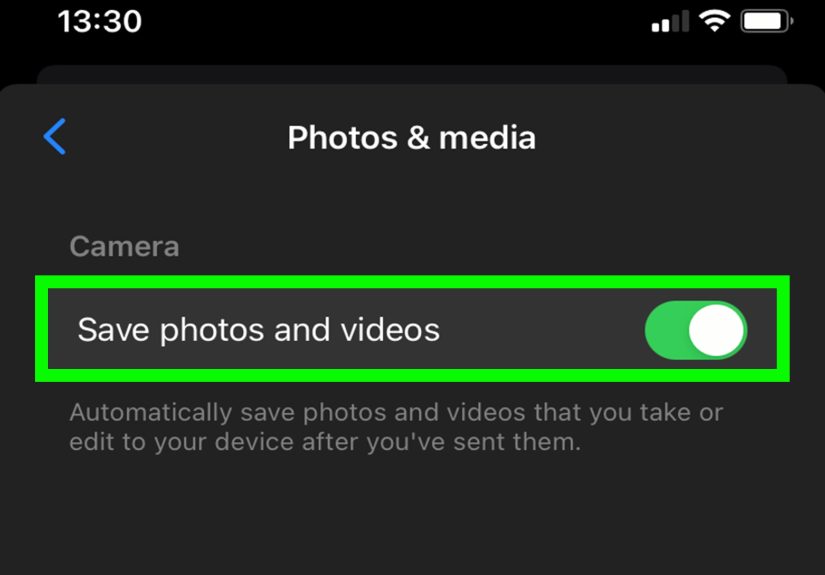
Messenger includes settings that can let you auto-save photos from specific chats (commonly noted in end-to-end encrypted chats).
The general flow looks like this:
- Open the chat.
- Tap the chat name at the top.
- Find an option like Auto-save (often under “More actions”).
- Turn on Save photos you receive (or similar wording).
If you don’t see Auto-save, it may not be available for that chat type, your account, or your current Messenger build.
Save photos you take inside Messenger’s camera
If you take a photo using Messenger’s built-in camera, Messenger may offer an option to save it to your camera roll.
Look for settings related to saving captured media to your device (wording can vary by platform and version).
Reality check: auto-save is great… until your storage isn’t
Auto-save can quietly fill your phone with “important” content like 37 versions of the same group selfie. If your phone keeps warning
you about storage, consider saving only the good stuff manuallyor set up cloud backups (Google Photos/iCloud) so your device doesn’t do all the work.
Saving Multiple Photos Faster (Without Losing Your Mind)
1) Use shared albums in group chats (when available)
Messenger has rolled out features like shared albums in chats, designed to organize and download photos and videos together.
When you’re dealing with a birthday party, a trip, or any event where everyone is sending pictures at once, albums can be a lifesaver.
- Select multiple photos in the composer and look for Create album.
- You may also be able to long-press a photo in chat and choose Create album.
- To find an album later, open the chat info and look under Media.
2) Use the Media gallery to batch-hunt “the good ones”
Messenger’s media view is basically your conversation’s highlight reel. Use it to quickly locate all shared photos and save only what matters
(the clear shots, the funny moments, the evidence that you really did go outside).
3) If you truly need everything: export/download your data
For a full backup (including message history and attachments), Messenger/Facebook offers export tools through Accounts Center and related settings.
This is the “I want the entire archive” approachbetter for backups than for grabbing a single meme.
Bonus: Back Up Messenger Photos the “Big” Way (Export Your Information)
If your goal is not “save this one photo,” but instead “I want a backup of my photos and chats,” you’re looking for export tools.
Depending on your settings and the type of chat (including end-to-end encrypted chats), Messenger provides ways to export or download data and attachments.
When should you use export instead of manual saving?
- You’re switching phones and don’t trust luck.
- You want a long-term archive of shared photos (family group chats, work receipts, event albums).
- You’re cleaning up your Messenger inbox but don’t want to lose the media.
Heads-up about encrypted chats
End-to-end encryption can change how chat history and media are stored and restored. Messenger has introduced secure storage options to help keep
encrypted chat history available across devicesworth setting up if you rely on Messenger for important media.
Troubleshooting: When Messenger Won’t Save Photos
Problem: “Save Image” doesn’t show up (iPhone)
- Check Photos permission: Settings → Messenger → Photos → allow access.
- Try the full-screen view: Save options are often hidden until the image is opened.
- Restart the app: Yes, it’s basic. Yes, it works more often than we’d like to admit.
Problem: “Download” doesn’t work (Android)
- Check storage space: If your phone is full, downloads quietly fail.
- Check permissions: Android’s permission manager can block media access. Go to Settings → Privacy/Permissions and review Messenger.
- Try a different connection: Weak Wi-Fi can make image downloads stall.
Problem: You saved it… but can’t find it
- iPhone: Check Photos → Recents, then search by date.
- Android: Check Gallery albums for “Messenger,” or use Files → Pictures → Messenger.
- Still missing? Search your device for “Messenger” folders or sort downloads by “Most recent.”
Problem: It’s not a real image (it’s a shared post/link)
Sometimes what looks like a “photo” is actually a preview card linking to a Facebook post, story, or webpage. In that case:
- Tap to open the original post/content.
- Save from the original source (Facebook app/site, or the website hosting the image).
- If needed, use export tools to create a backup archive.
Last resort (but it works): screenshots
If you just need the visual and the Save option is missing, a screenshot is the universal “fine, I’ll do it myself” solution.
It won’t be as clean as a direct save, but it will live in your Photos/Gallery instantly.
Privacy & Etiquette (A.K.A. Don’t Be That Person)
Saving photos from Messenger is usually harmlessuntil you save something sensitive or private and share it without permission.
A good rule: if you’d feel weird seeing it posted publicly, treat it like private content.
- Ask before reposting or forwarding someone else’s photo.
- Be mindful of kids’ photos, IDs, medical info, and private conversations in screenshots.
- Use secure storage and backups if the media matters (and lock your phone if it’s sensitive).
Real-Life Experiences (Extra of “Yep, This Happens”)
Here’s what saving Messenger photos tends to look like in the real world (where nothing is ever as tidy as a step-by-step list).
Imagine you’re in a family group chat. Someone drops 18 photos from a birthday party. You only want four: the one where Grandma is smiling,
the one where the cake isn’t blurry, and two candid shots that actually look like a professional photographer was present
(instead of your cousin sprinting around with a phone at 2% battery).
The first instinct is to scroll back and tap each photo one by one. That worksuntil you realize Messenger keeps jumping to “Today,”
the chat is moving because people are still reacting, and now you’re trying to save photos while dodging new messages like a video game.
This is exactly why the Media view is such a sanity saver: you get the “gallery” view of everything shared without the chatter
interrupting you. Open, save, repeat. It’s not glamorous, but it’s efficientlike meal-prepping, but for your camera roll.
Another common scenario: someone sends you a photo that you need for something official. Maybe it’s a picture of a document,
a receipt, or the event flyer you’re supposed to show at the door. You go to save it, and… no “Save Image.”
Nine times out of ten, it’s permissions. On iPhone, Messenger can’t save to Photos if Photos access is restricted.
On Android, Messenger might not have the right media permissionsespecially on newer Android versions where photo access is handled more tightly.
The funny part is that the app will happily show you the image, giving you a false sense of security, while quietly refusing to store it.
Then there’s the “Where did it go?” moment. On iPhone, people often expect a neat “Messenger” album, but saved images frequently land in
Recents. On Android, it might create a Messenger folder under Pictures, or it might show up as a “Messenger” album
in your Gallery. If you have multiple gallery apps (manufacturer gallery plus Google Photos), you can see it in one place and not in anotherbecause
one app is showing device folders, while the other is showing a cloud-synced view. That’s not you being confused; it’s your apps disagreeing in public.
Finally, the “I want them all” situation: a trip chat with hundreds of images. This is when export/backup tools become the grown-up move.
It’s less “tap-save-tap-save” and more “create an archive so future-me doesn’t hate present-me.” If you’ve ever lost a phone or upgraded devices and
realized you never saved that one set of photos, you understand why backups matter. Messenger is great at sharing moments quicklyyour job is to make
sure the moments don’t disappear when the chat gets buried under next week’s memes.
Sources Consulted (No Links)
Meta Help Center and Meta Newsroom; Messenger Help; Apple Support; Google Android Help; Lifewire; Business Insider; Dropbox; Digital Trends; plus a few
platform support communities used only for edge-case troubleshooting patterns.