Table of Contents >> Show >> Hide
- Quick Start: The Fastest Way to Find an Old Chat
- How to Search ChatGPT History on Desktop
- How to Search ChatGPT History on Mobile (iOS & Android)
- If You Can’t Find the Search Bar (Troubleshooting That Won’t Hurt Your Soul)
- Make Future Searches Easier: Organize Your Chats (Without Turning Into a Spreadsheet Person)
- Bonus: Offline Search by Exporting Your Data
- Privacy Tip (Because “Oops” Is Not a Security Strategy)
- Real-World Experience: How People Actually Find Lost Chats (500+ Words)
- Footnotes
You know that moment when you swear you asked ChatGPT something brilliantlike “what’s the name of that plant that looks like it’s plotting against me?”and now your chat list is longer than a CVS receipt?
Good news: you don’t have to scroll until your mouse wheel files a complaint.
In this guide, you’ll learn how to search your ChatGPT conversation history on desktop and mobile, plus the best “real life” tricks for finding a chat when you only remember… vibes.
We’ll also cover what to do if search is missing, how to narrow results fast, and how to organize chats so Future You doesn’t rage-scroll at 1:00 a.m.
Quick Start: The Fastest Way to Find an Old Chat
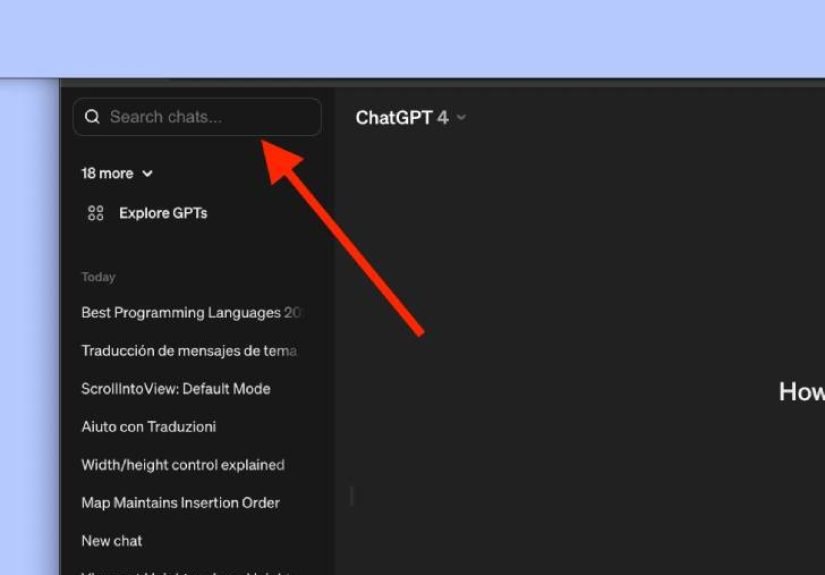
- Desktop (web): Use the magnifying glass in the left sidebaror press Ctrl + K (Windows) / Cmd + K (Mac). [1]
- Mobile (iOS/Android): Open the left sidebar and use the built-in Search field to search chat titles and content. [1]
One key detail: Chat search focuses on what you type matching text in your conversation titles and messagesand it currently works best with exact matches. Translation: “be specific,” not “I said something about that one thing.” [1]
How to Search ChatGPT History on Desktop
Method 1: Use the Sidebar Search (Web)
- Log in to ChatGPT in your browser.
- Look to the left sidebar and select the magnifying glass (Search). [1]
- Type a keyword or phrase you remember from the chat.
- Open the result that matches what you need.
Shortcut lovers: On desktop web, you can jump to search with Ctrl + K (PC) or Cmd + K (Mac). [1]
If your brain thinks in shortcuts, congratulationsyou are now legally required to own a mechanical keyboard. (I don’t make the rules.)
How to Search Like a Pro (So You Don’t Get 47 “Meeting Notes” Results)
Because chat history search supports exact matches, your strategy matters. Here’s how to get laser-accurate results:
- Use distinctive words you’re unlikely to repeat (product names, niche terms, city names, odd phrases).
- Search a short quote you remember typing (even 3–6 words can be enough).
- Try variations (singular/plural, “resume” vs “résumé,” abbreviations, or the acronym you used).
- Search for your own “anchor” habit (e.g., if you always type “TL;DR” or “Step-by-step,” search that).
Heads-up: If you created content in Canvas, it may not appear in chat history search the same way regular messages do. [1]
So if you remember building a gorgeous draft in Canvas, search the chat title or surrounding messages instead.
Method 2: Search Inside a Single Conversation (When You Already Found the Right Chat)
Sometimes you’ve opened the correct conversation, but it’s a long one (like a 9-season TV show with filler episodes).
In that case, use your browser’s built-in find tool:
- Windows: Ctrl + F
- Mac: Cmd + F
This searches within the page you’re viewing, which is perfect for finding one line, one recipe tweak, or that one sentence you want to copy.
Method 3: Search Chats Inside a Project (If You Use Projects)
If you organize work in Projects, you can still use chat search to locate older threads related to that project.
Projects are especially useful when you’re managing multiple topics (work, school, side quests, etc.) and want your history to feel less like a junk drawer. [2]
How to Search ChatGPT History on Mobile (iOS & Android)
On mobile, you’ll typically start by opening the left sidebar (your chat list), then using the Search field.
The exact icon layout can vary slightly across versions, but the workflow is consistent: open sidebar → search → select result. [1]
iPhone (iOS) Steps
- Open the ChatGPT app.
- Open the menu to reveal your chat list.
- Use the sidebar Search to type a keyword or phrase.
- Tap the matching conversation to open it.
If you’re simply trying to view your chat history list (not search it), the iOS app provides a quick way to open your previous conversations from the menu. [3]
Android Steps
- Open the ChatGPT app.
- Tap the menu icon to open the left sidebar.
- Use the sidebar Search to find a conversation by keyword.
- Tap the result to reopen it.
Android users can access their list of past chats from the top-left menu, with newest chats shown first. [4]
If You Can’t Find the Search Bar (Troubleshooting That Won’t Hurt Your Soul)
If search or your chat list looks missing, try these quick fixes:
- Confirm you’re signed in. Searching history requires your account session.
- Open the sidebar fully. On mobile, search lives in the left sidebar. [1]
- Update the app. Feature layouts can change with updates, and older versions may behave differently.
- Check your history settings. If you’ve disabled chat history, your past chats may be hidden from the sidebar experience until you re-enable it. [5]
- Try a more exact phrase. If you type something “close-ish,” results may be sparse due to exact match behavior. [1]
Make Future Searches Easier: Organize Your Chats (Without Turning Into a Spreadsheet Person)
Searching works best when your chat list isn’t a chaotic museum of unnamed conversations.
Here are a few habits that pay off fast:
Archive Chats You Don’t Need Daily
If your sidebar is crowded, archiving can reduce clutter while keeping chats available later.
Deleting, on the other hand, is permanentso archive if you’re not 100% sure. [6]
Pin the Important Stuff (If You Have the Feature)
Some users have access to pinned chats, which keeps key conversations at the top of the listgreat for ongoing projects, study notes, or that meal plan you’re totally starting on Monday. [7]
Use “Signature Words” on Purpose
This is the sneaky trick: if you often reuse the same prompt formats, add a unique marker.
Example: start your serious work chats with “PROJECT:” or “CLIENT:”.
Then later, searching becomes almost unfairly easy.
Bonus: Offline Search by Exporting Your Data
If you want a backup or need to search outside the app, you can export your ChatGPT data and receive a downloadable file that includes your chat history (commonly in a web-viewable format like chat.html). [8]
This is useful when you want a local archive or want to use your browser’s find tool across a saved file.
Privacy Tip (Because “Oops” Is Not a Security Strategy)
Searching your own history is private to your accountbut sharing a chat link is different.
Shared links can be viewed by others who have the URL, so only share conversations you’re comfortable making accessible. [9]
Real-World Experience: How People Actually Find Lost Chats (500+ Words)
Let’s talk about what happens outside the tidy world of “Step 1: Click Search.”
In real life, you’re usually searching for a chat under one of these conditions:
(1) you remember a topic but not the wording, (2) you remember a single weird phrase you typed, or (3) you remember nothing except that it was “super helpful.”
Scenario #1 is the most common: you remember the topic (“resume bullet points,” “calorie deficit,” “how to fix drywall seams,” “that thing about cortisol”).
The mistake people make is searching for the broad topic word and then drowning in resultsbecause broad words appear everywhere.
The fix is to search for what I call a handle: a word that only shows up in that one conversation.
For resumes, maybe it was the job title (“patient access representative”).
For drywall, maybe it was “hot mud,” “paper tape,” or “skim coat.”
For recipes, maybe it was the ingredient you thought was suspicious (“anchovy paste,” “za’atar,” “buttermilk substitute”).
Scenario #2 is where chat search feels like a magic trick.
If you remember even a tiny phrase you typedsomething like “make it sound less corporate,” “give me 10 options,” or “like I’m five”you can often pull up the exact thread fast.
A lot of people accidentally develop these “signature phrases” over time.
If you notice yours, lean into it.
Use the same phrase at the start of certain chats and you’ve basically built your own personal indexing system.
No folders. No color-coding. Just you and your repeated habitsfinally doing something useful.
Scenario #3 is the toughest: the “I only remember the vibe” search.
This is when your best move is to think about context clues.
Ask yourself: Was it work or personal? Was I on mobile or desktop? Did I attach a file? Did I ask for a table? Did I request a 30-day plan?
Then search for a word that probably appeared in your prompt because of the format, not the topic.
Words like “checklist,” “timeline,” “pros and cons,” “step-by-step,” “template,” “subject line,” or “H2/H3” are surprisingly powerful.
Even “PDF” can be a great keyword if you often upload documents.
Here’s a practical habit that people who “live” in ChatGPT swear by: keep one ongoing conversation called something like “Index / Links / Best Stuff”.
Anytime you get an answer you’ll want later, paste a short note therejust one line and a keyword.
Example: “Drywall: best sanding grit sequence + dust control tips.”
Later, you can search that single index chat with Ctrl/Cmd+F (or within the chat on mobile) and jump to what you need without digging through 200 conversations.
Finally, don’t underestimate the value of a slightly more descriptive chat title.
Yes, we all end up with “New chat” and “New chat (2)” sometimesno judgment.
But if you rename even a handful of important threads (work projects, school topics, health questions, travel plans), chat search becomes dramatically easier because it scans titles too.
It’s the difference between “Where did I put that?” and “Oh right, it’s literally labeled.”
Organization: boring, effective, and annoyingly right.
Footnotes
- OpenAI Help Center: Searching chat history on web and mobile; Ctrl/Cmd+K; exact match; canvas limitation.
- OpenAI Help Center: Projects in ChatGPT and searching chats within projects.
- OpenAI Help Center: Viewing conversation history in the iOS app.
- OpenAI Help Center: Accessing chat history in the Android app.
- OpenAI Help Center: Shared links FAQ (notes on disabling chat history behavior).
- OpenAI Help Center: Deleting vs archiving chats.
- 9to5Mac coverage: Pinned chats to keep important conversations at the top (feature availability may vary).
- OpenAI Help Center: Exporting ChatGPT history/data (download includes chat history; link expiration details).
- OpenAI Help Center: Shared links behavior and safety notes.