Table of Contents >> Show >> Hide
- Quick Answer: How Do You Send Multiple Photos on WhatsApp?
- Before You Send: A Few Things to Know
- How to Send Multiple Photos from WhatsApp on iPhone
- How to Send Multiple Photos from WhatsApp on Android
- How to Send Multiple Photos from WhatsApp on PC
- How to Send Photos as Documents on WhatsApp
- Best Way to Send Many Photos Without Annoying Everyone
- How to Add Captions to Multiple WhatsApp Photos
- Common Problems When Sending Multiple Photos on WhatsApp
- Privacy Tips Before Sending Multiple Photos
- Practical Examples
- Personal Experience: What Actually Works Best When Sending Multiple Photos on WhatsApp
- Conclusion
Sending one photo on WhatsApp is easy. Sending multiple photos without accidentally choosing the blurry screenshot of your grocery list, the duplicate selfie, and the picture of your thumb? That takes a little more finesse. Whether you are sharing vacation shots, product photos, family memories, school project images, or “proof that the dog did, in fact, eat the cushion,” WhatsApp makes it possible to send many pictures at once from iPhone, Android, WhatsApp Web, and the desktop app.
The good news: you do not need a secret tech degree. WhatsApp allows users to select multiple photos or videos in a chat, preview them, add captions, choose HD quality when available, and send them in one neat batch. You can also share photos from your phone’s gallery, Google Photos, Apple Photos, or your computer folders. The trick is knowing where the buttons live, because iPhone, Android, and PC each hide them in slightly different placeslike a tiny digital scavenger hunt.
This guide explains how to send multiple photos from WhatsApp on iPhone, Android, and PC, plus how to send photos in HD, share images as documents, fix common problems, and avoid turning your chat into a chaotic photo avalanche.
Quick Answer: How Do You Send Multiple Photos on WhatsApp?
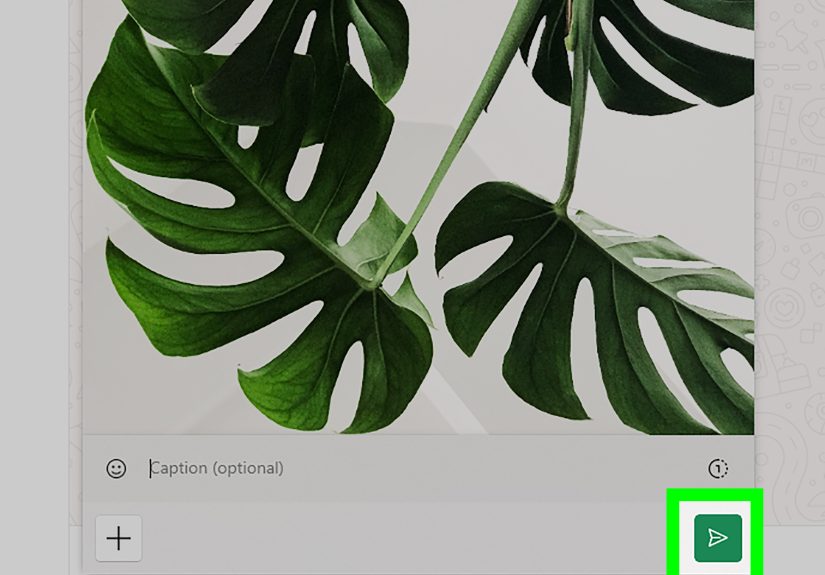
To send multiple photos on WhatsApp, open a chat, tap the attachment or plus icon, choose your photo gallery, select several images, review them, add captions if needed, and tap Send. On a PC, open WhatsApp Web or WhatsApp Desktop, click the plus or attachment icon, choose Photos & Videos, select multiple image files from your computer, and send them.
WhatsApp currently lets you send up to 100 photos or videos at once in a chat. If you need to send more than that, split the images into smaller batches, send them as a compressed ZIP file, or share a cloud album link.
Before You Send: A Few Things to Know
Before selecting 79 beach photos and launching them into a group chat, keep these basics in mind:
- Photo limit: WhatsApp supports sending up to 100 photos or videos at once.
- Quality: Standard photo sharing may compress images. Use HD quality or send photos as documents when clarity matters.
- Captions: You can add captions before sending. For multiple photos, you may be able to caption individual images in the preview screen.
- Storage: Large photo batches can take up space on your phone and the recipient’s device.
- Internet speed: A weak connection can make a large batch fail, stall, or send slowly.
- Privacy: Photos may include metadata such as time, location, or device details depending on how they are shared.
How to Send Multiple Photos from WhatsApp on iPhone
On iPhone, WhatsApp uses the familiar Photos picker. The process is simple once you know where to tap.
Method 1: Send Multiple Photos from Inside WhatsApp
- Open WhatsApp on your iPhone.
- Open the individual chat or group chat where you want to send the photos.
- Tap the plus (+) icon near the message box.
- Select Photos or Photo & Video Library.
- Tap the first photo you want to send.
- Use the selection option or tap additional thumbnails to choose more photos.
- Tap Next or continue to the preview screen.
- Add captions, stickers, drawings, or edits if desired.
- Tap the Send icon.
This is the fastest method for everyday sharing. It works well for sending birthday photos, screenshots, receipts, memes, travel pictures, and the classic “which outfit should I wear?” emergency gallery.
Method 2: Send Multiple Photos from the iPhone Photos App
You can also begin in the iPhone Photos app, which is useful when you are already browsing an album.
- Open the Photos app on your iPhone.
- Tap Select in the top-right corner.
- Choose the photos you want to send.
- Tap the Share icon.
- Select WhatsApp from the share options.
- Choose the WhatsApp contact or group.
- Tap Next, add a caption if needed, and tap Send.
This method is especially helpful when you want to pick from an album, a recent trip, a favorites folder, or a carefully curated collection of “photos where everyone has their eyes open.” A rare and precious category.
How to Send HD Photos on WhatsApp for iPhone
If image quality matters, look for the HD option on the preview screen before sending. Tap it and choose HD quality when available. HD photos are sharper than standard photos, but they also use more data and storage.
For professional images, printable pictures, product shots, design previews, or anything with small text, HD is usually worth it. For quick memes or casual snapshots, standard quality is fine and faster.
How to Send Multiple Photos from WhatsApp on Android
Android phones vary by brand, but the WhatsApp process is generally consistent. Samsung, Google Pixel, OnePlus, Motorola, and other Android devices may show slightly different gallery screens, but the main steps are the same.
Method 1: Send Multiple Photos from Inside WhatsApp on Android
- Open WhatsApp on your Android phone.
- Open the chat or group where you want to send the photos.
- Tap the paperclip attachment icon in the message bar.
- Tap Gallery.
- Press and hold a photo, or tap the selection circle, depending on your gallery view.
- Select additional photos.
- Tap OK, Next, or the check mark.
- Review the selected images.
- Add captions or edits if desired.
- Tap Send.
Android is usually very quick for batch selection. In many gallery views, you can long-press the first image and then tap several more. Just keep an eye on the selected count so you do not accidentally send your entire camera roll. Nobody needs 642 photos of your lunch unless your lunch is applying for a museum exhibit.
Method 2: Send Multiple Photos from Google Photos or Gallery
- Open Google Photos or your phone’s Gallery app.
- Long-press the first photo you want to share.
- Select the other photos.
- Tap the Share icon.
- Choose WhatsApp.
- Select the contact or group chat.
- Preview the photos and tap Send.
This method is great when your images are already organized in Google Photos albums or device folders. If you are sharing event pictures, product images, school notes, or a batch of screenshots, starting from the gallery may feel more natural.
How to Fix Photo Permission Problems on Android
If WhatsApp cannot see your photos, Android permissions may be the reason. Go to Settings > Apps > WhatsApp > Permissions, then allow access to Photos and videos. On newer Android versions, you may be able to grant access to all photos or only selected photos. If you choose selected access, WhatsApp will only see the images you permit.
This is good for privacy, but it can be confusing when you are trying to send an image and it appears to have vanished into the phone’s basement.
How to Send Multiple Photos from WhatsApp on PC
Sending multiple photos from a computer is perfect when your images are already saved on your laptop or desktop. This is common for work, online selling, photography, design, school assignments, scanned documents, and family photo backups.
Using WhatsApp Web
- Open your browser and go to WhatsApp Web.
- Link your phone if you are not already logged in.
- Open the chat where you want to send the photos.
- Click the plus (+) or attachment icon.
- Select Photos & Videos.
- Choose multiple photos from your computer.
- Click Open.
- Review the images in WhatsApp.
- Add captions if needed.
- Click Send.
Using WhatsApp Desktop for Windows or Mac
The desktop app works much like WhatsApp Web. Open the app, enter a chat, click the attachment icon, choose photos and videos, select multiple files, preview, and send. WhatsApp Desktop is useful if you use WhatsApp frequently for work and do not want to keep a browser tab open all day.
How to Select Multiple Photos on a PC
When the file picker opens, you can select multiple photos in several ways:
- Windows: Hold Ctrl and click individual photos, or hold Shift to select a range.
- Mac: Hold Command and click individual photos, or use Shift to select a range.
- Drag selection: In some folders, you can drag your mouse across thumbnails to select several files.
After selecting the files, WhatsApp will show them in a preview window. This is your final chance to remove the blurry ones, add a caption, or reconsider whether the group chat truly deserves 47 pictures of the same sunset. It probably does. Sunsets are persuasive.
How to Send Photos as Documents on WhatsApp
If you want to preserve image quality, sending photos as documents can help. Regular photo sharing may compress images, especially when sent in standard quality. Sending as a document keeps the file closer to its original form, which is useful for printing, editing, business use, or sharing detailed screenshots.
On iPhone
- Save the photo to the Files app if it is not already there.
- Open WhatsApp and enter the chat.
- Tap the plus (+) icon.
- Choose Document.
- Select the image file from Files, iCloud Drive, or another storage location.
- Tap Send.
On Android
- Open WhatsApp and enter the chat.
- Tap the paperclip icon.
- Choose Document.
- Select the image file from your file manager.
- Tap Send.
On PC
- Open WhatsApp Web or WhatsApp Desktop.
- Open the chat.
- Click the attachment icon.
- Choose Document.
- Select the image files from your computer.
- Click Send.
WhatsApp allows documents up to 2 GB, so this method is helpful when you are sending high-resolution photos, image sets, design proofs, or large files that would lose detail if sent as normal photos.
Best Way to Send Many Photos Without Annoying Everyone
Just because you can send 100 photos at once does not always mean you should. A giant batch can overwhelm recipients, fill storage, and turn a peaceful chat into a waterfall of thumbnails. Here are smarter options depending on the situation:
For 5 to 20 Casual Photos
Send them directly in WhatsApp as regular photos. Use HD only if the details matter.
For 20 to 100 Event Photos
Send them in smaller batches by theme: ceremony, food, group photos, behind-the-scenes, and “people dancing like nobody owns a camera.” Smaller batches are easier to browse.
For More Than 100 Photos
Use a cloud album link from Google Photos, iCloud, Dropbox, OneDrive, or another storage service. This avoids spamming the chat and lets people download only what they want.
For Professional or Printable Images
Send photos as documents or use a cloud storage link. This helps preserve quality and prevents compression from making sharp images look soft.
How to Add Captions to Multiple WhatsApp Photos
After selecting your photos, WhatsApp usually displays a preview screen. You can type a caption before sending. Depending on your app version and platform, you may be able to add different captions to individual photos by tapping each image in the preview strip.
Captions are useful when sending product photos, travel pictures, instructions, homework images, or before-and-after shots. For example, if you are sending photos of a damaged package, caption each image: “front side,” “broken corner,” “shipping label,” and “inside box.” That is much more useful than sending ten mystery photos and forcing the recipient to play detective.
Common Problems When Sending Multiple Photos on WhatsApp
Problem 1: WhatsApp Will Not Let Me Select Multiple Photos
Check app permissions. On iPhone, go to Settings > Apps > WhatsApp > Photos and make sure WhatsApp has access. On Android, go to Settings > Apps > WhatsApp > Permissions and allow access to photos and videos.
Problem 2: Photos Are Sending Slowly
Large batches, HD media, and weak connections can slow uploads. Switch to Wi-Fi, send fewer photos per batch, or use standard quality instead of HD.
Problem 3: Photos Look Blurry After Sending
Use the HD button before sending, or send the images as documents. If the recipient needs original quality, a cloud link may be the best option.
Problem 4: I Cannot Send More Than 100 Photos
Split the photos into multiple batches or create a shared album link. WhatsApp’s batch limit is designed to keep chats manageable and prevent massive accidental uploads.
Problem 5: WhatsApp Keeps Failing to Send
Check your internet connection, update WhatsApp, restart the app, confirm that you have storage available, and try sending a smaller batch. If one photo is corrupted or too large, removing it may fix the issue.
Privacy Tips Before Sending Multiple Photos
Photos can reveal more than you think. A simple image may show location clues, license plates, addresses, children’s school names, private documents, or people who did not agree to be shared. Before sending a big batch, scan the photos quickly.
- Crop out sensitive details.
- Blur addresses, faces, ID numbers, or payment information.
- Avoid sending private images to large group chats.
- Use disappearing messages only when appropriate, but remember recipients can still screenshot.
- Do not share someone else’s photos without permission.
A two-second review can prevent a very long apology later.
Practical Examples
Example 1: Sending Vacation Photos to Family
Choose the best 25 to 40 images, send them in two batches, and use captions like “Day 1,” “beach,” or “dinner.” For the full album, send a Google Photos or iCloud link.
Example 2: Sending Product Photos to a Customer
Use HD quality or send the photos as documents. Add captions such as “front,” “back,” “size tag,” and “close-up.” This looks professional and reduces follow-up questions.
Example 3: Sending School Notes
Use HD or document mode so text stays readable. Send pages in order and label them clearly. Nobody enjoys solving “Page 7 before Page 2” puzzles at midnight.
Example 4: Sending Photos from a PC
Use WhatsApp Desktop or Web, select all edited images from your folder, preview them, and send. This is faster than moving images back to your phone first.
Personal Experience: What Actually Works Best When Sending Multiple Photos on WhatsApp
In real life, the best way to send multiple photos on WhatsApp depends less on the device and more on the purpose. For casual sharing, I find that sending photos directly from the chat is the quickest and least stressful method. You open the conversation, tap the attachment button, choose the images, check the preview, and send. It feels natural because you are already inside the chat, and there is less chance of sending the photos to the wrong person. That matters more than people admit. One wrong tap and your dentist gets your vacation album.
For iPhone users, starting from the Photos app is often better when the pictures are part of a specific album. If you have just returned from a trip, birthday party, wedding, or school event, the Photos app makes it easier to scan through the whole set. You can tap Select, choose the strongest images, and share them to WhatsApp. The advantage is visual control. You can avoid duplicates, blurry shots, accidental screenshots, and that one photo where everyone looks great except the person who will absolutely notice.
On Android, I usually prefer starting inside WhatsApp for smaller batches and starting from Google Photos for larger ones. Google Photos is helpful because albums, search, and dates make it easier to find exactly what you want. Searching “beach,” “receipt,” “dog,” or “screenshot” can save a lot of scrolling. Once the photos are selected, sharing to WhatsApp is straightforward. The only thing to watch is permissions. If WhatsApp cannot see your newest photos, it is usually not broken; it probably just needs access to photos and videos in Android settings.
For PC, WhatsApp Web and WhatsApp Desktop are lifesavers. If you edit photos on a computer, download images from a camera, or organize files into folders, sending from PC is much faster than transferring everything to your phone first. The file picker also makes batch selection easier. Holding Ctrl on Windows or Command on Mac lets you choose exactly the images you want. For work-related sharing, this feels cleaner and more professional.
Quality is the biggest lesson. Standard WhatsApp photo sharing is fine for everyday pictures, but not for everything. If I am sending a screenshot with tiny text, a design mockup, a product image, or a photo someone might print, I use HD or send it as a document. Sending as a document may feel less pretty in the chat, but it protects detail. That trade-off is worth it when clarity matters.
The final lesson is restraint. Sending 100 photos at once is technically allowed, but it can be socially dangerous. For group chats, smaller batches are kinder. For huge collections, a cloud album link is better. People can browse, download, and admire your photographic genius at their own pace. WhatsApp is excellent for quick sharing, but the smartest users know when to send a batch, when to send a document, and when to simply share a link and spare everyone’s storage.
Conclusion
Learning how to send multiple photos from WhatsApp on iPhone, Android, and PC is simple once you understand the flow. On iPhone, use the plus icon or share directly from Photos. On Android, use the paperclip icon, Gallery, or Google Photos. On PC, use WhatsApp Web or WhatsApp Desktop and select multiple files from your computer. For better quality, choose HD or send photos as documents. For huge albums, use a cloud link instead of flooding the chat.
WhatsApp is built for fast sharing, but smart photo sharing is about choosing the right method. Send regular photos for casual moments, HD photos for better clarity, documents for original quality, and links for massive collections. Your recipientsand their phone storagewill thank you.