Table of Contents >> Show >> Hide
- Before You Begin: Turbo C++ in a Modern World
- How to Start Learning C in Turbo C++: 13 Practical Steps
- Step 1: Get Clear on Why You’re Learning C
- Step 2: Install Turbo C++ on Your System
- Step 3: Open the IDE and Configure It for C
- Step 4: Learn the Turbo C++ Interface and Shortcuts
- Step 5: Write Your First C Program – “Hello, World”
- Step 6: Master the Basics – Data Types, Variables, and Operators
- Step 7: Learn Input and Output with scanf and printf
- Step 8: Control the Flow – If, Else, and Switch
- Step 9: Get Comfortable with Loops and Arrays
- Step 10: Organize Your Code Using Functions
- Step 11: Meet Pointers (Without Panic)
- Step 12: Debug Like a Pro – Reading Errors and Using the Tools
- Step 13: Avoid Common Beginner Mistakes and Plan Your Move to Modern Tools
- Real-World Experiences and Lessons from Learning C in Turbo C++
Learning C is like learning to drive a manual car: once you know it, every other
language feels a bit easier. Learning C in the classic Turbo C++ IDE is like
learning to drive that manual on a vintage car a little quirky, sometimes noisy,
but surprisingly fun once you get the hang of it.
In many schools and colleges, Turbo C++ is still the default environment for
beginner C programmers. Even though it’s old and not standards-compliant by
modern measures, it can still help you master core C concepts: variables, loops,
functions, arrays, and pointers. The trick is to treat Turbo C++ as a learning
playground, not the final destination.
Before You Begin: Turbo C++ in a Modern World
Turbo C++ is a discontinued DOS-era IDE and compiler that became hugely popular in
the 1990s because it was fast, lightweight, and easy to use. Today, it’s
considered obsolete, but it’s still used in some education systems because it
offers a very simple write–compile–run loop.
What does that mean for you? Three important things:
-
You can absolutely learn C basics with Turbo C++. Concepts like
variables, loops, arrays, functions, and pointers are the same in any IDE. -
You should eventually switch to a modern toolchain. Think GCC or
Clang with an editor like VS Code or CLion. Those support modern standards and
real-world workflows. -
Right now, just focus on fundamentals. Use Turbo C++ to build a
solid base and confidence, then upgrade later.
So yes, Turbo C++ is old-school. But if your instructor or syllabus requires it,
you can still get a lot of value from it especially if you follow a clear,
structured path like the 13 steps below.
How to Start Learning C in Turbo C++: 13 Practical Steps
Step 1: Get Clear on Why You’re Learning C
Before you even touch Turbo C++, ask yourself: why C? Common reasons include
preparing for engineering exams, understanding low-level concepts like memory and
pointers, or building a strong base for other languages such as C++, Java, and
Rust. When you know your “why,” it’s easier to stay motivated when your code
throws 17 errors because you forgot a semicolon.
Write your reason on a sticky note and put it near your monitor. When Turbo C++
crashes for the third time in a row, that little note might be the only thing
stopping you from picking a different major.
Step 2: Install Turbo C++ on Your System
Although Turbo C++ was originally a DOS application, modern distributions bundle
it with emulators so it runs on today’s Windows versions. Typical installation
steps look like this:
- Download a Turbo C++ package that supports your version of Windows.
- Extract the ZIP archive into a folder like
C:TCor similar. -
Run the
setup.exeor pre-configured installer and follow the
prompts. -
If your version uses DOSBox, double-click the provided launcher (it often mounts
the virtual drive and starts Turbo C++ automatically).
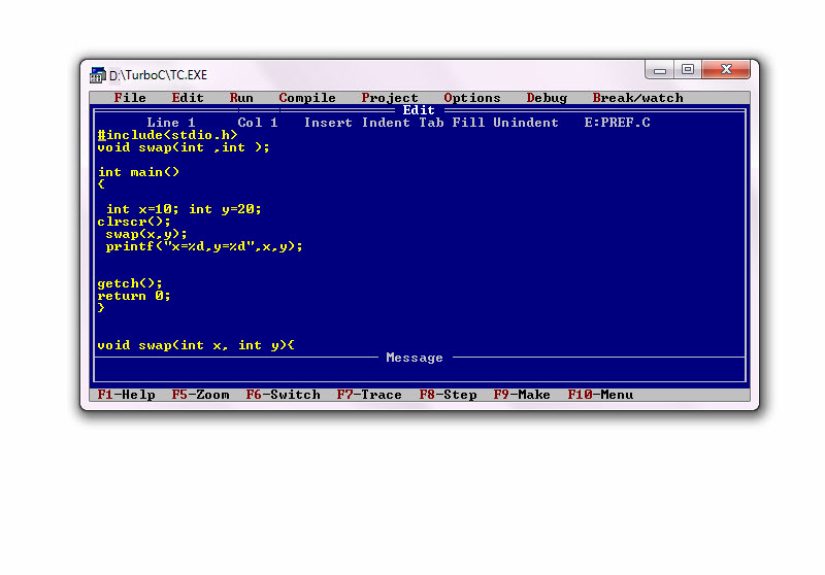
After installation, you should be able to see the classic blue Turbo C++ screen.
If the screen looks like something from a 1995 hacking movie, congratulations
you did it right.
Step 3: Open the IDE and Configure It for C
Once Turbo C++ launches:
- Go to Options > Directories and confirm the include and library paths.
-
Create a new source file via File > New and save it with the
extension.c, for example,hello.c. -
If there is a language mode setting, ensure you’re compiling as C, not C++. In
practice, naming files with.cis usually enough.
This step might feel boring, but getting your environment right now saves you from
confusing compiler errors later.
Step 4: Learn the Turbo C++ Interface and Shortcuts
Turbo C++ uses menus and keyboard shortcuts rather than modern mouse-heavy
interfaces. Getting comfortable with these will speed up your learning:
- File > New: Create a new source file.
- File > Open: Open an existing program.
- Alt + F9: Compile the active file.
- Ctrl + F9: Run the program.
- Alt + F5: View program output.
Practice this cycle: write code → Alt+F9 → fix errors → Ctrl+F9
→ check output. This loop will become second nature, and it’s the heart of your
learning process.
Step 5: Write Your First C Program – “Hello, World”
Time for the classic first step. In your new file, type:
Save the file, compile it, and then run it. If you see Hello, World! in
the output window, you’ve successfully written and executed your first C program
in Turbo C++.
It doesn’t do much yet, but you’ve just walked through the full cycle: editing,
compiling, and running. That’s the foundation for everything else.
Step 6: Master the Basics – Data Types, Variables, and Operators
Now that your environment works, it’s time to learn the vocabulary of C:
-
Data types:
int,float,
double,char -
Variables: named storage locations, like
int age = 18; -
Operators:
+,-,*,
/,%, comparison operators (>,
<,==) and logical operators (&&,
||,!)
Write small programs that:
- Add two integers.
- Convert Celsius to Fahrenheit.
- Calculate the area of a circle given its radius.
These mini-programs help you build muscle memory with syntax and arithmetic logic,
without overwhelming you with complex concepts.
Step 7: Learn Input and Output with scanf and printf
User interaction is a big part of programming, even in console apps. In C, the
main functions for this are:
printf– for printing output.scanf– for reading user input.
Example:
Common beginner issue: forgetting the & in front of variable names
in scanf. Without it, your program may crash or behave strangely.
Step 8: Control the Flow – If, Else, and Switch
Programs need to make decisions. In C, you do this using:
if/else if/elsestatementsswitchfor multi-way branching based on a single value
Practice tasks you can code in Turbo C++:
- Check if a number is even or odd.
- Find the largest of three numbers.
- Use
switchto build a small calculator (+, −, ×, ÷).
These exercises teach you how to reason about conditions and logic. The IDE
doesn’t matter as much here – your brain is the main tool.
Step 9: Get Comfortable with Loops and Arrays
Loops let you repeat work; arrays let you store collections of values. Together,
they’re essential for real-world programs.
Focus on three types of loops:
forloops – ideal when you know how many times to repeat.whileloops – repeat as long as a condition is true.do...whileloops – similar towhile, but always run at least once.
Combine loops with arrays to:
- Read
nnumbers and compute their average. - Find the maximum element in an array.
- Count how many numbers are positive, negative, or zero.
Turbo C++ handles these basics just fine, and the instant console output is
perfect for checking your understanding.
Step 10: Organize Your Code Using Functions
Functions help you break large problems into smaller, reusable pieces. In C, a
function has a return type, a name, parameters, and a body:
Start by writing small utility functions: a function to compute factorial, one to
check if a number is prime, and another to compute the sum of an array. Organizing
logic into functions makes debugging easier, and it’s a core skill you’ll use in
every language.
Step 11: Meet Pointers (Without Panic)
Pointers are one of the main reasons people say C is “hard,” but they’re also what
makes C powerful. A pointer is simply a variable that stores the address of
another variable.
Start small:
- Declare a pointer to an
int:int *p; - Make it point to a variable:
int a = 10; p = &a; -
Print the value using
*p(dereferencing): it should show
10.
Don’t jump straight into dynamic memory allocation. First, understand how pointers
relate to arrays and function arguments. Turbo C++ may be old, but it’s perfectly
capable of helping you build a strong mental model of memory and addresses.
Step 12: Debug Like a Pro – Reading Errors and Using the Tools
In Turbo C++ you’ll often see error messages at the bottom of the screen after
compiling. Instead of panicking, practice a simple debug routine:
- Read the error message and note the line number.
- Go to that line and check for missing semicolons, braces, or parentheses.
-
If the error mentions a symbol, check whether you declared the variable or
function correctly. - Fix one error at a time, then recompile.
Many mistakes are small syntax issues missing brackets, mismatched types,
forgotten #include statements. Over time you’ll learn to spot these
just by scanning the code.
Step 13: Avoid Common Beginner Mistakes and Plan Your Move to Modern Tools
Some classic beginner mistakes in C include:
- Using variables before initializing them.
- Writing past the end of arrays.
- Forgetting
breakinswitchcases. - Using
=instead of==in conditions. - Ignoring compiler warnings.
Make it a habit to:
- Compile often and fix warnings, not just errors.
- Test with different inputs, including edge cases.
- Keep your code indented and readable.
Finally, remember: Turbo C++ is your training wheels, not your forever IDE.
After you’re comfortable with C basics, move to a modern environment such as GCC
or Clang with an editor like VS Code. Your knowledge of C will transfer; your
confidence will too.
Real-World Experiences and Lessons from Learning C in Turbo C++
Let’s talk about what it actually feels like to learn C programming in
Turbo C++. If you’re sitting in a crowded computer lab with identical beige
monitors and an instructor who loves chalk more than PowerPoint, this may sound
familiar.
At first, the Turbo C++ interface looks intimidating. The menus are text-based,
the colors are loud, and nothing resembles the modern apps you’re used to. Many
students spend the first lab silently wondering, “Is this really how people write
software?” The good news is that after a few sessions, that blue screen starts to
feel oddly comforting a little retro coding bunker where it’s just you and your
logic.
One common early experience is the semicolon struggle. You compile
your code and get a wall of error messages. The instructor walks by, glances at
your screen, and calmly points to a single missing ;. In Turbo C++,
error messages can sometimes point to the end of a function instead of the exact
location of the problem, which forces you to carefully re-read your code. Annoying
in the moment, but this actually trains you to scan for structural issues a skill
that’s useful in any IDE.
Another shared experience is the first time you use scanf incorrectly.
Maybe you forget the & before a variable or mismatch the format
specifier. The program either crashes or prints nonsense. In a modern IDE, you
might get richer hints, but in Turbo C++ you mostly get trial, error, and a
growing notebook of “things I will never forget again.” Many developers look back
and say those painful problems made them much more careful with types and memory.
Group projects in Turbo C++ also have their own flavor. Because the environment is
limited, teams tend to focus on algorithms and logic rather than fancy UI or
frameworks. You might build a student grading system, a mini banking application,
or a simple game like number guessing. There’s something satisfying about seeing a
purely text-based interface come alive and realizing, “We wrote every line that
makes this work.”
Over time, you start noticing a subtle shift. At the beginning, you spend most of
your energy fighting the tools figuring out how to open files, where your output
goes, why the window suddenly closed. After a few weeks, those things become
automatic. Your mental energy moves away from “how do I compile this?” to “what’s
the best way to design this function?” That shift is the real milestone. Once
you’re thinking like that, it means you’re becoming a programmer, not just a
keyboard operator.
Eventually, you’ll install a modern editor like VS Code or an online compiler and
feel a bit shocked. Syntax highlighting is nicer, autocomplete suggests functions,
and warnings are more detailed. But here’s the fun twist: if you learned in Turbo
C++, you’ll probably feel overprepared. Modern tools will make life
easier, but you won’t be dependent on them. You already know how to reason about
code, trace logic by hand, and debug with nothing but your brain and a basic
compiler.
In conclusion, learning C programming in Turbo C++ is a bit like training with a
weight vest. It may feel heavy and outdated while you’re in the middle of it, but
when you eventually switch to modern tools, everything feels lighter and faster.
If you focus on understanding concepts not just memorizing menu sequences you
’ll walk away with a rock-solid foundation in C, a sharper eye for bugs, and a
story about “that old blue IDE” that future classmates using shiny tools probably
won’t have. And honestly, that’s a pretty cool origin story for any developer.