Table of Contents >> Show >> Hide
- What Does “Tracking Someone on Google Maps” Really Mean?
- When Is It Appropriate to Use Google Maps Location Sharing?
- How Google Maps Location Sharing Works
- How to Share Your Location with Someone on Google Maps
- How to See Someone’s Location After They Share It
- How to Ask Someone to Share Their Location
- How to Share Trip Progress Instead of Full-Time Location
- Using Google Maps Location Sharing for Family Safety
- Location Sharing Notifications: Arrivals and Departures
- How to Stop Sharing Your Location on Google Maps
- How to Manage Location Permissions on Your Phone
- Why Google Maps Location May Not Be Accurate
- Can You Track Someone Without Them Knowing?
- What to Do If You Think Someone Is Tracking You
- Best Practices for Safe and Respectful Location Sharing
- Common Problems and Simple Fixes
- Real-Life Examples of Smart Location Sharing
- Experience-Based Tips for Using Google Maps Location Sharing
- Conclusion
Let’s start with the big blinking neon sign: you should only track someone’s location on Google Maps when they knowingly agree to share it with you. Google Maps is not a secret spy gadget, a detective movie prop, or a “my roommate borrowed my hoodie and now justice must be served” machine. It is a location-sharing tool designed for families, friends, travel partners, caregivers, and teams who want a safe, transparent way to stay connected.
Used correctly, Google Maps location sharing can be incredibly helpful. A parent can check whether a child made it to soccer practice. Friends can find each other at a crowded concert. A partner driving alone at night can share their trip progress. A caregiver can coordinate with an older adult who wants extra support. The magic word in all of these examples is permission.
This guide explains how to track someone’s location on Google Maps the right way: with consent, clear boundaries, privacy controls, and a healthy respect for the fact that everyone deserves digital personal space. We will cover how Google Maps location sharing works, how to set it up, how to request someone’s location, how to stop sharing, what information is visible, and what to do if you suspect someone is tracking you without permission.
What Does “Tracking Someone on Google Maps” Really Mean?
In everyday conversation, people often say “track someone” when they really mean “see someone’s live location after they choose to share it.” On Google Maps, that distinction matters. You cannot ethically or legitimately use Google Maps to secretly monitor another person. Instead, the other person must share their real-time location with you through Google Maps or a related Google family feature.
When location sharing is turned on, Google Maps may show a person’s recent location on the map, and depending on the sharing method, it may also show useful details such as device battery level, whether the device is charging, and arrival or departure notifications if those are set up. This is helpful when everyone involved understands what is being shared. It is creepy when they do not. Please do not be creepy. Creepy is bad SEO for real life.
When Is It Appropriate to Use Google Maps Location Sharing?
Google Maps location sharing is best for practical, safety-focused situations. For example, it can help families coordinate school pickups, help friends meet in busy areas, help travelers share progress during a road trip, or help someone feel safer while walking home. It can also be useful for temporary situations, such as sharing your route to a restaurant so nobody has to send the classic “where are you?” text every three minutes.
It is not appropriate to use location sharing to control, pressure, intimidate, or monitor another adult. If someone says no, the answer is no. If someone agrees to share their location for one hour, that does not mean forever. If someone stops sharing, that is their right. Healthy location sharing works like a seat belt: useful, protective, and not something you use to tie someone to a chair.
How Google Maps Location Sharing Works
Google Maps allows a person to choose who can see their location and how long that access lasts. The person sharing can select a contact, share through a link, or stop sharing at any time. Location sharing can work even if Google Maps Timeline is turned off, which means live sharing and personal location history are different features.
That difference is important. Location Sharing is about letting selected people see where you are now. Timeline is a personal history feature that helps you remember places you have visited. Turning off Timeline does not automatically mean location sharing is off, and stopping location sharing does not necessarily change every other location setting on a phone. Privacy settings love to have layers. Like onions. Or overly complicated streaming subscriptions.
How to Share Your Location with Someone on Google Maps
The safest way to let someone track your location on Google Maps is to share it yourself. The steps may vary slightly depending on your phone, app version, and account type, but the basic process is similar on Android and iPhone.
On Android
- Open the Google Maps app.
- Tap your profile picture or initial in the top-right corner.
- Choose Location sharing.
- Tap New share.
- Select how long you want to share your location.
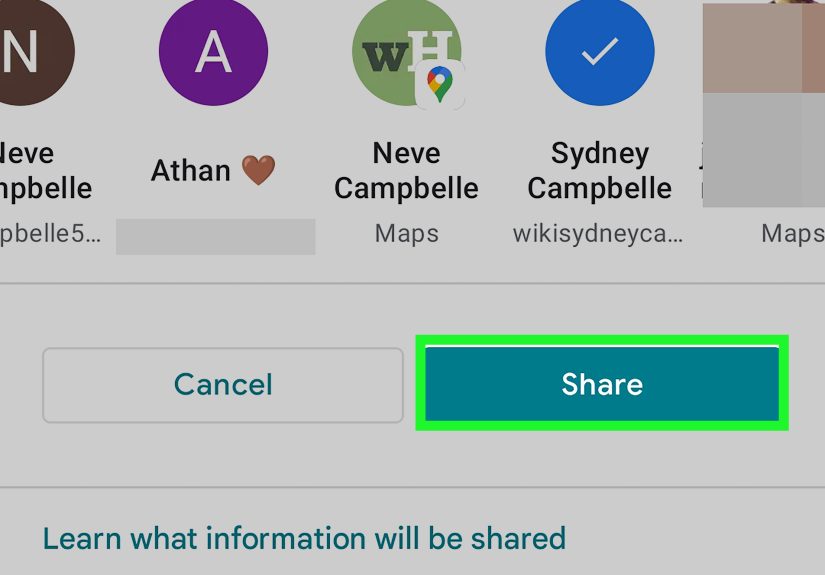
- Choose the person you want to share with, or create a sharing link.
- Tap Share.
On iPhone or iPad
- Open the Google Maps app.
- Tap your profile picture or initial.
- Select Location sharing.
- Tap New share.
- Pick a sharing duration.
- Select a Google contact or send a link through a messaging app.
- Confirm sharing.
The person you choose will be able to see your live location for the time period you selected. You can share for a short period, such as one hour, or continue until you manually turn it off. For most casual situations, temporary sharing is the smarter choice. Your future self may not need your college roommate to know that you are standing in the cereal aisle six months from now, debating granola like it is a life decision.
How to See Someone’s Location After They Share It
Once someone shares their location with you, open Google Maps and go to Location sharing. Tap the person’s profile to see their location on the map. If the location seems outdated, you may be able to refresh it from their profile in the location-sharing view. Keep in mind that accuracy depends on the person’s device, signal, battery, app permissions, and whether location services are enabled.
If their phone is off, has no signal, is in low-power mode, or does not have location permission enabled for Google Maps, the location may not update correctly. Google Maps is powerful, but it is not a wizard. It still needs a working phone, permissions, and a connection to do its job.
How to Ask Someone to Share Their Location
If someone has shared their location with you before, Google Maps may allow you to request their location again. In the app, go to Location sharing, tap the contact, and choose Request if the option appears. The other person will receive a notification and can decide whether to share.
This is the polite, transparent route. A request gives the other person control. They can say yes, no, or “not right now.” That is exactly how location sharing should work. If you need someone’s location for a practical reason, explain why. For example: “Can you share your location until you get home?” sounds much better than “I need to know where you are at all times because my imagination has started writing crime fiction.”
How to Share Trip Progress Instead of Full-Time Location
For many situations, sharing trip progress is better than sharing your live location indefinitely. When you are actively navigating in Google Maps, you can share your trip progress so someone can see your route, estimated arrival time, and movement until the trip ends. This is ideal for road trips, rides, late-night commutes, airport pickups, and meetups.
To share trip progress, start navigation in Google Maps, open the trip options, and choose the option to share trip progress. Select the person or app you want to use. Sharing typically ends when you arrive. This is a neat solution because it gives people the information they need without leaving a permanent digital window open.
Using Google Maps Location Sharing for Family Safety
Families often use location sharing to reduce worry and make everyday logistics easier. Parents may want to know when a child gets to school, when a teenager leaves practice, or whether everyone is safely on the way home. Google’s Family Link tools can also help parents locate a child’s compatible Android device or watch when location sharing is enabled.
That said, family location sharing should still include age-appropriate conversations about privacy. Younger children may need more supervision. Teenagers may need both safety support and growing independence. A good family rule is simple: explain what is being shared, why it is being shared, who can see it, and how long it stays on. “Because I said so” is not a privacy policy; it is just a phrase that makes teenagers roll their eyes with Olympic-level commitment.
Location Sharing Notifications: Arrivals and Departures
Google Maps can support location-sharing notifications in certain situations. When someone is sharing their location with you, you may be able to set a notification for when they arrive at or leave a specific place, such as home, work, or school. This can be useful for families and caregivers, especially when the goal is safety rather than constant checking.
However, arrival and departure notifications should be used thoughtfully. They can quickly feel invasive if they are added without a clear agreement. Before setting them up, talk about it. A simple conversation can prevent a lot of digital awkwardness: “Would it help if I got a notification when you arrive at the hotel?” is much better than silently turning someone’s commute into a surveillance dashboard.
How to Stop Sharing Your Location on Google Maps
Stopping location sharing is just as important as starting it. To stop sharing, open Google Maps, tap your profile picture or initial, go to Location sharing, choose the person, and tap Stop. You can also review location sharing from your Google Account settings, where you can manage who currently has access.
It is wise to review this list regularly. People change jobs, relationships change, group trips end, and sometimes you simply forget that you shared your location with someone during a vacation three years ago. Digital clutter is real. Location-sharing clutter is digital clutter wearing hiking boots.
How to Manage Location Permissions on Your Phone
Google Maps needs location permission to work properly. On Android, you can usually manage app permissions by opening Settings, going to Location, and checking App location permissions. You may see options such as allowed all the time, allowed only while in use, ask every time, or not allowed. On newer Android versions, you may also be able to choose approximate or precise location.
On iPhone, location permissions are managed through iOS settings. You can decide whether Google Maps can access your location always, only while using the app, or not at all. If live sharing is not working correctly, permissions are one of the first things to check. If privacy is your top priority, review which apps have location access and turn off anything unnecessary. Not every app deserves to know where you buy tacos.
Why Google Maps Location May Not Be Accurate
Location accuracy depends on several factors. GPS works best outdoors with a clear view of the sky. Indoors, underground, or in dense city areas, your phone may rely on Wi-Fi, cell towers, Bluetooth, sensors, and Google Location Accuracy features to estimate where you are. That estimate can be very close, or occasionally hilariously wrong.
If Google Maps shows someone across the street, inside the wrong building, or apparently standing in a lake, do not panic immediately. Check the timestamp, refresh the location, and remember that location data is not courtroom-perfect. For safety situations, use location sharing as one tool, not the only tool. A phone call or message can clarify what the map cannot.
Can You Track Someone Without Them Knowing?
No. Not ethically, not safely, and not in a way this article will help you do. Secretly tracking another person can violate privacy, damage trust, and may break stalking, harassment, wiretapping, computer access, or domestic abuse laws depending on the situation and location. If the person is an adult, get consent. If the person is a child, use parental tools responsibly and follow applicable rules. If the situation involves danger, contact emergency services or appropriate local support instead of trying to play private investigator with an app.
Be especially careful with so-called “spy apps” that promise hidden tracking. Many are invasive, risky, unreliable, or designed for abuse. They may expose private data, compromise device security, or create legal problems. The safe path is simple: ask, explain, agree, and use built-in tools transparently.
What to Do If You Think Someone Is Tracking You
If you suspect someone is tracking your location without permission, take it seriously. Start by checking Google Maps location sharing. Open Google Maps, tap your profile picture, select Location sharing, and review who can see your location. Stop sharing with anyone you do not recognize or no longer trust.
Next, review app permissions on your phone. Look for apps with location access, especially apps allowed to use location all the time. Remove apps you do not recognize. Change your Google Account password, turn on two-step verification, and review signed-in devices. If you are in a relationship or household where checking your phone could put you at risk, use a safer device and contact a trusted support organization before making changes. In abuse situations, sudden privacy changes can sometimes escalate danger, so safety planning matters.
Best Practices for Safe and Respectful Location Sharing
Good location sharing is clear, limited, and reversible. Share only with people you trust. Use temporary sharing when possible. Review your active shares often. Avoid pressuring others to share. Turn off sharing when the reason for it ends. And if someone shares their location with you, treat that access like a responsibility, not a toy.
For example, if your friend shares their location during a road trip, use it to coordinate arrival time, not to comment on every stop. “I see you stopped for fries” is funny once. After that, it starts sounding like the map has become a gossip columnist.
Common Problems and Simple Fixes
The location is not updating
Ask the person to check whether their phone has battery, internet access, and location services turned on. They may also need to give Google Maps permission to access location in the background.
The person does not appear in Location Sharing
They may have stopped sharing, shared with a different account, or sent a link that expired. Ask them to share again using the correct Google account.
The map shows an old location
Check the timestamp. If the last update was hours ago, the person’s device may be offline or unable to update. Try refreshing, but do not assume the location is current unless the app says so.
Battery information looks wrong
Battery details may lag or fail to update if the phone is offline, in power-saving mode, or not syncing properly. Use it as a helpful clue, not a guaranteed measurement.
Real-Life Examples of Smart Location Sharing
Example 1: The late-night ride home. Maya leaves a concert after midnight and shares her trip progress with her sister until she arrives home. Her sister can see the route and estimated arrival time, and sharing ends when the trip is over. Safe, simple, no lifelong surveillance contract required.
Example 2: The family pickup puzzle. A parent uses location sharing with a teenager during a school trip. The agreement is specific: sharing stays on during travel days and gets turned off afterward. Everyone knows the rule, so nobody feels ambushed.
Example 3: The festival friend finder. A group of friends shares live locations for four hours at a music festival. Instead of sending “I’m by the tall speaker near the food truck next to the other food truck” messages, they can find each other on the map. Civilization advances.
Experience-Based Tips for Using Google Maps Location Sharing
After using and explaining location-sharing tools in everyday situations, one lesson becomes obvious: the technology is easy; the human agreement is the part that needs care. Most problems do not happen because someone cannot find the Location Sharing button. They happen because people do not talk about expectations. One person thinks sharing means “just until I get home.” The other thinks it means “I can check whenever I feel anxious.” That mismatch can turn a helpful safety feature into a trust problem.
The best experience is to set a purpose before turning sharing on. Say exactly why you are sharing: “I’m driving through a storm, so I’ll share until I arrive,” or “Let’s share locations while we’re at the theme park.” Purpose keeps the feature from becoming vague and uncomfortable. It also makes it easier to decide when to stop. When the trip ends, the sharing ends. When the event ends, the sharing ends. Clean boundaries make the tool feel useful instead of intrusive.
Another practical lesson is to use short sharing windows more often than permanent sharing. Permanent sharing may be convenient for close family members, but it is not always necessary. Temporary sharing is perfect for dates, travel, errands, hikes, airport pickups, and busy public events. It gives peace of mind without creating a long-term privacy tradeoff. Think of it like lending someone an umbrella, not giving them a key to your house.
It also helps to check technical details before relying on location sharing for anything important. If someone is about to drive a long distance, make sure their phone is charged, Google Maps has the right permissions, and mobile data is working. A shared location is only as reliable as the device sending it. If the phone dies, the map may freeze at the last known location. That can cause unnecessary panic if everyone forgets how the system works.
For parents, the most successful approach is usually a mix of safety and conversation. Instead of presenting location sharing as punishment or suspicion, frame it as a family safety tool. Explain that it helps with pickups, emergencies, and peace of mind. As kids get older, revisit the rules. A 10-year-old and a 17-year-old do not need the same level of monitoring. Privacy should grow with responsibility.
For couples, location sharing works best when it is mutual and pressure-free. Some couples love it because it reduces check-in texts. Others hate it because it feels like being watched. Neither preference is automatically wrong. The important thing is that both people agree freely. If one person feels forced, the feature is no longer about convenience; it is about control.
For friends, keep it casual and temporary. Sharing locations during a trip, festival, hike, or night out can be fantastic. Leaving it on forever after one weekend in Nashville? Maybe not. Review your sharing list after events. Future you will appreciate not broadcasting your grocery runs to someone you met near a karaoke machine.
The biggest takeaway is this: Google Maps location sharing is a powerful tool when it supports trust, safety, and coordination. It becomes a problem when it replaces communication or ignores consent. Use it with clear permission, limited timing, and respect. That way, the map helps people find each other without anyone feeling like they are living inside a tracking spreadsheet.
Conclusion
Learning how to track someone’s location on Google Maps really means learning how to use location sharing responsibly. The feature can be incredibly useful for families, friends, travelers, caregivers, and anyone who wants extra peace of mind. But it only works well when consent is clear and privacy is respected.
Use Google Maps to share your live location, request someone’s location politely, share trip progress, set helpful notifications, and manage who can see you. Do not use it to secretly monitor another person. The best location-sharing setup is one where everyone knows what is happening, why it is happening, and how to turn it off.