Table of Contents >> Show >> Hide
- What pip uninstall actually does (and what it doesn’t)
- Before you uninstall: make sure you’re using the right pip
- How to uninstall a single package
- How to uninstall multiple packages at once
- How to uninstall everything in an environment (the “nuke from orbit” option)
- Virtual environments: uninstall without collateral damage
- OS-specific notes that save you from weirdness
- Troubleshooting: when pip uninstall fights back
- After uninstall: quick sanity checks
- Best practices to avoid uninstall drama next time
- of Real-World Experience: What Uninstalling With Pip Actually Feels Like
- Conclusion
Uninstalling a Python package should be simple: you remove the thing, your computer feels lighter, and your code stops complaining.
In reality, uninstalling can be a little like cleaning your closeteasy if you own three shirts, emotionally complicated if you own
seventeen “just-in-case” hoodies and one mystery cable that definitely belongs to something.
This guide walks you through uninstalling packages with pip on Windows, macOS,
and Linux with real commands, practical examples, and the kind of troubleshooting that saves you from the classic
“Why is it still importing??” spiral.
What pip uninstall actually does (and what it doesn’t)
What it does
pip uninstall removes installed packages by deleting the files recorded in the package’s installation metadata.
Most of the time, it will show you what it’s about to remove and ask for confirmation. You can uninstall one package or many,
and you can also uninstall packages listed in a requirements file.
What it doesn’t do
-
It usually won’t remove dependencies automatically. If you uninstall
requests, pip won’t necessarily
uninstallurllib3orcertifibecause those might still be needed by something else. -
It won’t “clean your Python.” It removes packages, not your Python interpreter, not your virtual environment
folder structure, and not that one alias you forgot you made in 2021. -
It won’t always remove “old-school” installs cleanly. Some packages installed via legacy distutils methods
may not have the metadata pip needs to know what files were installed.
Before you uninstall: make sure you’re using the right pip
The #1 uninstall mistake is running pip from the wrong Python. That’s how you end up uninstalling a package from Python 3.12
while your project is happily using Python 3.10 and ignoring your life choices.
The safest habit: run pip through the interpreter
Instead of relying on whatever pip happens to point to, run:
This ties pip to a specific interpreter so you’re uninstalling from the environment you think you are.
If your system uses python3 instead of python, swap it in:
python3 -m pip ...
Confirm where the package is installed
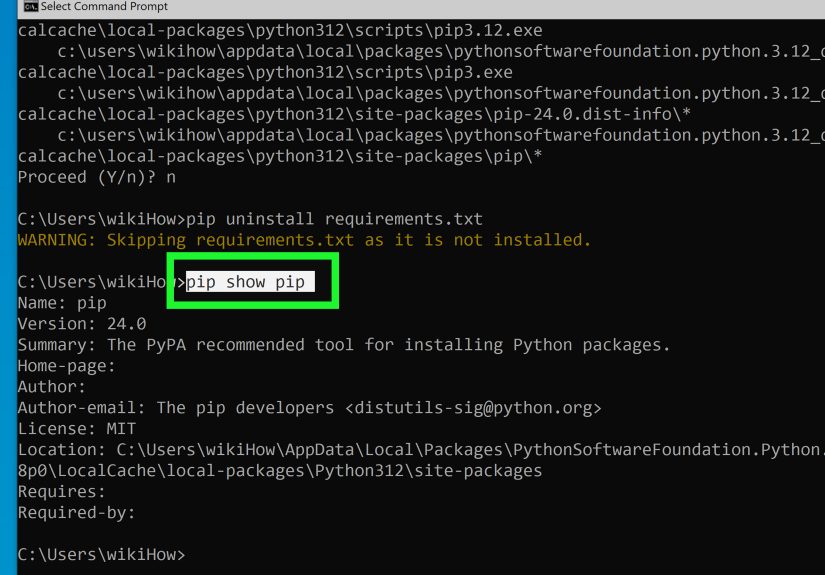
Use pip show to see the install location:
Look for Location. If it points to a virtual environment folder (like .venv),
you’re working inside that environment. If it points to a system directory, you’re in a global install.
How to uninstall a single package
Let’s uninstall the ever-popular requests. (Not because it’s bad. It’s lovely. This is just an example.
We’re not starting a rumor.)
Windows
macOS
Linux
Pip will typically display the files it plans to remove and then ask:
Proceed (y/n)?
Skip the confirmation prompt (for scripts and CI)
If you know what you’re doing (or you’re automating), add -y:
Pro tip: If you’re uninstalling packages as part of a cleanup script, always log the environment first:
That one line saves a shocking amount of time when you’re trying to prove to your future self that you did everything correctly.
(Your future self remains skeptical, but at least you have receipts.)
How to uninstall multiple packages at once
You can uninstall several packages in one command by listing them:
Pip will prompt you once per package (unless you use -y).
Uninstall from a requirements file
If you have a requirements.txt listing packages, you can uninstall everything in that list:
Add -y to remove everything without confirmation:
How to uninstall everything in an environment (the “nuke from orbit” option)
Sometimes you don’t want to uninstall one package. You want to uninstall your entire life (package-wise),
and start fresh. The cleanest way is usually to delete and recreate your virtual environment. But if you need to
remove everything via pip, here’s the classic approach:
Two big cautions:
-
Do this inside a virtual environment. Uninstalling “everything” from a global Python can break tools
you rely on (and can be a pain to recover). -
Be careful with shared environments. If multiple projects use the same environment, you’ll be
uninstalling dependencies out from under them.
Virtual environments: uninstall without collateral damage
If you’re not using a virtual environment yet, you’re basically letting every Python project in your life share one
giant pantry. That’s how you end up with “dependency soup.”
Create and activate a virtual environment
Windows (PowerShell / CMD):
macOS / Linux:
Once activated, uninstalling packages affects only that environmentexactly what you want when you’re cleaning up a project.
OS-specific notes that save you from weirdness
Windows: prefer py -m pip when multiple Pythons exist
Windows can have multiple Python installations (Store Python, python.org installer, Anaconda, etc.). The py launcher
helps you target the right interpreter. When in doubt, use py -m pip to uninstall packages.
macOS: avoid uninstalling from the system Python
Many macOS setups involve Homebrew Python or other managed Pythons. Treat global installs like a museum:
look, don’t touchunless you’re certain it’s safe. Virtual environments keep things tidy and reversible.
Linux: watch for “externally managed” Python installs
Some Linux distributions mark the system Python environment as “externally managed,” which can restrict pip from modifying it.
The best solution is the same: use a virtual environment for project packages. If you absolutely must modify a managed environment,
be aware pip provides options that explicitly allow itbut those should be used sparingly and intentionally.
Troubleshooting: when pip uninstall fights back
Problem: “Skipping … as it is not installed” (but your code still imports it)
Usually this means you’re uninstalling from one Python environment while importing from another.
Fix it by running pip through the interpreter you actually use:
Problem: Permission errors (Access is denied / Permission denied)
-
If you’re uninstalling from a global environment, you might need elevated permissionsbut that’s a sign you probably
should be using a virtual environment instead. -
If you’re in a virtual environment and still seeing permission issues, check whether the environment folder is writable
(and whether files are locked by a running process).
Problem: Pip can’t uninstall a package cleanly
Some packages installed via legacy methods may not have metadata pip can use to determine installed files.
In those cases, you may need to reinstall the package properly (with pip) and then uninstall it, or remove it manually
once you’ve verified the install location.
Problem: Scripts still run after uninstall
If a package installed command-line scripts (like black, pytest, or flask),
your shell might still be pointing at an old script location on your PATH. Try:
- Close and reopen the terminal.
- Run
where black(Windows) orwhich black(macOS/Linux) to see what executable is being used. - Confirm you’re in the correct virtual environment (activated).
After uninstall: quick sanity checks
Confirm the package is gone
If pip show returns nothing, that’s usually a good sign.
Check environment health
pip check can help spot broken dependencies after removals.
Optional: clear pip’s cache (for disk cleanup)
Uninstalling removes packages from your environment, but pip may keep cached wheels. If your goal is also reclaiming space:
Best practices to avoid uninstall drama next time
- Use one virtual environment per project. It’s the simplest way to keep installs/uninstalls predictable.
-
Pin and track dependencies. Keep a
requirements.txt(or similar) so you can reproduceand cleanan environment quickly. -
Prefer interpreter-tied pip commands.
python -m pip(macOS/Linux) andpy -m pip(Windows) reduce “wrong environment” mistakes. -
If you want a truly clean slate, delete the venv. Recreating
.venvis often faster and safer than trying to surgically uninstall every package.
of Real-World Experience: What Uninstalling With Pip Actually Feels Like
If you’ve ever typed pip uninstall and immediately felt a strange mix of confidence and dread, congratulations:
you are officially a Python developer. The command itself is easy. The context is where the adventure lives.
In practice, the most common “experience” isn’t technicalit’s emotional. You uninstall a package, rerun your code, and it still works…
which is suspicious, because you were pretty sure that package was critical. Then you realize your code is importing the library from
a different environment entirely. That’s not pip being broken. That’s you having two Pythons on your machine that look identical from
20 feet away. On Windows, this shows up when pip points to one interpreter while python or your IDE uses another.
On macOS/Linux, it’s often python vs python3 or a project venv vs a global install.
Another classic: uninstalling a package and discovering that what you really wanted to uninstall was an entire dependency chain.
You remove one library, but its dependencies remainbecause pip can’t safely assume they’re unused. That can feel messy (“Why is urllib3
still here?”), but it’s actually pip being cautious. The cleanest “I want everything gone” move usually isn’t uninstalling every leaf on the tree.
It’s deleting the virtual environment folder and recreating it. That sounds dramatic until you try it and realize it takes about 30 seconds,
and it’s harder to mess up than a long uninstall list.
Then there’s the “permission” chapter. You uninstall a package globally, get a permissions error, and your first instinct is to reach for
administrative privileges. Sometimes that works. But the better lesson is: if you need admin rights to uninstall a project dependency, you’re
probably installing project dependencies in the wrong place. Virtual environments turn “permission denied” into “permission granted,” because the
environment lives in your user space. It’s like renting an apartment instead of trying to remodel city hall.
Finally, the weirdest but real scenario: you uninstall a package, yet a command still runs. You swear you removed black, but typing
black --version still prints a version number like nothing happened. The culprit is usually PATH: maybe you uninstalled it from one
environment, but another environment (or a global install) still has it. Or your terminal session cached a path. Closing the shell and checking
where/which typically reveals the truth. The takeaway: uninstalling is easy; uninstalling the right copy is the skill.
Conclusion
To uninstall a package with pip on Windows, macOS, or Linux, the command is straightforwardbut success depends on targeting the correct interpreter
and environment. Use py -m pip uninstall on Windows, python -m pip uninstall on macOS/Linux, and lean on virtual environments
to keep your global Python stable. When in doubt: confirm with pip show, clean up responsibly, and remember that deleting and recreating
a venv is often the fastest “fresh start” available in modern software.