Table of Contents >> Show >> Hide
- What You Need Before You Start
- Step 1: Install YouTube TV on iPhone or iPad
- Step 2: Sign Up (If Needed) and Sign In
- Step 3: Quick Tour of the YouTube TV App (So You Don’t Get Lost)
- Step 4: Watch Live TV on iPhone and iPad
- Step 5: Use Cloud DVR Like a Pro (Without Becoming One of Those People)
- Step 6: Profiles and Family Sharing (So Everyone Stops Messing Up Everyone Else’s Feed)
- Step 7: Watch YouTube TV in a Browser (Handy Backup Option)
- Step 8: Picture-in-Picture (PiP) on iPhone and iPad
- Step 9: Cast to a TV (Chromecast / Google TV Streamer) from iPhone or iPad
- Step 10: AirPlay and Screen Mirroring (Apple-Style Big Screen)
- Step 11: Download Recordings for Offline Viewing (When You Really Need It)
- Step 12: Location, Home Area, and Travel Rules (The Part Nobody Reads Until It Matters)
- Troubleshooting: Fix Common YouTube TV Problems on iPhone and iPad
- FAQ: Quick Answers Beginners Usually Need
- Real-World Experiences: What It’s Like Using YouTube TV on iPhone & iPad (About )
You’ve got an iPhone (or iPad), a snack, and a deep desire to watch live TV without paying for a cable box that looks like it came free with a 2006 flip phone.
Good news: YouTube TV works great on Apple devicesas long as you set it up the right way.
This beginner’s guide walks you through everything: installing the app, signing in (and why you might have to sign up on the web first),
watching live channels, using the cloud DVR, casting to a TV, enabling picture-in-picture, downloading recordings for offline viewing (yes, that’s a thingsometimes),
and fixing the most common “why is this buffering right when the game gets good?” problems.
What You Need Before You Start
1) A YouTube TV membership (U.S. only)
YouTube TV is designed for viewers in the United States. If you’re traveling outside the U.S., you generally won’t be able to watch.
If you’re traveling within the U.S., what you can watch may change based on where you are (local channels and sports rights can vary by location).
2) A compatible iPhone or iPad (and updated software)
YouTube TV runs on iPhone and iPad, but the easiest experience is on newer iOS/iPadOS versions. The current App Store version may require a modern iOS/iPadOS release,
so if your device is older, you might need to update your system or use the web player in a browser as a fallback.
3) Solid internet (Wi-Fi is your best friend)
Live TV is less forgiving than scrolling memes. If your connection is weak, you’ll see buffering, blurry video, or the dreaded spinning circle of suspense.
A stable Wi-Fi connection usually works best, especially for longer live events.
Step 1: Install YouTube TV on iPhone or iPad
- Open the App Store on your iPhone or iPad.
- Search for YouTube TV.
- Tap Get (or the download icon) and authenticate with Face ID / Touch ID / password.
- Once installed, open the app and allow notifications if you want alerts for games, breaking news, or new episodes.
Beginner tip: If you see an iOS/iPadOS compatibility warning, update your device software (Settings > General > Software Update).
If your device can’t update, jump ahead to the “Watch in a Browser” section for a Plan B.
Step 2: Sign Up (If Needed) and Sign In
Why you might not be able to subscribe inside the iOS app
Here’s the slightly weird part: on iPhone and iPad, you can watch YouTube TV in the appbut depending on current billing policies,
you may need to buy or manage your membership on the web instead of purchasing directly in the iOS app.
Translation: Apple hardware, Google subscription, and payment rules sometimes don’t play nicely in one place.
How to subscribe (the simple way)
- Open Safari (or any browser) on your iPhone, iPad, or computer.
- Go to the YouTube TV website and start the sign-up flow.
- Sign in with your Google account.
- Follow the prompts to pick a plan and confirm your home ZIP code (this helps set local channels).
- Return to the YouTube TV app and sign in with the same Google account.
Pro move: Use one Google account as the “manager” for the membership, then add family members as separate profiles later.
That way everyone gets personalized recommendations and their own DVR libraryno more “Who filled my recordings with 47 hours of baking competitions?”
Step 3: Quick Tour of the YouTube TV App (So You Don’t Get Lost)
When you open YouTube TV on iPhone or iPad, you’ll usually see a few main areas. Names can vary slightly by app version,
but the layout is pretty consistent:
- Home: a personalized feed with live, upcoming, and recommended shows.
- Live: the channel guidethis is your “I just want TV now” button.
- Library: recordings, scheduled recordings, and saved shows (your cloud DVR HQ).
- Search: find channels, shows, sports teams, movies, and events fast.
- Profile/Settings: account, location, streaming preferences, and features like picture-in-picture.
iPad bonus: You can watch in landscape or portrait mode, so whether you’re on the couch or pretending to take notes in class,
the app can fit your vibe.
Step 4: Watch Live TV on iPhone and iPad
- Tap Live to open the channel guide.
- Scroll to find a channel, or use Search if you already know what you want.
- Tap a channel/program to start watching.
- Tap the player to bring up controls (pause, scrub, captions, quality options, and more).
Beginner-friendly playback tips
-
Start from the beginning: If you join something already in progress, look for an option to start from the beginning
(especially useful for sports or news segments). - Captions: Turn on captions when you’re watching in a loud place… or when the announcer is speaking in pure caffeine.
- Video quality: If video looks fuzzy or buffers, switch to a lower quality; if it looks too soft on “Auto,” bump it up manually.
Step 5: Use Cloud DVR Like a Pro (Without Becoming One of Those People)
One of YouTube TV’s biggest perks is its cloud DVR. Instead of recording to a physical box, your recordings live in your account
and can be watched on your iPhone, iPad, TV devices, and computer.
How to record a show, series, or team
- Search for the show, movie, or sports team.
- Open the title page.
- Tap the + Add to Library button (or similar “Add” control).
- YouTube TV will record future airings automatically, based on what you added.
Where to find your recordings
Tap Library. You’ll typically see categories like “New in your library,” “Most watched,” “Scheduled,” or sports groupings.
If something was blocked live due to location rules, the recording often becomes available after the live airing ends.
Reality check: Some content is offered as VOD (video on demand) instead of traditional DVR playback, and VOD may include unskippable ads.
That’s not your phone’s fault. It’s just the streaming universe reminding you it runs on commercials.
Step 6: Profiles and Family Sharing (So Everyone Stops Messing Up Everyone Else’s Feed)
YouTube TV supports multiple accounts/profiles per household so each person can have their own watch history, recommendations, and library.
That means your iPad won’t keep insisting you “continue watching” cartoons that were played during a babysitting emergency.
How to switch profiles
- Tap your profile icon (usually top right).
- Select the account/profile you want to use.
Beginner tip: If you’re setting up family sharing, do it early. It’s way easier than trying to unscramble one shared library later.
Step 7: Watch YouTube TV in a Browser (Handy Backup Option)
If the app won’t install (older device), you’re troubleshooting, or you just prefer Safari, you can often watch via the web player:
- Open Safari or Chrome on your iPhone/iPad.
- Go to the YouTube TV site and sign in.
- Use the web interface to browse live TV, your library, and settings.
The app is usually smoother for mobile controls and features, but the browser option can save the daylike a spare charger in your backpack.
Step 8: Picture-in-Picture (PiP) on iPhone and iPad
Picture-in-picture lets you keep watching while you do literally anything elsetext, browse, shop for gadgets you don’t need, etc.
On iPad, this can feel especially magical because multitasking is basically the whole point of iPad life.
How to turn on PiP in the YouTube TV app
- Tap your profile icon.
- Open Settings.
- Toggle Picture in Picture ON.
- Start playing a program, then swipe to the Home screen (or switch apps). The video should shrink into a movable window.
If PiP doesn’t work: Update the YouTube TV app and iOS/iPadOS, then re-check the PiP setting.
Also confirm your device-level PiP setting is enabled in iOS settings.
Step 9: Cast to a TV (Chromecast / Google TV Streamer) from iPhone or iPad
Want the big-screen experience without leaving the comfort of your phone as the remote? Casting is one of the easiest ways to watch YouTube TV.
How to cast
- Make sure your iPhone/iPad and Chromecast/Google TV device are on the same Wi-Fi network.
- Open the YouTube TV app.
- Tap the Cast icon (usually near the top).
- Select your TV/streaming device.
- Pick a channel or show and hit play.
Important iOS permission that beginners miss
On iOS, you may need to allow “Local Network” access so the app can discover cast devices on your Wi-Fi.
If casting can’t find your TV, check iPhone/iPad Settings and enable local network permission for YouTube TV.
Step 10: AirPlay and Screen Mirroring (Apple-Style Big Screen)
If you’re in the Apple ecosystem, you can also use AirPlay or Screen Mirroring to send video to an Apple TV,
an AirPlay-compatible smart TV, or even a Mac (depending on your setup).
Two practical options
-
In-app AirPlay (when available): Some apps expose an AirPlay button directly in the player.
If you see it, tap and choose your Apple TV or AirPlay device. -
Screen Mirroring: Open Control Center > tap Screen Mirroring > pick your Apple TV or compatible display.
This mirrors your entire screen, so notifications may also pop up (surprise!).
Beginner tip: Mirroring is simple but can use more battery and sometimes introduces a little delay. For long viewing sessions,
a dedicated TV app (Apple TV, Roku, etc.) or casting may feel smoother.
Step 11: Download Recordings for Offline Viewing (When You Really Need It)
If you’ve ever tried to stream live TV on airplane Wi-Fi, you know it’s basically a high-stakes experiment in disappointment.
The good news: YouTube TV offers offline downloads for certain DVR recordings on mobile devicesbut typically as part of the 4K Plus add-on.
Availability depends on the program and device.
How to download a recording
- Open YouTube TV and go to Library.
- Find the recording you want.
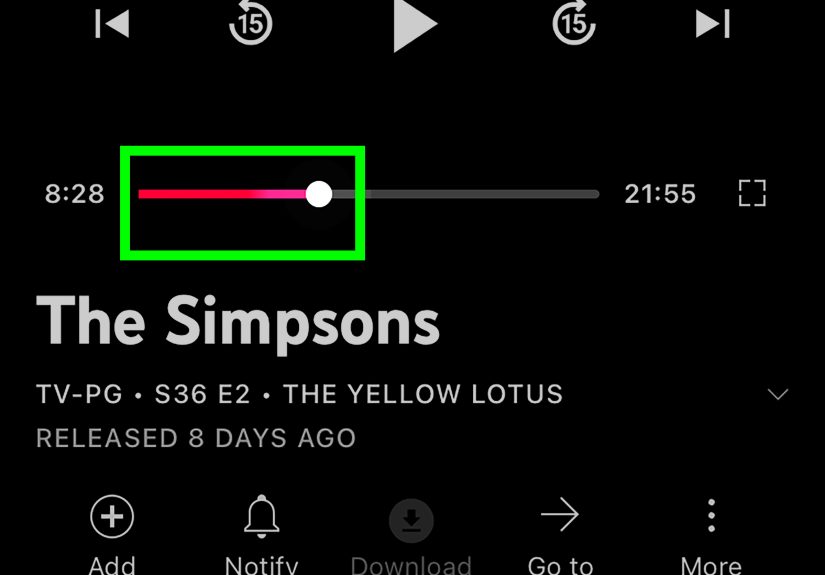
- Tap the Download button. (If it’s grayed out, that program may not support downloads.)
- To watch offline, open the app while offline and go to Downloads.
Offline viewing rules worth knowing
- Downloads may require you to open the app while connected to the internet at least once every 30 days to keep them active.
- Downloads expire after a period (and recordings themselves aren’t kept forever).
- Some downloads can only be stored on one device at a time.
Practical example: If you’re road-tripping and want episodes ready for a dead zone, download over Wi-Fi the night before,
then double-check they appear in your Downloads list. Do not wait until you’re already in the middle of nowhere with one bar of “E.”
Step 12: Location, Home Area, and Travel Rules (The Part Nobody Reads Until It Matters)
YouTube TV uses your home area (based on ZIP code and location verification) to determine local channels and some sports availability.
This is normal for live TV services because local broadcast rights are… complicated. (If you’ve ever wondered why sports blackouts exist,
the short answer is “contracts,” and the longer answer is “contracts, but louder.”)
If you travel within the U.S.
- You can watch programming local to where you’re visiting, but you may not be able to watch or record all home-area locals while away.
- Some live programs might be restricted on the road, but recordings may become available after the live airing ends.
- If you travel often, you may need to check in from your home area periodically to keep local networks working correctly.
If you travel internationally
Generally, you won’t be able to access YouTube TV content outside the U.S.
One more thing: VPN/proxy warning
If you’re using a VPN or proxy, YouTube TV may block playback or throw errors.
The simplest fix is to disable the VPN/proxy and try again.
Troubleshooting: Fix Common YouTube TV Problems on iPhone and iPad
Problem: Buffering or constant loading
- Switch to stronger Wi-Fi (or move closer to your routeryes, sometimes the fix is “walk five feet”).
- Lower video quality in the player settings.
- Close the app fully and reopen.
- Restart your iPhone/iPad.
- Update iOS/iPadOS and the YouTube TV app.
Problem: Cast icon missing or your TV doesn’t show up
- Confirm both devices are on the same Wi-Fi network.
- On iOS, enable Local Network access for the app.
- Restart the Chromecast/streaming device (unplug for ~1 minute, then plug back in).
- Restart your router if things are still weird.
Problem: Picture-in-picture won’t activate
- Turn PiP on inside the YouTube TV app settings.
- Confirm iOS PiP is enabled at the system level.
- Update the app and iOS/iPadOS.
- If it still fails, test with another programsome content/players behave differently.
Problem: “I can hear sound but the video is black”
- Force-close the app and reopen it.
- Disconnect external displays or mirroring and test again.
- Restart the device.
- Uninstall/reinstall the app if needed.
FAQ: Quick Answers Beginners Usually Need
Can I watch YouTube TV on cellular data?
Yes, but it can use a lot of data. If your plan has limits, use Wi-Fi when possible and lower video quality on cellular.
How many devices can stream at once?
Stream limits depend on your plan and add-ons. If you hit a “too many streams” message, stop streaming on another device or check whether an add-on changes limits.
How long are recordings saved?
Recordings are stored for a limited retention period (commonly up to months, not forever), so don’t treat your DVR like a permanent vault for every episode of everything.
Watch the good stuff before it rotates out.
Can I use YouTube TV outside the U.S.?
Generally, no. YouTube TV is built for U.S. viewing, and international travel usually blocks access.
Real-World Experiences: What It’s Like Using YouTube TV on iPhone & iPad (About )
Let’s talk about the part no one writes into the official setup instructions: what it actually feels like to use YouTube TV on an iPhone or iPad day to day.
Because “Tap Live > Pick Channel” is technically correct, but so is “Water is wet,” and neither one explains why you suddenly love your iPad more than your TV remote.
On an iPhone, YouTube TV is the ultimate “tiny television that follows you around.” Waiting in a pickup line? Live news.
Cooking dinner? Put on a game in the corner with picture-in-picture and pretend you’re a professional chef with a sports bar built into your phone.
Even better: if you’re the kind of person who can’t sit still during commercials, PiP turns your phone into a multitasking machinescroll, message, check the weather,
and still keep an eye on the score like a hawk who pays for streaming.
On an iPad, it’s a different kind of joy. The bigger screen makes the channel guide easier to browse, and watching live TV feels closer to a “real” TV experience.
This is especially true in landscape mode when you prop the iPad up on a stand. Suddenly it’s your kitchen TV, your treadmill TV, your “I’m folding laundry but I deserve happiness” TV.
If you have family members, separate profiles can save your sanityyour recommendations won’t get hijacked because someone else binged cartoons or recorded every single
college basketball game for the next three months.
The cloud DVR is where the convenience really clicks. You stop planning your life around showtimes.
Instead of “I can’t go out, my show is on,” it becomes “My show is in the library, and I’m going out anyway.”
Recording a series is ridiculously simple: add it once, and the episodes appear like magic. Just remember that recordings aren’t meant to live forever,
so if you’re saving something special, don’t leave it untouched for months and then act shocked when it expires. (Streaming services have long memories, but not infinite ones.)
If you like watching on a big screen, casting from iPhone to a Chromecast or Google TV device feels like the best of both worlds:
you browse on your phone, but watch on the TV. The only “gotcha” beginners hit is the local network permission on iOSonce you allow that, casting usually becomes painless.
AirPlay and screen mirroring can also work in a pinch, especially in an Apple-heavy home, but mirroring is more like projecting your whole phone onto the TV,
which means notifications can pop up at the worst time (like when your group chat decides to be chaotic).
Finally, the biggest real-life lesson: Wi-Fi quality matters more than you think.
If your live streams keep buffering, it’s often not YouTube TV being dramaticit’s your network. Switching rooms, restarting the router,
or lowering video quality can turn a frustrating experience into a smooth one in minutes. And if you travel a lot, learning how location rules work
(and checking in at home occasionally) prevents those confusing “Why can’t I watch this here?” moments.
Bottom line: YouTube TV on iPhone and iPad is one of the easiest ways to watch live TV, sports, and recordingsespecially once you set up profiles,
enable PiP, and learn the two or three settings that make everything feel effortless. After that, the only hard part is choosing what to watch first.
(May I suggest: anything that doesn’t involve doom-scrolling.)