Table of Contents >> Show >> Hide
Windows 11 has entered its “let me help with that” era, and Microsoft is clearly hoping users will treat Copilot like less of a sidebar gimmick and more of a daily assistant. The latest Windows 11 Copilot update is not just one shiny new trick wearing a trench coat. It is a stack of upgrades: a more polished app, faster voice controls, screen-aware help, smarter file actions, and a broader push to weave AI into places people already click, tap, and occasionally rage-click.
That matters because Windows users do not need more software that looks futuristic in a keynote and then behaves like a confused toaster in real life. They need tools that save time, explain things clearly, and stay out of the way when not invited. Microsoft’s recent Copilot changes show a company trying to move in that direction. The result is a smarter Windows 11 experience that feels more practical than flashy, even if it still has a few rough edges and one or two “please do not overhype this” warnings attached.
What Microsoft Is Actually Rolling Out
The easiest mistake to make with this update is assuming it is just “Copilot, but more.” In practice, Microsoft has been reshaping both the Copilot app and the Windows 11 experience around it. Some features arrive through Microsoft Store app updates, while others land through Windows Update and controlled feature rollouts. So yes, the rollout is real, but it is also staggered, layered, and very Microsoft in that “available now, gradually, depending on where the planets are aligned” way.
A More Native Copilot App Instead of a Fancy Web Wrapper
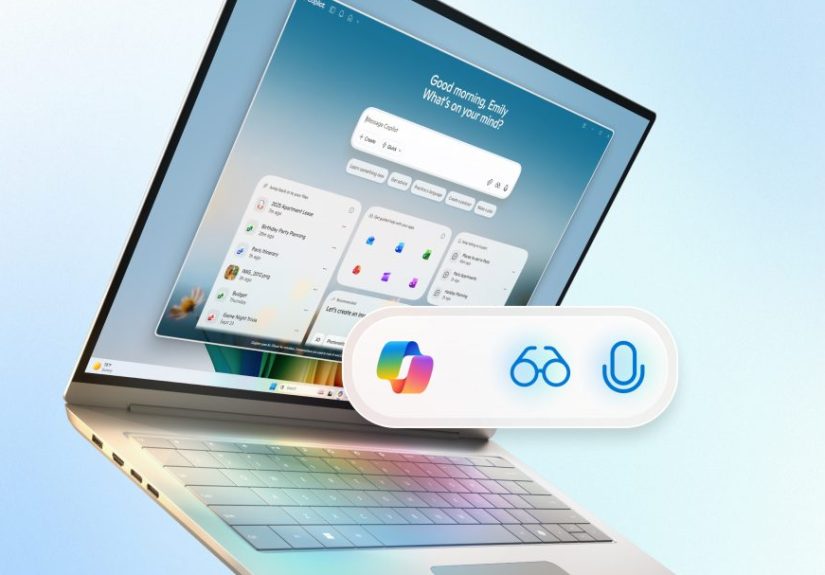
One of the most useful improvements is the move toward a more native Copilot experience on Windows 11. Earlier versions often felt like a web page that accidentally wandered into your taskbar and decided to stay. The newer app is more grounded in Windows itself, with a cleaner interface, better conversation history, and more helpful system-aware answers. That means Copilot can answer questions about your PC in a way that is tied more closely to your version of Windows rather than tossing out generic advice like a search engine wearing a tie.
This is a smart shift. People do not ask AI only grand philosophical questions such as “What is the meaning of productivity?” They ask things like “How do I connect my Bluetooth headphones?” or “Where is the setting that keeps changing after every update?” Copilot is becoming better at handling those unglamorous but real questions, which is exactly how an operating-system assistant should earn its keep.
Voice Control Gets Faster, More Natural, and Slightly Less Awkward
Microsoft also gave Copilot a stronger voice workflow. Press-to-talk makes it easier to jump into a voice conversation without leaving whatever you are doing. Instead of opening the app, clicking around, and waiting for the AI to warm up like a moody theater actor, you can trigger voice with a shortcut and get an answer while staying in your current task.
Then there is the opt-in wake phrase, “Hey, Copilot.” This is Microsoft’s clearest sign yet that it wants voice to become a normal part of using a PC again. Not the only part. Not the magical replacement for the keyboard and mouse. Just another input method that becomes useful when your hands are busy, your tab count is criminal, or you want help without breaking your flow.
The good news is that Microsoft has tried to make this less creepy than people feared. Wake-word detection is handled locally, and the voice session only fully spins up after the wake phrase is recognized. The less-good news is that actual Copilot responses still rely on internet connectivity and cloud processing. So no, this is not your laptop becoming a self-contained AI butler. It is more like a smart front desk connected to a large call center in the sky.
Copilot Vision Is the Biggest Upgrade
If there is one feature that makes the update feel genuinely different, it is Copilot Vision. This lets Copilot look at what is on your screen when you choose to share it, then answer questions based on that visual context. That simple change is a big deal. It means you no longer have to describe a menu, a document, a spreadsheet, or a weird app layout like you are giving directions to a pizza place over a bad phone line.
On Windows 11, Copilot Vision can help you understand what is on screen, walk you through steps inside an app, and use Highlights to show where to click for certain tasks. Instead of saying, “Go to the menu near the top-left-ish area that looks kind of like a wrench had a baby with a hamburger icon,” it can point you in the right direction more directly. That is a meaningful usability gain.
Better still, Microsoft has made Vision explicitly opt-in. You choose what app or screen to share. Vision can guide you, but it does not click buttons, type for you, or scroll around on your behalf. That boundary matters. It makes the feature feel more like assisted guidance than silent remote control, which should make cautious users a lot more comfortable.
There are still limits. Vision will not analyze certain harmful or DRM-protected content, and Microsoft says the image data from a Vision session is not retained after the session ends. That privacy framing will matter because any feature that can “see” your screen arrives carrying a backpack full of trust issues in the current AI climate.
Windows 11 Itself Is Getting Smarter Around Copilot
The Copilot update also connects to broader Windows 11 improvements. In newer Windows 11 rollouts, Microsoft has been adding AI-flavored actions in places like File Explorer. That includes image-related actions such as background removal and object erasing through Microsoft apps, along with document-summary capabilities for eligible Microsoft 365 and Copilot users. The bigger story is not a single right-click trick. It is that Windows is slowly turning common surface areas into launch points for AI assistance.
Microsoft is also tightening how the Copilot key and quick prompts behave, making the experience lighter and more immediate. On newer systems, Copilot is meant to be easier to call up, easier to dismiss, and more woven into the daily rhythm of using the PC. That may sound small, but little interaction changes often determine whether people use a feature every day or forget it exists by Thursday.
Why Microsoft Is Pushing Copilot So Hard
There is a very practical reason behind all this ambition: Microsoft needs Windows 11 to feel like more than a maintenance release with a new coat of paint. With Windows 10 support having ended in October 2025, the company has to give people a reason to move forward that feels bigger than “because security updates are nice.” Copilot is that pitch.
Microsoft wants Windows 11 to feel like the operating system built for modern AI workflows. Not just for image generation and chatbot questions, but for troubleshooting, summarizing, visual guidance, voice interaction, and app-aware help. In that sense, the update is part product improvement, part strategic pressure campaign, and part branding exercise for the idea that every Windows 11 PC can be an “AI PC,” even when some of the intelligence is cloud-powered rather than running locally.
This does not mean Microsoft has solved the AI-on-PC puzzle. It means the company has made its bet. And that bet is simple: if Copilot becomes useful often enough, people will accept its growing presence in Windows the way they accepted search, cloud sync, and notification centers. Grudgingly at first, then by habit, then with deep outrage any time it breaks.
Where the Smart Upgrades Help in Real Life
The best thing about the Windows 11 Copilot update is that many of the improvements make sense in ordinary situations. A student can share a browser tab or app window and ask Copilot to explain what a chart means. A remote worker can ask for help navigating a settings panel during a call without leaving the meeting. A parent can use voice to pull together a quick checklist while juggling three tasks and possibly a fourth if the dog has found the trash again.
Creators also get a bump. If you work with images, quick AI actions in Windows can shave time off repetitive edits. If you live in documents, summaries and context-aware help can speed up the parts of work that are not difficult, just annoyingly repetitive. Copilot Vision is particularly useful when the problem is visual. That includes design tools, dashboards, education apps, travel planning, and even games where the UI appears to have been designed by someone who dislikes joy.
There is an accessibility angle here too. Voice access has long mattered in Windows, but Copilot adds a layer of conversational assistance that can lower friction for people who prefer speaking over typing or who need help navigating complex screens. It is not a replacement for built-in accessibility tools, but it can complement them in useful ways.
What Still Feels Messy or Incomplete
Now for the part where the balloons gently deflate. The rollout is gradual, which means not everyone gets everything at once. Some features arrive through Insider channels first. Some arrive through the Microsoft Store. Others depend on region, language, account type, hardware, or Microsoft’s favorite phrase, “controlled feature rollout.” Translation: your mileage may vary, and the mileage might vary twice.
There is also the question of trust. Microsoft has spent the last year trying to convince users that its AI features can be helpful without being intrusive. That is harder than it sounds. Even when features are opt-in, users remember past controversies, privacy concerns, and the occasional update that behaves like it was tested on exactly one laptop and a very brave intern.
That skepticism is not imaginary. At one point, a Windows update even unintentionally removed the Copilot app on some machines. Microsoft fixed the issue, but it was a useful reminder that “rolling out smart upgrades” and “delivering a perfectly smooth experience” are not the same sentence. Close cousins, maybe. Identical twins, absolutely not.
Another limitation is that Copilot still shines brightest when your task can be framed as a question, summary, or guided action. It is less magical when you expect full autonomous execution. Vision will not take over the mouse. Voice will not turn every desktop into science fiction. And some users still will not want AI peeking over their shoulder, even politely.
Should You Update Right Away?
If you use Windows 11 daily and you are curious about voice assistance, visual guidance, or file-aware shortcuts, this update is worth trying. The smarter parts of Copilot are finally becoming concrete enough to test in real workflows instead of just demo clips. The improvements are especially appealing for multitaskers, students, knowledge workers, creators, and anyone who has ever stared at a settings panel like it personally insulted them.
If you are privacy-conscious or feature-fatigued, the smarter move is to update and then enable the Copilot features selectively. Keep the parts that help. Ignore the parts that do not. The best version of AI on a PC is one that feels optional, useful, and easy to dismiss. Windows 11 is not fully there yet, but it is closer than it was.
Also, check both Windows Update and the Microsoft Store. That is one of the sneaky but important details here. Some Copilot improvements land as app updates, while others are tied to broader Windows 11 releases. Missing one of those paths is the fastest way to end up saying, “Wait, where is that feature everyone is talking about?”
The Day-to-Day Experience of Using a Smarter Copilot on Windows
What does this update actually feel like when you live with it for a while? In a word, lighter. Not lighter in the sense that Windows has suddenly become a minimalist zen garden with no prompts, no side panels, and no icons that mysteriously move after an update. This is still Windows. But the smarter Copilot experience starts to feel less like a destination and more like a utility.
Imagine a normal workday. You start with a crowded desktop, too many browser tabs, a half-finished document, and an app that insists its most important setting should be hidden three layers deep because apparently secrecy is a design principle now. With the new Copilot setup, you can ask a quick question about a system setting, use press-to-talk without stopping your work, and get a usable answer without going on a treasure hunt through forum posts from 2018.
That is where the update feels strongest: in friction reduction. Not glamorous innovation. Friction reduction. When Vision is enabled, you no longer have to spend two minutes describing what is on your screen before asking for help. You can simply share the window and say, “How do I fix this?” or “Show me where this option is.” That cuts down on the most annoying part of getting technical help, which is translating a visual problem into text while you are already annoyed. The experience feels more direct, more grounded, and less like you are talking past the assistant.
Voice also changes the mood of the interaction. Typing prompts into an AI assistant can feel formal, almost like drafting a request for a very literal coworker. Saying “Hey, Copilot” or using a quick talk shortcut makes the tool feel more casual and immediate. That will not appeal to everyone. Some people will never want to talk to a laptop in public, and that is fair. Nobody wants to become the person at the coffee shop having a passionate conversation with a spreadsheet. But at home, in the office, or during solo work, voice can be surprisingly practical.
There is also a subtle confidence boost that comes from guided help. When Copilot can see the app you are using and point out where to click, the experience feels less like searching for instructions and more like having a patient coach nearby. That matters for users who are not deeply technical, but it also matters for experienced users who simply do not want to waste energy remembering where one stubborn setting lives.
The update is not perfect. Sometimes the rollout feels scattered. Sometimes the naming is confusing. Sometimes Microsoft seems so excited about the phrase “AI PC” that it forgets people mostly care whether a feature saves them five minutes before lunch. But when the tools work as intended, the experience is genuinely useful. The smart upgrades make Windows 11 feel more helpful, more conversational, and a bit more humane. Not magical. Not revolutionary every second. Just smarter in ways that count, which is usually the better upgrade anyway.
Final Thoughts
The Windows 11 Copilot update rolls out with smart upgrades because Microsoft is finally pushing beyond the idea of AI as a button and moving toward AI as a workflow layer. The most meaningful changes are not about marketing buzzwords. They are about speed, context, guidance, and reduced friction. A better app, quicker voice access, screen-aware help, and deeper file interactions make Copilot more relevant to everyday computing than it was a year ago.
There are still caveats. The rollout is uneven. Some features remain experimental or limited. Trust has to be earned, not announced. But the overall direction is clearer now. Windows 11 is becoming a place where AI is not just visible, but increasingly useful. That will not thrill every user, and it should not have to. Still, for people willing to test the new tools on their own terms, this update delivers real upgrades rather than empty sparkle. And in the software world, that already counts as a minor miracle.