Table of Contents >> Show >> Hide
- What Are Paragraph Symbols in Microsoft Word?
- Method 1: Turn Off Paragraph Symbols Using the Show/Hide Button
- Method 2: Turn Off Paragraph Symbols Through Word Options
- Why Paragraph Symbols Sometimes Will Not Turn Off
- Should You Ever Leave Paragraph Symbols On?
- Common Situations Where Paragraph Symbols Save the Day
- Bonus Tips for Working with Formatting Marks in Word
- Quick Recap: The 2 Easy Methods
- Conclusion
- Real-World Experiences With Turning Off Paragraph Symbols in Microsoft Word
Nothing ruins a calm writing session quite like opening Microsoft Word and seeing a parade of little paragraph symbols marching across the page like they own the place. One minute you are trying to finish a report, resume, school paper, or meeting notes. The next minute, Word is showing every hidden formatting mark in the document, and suddenly your clean page looks like it is revealing trade secrets.
The good news is that these paragraph symbols are not a bug, a virus, or a sign that Word has developed strong opinions about your spacing habits. They are called paragraph marks, also known as formatting marks or nonprinting characters. They help you see where paragraphs end, where spaces live, and where tabs or breaks are hiding. Useful? Absolutely. Annoying when you do not want them? Also absolutely.
In this guide, you will learn two easy methods to turn off paragraph symbols in Microsoft Word, plus a few bonus tips for when the symbols refuse to disappear like the final guest at a long dinner party. Whether you use Word for Microsoft 365, Word 2024, Word 2021, Word 2019, or an older desktop version, these steps should help you get your document looking normal again.
What Are Paragraph Symbols in Microsoft Word?
Before you banish them, it helps to know what you are looking at. The paragraph symbol looks like this: ¶. In Word, it appears at the end of every paragraph when formatting marks are turned on. It tells you exactly where you pressed Enter to start a new paragraph.
These symbols are part of Word’s behind-the-scenes layout system. They are not normally printed, but they are extremely useful for editing because they show structure that is otherwise invisible. Alongside paragraph marks, Word may also show:
- Dots between words for spaces
- Arrows for tab characters
- Manual page breaks
- Section breaks
- Hidden text markers
If you have ever wondered why a page refuses to delete, why spacing looks bizarre, or why a heading keeps jumping around like it had espresso for lunch, formatting marks often reveal the answer. Still, most people do not want them on screen all day. That is where the two simple fixes come in.
Method 1: Turn Off Paragraph Symbols Using the Show/Hide Button
This is the fastest and easiest method, and for most users, it solves the problem in seconds.
How to hide paragraph symbols in Word on Windows
- Open your Word document.
- Click the Home tab on the ribbon.
- Look for the Paragraph group.
- Click the Show/Hide ¶ button.
That is it. One click turns the formatting marks off. Click it again, and they come back. It works like a light switch, except it is less likely to shock you and more likely to save your sanity.
Use the keyboard shortcut for even faster results
If you like shortcuts, Word has one for that too:
- Windows: Ctrl + Shift + 8
- Mac: Command + 8
This shortcut toggles nonprinting characters on and off. It is perfect when you accidentally turn the marks on and want them gone immediately, or when you are doing quick formatting cleanup and need to check what is going on behind the curtain.
When Method 1 works best
Use the Show/Hide button when the symbols appeared suddenly and you just want a quick fix. For example:
- You opened someone else’s document and it looks cluttered
- You accidentally pressed the keyboard shortcut
- You turned formatting marks on while editing and forgot to turn them off
- You want a cleaner screen before sharing your document in a meeting
For many people, this is the only method they will ever need. But if the paragraph symbols stay visible even after clicking the button, do not panic. Word has a second setting that may be keeping them permanently displayed.
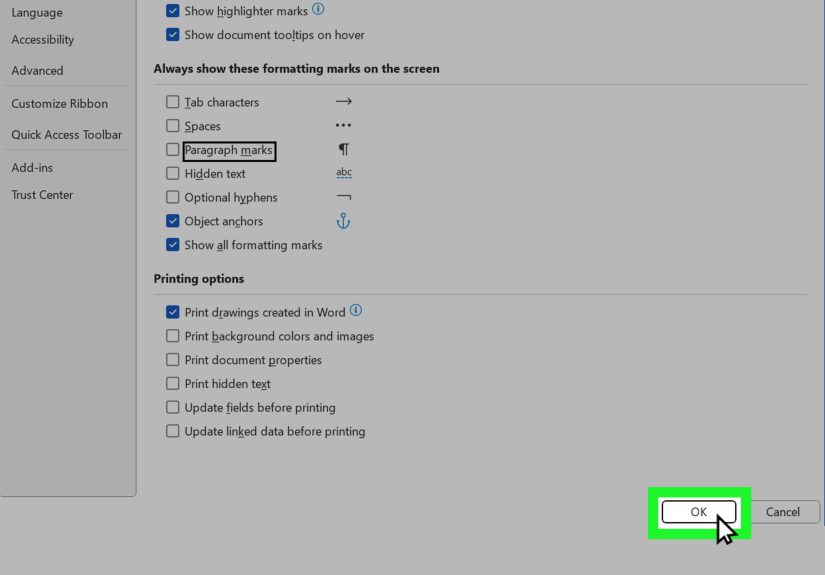
Method 2: Turn Off Paragraph Symbols Through Word Options
If the Show/Hide ¶ button does not seem to work, the paragraph marks may be set to display all the time in Word’s settings. In that case, you need to change the display options.
How to hide paragraph marks in Word through Options on Windows
- Open Microsoft Word.
- Click File.
- Select Options.
- In the left sidebar, click Display.
- Find the section called Always show these formatting marks on the screen.
- Uncheck Paragraph marks.
- Click OK.
After that, your document should stop showing paragraph symbols unless you manually turn them on again with the ribbon button or keyboard shortcut.
How to hide paragraph marks in Word on Mac
- Open Word.
- Click Word in the top menu.
- Select Preferences.
- Open View.
- Under nonprinting characters or formatting marks, clear the option for Paragraph marks.
The wording may vary a little depending on your version of Word for Mac, but the idea is the same: you are telling Word to stop always displaying those marks on screen.
When Method 2 is the better fix
This method is ideal when:
- The paragraph symbols stay on even after you click the ribbon button
- Word always opens with formatting marks visible
- You are working on a shared or reused computer where the setting was changed previously
- You want more control over which formatting marks appear
In other words, Method 2 is the “let us fix the root cause” option.
Why Paragraph Symbols Sometimes Will Not Turn Off
If you are clicking the right button and still seeing symbols, one of these things is usually happening:
1. Paragraph marks are set to always show
This is the most common reason. The Show/Hide ¶ button only toggles symbols that are not locked on through Word’s display settings. If paragraph marks are checked in the Always show section, they can stay visible no matter how many times you click the button.
2. You are seeing other formatting marks too
Sometimes people say “paragraph symbols” when the real problem is a mix of dots, arrows, line breaks, and section breaks. Turning off the paragraph mark alone may not hide everything if other formatting options are also enabled.
3. The document was created with complicated formatting
Documents copied from websites, PDFs, templates, or old corporate forms often carry extra formatting baggage. In those cases, Word may show more nonprinting characters than usual while you troubleshoot layout issues.
4. You pressed the shortcut by accident
It happens more often than people admit. Ctrl + Shift + 8 on Windows, or Command + 8 on Mac, can be triggered without much drama. One tiny keyboard slip, and suddenly your document looks like it is narrating every keystroke.
Should You Ever Leave Paragraph Symbols On?
Actually, yes. While most people prefer a clean page, formatting marks can be incredibly helpful during editing. If a document is misbehaving, turning them on often makes the problem obvious right away.
For example, paragraph marks can help you:
- Spot extra blank paragraphs
- Find manual page breaks
- See whether someone used tabs instead of proper alignment
- Understand weird spacing between sections
- Clean up content pasted from email or web pages
Think of it like switching on the kitchen lights after dinner. You may not want to see every crumb all the time, but it is very useful when something needs cleaning up.
Common Situations Where Paragraph Symbols Save the Day
Editing a resume
Resumes often have tight spacing and careful alignment. If the formatting suddenly shifts, showing paragraph marks can reveal whether there are extra returns or tabs throwing everything off.
Fixing a mysterious blank page
A blank page at the end of a Word document is often caused by hidden paragraph marks or a page break. Turning formatting marks on helps you see exactly what needs to be deleted or resized.
Cleaning up pasted text
Text copied from websites, Slack messages, emails, or PDFs can bring all kinds of formatting chaos. Showing paragraph symbols makes it easier to identify what Word imported.
Working with long reports
In reports, manuals, and proposals, formatting marks help you understand where section breaks start and why headers, footers, or page numbers are acting strangely.
Bonus Tips for Working with Formatting Marks in Word
Use Show/Hide as a temporary troubleshooting tool
You do not have to keep paragraph symbols on forever. Turn them on when you need to diagnose a formatting problem, then switch them off when you are done. It is the Word equivalent of opening the hood, checking the engine, and closing it before the neighbors start asking questions.
Check specific display settings
If your document still looks busy, go back to File > Options > Display and review every checked item. Tabs, spaces, object anchors, hidden text, and other marks can all contribute to visual clutter.
Remember that formatting marks are not the same as printed symbols
Many users worry that the symbols will appear when they print or export the document. In normal use, these are on-screen editing aids, not visible content. That is why Microsoft refers to them as nonprinting characters. So no, your client is probably not about to receive a proposal covered in mysterious pilcrows.
Learn one shortcut and save time
If you work in Word every day, memorizing the shortcut to toggle formatting marks is worth it. It is one of those tiny productivity habits that pays off over time, especially if you edit long or messy documents.
Quick Recap: The 2 Easy Methods
Here is the simple version:
- Use the Show/Hide ¶ button on the Home tab for the fastest fix.
- Go to File > Options > Display and uncheck Paragraph marks if they are always showing.
If you want the shortcut version, use Ctrl + Shift + 8 on Windows or Command + 8 on Mac.
Conclusion
Turning off paragraph symbols in Microsoft Word is one of those tiny tasks that feels much bigger when the screen is full of formatting marks and you just want to get back to writing. Thankfully, the fix is usually simple. In most cases, clicking the Show/Hide ¶ button on the Home tab will do the trick. If not, a quick visit to Word Options or Preferences will usually solve the mystery.
The best part is that once you understand what paragraph marks do, they stop feeling like random clutter and start feeling like a helpful tool you can use when needed. Keep them hidden when you want a clean page. Turn them on when Word starts acting weird. That way, you stay in control instead of letting a tiny backward-looking symbol run the show.
Real-World Experiences With Turning Off Paragraph Symbols in Microsoft Word
For a lot of people, the first encounter with paragraph symbols happens during a stressful moment. Maybe it is five minutes before a job application deadline, and your resume suddenly looks like it has been annotated by a very strict robot. Maybe you are finalizing a school paper and every paragraph ends with a symbol that makes the document feel cluttered and oddly dramatic. Or maybe you opened a file from a coworker and wondered whether they sent you a regular document or a secret formatting treasure map.
One common experience is pasting text into Word from another source. You copy a chunk of text from a website, email, or chat app, and suddenly the document looks completely different. Lines break in odd places, spacing feels off, and those paragraph marks appear everywhere. In that moment, turning the symbols off can make the page look cleaner, but turning them on for just a minute can also reveal what caused the mess in the first place. Many users end up learning that the real hero is not just hiding the marks, but knowing when to briefly show them for troubleshooting.
Students often run into this when formatting essays or research papers. They are told to use double spacing, proper paragraph breaks, and clean margins, but Word sometimes behaves like it enjoys a little chaos. Seeing paragraph symbols can help them figure out whether they accidentally pressed Enter too many times between paragraphs. Then, once the paper is fixed, they usually want those marks gone immediately so the final draft feels polished and easier to read.
Office workers have their own version of the same story. Shared documents are famous for carrying strange formatting habits from one person to another. One teammate uses tabs for alignment, another pounds the Enter key like it owes them money, and a third person copies content from an old template that has section breaks hiding in unexpected places. When paragraph symbols appear, they may look annoying, but they often expose the exact source of the problem. Then, after cleanup, the first thing everyone wants to know is how to turn them off again and return the document to a normal, civilized state.
Writers and editors tend to have a love-hate relationship with formatting marks. On one hand, paragraph symbols are fantastic for diagnosing layout issues. On the other hand, they can make a beautiful draft feel visually noisy. Many experienced editors switch them on and off throughout the day. They use them to inspect structure, remove extra returns, and catch hidden spacing problems, then hide them again so they can focus on flow, voice, and readability instead of staring at a screen full of symbols.
Even casual Word users remember the moment they learn the shortcut. It feels like discovering a secret passage in a familiar house. One keyboard combo, and the clutter disappears. Another combo, and the invisible structure comes back into view. Once that habit clicks, Word becomes much less frustrating. The experience shifts from “Why is this document haunted?” to “Oh, I know exactly what is happening here.” And honestly, that is a pretty satisfying upgrade for such a small fix.