Table of Contents >> Show >> Hide
- What This Tutorial Covers
- Before You Start: Build a Signature That Doesn’t Scream “2009”
- How to Add a Signature in Gmail on a Computer (Web Tutorial)
- How to Add a Gmail Signature on Mobile (Android + iPhone/iPad)
- How to Create and Use Multiple Signatures in Gmail
- Adding a Logo or Image to Your Gmail Signature (Without Breaking Everything)
- Troubleshooting: Common Gmail Signature Problems (and Fixes)
- Signature Pro Tips for Better Replies, Faster Trust, and Fewer Follow-Up Emails
- Conclusion
- of Real-World Signature Experiences (and Lessons)
If your emails are little digital handshakes, your Gmail signature is the part where you tell people your name
before they have to awkwardly scroll up and squint. It’s also where you quietly do your future self a favor:
fewer “What’s your number again?” replies, fewer missed meetings, and fewer “Sent from my phone” confessionals that
make you sound like you typed the email while skydiving.
In this tutorial, you’ll learn how to add (and actually use) a signature in Gmail on desktop and mobile,
how to create multiple signatures, how to add logos or links without things going sideways, and how to troubleshoot
the usual signature gremlins.
What This Tutorial Covers
- Adding a Gmail signature on a computer (web browser)
- Adding a mobile signature on Android and iPhone/iPad
- Creating and switching between multiple Gmail signatures
- Formatting tips: links, logos, spacing, and “please don’t do this” mistakes
- Fixes for common issues (signature not showing, broken images, weird formatting)
Before You Start: Build a Signature That Doesn’t Scream “2009”
A good email signature is short, scannable, and helpful. Think “business card,” not “autobiography.”
Here’s a simple checklist:
- Name (first + last)
- Title/role (what you do)
- Company/brand (optional but common)
- Phone (only if you want callsthis is not a legal requirement)
- Website or booking link (optional)
- Location/time zone (helpful for remote teams)
Quick example (clean and professional)
Quick example (freelancer / creator)
Tip: If your signature needs a paragraph, it’s not a signatureit’s a newsletter. Save that energy for your blog.
How to Add a Signature in Gmail on a Computer (Web Tutorial)
This is the “full-featured” version of Gmail signatures. You can format text, add links, insert images, and create
multiple signatures that you can switch between when composing emails.
Step 1: Open Gmail Settings
- Open Gmail in your browser.
- Click the gear icon (Settings) in the top-right.
- Click See all settings.
Step 2: Find the Signature Section
- Stay on the General tab (it usually opens by default).
- Scroll down until you see Signature.
Step 3: Create Your Signature
- Click Create new.
- Give your signature a name (example: Main, Support, Sales, Personal).
- Type your signature in the editor box.
Step 4: Format It (Without Summoning Chaos)
Use the formatting toolbar to make it readable:
- Bold your name (helps scanning).
- Add a link to your website (highlight text → link icon → paste URL).
- Keep fonts and colors simple (email clients love misbehaving).
- Avoid huge images. Tiny logo? Sure. A full poster? Please no.
Step 5: Choose Signature Defaults
In the Signature defaults area, choose what appears:
- For new emails
- For replies/forwards (often shorter is better here)
Optional: enable the setting to insert the signature before quoted text in replies, so your signature
doesn’t get buried under a novel-length thread.
Step 6: Save Changes
- Scroll all the way to the bottom.
- Click Save Changes.
Done. Your signature is now ready to do its job: making you look organized even when you’re replying between meetings.
How to Add a Gmail Signature on Mobile (Android + iPhone/iPad)
Mobile signatures are managed inside the Gmail app and can be different from your desktop signature.
They’re usually simpler (often plain text), but they’re still usefulespecially if you send a lot of messages on the go.
Android: Add a Gmail Mobile Signature
- Open the Gmail app.
- Tap the menu (three lines).
- Scroll down and tap Settings.
- Select the Gmail account you want (important if you have multiple accounts).
- Tap Mobile signature.
- Type your signature, then tap OK.
iPhone/iPad: Add a Gmail Mobile Signature
- Open the Gmail app.
- Tap the menu (three lines).
- Scroll down and tap Settings.
- Select the Gmail account you want.
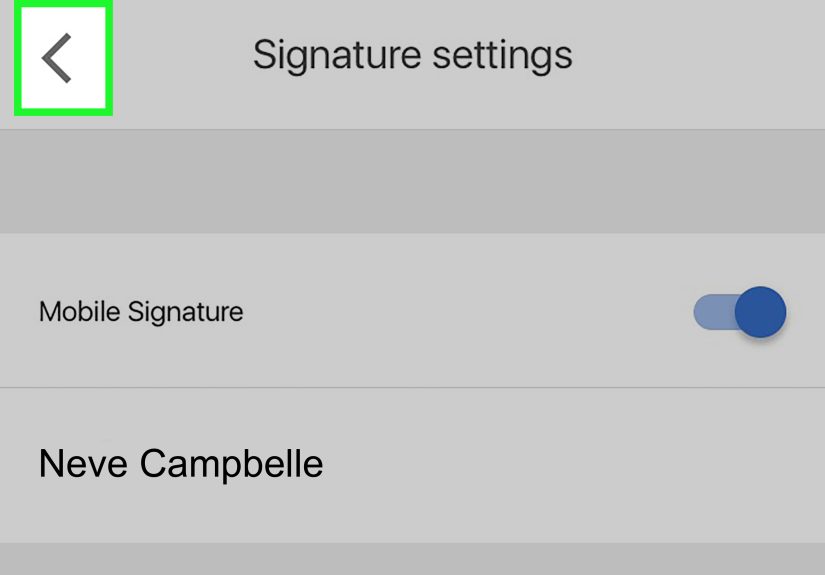
- Under “Compose and Reply,” tap Signature settings.
- Turn on the mobile signature option, then type your signature.
Practical tip: If you want consistency across devices, use a short plain-text version on mobile that matches the core
info from your desktop signature (name + role + best contact). Your recipients will thank you. Your brand will thank you.
Your future self will also thank you.
How to Create and Use Multiple Signatures in Gmail
Multiple signatures are perfect if you wear different hats. For example: one for your day job, one for your side
project, and one “friendly” signature for people who don’t need your entire org chart.
Create multiple signatures
- Go to Gmail Settings → See all settings → General.
- In the Signature section, click Create new for each signature.
- Name them clearly (example: Sales, Partnerships, Personal).
- Set your default signature for new messages and replies/forwards.
- Click Save Changes.
Switch signatures while composing an email
While writing an email, click the Insert signature (pen icon) and select the signature you want.
This is the “choose-your-own-adventure” moment of emailexcept the ending is always “sent with the right contact info.”
Adding a Logo or Image to Your Gmail Signature (Without Breaking Everything)
Yes, Gmail lets you insert images in a desktop signature. But email images can be tricky because different email clients
render (or block) them in different ways. If you add a logo, keep it lightweight and avoid gigantic dimensions.
How to insert an image
- On desktop, go to Settings → See all settings → General → Signature.
- Click the Insert image icon in the signature editor.
- Upload or choose an image from available options (depending on your setup).
- Resize it to something reasonable (think small logo, not billboard).
- Click Save Changes.
Image best practices
- Keep it small: a logo should be a visual accent, not the main character.
- Don’t rely on the image alone: include your name and contact details as text too.
- Test it: send a message to a different email provider (Outlook, iCloud, etc.) to see what breaks.
Troubleshooting: Common Gmail Signature Problems (and Fixes)
Problem 1: My signature isn’t showing up
- Check that you set Signature defaults for new emails and replies/forwards.
- If you’re replying in a long thread, consider enabling the option to place your signature before quoted text.
- If you’re on mobile, confirm you set the signature for the correct account in the Gmail app.
Problem 2: My mobile emails show a different signature than desktop
That’s normal. Mobile signatures are controlled in the app and can override what you expect.
If you want matching signatures everywhere, build a short plain-text version for mobile that mirrors your desktop’s key info.
Problem 3: My signature image looks broken (question mark, broken icon, wrong size)
- Remove the image and re-upload it.
- Try inserting the image using a different method (for example, re-selecting it from your available options).
- Resize inside the signature editor, then test by emailing multiple clients.
Problem 4: Formatting gets weird when I paste
- Try pasting without formatting (often “paste as plain text”), then re-format in Gmail.
- If you designed your signature elsewhere, paste the rendered version (what it looks like), not raw code.
- Use consistent fonts and avoid excessive stylingemail clients are not design tools, they’re tiny chaos engines.
Signature Pro Tips for Better Replies, Faster Trust, and Fewer Follow-Up Emails
Keep replies shorter
Set a shorter signature for replies/forwards. People already know you’re Jordan from Northwindno need to reintroduce
your whole cast of characters on every thread.
Use one “action” link
If you include links, pick one primary link: your website, your booking page, or your portfolio. Too many links can look
spammy and can get ignored (or flagged) by cautious recipients.
If you’re in Google Workspace, know your org may add footers
Some organizations use admin controls to append legal or compliance footers to outgoing mail. If your signature suddenly
looks longer than a streaming service terms-of-use, that may be why.
Conclusion
Adding a signature to your Gmail account is one of the easiest upgrades you can make to your daily communication.
It saves time, reinforces your identity, and makes your emails feel intentionaleven if you wrote them while eating
cereal over the sink (no judgment).
Set up your desktop signature first for the best formatting, then create a clean mobile version for on-the-go messages.
Add multiple signatures if you have multiple roles, test your layout once or twice, and you’ll be good to go.
of Real-World Signature Experiences (and Lessons)
The first time I set up a Gmail signature “properly,” I treated it like decorating a tiny apartment: I tried to fit
everything I owned into a 300-square-pixel studio. Name, title, phone, office address, two websites, three social icons,
a quote I thought sounded wise, and (for reasons nobody can explain) a chunky logo the size of a waffle. It looked
amazing in Gmail. Then I sent a test email to someone using a different email client and discovered my “minimalist”
signature had transformed into a chaotic collage. The logo jumped to full-size, the spacing collapsed, and the quote
landed in the middle like a confused fortune cookie. Lesson one: email clients do not share your vision board.
Another time, I updated my phone number but forgot to update my signature. For two weeks, I confidently emailed new
contacts and ended each message with a phone number that belonged to… nobody. This created a special kind of silence.
No calls. No texts. Just the gentle suspicion that everyone had collectively decided I was “email-only.” When I finally
noticed, it felt like finding spinach in your teeth in a photo from last month. Lesson two: treat your signature like
your emergency contact inforeview it whenever your details change.
The most useful signature tweak I ever made wasn’t flashy. It was adding my time zone. That’s it. One tiny line:
“PT (UTC−8/−7).” Suddenly, meeting scheduling stopped being a global guessing game. People proposed reasonable times.
Fewer “Does 10 work?” messages followed by “10… your time or mine?” Lesson three: the best signature additions reduce
back-and-forth, not increase decoration.
I’ve also learned the magic of multiple signatures. When you’re switching between a customer-facing role and an internal
team role, the same signature can feel either too formal or not formal enough. Having a short internal signature (name,
team, Slack handle) and a fuller external one (role, phone, website) helps you match the context without rewriting your
closing every time. Lesson four: different audiences deserve different “default you.”
Finally, there’s the mobile signature reality check. I once assumed my beautifully formatted desktop signature would
carry over to phone-sent emails. Spoiler: it did not. My phone kept sending “Sent from Gmail” like a tiny robot
announcing itself. After setting a clean mobile signature, my phone emails stopped looking like accidental dispatches.
Lesson five: if you send even a few emails a week on mobile, set a mobile signatureit’s a small change that makes you
look wildly more put-together.