Table of Contents >> Show >> Hide
- What “Emergency Info” on Android Actually Does (And Why It Matters)
- Before You Start: The Two Fastest Ways to Find the Right Menu
- How to Add Emergency Contacts & Medical Info on Android (Google Safety App Method)
- Samsung Galaxy: Add Emergency Contacts & Medical Info (One UI “Safety and emergency”)
- Pixel Phones: Where to Set This Up (Personal Safety + Lock Screen Text)
- Older Android Versions: “Emergency Information” (Classic Mode)
- What to Put in Emergency Info (A Practical Checklist)
- Privacy & Safety Tips (Because Your Phone Is Not a Diary)
- Troubleshooting: If You Can’t Find “Emergency Info” Anywhere
- Real-World Experiences: What Actually Helps in a Pinch (About )
- Conclusion
Your Android phone already knows a lot about you: your coffee order, your screen-time guilt, and exactly which meme you rewatch at 2 a.m.
The one thing it should know (and share responsibly) is what to do if you can’t speak for yourselfor if someone finds your lost phone and wants to return it without auditioning for a spy movie.
Android has built-in tools to store emergency contacts and medical info (like allergies and medications) and make them viewable from the lock screen.
The exact menu names vary by device (Pixel vs. Samsung vs. “my phone is allergic to consistent settings”), but the goal is the same: help first responders and trusted people reach the right person fast.
What “Emergency Info” on Android Actually Does (And Why It Matters)
When you add emergency info, you’re creating a quick “need-to-know” card that can be accessed from your lock screenwithout unlocking your phone.
Depending on your device and settings, it can include:
- Emergency contacts (people who should be called if something’s wrong)
- Medical details (allergies, conditions, medications, blood type, etc.)
- Optional lock screen message (like “If found, call…”)
This isn’t just for big dramatic emergencies. It also helps with everyday chaos:
a kid’s phone left at soccer practice, a misplaced device at the airport, or a situation where someone needs your “call my sister, she knows everything” person.
Before You Start: The Two Fastest Ways to Find the Right Menu
Option A: Use Settings Search (the universal shortcut)
Open Settings and use the search bar. Try searching:
“Safety & emergency”, “Emergency info”, “Medical info”, or “Emergency contacts”.
This is the quickest route across most Android brands.
Option B: Look for “Safety” (Google’s Safety / Personal Safety app)
On many Android phones, emergency info is managed through Google’s Safety app (sometimes called “Personal Safety” in the Play Store or in certain menus).
From there, you can add medical info, emergency contacts, and enable lock-screen access.
How to Add Emergency Contacts & Medical Info on Android (Google Safety App Method)
This method is common on Pixels and many Android devices that include Google’s Safety features.
Here’s the clean, repeatable setup:
- Open the Safety app.
- Sign in to your Google Account if prompted.
- Tap Your info.
- Tap Medical information and fill in the fields you want (allergies, medications, conditions, etc.).
- Go back and tap Emergency contacts to add one or more trusted people.
- Turn on lock screen visibility: find Emergency info access and enable Show when locked.
Important privacy note: If you enable “Show when locked,” anyone holding your phone can view the emergency info (that’s the pointjust make sure you’re comfortable with what’s included).
How to View Emergency Info from the Lock Screen (Test It!)
Don’t assume it worksrun a quick “lock screen rehearsal” like you’re prepping for a play where the villain is time.
On many Android phones:
- Lock your phone.
- Swipe up on the lock screen.
- Tap Emergency.
- Tap View emergency info.
Samsung Galaxy: Add Emergency Contacts & Medical Info (One UI “Safety and emergency”)
Samsung puts most of this under a single menu, which is convenient and mildly shocking in the best way.
To add emergency contacts and medical info on a Galaxy phone:
- Open Settings.
- Tap Safety and emergency.
- Tap Emergency contacts → Add emergency contact → pick a contact → Done.
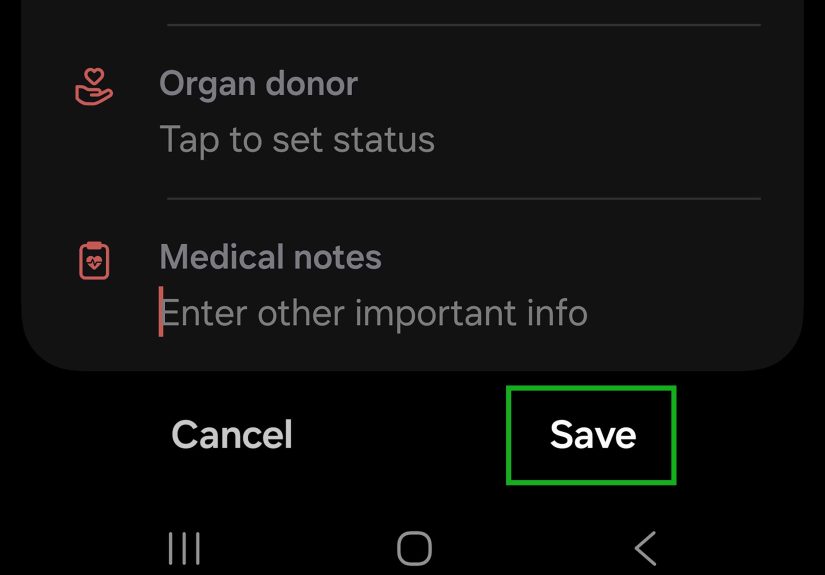
- Go back and tap Medical info, enter details (conditions, allergies, medications, etc.), then tap Save.
Samsung Bonus: Emergency SOS and Emergency Sharing (Optional but Smart)
If you want more than a lock-screen info card, Samsung also offers:
- Emergency SOS: typically triggered by pressing the Side button five times (you can customize options like countdown and “require swipe”).
- Emergency sharing: sends messages and can share your location with selected contacts.
These features can be lifesavers, but set them up carefully so you don’t accidentally launch “Help, I dropped my phone on my face” mode at 1 a.m.
Pixel Phones: Where to Set This Up (Personal Safety + Lock Screen Text)
On Pixel phones, emergency info is commonly managed through the Personal Safety / Safety app:
open it, tap Your info, and add medical info and emergency contacts. Then enable lock screen access.
Add a Simple Lock Screen Message (Great for Lost Phones)
A lock screen message is different from emergency contactsbut it’s a fantastic “please return my phone” feature.
On Pixel, you can add text to the lock screen through the lock screen settings (often labeled Add text on lock screen).
Good examples:
- “If found, call Alex: (555) 123-4567”
- “Medical allergies listed in Emergency Info”
- “Reward: one sincere thank-you and good karma”
Keep it short. Lock screen text can be truncated on some devices, so lead with the most important detail (like a phone number).
Older Android Versions: “Emergency Information” (Classic Mode)
If your phone is older (or your menus look like they time-traveled from 2016), you may see a section called
Emergency information. The idea is the samefill out medical details and add contacts, then enable lock-screen visibility if available.
Tip: If you can’t find it manually, use Settings search for “Emergency information” or “ICE”.
What to Put in Emergency Info (A Practical Checklist)
The best emergency info is helpful, accurate, and not a memoir. Here’s what usually matters most:
Emergency contacts (pick 2–4)
- Someone who answers calls
- Someone who lives nearby (if possible)
- Someone who knows your medical basics
- Optional: primary care doctor or caregiver contact (if appropriate)
Medical info (keep it high-signal)
- Allergies (especially medications)
- Current medications (or at least the critical ones)
- Key conditions (diabetes, epilepsy, heart issues, etc.)
- Other notes (implants, asthma inhaler use, anticoagulantsanything responders should know quickly)
- Blood type (optional; hospitals still test before transfusions, but it can be a useful clue)
Mini example: A “just-right” entry
- Allergies: Penicillin (anaphylaxis)
- Medications: Insulin; blood pressure medication
- Condition: Type 1 diabetes
- Emergency contact: “Mom – Jamie R. – (555) 222-1212”
Privacy & Safety Tips (Because Your Phone Is Not a Diary)
1) Decide what you’re comfortable showing when locked
If lock-screen access is enabled, a stranger who finds your phone could see your emergency info.
That’s why it’s best to avoid anything you wouldn’t want exposed publicly (full home address, extremely sensitive notes, etc.).
2) Keep lock screen notifications under control
Emergency info is intentionally accessiblebut your notifications don’t have to be.
Consider hiding sensitive notifications on the lock screen so private messages don’t become public announcements.
3) Update it like you update apps (occasionally, but on purpose)
Set a simple rule: review emergency info when you change meds, move, or switch primary contacts.
It takes two minutes now, and it’s priceless later.
Troubleshooting: If You Can’t Find “Emergency Info” Anywhere
Try these in order:
- Settings search: type “emergency” or “safety.”
- Look for the Safety app: “Safety” in your app drawer.
- Update Google Play services / system updates: some features depend on them.
- Check your device brand menu: Samsung uses “Safety and emergency,” Pixels lean on the Safety/Personal Safety app.
- Fallback: add a lock screen message with a return number, even if the full medical card isn’t available.
Real-World Experiences: What Actually Helps in a Pinch (About )
When people think “emergency contacts,” they imagine Hollywood emergenciessirens, dramatic lighting, and someone yelling, “We’re losing them!”
Real life is usually less cinematic and more… awkward. Like realizing you’re lightheaded at the grocery store while holding a family-size box of cereal
you absolutely did not come for. Or misplacing your phone at a crowded event and watching your entire digital life get adopted by a mysterious stranger
who only communicates via pocket lint.
In everyday situations, emergency info tends to help in three big ways: speed, clarity, and the right person getting called.
Speed matters when someone is disoriented, injured, or simply unable to unlock their phone. A lock-screen emergency card can remove the “what now?”
pause and replace it with a clear next step: “Call this person.” Clarity matters because the helpful stranger, security guard, school staff member,
or first responder doesn’t know your life story. They need one or two key details, not a 14-part saga.
One common experience people report: lost phone recovery works better with a lock screen message than with “hope and vibes.”
If your lock screen says, “If found, call (555) 123-4567,” you’ve given a decent human a simple way to do the decent thing.
Without it, they might not be able to access your contacts, and the phone may end up in the Lost & Found Bermuda Triangle.
Bonus tip from the real world: use a number that’s reachable even if your phone is missinglike a partner, parent, or close friend.
Another frequent scenario: kids, teens, and elderly family members. A younger teen’s phone might be the only device they carry,
and “Dad” is not as helpful as “Dad – (555) 777-1111.” For older adults, having medications and critical conditions listed can reduce confusion
when someone else needs to explain what’s going on. In these cases, families often find that adding two emergency contacts (not just one)
prevents the “called… no answer… now what?” problem.
People also learn quickly that the best emergency contact isn’t always the closest relationshipit’s the most available and informed person.
The friend who never picks up unknown numbers is a wonderful friend, but a questionable emergency plan. Many families choose one “always answers”
person and one “knows the medical details” person. And in medical info, the biggest win tends to be listing allergies and critical meds.
Those details can change decisions fast. Meanwhile, items like blood type can be included, but people are often surprised to learn that hospitals still
confirm it before transfusionsso the real value is in the info that can’t be guessed or quickly tested.
Finally, a simple but powerful habit: practice accessing your own emergency info. If you can’t find it from your lock screen in 10 seconds,
neither can anyone else. Run the quick test, adjust what’s shown when locked, and keep it updated. It’s one of the rare phone settings that can genuinely
matter more than your wallpaper. (Yes, even the one with your dog wearing sunglasses.)
Conclusion
Setting up emergency contacts and medical info on Android is one of those “adulting” tasks that’s boring right up until it’s incredibly important.
The good news: it’s quick. Use the Safety/Personal Safety tools if your phone has them, enable lock-screen access thoughtfully, add two or more reliable
contacts, and keep your medical info short and accurate.
Then do the final step most people skip: lock your phone and make sure you can actually see the emergency info without unlocking it.
If it works for you, it’ll work for the person trying to help you.