Table of Contents >> Show >> Hide
- Quick Cheat Sheet (If You’re in a Hurry)
- What “Display Nicknames” Actually Means on iPhone
- Step 1: Add a Nickname to a Contact (The Right Way)
- Step 2: Turn On “Prefer Nicknames” (The Setting Most People Miss)
- Step 3: Adjust “Short Name” So Names Look the Way You Want
- Examples: How Nicknames Help in Real Life
- Why Nicknames Sometimes Don’t Show Up (And How to Fix It)
- Make Nicknames Work Better with Siri (Optional, But Awesome)
- Privacy Note: Nicknames Can Be More Visible Than You Expect
- FAQ: Common Questions About iPhone Nicknames
- Conclusion
- Extra: Real-World Experiences People Have When Using iPhone Nicknames (About )
If your iPhone insists on calling your best friend “Christopher Jonathan Montgomery III” when literally everyone
on Earth calls him “CJ,” you’re not alone. The good news: iOS can show nicknames in places like Messages, Mail,
and other appsif you set up two things correctly:
- Add a Nickname field to the contact (and fill it in).
- Turn on Prefer Nicknames in your iPhone’s Contacts settings.
This guide is based on Apple’s official documentation and well-known U.S. tech publications (Apple Support,
How-To Geek, 9to5Mac, Macworld, iPhone Life, Lifewire, Kim Komando, TidBITS, and more), rewritten in a clean,
easy-to-follow way with practical troubleshooting.
Quick Cheat Sheet (If You’re in a Hurry)
- Open Contacts (or the Phone app → Contacts).
- Tap a person → Edit → scroll down → Add Field → Nickname.
- Type the nickname → Done.
- Go to Settings → Contacts (or Settings → Apps → Contacts) → Short Name.
- Turn on Prefer Nicknames.
Now iOS will prefer showing the nickname when it displays that person’s name in supported areas.
What “Display Nicknames” Actually Means on iPhone
On iPhone, a nickname isn’t (usually) meant to replace someone’s real name everywhere. Think of it as an
optional “display name” iOS can use when space is tight or when you’ve told iOS you’d rather see nicknames than
full names.
When nicknames are working correctly, you may see them in places like:
- Messages conversation headers
- Mail recipient chips
- Search and suggestions (depending on your settings)
- Siri commands like “Text Peanut” or “Call Doc”
- Some third-party apps that respect iOS contact display settings
And here’s the mildly annoying part: some screens may still show full names, especially if an app doesn’t follow
iOS “Short Name” rules, or if a contact is coming from a work directory/account with different name fields.
We’ll fix what we canand explain the rest without yelling at your phone. Much.
Step 1: Add a Nickname to a Contact (The Right Way)
You can’t “turn on nicknames” if your contacts don’t actually have nicknames saved. iOS doesn’t magically
know that your sister is “Chaos Gremlin” (even if your group chat does).
Option A: Add a Nickname in the Contacts App
- Open Contacts.
- Select the person.
- Tap Edit.
- Scroll down and tap Add Field.
- Tap Nickname.
- Type the nickname you want iOS to use (e.g., “CJ,” “Mom,” “Coach,” “Landlord (Please Be Nice)”).
- Tap Done.
Option B: Add a Nickname from the Phone App
If you live in the Phone app (no judgment), you can do the same thing from Phone → Contacts.
The steps are identical once you’re on the contact card.
How to Remove or Change a Nickname Later
Just go back to the contact → Edit → update the Nickname field or delete it → Done.
(A nickname should be easy to change. Unlike, say, your middle-school reputation.)
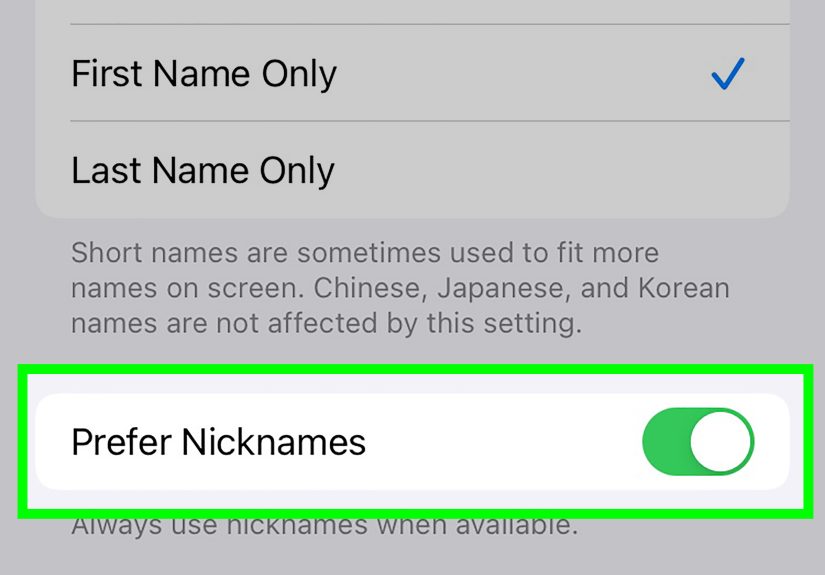
Step 2: Turn On “Prefer Nicknames” (The Setting Most People Miss)
Adding a nickname is only half the job. Next you have to tell iOS, “Yes, I would like to see ‘CJ’ instead of
‘Christopher Jonathan Montgomery III,’ thanks.”
On Newer iOS Versions (You May See “Settings → Apps → Contacts”)
- Open Settings.
- Scroll to Apps → tap Contacts.
- Tap Short Name.
- Turn on Prefer Nicknames.
On Older iOS Versions (You May See “Settings → Contacts”)
- Open Settings.
- Tap Contacts.
- Tap Short Name.
- Turn on Prefer Nicknames.
Once enabled, iOS will use the nickname field (when available) instead of your chosen short-name format.
Step 3: Adjust “Short Name” So Names Look the Way You Want
The nickname toggle lives inside Short Name settings because iOS treats nicknames as part of how
names are displayed across apps. While you’re there, you can also choose a display format that makes sense for
your life (and your 47 contacts named “Mike”).
Common Short Name formats include options like:
- First Name Only (clean and simple)
- First & Last Initial (helpful when you have duplicates)
- First Initial & Last Name (for the formal among us)
If a nickname exists and Prefer Nicknames is on, iOS will generally pick the nickname over the
short-name format. If no nickname exists, your chosen short-name format is used.
Examples: How Nicknames Help in Real Life
Example 1: You Have Two “Alex” Contacts
Give them distinct nicknames like “Alex (Gym)” and “Alex (Work)”. With Prefer Nicknames enabled,
your iPhone can show those labels in supported apps so you don’t text the wrong Alex about your very personal
protein powder opinions.
Example 2: People You Only Know by Nickname
If you have a contact saved as “Robert,” but you always say “Bobby,” you can add “Bobby” as the nickname and use
it when searching or asking Siri to call/text them. It makes your phone feel like it knows your social life
(without actually knowing your social life).
Example 3: Family Roles vs. Legal Names
You can nickname contacts by role (“Mom,” “Dad,” “Grandma”) or by how you actually identify them (“Neighbor With
the Ladder”). Just remember that nicknames are for your phone’s display, not a public declaration.
Why Nicknames Sometimes Don’t Show Up (And How to Fix It)
If you did everything “right” and iOS still refuses to cooperate, don’t worryyou’re not cursed. Usually it’s
one of these issues:
1) Prefer Nicknames Is Off (Even If the Nickname Field Exists)
This is the #1 culprit. Go back to Settings → Contacts (or Settings → Apps → Contacts) → Short Name
and make sure Prefer Nicknames is enabled.
2) The Nickname Field Was Never Added
Some people type a nickname into “First Name” or “Company” instead. That can work as a hack, but it’s not the same.
Make sure the contact card contains an actual Nickname field via Add Field.
3) Your Contacts Are Coming from a Work/School Account (Exchange/Directory)
If your contact data is synced from a corporate directory (Exchange, LDAP, etc.), iOS may display an unexpected
attribute instead of the nickname. In some cases, toggling off Prefer Nicknames fixes weird name
displays. If it’s a work directory, your organization’s fields can override what you expect.
4) Third-Party Apps May Ignore Nicknames
Apple’s Short Name settings are system-level preferences, but not every app follows them. If one app shows nicknames
and another doesn’t, that’s likely the app’s choicenot your mistake.
5) Sync Lag or Duplicate Contact Cards
If you have the same person duplicated across iCloud + Google + work accounts, you might be editing one card while
the phone displays another. Try:
- Searching for the contact in Contacts and checking for duplicates
- Verifying which account the contact is stored under
- Waiting a bit for iCloud/Google sync to catch up (especially after big edits)
Make Nicknames Work Better with Siri (Optional, But Awesome)
Once you’ve set nicknames, Siri becomes much more flexible. You can say things like:
- “Siri, text Doc I’m running late.”
- “Siri, call Peanut on speaker.”
- “Siri, email Boss Mode the updated file.”
If Siri struggles, try using a nickname that’s distinct and easy to pronounce. “X Æ A-12 (but make it casual)”
may require a second attempt.
Privacy Note: Nicknames Can Be More Visible Than You Expect
Nicknames are meant for convenience, but they can show up in screenshots, notifications, and shared contact cards
depending on your sharing settings and what information you’ve saved in your own “My Card.”
- If you share your contact card, the recipient may see the name details you’ve saved there.
- If your lock screen shows message previews, nicknames might appear in notifications too.
Translation: if you nickname someone “Do Not Answer,” be prepared for that to appear at the least dramatic moment
possible (like when you’re showing your mom how great your iPhone camera is).
FAQ: Common Questions About iPhone Nicknames
Can I add more than one nickname?
Contacts typically supports a single Nickname field per contact card. If you need multiple labels, consider using
the Notes field (for your eyes only) or adding a clarifier to the nickname like “Sam (Soccer).”
Will nicknames show on incoming calls?
Often, yesespecially if the Phone app is respecting Short Name settings and the nickname is properly saved. But
some users report inconsistencies depending on iOS version, contact source accounts, and sync quirks. If it doesn’t
show during calls but appears in Messages, your best bet is to confirm the contact is local/iCloud-based and double-check
Short Name + Prefer Nicknames settings.
Will nicknames sync across my Apple devices?
If your contacts are stored in iCloud (or another synced account), the Nickname field usually syncs across devices
using the same account. If a device doesn’t update, it’s often a sync delay or duplicate-contact issue.
Do nicknames change what other people see?
A nickname is primarily for your device’s display, but anything you share from your own contact card depends on what
information is stored there and what you choose to share. When in doubt, preview your “My Card” before sharing.
Conclusion
Displaying nicknames on iPhone is one of those “two-switch” Apple features: it’s delightfully smooth once set up,
but oddly invisible until you know where to tap. Add the Nickname field to contacts you actually recognize by nickname,
then flip on Prefer Nicknames in Short Name settings. From there, iOS will do a better job of speaking
your languagewhether that language is “CJ,” “Doc,” or “Neighbor With the Ladder.”
And if nicknames still won’t appear everywhere, don’t assume you failed. Sometimes it’s a sync issue, an account source issue,
or an app that refuses to play nice. Run through the troubleshooting checklist, and you’ll usually get the behavior you want.
Extra: Real-World Experiences People Have When Using iPhone Nicknames (About )
Once people start using nicknames on iPhone, the first reaction is usually delightfollowed immediately by an “Okay,
why didn’t I do this sooner?” moment. The biggest win tends to happen in Messages: conversation headers become more recognizable,
especially for contacts you only know by a handle or a family role. “Coach,” “Auntie,” “Roomie,” and “Taylor (Band)” are faster
for your brain to parse than a formal first-and-last combo that you rarely use in real life.
Another common experience: nicknames quietly fix “same-name chaos.” If you’ve got multiple Mikes, multiple Alexes, or a suspicious
number of people named Chris, short-name formats can helpbut nicknames feel more natural. People often create quick, friendly tags
like “Chris (Gym),” “Chris (Work),” and “Chris (Don’t Forget Birthday).” It’s less about being funny (though it can be) and more about
preventing accidental texts that start with “uhhh wrong Chris.”
Siri is where nicknames become oddly satisfying. Users frequently report that once a nickname is set, voice commands feel more human:
“Call Doc” or “Text Peanut” works the way your brain works. The only snag is that Siri likes clarityso nicknames that are too similar,
too long, or too creative can cause misfires. People learn quickly that “B” isn’t as reliable as “Bri (Apartment)” and that “🔥🔥🔥”
is hilarious right up until Siri refuses to acknowledge it as a name.
Then there’s the “surprise visibility” moment. Many people discover nicknames appear in screenshots, CarPlay, notifications, or the
contact poster area depending on settings and context. It’s funny until you realize you nicknamed your landlord “Rent Wizard” and now
your friend can see it when you show them a call log. That’s usually when people decide to keep playful nicknames for close friends and
stick to neutral clarity for professional contacts.
Finally, troubleshooting is a shared rite of passage. People commonly assume the nickname didn’t save, when the real issue is that
Prefer Nicknames was never enabledor their contacts are coming from multiple accounts, causing them to edit one card while
iOS displays another. Once they clean up duplicates and confirm the Short Name settings, everything “clicks,” and nicknames start behaving
consistently. The overall vibe: a tiny setup effort that pays off every single dayespecially if your contact list includes “Dad,” “Dad (New Phone),”
and “Dad (Please Stop Replying All).”