Table of Contents >> Show >> Hide
- What “Setup Mode” Really Means (and What It Doesn’t)
- Before You Start: A 60-Second Prep Checklist
- Method 1: Put a Brand-New Echo Dot in Setup Mode
- Method 2: Force Setup Mode (Without Factory Reset)
- Finish Setup in the Alexa App (The Part That Actually Makes It Work)
- If the Orange Light Won’t Show Up: The “Nuclear Option” (Factory Reset)
- Common Setup Mode Problems (and How to Fix Them Fast)
- Pro Tips for a Smooth Setup (Because Life Is Short)
- FAQ
- Conclusion
- Real-World Experiences: Setup Mode in the Wild (Extra Tips + Stories)
Your Echo Dot is basically a tiny, polite roommate who only talks after you introduce it to your Wi-Fi.
That introduction happens in Setup Modethe phase where your Echo Dot throws on its
orange “Hi, I’m new here” light and waits for the Alexa app to finish the handshake.
This guide walks you through getting any Echo Dot into Setup Mode (even the stubborn ones),
plus what to do when the orange light refuses to appearbecause technology loves drama.
What “Setup Mode” Really Means (and What It Doesn’t)
Setup Mode is when your Echo Dot is ready to pair with the Alexa app so you can connect it to Wi-Fi.
Most of the time, you’ll know you’re in the right place when the light ring turns orange
(often spinning or swirling).
- Setup Mode = ready to connect (or trying to connect) to the internet via the Alexa app.
- Orange light = good news (unless it stays orange foreverthen it’s a “Wi-Fi, please?” cry for help).
- Not the same as Bluetooth speaker pairing (that’s a separate pairing flow inside the Alexa app).
Before You Start: A 60-Second Prep Checklist
Do these quick things first and your setup will feel less like a puzzle box:
- Install the Amazon Alexa app on your iPhone or Android phone.
- Sign in with the Amazon account you want the Echo Dot to belong to.
- Turn on Bluetooth on your phone (Alexa uses it during setup).
- Keep your Wi-Fi name and password handy (yes, even if you “totally remember it”).
- Plug the Echo Dot close to your router for setup, then move it later.
Method 1: Put a Brand-New Echo Dot in Setup Mode
If your Echo Dot is new (or freshly factory reset), this is the easiest route:
- Plug in the Echo Dot using its power adapter.
- Wait about a minute or two while it boots (you’ll usually see blue/cyan first).
- Look for the light ring to turn orange. That’s Setup Mode.
- Open the Alexa app and follow the on-screen steps to add your device.
If it doesn’t go orange on its own, don’t panicyour Echo Dot isn’t broken, it’s just being “independent.”
Use Method 2.
Method 2: Force Setup Mode (Without Factory Reset)
If your Echo Dot was previously set up (or it just didn’t auto-enter setup mode), you can usually force it:
- Make sure the Echo Dot is plugged in and powered on.
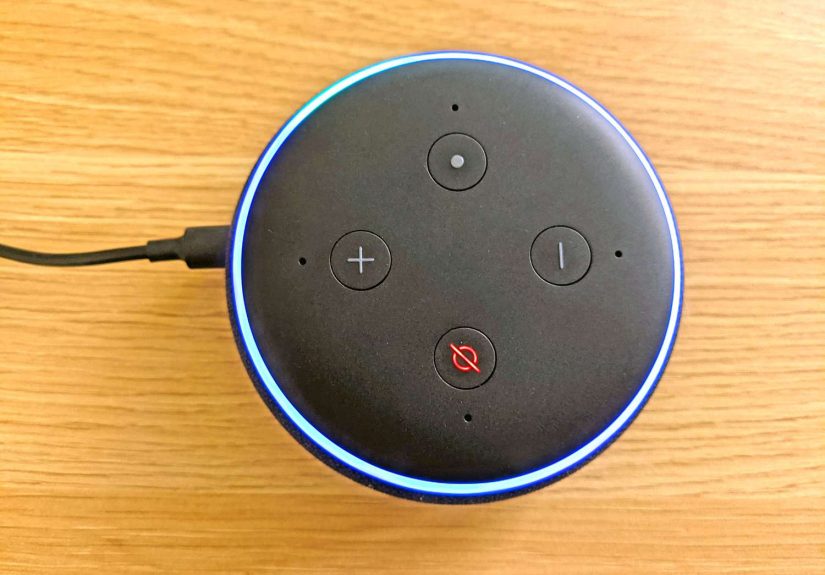
- Press and hold the Action button (the button with a dot) for about 5–10 seconds.
- Release when the light ring turns orange (or Alexa announces it’s ready for setup).
That’s it. You’ve basically tapped the Echo Dot on the shoulder and said, “Hey, pay attentionwe’re doing Wi-Fi now.”
Finish Setup in the Alexa App (The Part That Actually Makes It Work)
Once the Echo Dot is in Setup Mode (orange light), complete setup in the Alexa app:
- Open the Alexa app.
- Tap Devices.
- Tap the + (Add Device).
- Select Amazon Echo, then choose Echo Dot (or the closest match).
- When asked if your device is in setup mode (orange light), tap Yes.
- Select your Wi-Fi network, enter the password, and finish the prompts.
Once connected, the Echo Dot will automatically exit Setup Mode and stop showing the orange light.
If it stays orange, skip ahead to troubleshooting.
If the Orange Light Won’t Show Up: The “Nuclear Option” (Factory Reset)
If your Echo Dot refuses to enter Setup Modeor you bought it second-hand and it’s still “attached” to someone else’s setup
a factory reset usually solves it. This erases saved Wi-Fi settings and reboots the device back to a “new” state.
Echo Dot (3rd, 4th, 5th Gen): Reset with the Action Button
- Press and hold the Action button for about 20 seconds.
- Wait for the light ring to turn off and on again.
- When it returns, it should enter Setup Mode (orange).
Echo Dot (2nd Gen): Reset with Mic Off + Volume Down
- Press and hold Microphone Off and Volume Down together for about 20 seconds.
- Release when the light ring cycles off and on.
- After restart, it should land in Setup Mode (orange).
Echo Dot (1st Gen): Reset with the Reset Button (Paperclip Time)
- Find the Reset pinhole/button (usually on the base).
- Use a paperclip or pin to press and hold until the light indicates reset and setup readiness.
- When it’s ready, proceed in the Alexa app.
Factory reset is especially useful if you’re troubleshooting a “stuck” device, switching ownership, or the app can’t detect it at all.
If you’re just changing Wi-Fi, you might not need a full resettry the in-app Wi-Fi change first.
Common Setup Mode Problems (and How to Fix Them Fast)
Problem: “I held the Action button and nothing happened.”
- Give it a clean reboot: unplug for 30 seconds, plug back in, then try holding Action again.
- Wait for the boot lights to finish: if it’s still starting up (often cyan/blue), Setup Mode may not trigger immediately.
- Try a factory reset: if it still won’t cooperate, use the reset steps above for your generation.
Problem: “It’s orange… but it never finishes setup.”
- Wi-Fi password check: re-enter it carefully. One wrong character = infinite orange mood lighting.
- Move closer to the router: set up within the same room if possible.
- Try the 2.4 GHz network: many smart devices behave better on 2.4 GHz, even if yours supports 5 GHz.
- Restart router + Echo Dot: yes, it’s cliché; yes, it works surprisingly often.
Problem: “The Alexa app can’t find my Echo Dot.”
- Turn on Bluetooth and (if prompted) Location permissions for the Alexa app.
- Close and reopen the Alexa app, then try “Add Device” again.
- Disable VPN temporarily on your phone (some network settings can interfere with discovery).
- Too many Echo devices nearby? unplug the other ones during setup so the app doesn’t get “confused.”
Problem: “It was orange, then it stopped being orange.”
Setup Mode can time out. Just hold the Action button again for about 5–10 seconds until the orange light returns,
then resume setup in the Alexa app.
Problem: “It’s second-hand and feels… locked.”
If the previous owner didn’t deregister it from their Amazon account, setup can get messy.
A factory reset helps, but in rare cases, the device may still be associated until the previous owner removes it from their account.
Pro Tips for a Smooth Setup (Because Life Is Short)
- Name it clearly: “Kitchen Dot” beats “Echo Dot-9F3A” unless you enjoy mystery novels.
- Assign a room: it makes smart-home control easier later.
- Run updates early: after setup, let it sit for a few minutes so it can update quietly in the background.
- Check the light meanings: orange is setup/connection; other colors can hint at mic mute, calls, or notifications.
FAQ
How long does an Echo Dot stay in Setup Mode?
Typically, it stays in Setup Mode (orange) long enough to complete pairing and Wi-Fi setup. If it times out,
you can bring it back by holding the Action button again.
How do I get my Echo Dot out of Setup Mode?
Connect it to Wi-Fi in the Alexa app. Once setup completes, it exits Setup Mode automatically. If it seems stuck,
unplug it for 30 seconds and try again.
What does the orange light mean on Echo Dot?
Orange generally means the device is in Setup Mode or trying to connect to the internet.
Think of it as the Echo Dot saying, “Wi-Fi, please.”
Can I set up an Echo Dot without the Alexa app?
For Echo Dot models, the Alexa app is the standard way to complete setup and Wi-Fi connection.
Devices with screens (like some Echo Show models) can do more on-device, but the Dot is designed to use the app.
Conclusion
Putting an Echo Dot in Setup Mode is usually as simple as plugging it in and waiting for the orange light.
If it doesn’t cooperate, the Action button is your best friend: hold it until orange appears, then finish setup in the Alexa app.
And if all else fails, a factory reset can bring even the most stubborn Echo Dot back to a clean slate.
Real-World Experiences: Setup Mode in the Wild (Extra Tips + Stories)
Setup Mode sounds straightforward on paper: orange light, open app, connect Wi-Fi, done. In real life, it often comes with
tiny plot twistsnothing catastrophic, just the kind of “wait, why is it doing that?” moment that makes you stare at a glowing circle
like it’s a fortune teller.
One common experience: the Echo Dot goes orange, you open the Alexa app, and the app acts like it’s never heard of your device.
This usually isn’t personal. It’s typically because Bluetooth or permissions are quietly sabotaging you. People often fix it by toggling
Bluetooth off and on, reopening the app, or granting that one permission they swore they already granted. The funniest part is how quickly
the situation flipsfrom “this thing is cursed” to “oh, it was one tiny toggle.” Technology loves a dramatic reveal.
Another real-life setup scenario: apartment Wi-Fi that looks normal but behaves like a nightclub bouncer. If your building uses a captive portal
(a sign-in web page), the Echo Dot can’t “click” through it like your phone can. In those cases, people often switch to a standard home router,
use a phone hotspot temporarily to get the Dot online, or ask the provider for a device-friendly option. The key takeaway: if the internet requires
a browser login, the Echo Dot is going to sit there glowing orange like it’s waiting for you to translate human paperwork into robot language.
Then there’s the “I’m setting up multiple Echo devices” experience. It feels efficientuntil the Alexa app detects the wrong device, and you end up
naming your bedroom speaker “Kitchen” by accident. This happens more than you’d think, especially in homes with multiple Echos already powered on.
The easiest fix people report: unplug the other Echo devices during setup, or set up the new one in a different room temporarily.
It’s not elegant, but it’s fast, and it prevents the Alexa app from turning discovery into a guessing game.
A classic: the Echo Dot gets stuck in orange because the Wi-Fi password is slightly wrong. Not wildly wrongjust one character off.
The modern password is a masterpiece of chaos (“Summer2026!!!_Final2_REAL”), and the Echo Dot is not here to judgebut it will absolutely refuse to proceed.
When people retype the password carefully (sometimes switching to “show password” in the app), the setup magically completes.
If you’re troubleshooting, this is one of the first “boring but powerful” checks.
Finally, there’s the second-hand Echo Dot adventure. Many users buy one used, plug it in, and discover it’s still mentally living in someone else’s home.
A factory reset often solves it, returning the Dot to Setup Mode properly. But the best outcome comes when the previous owner deregisters it from their Amazon account.
If you’re buying used, it’s smart to test setup mode before you leave the parking lotbecause nothing says “awkward” like meeting a stranger twice
to ask them to remove a speaker from their account.
The overall real-world lesson is reassuring: if you can get the orange light, you’re usually 90% of the way there.
Most setup hiccups are caused by permissions, Wi-Fi details, distance from the router, or multiple Echo devices competing for attention.
Treat Setup Mode like a “ready” signalnot a guaranteeand you’ll troubleshoot faster and with fewer stress snacks.

![18 Best Types of Charts and Graphs for Data Visualization [+ How to Choose]](https://corkopencoffee.org/wp-content/uploads/2026/05/18-best-types-of-charts-and-graphs-for-data-visualization-how-to-choose-qKM1PBYG-thumb.jpg)