Table of Contents >> Show >> Hide
- What PS5 Rest Mode Actually Does (and What It Doesn’t)
- How to Put Your PS5 in Rest Mode
- The Rest Mode Settings That Actually Matter
- Automatic Downloads & Updates: Make Rest Mode Earn Its Keep
- Set Time Until PS5 Enters Rest Mode (So It Stops Falling Asleep at Awkward Times)
- Rest Mode vs. Turn Off: Which Should You Use?
- Common Rest Mode Issues (and How to Fix Them Without Losing Your Cool)
- Best-Practice Settings: Simple Setups That Work for Real Life
- Real-World Experiences & Scenarios (Extra )
- Conclusion
- SEO Tags
Your PS5 is basically a tiny space heater that also happens to play incredible games. So when you’re done
for the night (or, let’s be honest, “done” for the next 12 minutes), you’ve got a choice: shut it down
completely, or let it take a power nap in Rest Mode.
Rest Mode is the sweet spot between “wide awake” and “fully asleep.” It keeps the console in a low-power
state while still handling useful background taskslike charging controllers, downloading updates, and
staying reachable for Remote Playdepending on how you set it up.
What PS5 Rest Mode Actually Does (and What It Doesn’t)
Think of Rest Mode as your PS5 saying: “I’m not off, I’m just resting my eyes.” In Rest Mode, the
system reduces power use and can keep certain features running, such as:
- Charging controllers through USB (if you allow USB power in Rest Mode).
- Downloading and installing updates (if you let the PS5 stay connected to the internet).
- Syncing saves (useful for cloud saves, depending on your setup).
- Waking from the network for Remote Play / PS App convenience (if enabled).
What it doesn’t do: it won’t magically fix your backlog, prevent you from buying another game during a sale,
or stop your friend from messaging “one more match?” at 1:47 a.m.
How to Put Your PS5 in Rest Mode
Method 1: Use the Control Center (the everyday way)
- Press the PS button on your DualSense controller to open the Control Center.
- Select the Power icon.
- Choose Enter Rest Mode.
Your PS5’s light will change to an amber/orange glow, which is console language for “I’m still here, but
please stop yelling at me.”
Method 2: Press the Console Power Button (the “I can’t find my controller” way)
If your controller is missing (possibly living under the couch with all your lost socks), you can also
press the PS5’s power button once to put it into Rest Mode.
Method 3: Let It Happen Automatically (the “PS5, do your thing” way)
By default, the PS5 can enter Rest Mode after a period of inactivity. If your console keeps taking surprise
naps mid-streaming session, you can adjust the timer (we’ll cover that in a bit).
The Rest Mode Settings That Actually Matter
Rest Mode can be incredibly usefulor basically pointlessdepending on three key toggles. To find them:
Settings → System → Power Saving →
Features Available in Rest Mode
1) Supply Power to USB Ports
This setting controls whether your PS5 powers the USB ports while in Rest Mode so you can charge things like
your DualSense controller.
- Always: Keeps USB power on the whole time (best for charging, least energy-saving).
- 3 Hours: Powers USB for a limited window, then reduces power use.
- Off: No USB power in Rest Mode (maximum savings, zero charging).
- Adaptive (on some newer models): Adjusts USB power behavior automatically to reduce unnecessary charging.
Practical tip: If your controller is always dead when you sit down to play, this setting is usually the
culprit. Pick Always or 3 Hours if you regularly dock your controller.
2) Stay Connected to the Internet
This is the “make my PS5 useful while I’m asleep” switch. With it enabled, your PS5 can download updates and
do background network tasks in Rest Mode.
If you turn it off, Rest Mode becomes more like “Rest Mode: Offline Edition.” Your console will nap quietly,
but don’t expect overnight downloads.
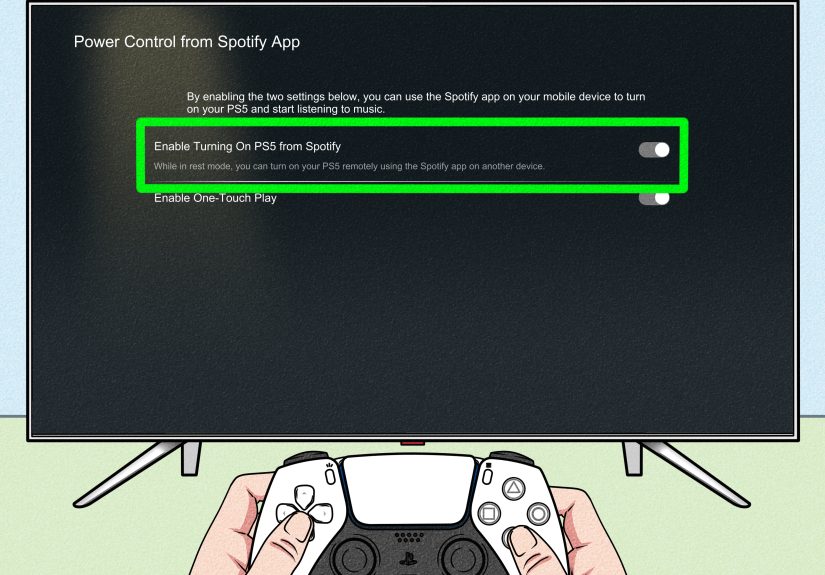
3) Enable Turning On PS5 from Network
This option lets your PS5 wake up via the network, which is helpful if you use:
- Remote Play (playing from another device)
- PlayStation App conveniences
- Any setup where you want your console to be reachable without physically pressing the button
If you’ve ever tried Remote Play and wondered why your PS5 acted like it was on airplane mode, check this
setting first.
Automatic Downloads & Updates: Make Rest Mode Earn Its Keep
Rest Mode is at its best when it quietly handles the boring stuffso you can jump into a game without a
38-minute update surprise.
Auto-download and auto-install game updates
Go to:
Settings → Saved Data and Game/App Settings →
Automatic Updates
- Auto-Download: Downloads updates automatically.
- Auto-Install in Rest Mode: Installs updates while the console is in Rest Mode (where supported).
Important: Auto-update features typically work best when Stay Connected to the Internet is
enabled in Rest Mode.
System software updates (the “please don’t unplug me” category)
Keeping your PS5 system software current helps performance and stability, and can reduce the chance of weird
power-state glitches. If you want your console to update while resting, make sure your Rest Mode internet
connection option is enabled and your update settings are configured accordingly.
Set Time Until PS5 Enters Rest Mode (So It Stops Falling Asleep at Awkward Times)
If your PS5 keeps going into Rest Mode while you’re “watching” a show (read: you fell asleep),
you can adjust when it happens.
Go to:
Settings → System → Power Saving →
Set Time Until PS5 Enters Rest Mode
You can typically set separate timers for:
- During Media Playback (streaming apps, video content)
- While Playing Games
If you hate the idea of your console sleeping without permission, choose Don’t Put in Rest Mode.
Just remember: staying fully on uses more power than Rest Mode.
Rest Mode vs. Turn Off: Which Should You Use?
There’s no single “best” choicejust the best choice for how you use your PS5. Here’s the practical breakdown:
Use Rest Mode if you want:
- Overnight downloads and updates
- Charged controllers without thinking about it
- Remote Play convenience
- Less “waiting for updates” and more “actually playing games”
Turn Off PS5 if you want:
- Maximum energy savings
- Extra peace of mind during storms / unstable power
- To unplug or move your console safely
- To troubleshoot persistent Rest Mode weirdness
A solid compromise many people use: Rest Mode on normal days, full shutdown when leaving town or if the power
in your area is flaky.
Common Rest Mode Issues (and How to Fix Them Without Losing Your Cool)
Problem: “My PS5 won’t wake up from Rest Mode”
First, try the basics: press the PS button, then try the console power button. If it seems frozen, do a
full power cycle:
- Turn the console fully off (hold the power button until it shuts down if needed).
- Unplug the power cable for a short while.
- Plug it back in and restart.
If the console keeps starting into Safe Mode or acting unstable, Safe Mode maintenance options like clearing
cache or rebuilding the database may help (and can be less dramatic than a full reset).
Problem: “My controller didn’t charge in Rest Mode”
This is almost always a settings mismatch. Check:
- Supply Power to USB Ports is not set to Off.
- Your cable is data/charge-capable (yes, some cables are basically decorative spaghetti).
- Try a different USB port if one is picky.
Problem: “Downloads stop in Rest Mode”
Make sure Stay Connected to the Internet is enabled. Also confirm your automatic update
settings are turned on. If your Wi-Fi is unstable, consider using Ethernet for a more consistent connection,
especially for large game downloads.
Problem: “My PS5 keeps turning off or acting haunted”
Unexpected shutdowns can be caused by heat, dust, power strips that are barely hanging on, or occasional
software hiccups. If it happens repeatedly:
- Improve ventilation (don’t suffocate the PS5 in a tight cabinet).
- Clean vents and reduce dust buildup.
- Try a wall outlet instead of a heavily loaded power strip.
- Temporarily disable Rest Mode to see if stability improves.
Best-Practice Settings: Simple Setups That Work for Real Life
The “I want updates and charged controllers” setup
- Supply Power to USB Ports: Always (or 3 Hours if you want a compromise)
- Stay Connected to the Internet: On
- Enable Turning On from Network: On (especially if you use Remote Play)
- Automatic Updates: Auto-Download + Auto-Install in Rest Mode
The “I want Rest Mode, but not a bigger power bill” setup
- Supply Power to USB Ports: 3 Hours (or Adaptive on supported models)
- Stay Connected to the Internet: On (so downloads still happen)
- Enable Turning On from Network: Optional (turn off if you never use Remote Play)
The “I don’t trust Rest Mode yet” setup
- Set Time Until Rest Mode: Don’t Put in Rest Mode
- Turn the console off fully when finished
- Manually update games when convenient
Real-World Experiences & Scenarios (Extra )
The best way to understand Rest Mode is to see how it behaves in everyday gaming lifebecause “features”
sound nice, but your real question is: “Will this save me time, or will it create a new and exciting problem
at the worst possible moment?”
Scenario 1: The overnight download that actually finishes
You buy a new game, hit download, and the PS5 cheerfully informs you it’s going to take approximately the
length of a small geological era. Rest Mode is perfect hereif you’ve enabled “Stay Connected to the
Internet.” People who love Rest Mode tend to be the same people who hate update screens with the passion of
a thousand suns. The vibe is simple: start the download, put the console into Rest Mode, wake up, and play.
No surprise patches. No “copying…” progress bar that ages you in dog years. Just… game.
Scenario 2: The controller charging habit that pays off
A lot of PS5 owners fall into one of two lifestyles:
(1) “I plug in my controller every time,” or
(2) “I live dangerously, and I like it.”
Rest Mode rewards Lifestyle #1. If you set USB power to Always (or 3 Hours/Adaptive as a compromise), you can
build a routine: finish playing, connect the controller, put the console into Rest Mode. Next session, you’re
not hunting for a charger like it’s a side quest. It’s one of those tiny quality-of-life wins that makes the
PS5 feel more like an appliance (in a good way) and less like a moody supercomputer.
Scenario 3: Remote Play “why isn’t it working?”
Remote Play can feel magical when it’s set up correctlyand baffling when it’s not. One of the most common
real-world “aha” moments is realizing the PS5 can’t be awakened remotely unless “Enable Turning On PS5 from
Network” is enabled. People will troubleshoot routers, restart apps, and contemplate a new career in
woodworking… when the fix is a simple toggle in Rest Mode features. If you plan to stream games to another
device, Rest Mode settings matter as much as your Wi-Fi does.
Scenario 4: The “Rest Mode drama” that makes some people quit it
It’s also true that some players have had Rest Mode hiccupsespecially early on or in certain setupsand that
experience sticks. If you’ve ever had a console fail to wake properly, or seen a warning message after a power
event, you might prefer turning the PS5 fully off unless you specifically need Rest Mode benefits that night.
A lot of experienced users end up with a personal rule like: “Rest Mode on normal days; full shutdown during
storms, travel, or when I’m gone for a while.” It’s not paranoiait’s just choosing reliability when the
situation calls for it.
Scenario 5: The “set it and forget it” sweet spot
The happiest Rest Mode campers usually land on a balanced configuration:
USB power limited (3 Hours or Adaptive), internet connection on, and auto-updates enabled. This setup delivers
the main convenienceupdates and ready-to-play gameswithout keeping everything powered all night. It’s the
console equivalent of meal prep: a little setup now, a lot less friction later.
Bottom line: Rest Mode isn’t just a switchit’s a set of behaviors. When you tune it to match how you play,
it becomes one of those “why didn’t I do this sooner?” features.
Conclusion
Putting your PS5 into Rest Mode is easy. Making Rest Mode useful is where the real win is. Once you
dial in USB power, internet connectivity, and network wake settings, your console can handle updates and
charging in the background so you spend less time waiting and more time playing.
If you want a quick starting point: enable internet in Rest Mode, set USB power to 3 Hours (or Adaptive if
available), and turn on automatic updates. Then enjoy the rarest luxury in modern gaming: launching a game
without a surprise download.