Table of Contents >> Show >> Hide
- Jump to a Section
- Step 0: Identify Your SoundLink Color Model
- Before You Reset: The 60-Second Checklist
- Method 1: Soft Reset (Quick Reboot)
- Method 2: Factory Reset (SoundLink Color, 1st Gen)
- Method 3: Factory Reset (SoundLink Color II)
- Method 4: Clear the Bluetooth Pairing List (Often the Best Fix)
- Method 5: Update Firmware (The “Reset-Adjacent” Fix)
- After Reset: Pairing Steps That Actually Work
- Troubleshooting: Still Not Connecting or Turning On
- FAQ: Reset Questions People Ask at 1:00 AM
- Will resetting my Bose SoundLink Color delete my paired devices?
- What’s the difference between “reset” and “clear Bluetooth list”?
- My speaker pairs, but won’t connect automatically anymore. Why?
- How do I make sure it’s in pairing mode?
- Should I update firmware before or after resetting?
- Is it normal to have to reset a Bluetooth speaker sometimes?
- Extra: Real-World Reset Experiences (and What They Teach You)
- Experience #1: “It worked yesterday. Today it’s a stranger.”
- Experience #2: The “Wrong Device Romance” problem
- Experience #3: Traveling with the speaker (aka Bluetooth in a new habitat)
- Experience #4: The hand-me-down or resale reset
- Experience #5: The “reset didn’t work” panic (and what usually did)
Your Bose SoundLink Color is supposed to be the low-maintenance friend who shows up,
plays the playlist, and never makes things weird. And yet here we are: it won’t connect, it’s acting
like it’s never met your phone, or it’s doing that “blink-blink-nope” light show.
The good news: most SoundLink Color problems are fixable with a reset (or the reset’s underrated cousin,
“clear the Bluetooth list”). The better news: you don’t need a toolbox, a degree in wizardry, or a long
call with your cousin who “is good with tech.” This guide walks you through the right reset method for
your SoundLink Color model, plus what to do if it still refuses to cooperate.
Step 0: Identify Your SoundLink Color Model
“Bose Color SoundLink” usually means one of two speakers:
SoundLink Color (1st gen) or SoundLink Color II. The reset steps are
different, so this part matters more than it should.
Clues you likely have SoundLink Color II
- You hear voice prompts (battery announcements, setup guidance, language selection).
- After a factory reset, the speaker may prompt you to select a language.
- The button layout and icons match the Color II style (common in newer retail listings).
Clues you likely have the original SoundLink Color (1st gen)
- Fewer or no voice prompts (more simple tones).
- Reset instructions involve the AUX button (Color II factory reset doesn’t).
Not 100% sure? No problem. This article gives you both factory reset methods, clearly labeled, so you can
pick the one that matches your buttons and behavior.
Before You Reset: The 60-Second Checklist
Resetting works, but it’s also the “turn it off and on again” of the speaker worldeffective, yes, but
not always necessary. Before you wipe anything, try this quick checklist:
- Charge it for 10–15 minutes using a reliable power source. Low battery can cause weird pairing behavior.
- Move closer (within a few feet) and avoid walls, microwaves, and other signal drama.
- Turn Bluetooth off/on on your phone, then try again.
- Restart your phone (yes, really).
- Forget the speaker in your phone’s Bluetooth settings, then re-pair.
- Disconnect other devices that might be auto-connecting (tablets, laptops, your sibling’s phone, etc.).
If your SoundLink still won’t connect, keeps dropping audio, or behaves like it has selective memory,
it’s reset time.
Method 1: Soft Reset (Quick Reboot)
A soft reset is the least dramatic option. It doesn’t erase pairings or settings; it simply refreshes
the speaker’s current state. It’s perfect when the speaker is responsive but glitchy (audio stuttering,
random disconnects, buttons lagging).
Soft reset steps
- Turn the speaker off.
- Wait 10 seconds.
- Turn it back on.
If you’re troubleshooting a Bluetooth connection issue, do a “two-device reboot”:
reboot the speaker and restart your phone/computer, then try pairing again.
If the problem is persistentlike the speaker refuses to pair, keeps reconnecting to the wrong device,
or seems stuck in a loopmove on to the next methods.
Method 2: Factory Reset (SoundLink Color, 1st Gen)
A factory reset is the “wipe the slate clean” option. Use this when:
you’re selling/gifting the speaker, you want to remove all settings, or pairing has become a recurring
soap opera.
What a factory reset does
- Erases saved settings and returns the speaker to out-of-box behavior.
- Typically clears pairing information so you can start fresh.
Factory reset steps (SoundLink Color, 1st gen)
- Connect the speaker to power (recommended for stability).
- Power on the speaker.
-
Press and hold AUX and Volume Down (–) together for
15 seconds, until you hear a tone.
After the tone, the speaker should be reset and ready for setup again. If you don’t hear a tone,
try again while the speaker is plugged into power and fully on.
Method 3: Factory Reset (SoundLink Color II)
If you have the SoundLink Color II, the factory reset uses the Power button and ends with the speaker
behaving like it just came out of the box (including voice prompts).
Factory reset steps (SoundLink Color II)
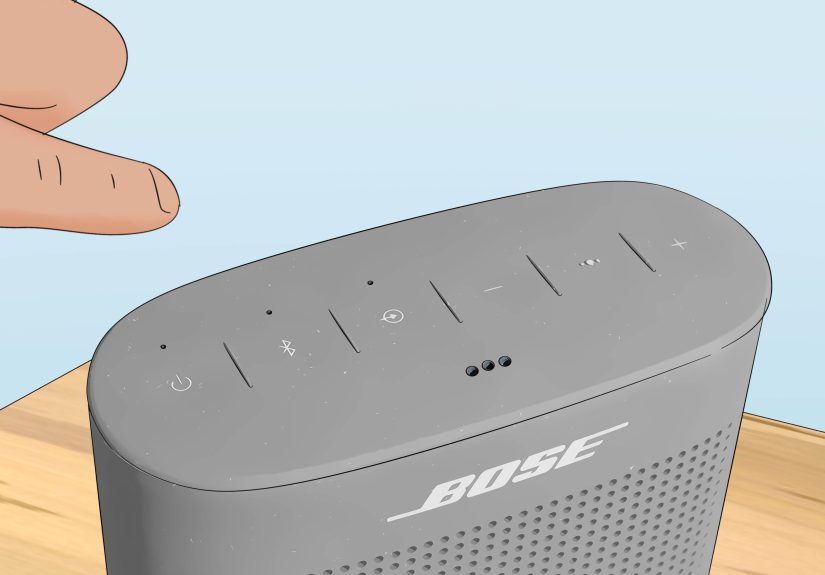
- Power on your speaker.
-
Press and hold the Power button for about 10 seconds
until the Bluetooth light blinks blue and you hear a prompt to select a language.
Once you’re back at language selection / ready-to-connect mode, you’ve successfully factory reset the
speaker. Now you can pair it again like it’s day one.
Method 4: Clear the Bluetooth Pairing List (Often the Best Fix)
If your SoundLink Color keeps connecting to an old phone, refuses to show up on your new device,
or says “connected” while playing audio to the wrong universe, you might not need a full factory reset.
Clearing the Bluetooth list is a targeted fix: it wipes remembered devices without necessarily doing a
full settings reset.
Clear the speaker’s Bluetooth memory (device list)
- Power on the speaker.
-
Press and hold the Bluetooth button for about 10 seconds
until you hear a tone (or hear a voice message indicating the device list is cleared, depending on model).
When to choose “clear Bluetooth list” over factory reset
- You’re keeping the speaker (not selling it).
- You just want to stop auto-connecting to old devices.
- You’re troubleshooting pairing and want the fastest “fresh start” for Bluetooth only.
After clearing the list, go to your phone’s Bluetooth settings, remove/forget the speaker if it’s saved,
then pair again.
Method 5: Update Firmware (The “Reset-Adjacent” Fix)
Firmware updates aren’t as exciting as a reset, but they’re often the reason a reset stops being a
recurring monthly tradition. Updates can improve stability, fix connection bugs, and generally make the
speaker less moody.
Option A: Update using a computer (Bose Updater)
- Use a USB cable to connect your SoundLink Color speaker to a computer.
- Open the Bose Updater site on the computer and follow the instructions.
- Let the update complete without unplugging the speaker mid-process.
Option B: Update wirelessly (Bose Connect app, if supported)
- Install/open the Bose Connect app on your phone.
- Connect the speaker, then check for product updates in the app’s settings (if available for your model).
Tip: If you’re already in troubleshooting mode, updating after a reset is a smart pairinglike washing
your hands after fixing the sink. You don’t have to, but you’ll feel better.
After Reset: Pairing Steps That Actually Work
Resets are great, but the “after” matters. Pairing is where most people accidentally get stuck in an
endless loop of “Connected… Not Connected… Connected… Why am I like this?”
Step-by-step pairing (works for iPhone, Android, and most computers)
- Turn on the speaker.
-
Put it into pairing mode:
press the Bluetooth button until the Bluetooth light blinks (often blue). - On your phone/computer, open Bluetooth settings and select the speaker from the list.
- If prompted for confirmation, accept the pairing request.
If you’re pairing to an iPhone or iPad
- If the speaker was previously connected, try unpairing/forgetting it, then re-pair in discovery mode.
- If it pairs elsewhere but not on iOS, disconnect it from other devices that might be holding onto it.
If you’re pairing to Android
- Remove the speaker from the saved devices list, then re-pair.
- If Bluetooth behaves strangely across multiple devices, resetting your phone’s Bluetooth/Wi-Fi settings can help (last resort).
If you’re pairing to Windows
- If the speaker shows up but won’t connect, remove the device in Windows Bluetooth settings, then add it again.
Pairing pro tip: Some Bluetooth issues are less about your speaker and more about a “stale relationship”
between devices. Removing and re-adding the speaker on your phone/computer is often the missing step.
Troubleshooting: Still Not Connecting or Turning On
Problem: The speaker won’t show up in Bluetooth lists
- Make sure the speaker is in pairing mode (blinking Bluetooth light).
- Clear the speaker’s Bluetooth memory (hold Bluetooth button ~10 seconds).
- Turn Bluetooth off/on on your phone and try again.
- Move closer and reduce interference.
Problem: It connects, but audio cuts out or stutters
- Bring the phone closer and remove obstacles.
- Restart both devices (speaker + phone).
- Update firmware using Bose Updater or the Bose app if supported.
- Check whether another device is trying to steal the connection.
Problem: It keeps connecting to the wrong device
- Clear the speaker’s Bluetooth list.
- Forget the speaker on the old device so it can’t auto-connect.
- Re-pair from the device you actually want to use.
Problem: The speaker won’t turn on (or seems frozen)
- Charge it with a known-good cable and power adapter for at least 10–15 minutes.
- Try the appropriate factory reset method for your model while connected to power.
- If available for your device, update firmware after it powers on.
If your SoundLink is still unresponsive after charging and official reset steps, it may be dealing with
a battery, charging, or hardware issue. At that point, the safest next step is checking official support
options rather than attempting DIY disassembly.
FAQ: Reset Questions People Ask at 1:00 AM
Will resetting my Bose SoundLink Color delete my paired devices?
A factory reset returns the speaker to out-of-box state and typically removes remembered
devices and settings. If you only want to remove old connections, try clearing the Bluetooth list
firstit’s often faster and solves the same problem.
What’s the difference between “reset” and “clear Bluetooth list”?
Think of it like cleaning your room:
clearing the Bluetooth list is tossing out old receipts and random cables,
while a factory reset is moving out and putting everything back where it came from.
If the problem is pairing-related, clearing Bluetooth memory is usually the best first move.
My speaker pairs, but won’t connect automatically anymore. Why?
Auto-connect depends on device priority, recent connections, and whether your phone still “trusts” the
speaker. If you cleared the Bluetooth list or forgot the device on your phone, you’ll need to re-pair.
Also, another device might be connecting first in the background.
How do I make sure it’s in pairing mode?
Press the Bluetooth button until the Bluetooth indicator light blinks (often blue).
Blinking usually means “discoverable,” while solid often means “already connected.”
Should I update firmware before or after resetting?
If your speaker is functioning well enough to update, doing it before a reset can help.
But if the speaker is glitching or refusing to connect, resetting first often makes the update process smoother.
Either way, firmware updates are worth doing if you’re chasing stability.
Is it normal to have to reset a Bluetooth speaker sometimes?
Unfortunately, yes. Bluetooth devices can accumulate old pairings, conflict with multiple phones, or get
stuck after OS updates. Resetting is a normal troubleshooting step, not a sign that you broke anything
(even if your speaker is acting personally offended).
Extra: Real-World Reset Experiences (and What They Teach You)
Let’s talk about the part nobody includes in the quick-start guide: the human experience of
resetting a Bose SoundLink Color. Because the reset steps are easy, but the situations that lead you to
them are… weirdly consistent.
Experience #1: “It worked yesterday. Today it’s a stranger.”
A common story goes like this: you used your SoundLink Color last night, everything sounded great,
you went to sleep, and the next day it’s acting like your phone is an unsolicited email. This usually
happens after a phone OS update, a Bluetooth cache hiccup, or when the speaker quietly latched onto a
different device in the room (laptop, tablet, someone else’s phone). The lesson: don’t assume the speaker
is “broken” just because it’s suddenly hard to pair. First, clear the speaker’s Bluetooth memory and
re-pair. It’s the fastest way to stop the “who are you?” behavior.
Experience #2: The “Wrong Device Romance” problem
Bluetooth speakers have one truly chaotic trait: they remember old connections, and they’re not shy about
rekindling them. You turn the speaker on, and it instantly reconnects to the phone you haven’t used since
the era of bezel-less dreams. Meanwhile, your current phone sits there like, “Hello? I’m right here?”
This happens most when multiple devices have been paired over time (roommates, family, old work phones).
The lesson: clearing the Bluetooth list is basically couples counseling for your speaker. Once it forgets
everyone, you can introduce it to the one device you actually want it to commit to.
Experience #3: Traveling with the speaker (aka Bluetooth in a new habitat)
At home, your SoundLink Color behaves. Then you take it to a hotel, a friend’s house, a park, or a
backyard barbecue and suddenly pairing takes three tries, audio drops, or it won’t appear in the list.
New environments can mean new interference (tons of other Bluetooth devices nearby), different phone
behaviors (car Bluetooth trying to connect), and more distance/obstacles than you realize. The lesson:
when pairing in crowded places, do the “close and simple” routinestand within a few feet, put the
speaker in pairing mode, and temporarily disable Bluetooth on other devices that might auto-connect.
If the speaker has a long list of remembered devices, clearing that list before a trip can prevent the
awkward “why won’t it connect?” moment when everyone is waiting for music.
Experience #4: The hand-me-down or resale reset
When you buy a used SoundLink Coloror borrow one from a family memberyou inherit their Bluetooth history.
It might still be paired to their phone, set up with their preferences, and ready to reconnect to them
the moment they walk into the room. The lesson: in resale and hand-me-down situations, skip the small fixes
and do a proper factory reset right away. It’s cleaner, faster, and it prevents the speaker from “calling
its ex” the first time you try to play audio.
Experience #5: The “reset didn’t work” panic (and what usually did)
Sometimes you do the reset and nothing changesat least not immediately. This usually comes down to one
of three things: (1) the button combo wasn’t held long enough, (2) the speaker wasn’t fully powered on or
wasn’t connected to power when it needed stability, or (3) your phone/computer still had the old pairing
saved and kept trying to connect using outdated info. The lesson: after a reset, also forget/remove the
speaker from your phone/computer’s Bluetooth list. Then re-pair from scratch. Resets are a two-part dance:
the speaker resets, and the device must agree to meet it again like it’s brand new.
Bottom line: most “SoundLink Color problems” are really “Bluetooth relationship problems.” The reset
isn’t a punishmentit’s a fresh start. And sometimes, fresh starts are exactly what your playlist deserves.