Table of Contents >> Show >> Hide
- Quick Jump
- Before You Start (1-minute checklist)
- Way 1: Use the YouTube App on Your Smart TV or Streaming Device
- Way 2: Cast YouTube from Your Phone/Tablet (Chromecast / Google Cast)
- Way 3: Link with a TV Code (No Same Wi-Fi Needed)
- Way 4: AirPlay YouTube from iPhone/iPad/Mac
- Way 5: Screen Mirroring (When Casting Isn’t an Option)
- Way 6: Go Old-School with HDMI (Most Reliable)
- Which Method Should You Use?
- Quick Troubleshooting (Cast icon drama, solved)
- FAQ
- Real-World Experiences & Tips (Extra)
- Experience #1: The “Same Wi-Fi” Trap (aka: Guest Network Betrayal)
- Experience #2: The “Cast Icon Is Missing” Panic
- Experience #3: Mirroring Works… Until You Actually Need It
- Experience #4: The Hotel TV Olympics
- Experience #5: When “It’s Connected” Doesn’t Mean It’s Connected
- Experience #6: The “Everyone’s a DJ” Party Queue
- Conclusion
YouTube on a phone is fine. YouTube on a TV is better. (Science says so. Okay, your couch says so.) Whether you’ve got a brand-new smart TV or a “vintage” screen that still thinks 1080p is showing off, there are a handful of easy ways to get YouTube up on the big displaywithout turning your living room into an IT help desk.
Below are six simple, legit ways to stream or cast YouTube to your TV, with practical steps, quick troubleshooting, and a few sanity-saving tips for when the cast icon plays hide-and-seek.
Before You Start (1-minute checklist)
- Update YouTube on both your phone and TV/streaming device. Older app versions love causing “invisible TV” syndrome.
- Same Wi-Fi matters for most casting/mirroring methods. If your phone is on a guest network and your TV isn’t, they may never meet.
- Turn off VPN (temporarily) if casting fails. VPNs can confuse local network discovery.
- Know your goal: “Cast” (TV plays the video) vs. “Mirror” (TV copies your screen). Casting is usually smoother.
Way 1: Use the YouTube App on Your Smart TV or Streaming Device
If your TV (or streaming stick/box) has a YouTube app, this is the cleanest setup. The TV does the streaming; your phone becomes an optional remote, not the engine.
Best for
- Smart TVs (Samsung, LG, Sony, Vizio, etc.)
- Streaming devices (Roku, Fire TV, Apple TV, Chromecast/Google TV devices)
- Game consoles (PlayStation, Xbox)
How to do it
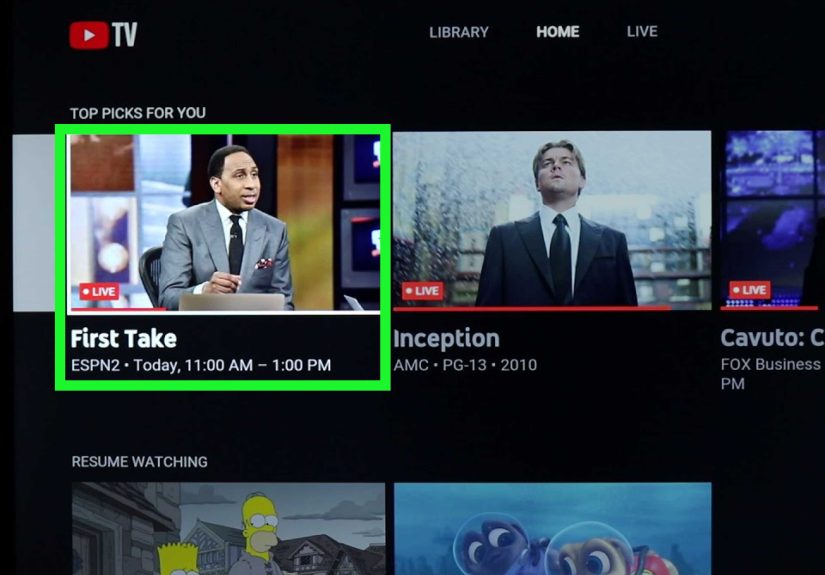
- Open YouTube on your TV or streaming device.
- Sign in:
- If you see a QR code or activation code, follow the on-screen steps on your phone.
- Or sign in using the remote (slower, but still validlike printing directions in 2026).
- Browse and play videos directly on the TV.
Pro tip
Signing in usually unlocks subscriptions, watch history, and a much smarter recommendation feedso the TV stops suggesting “10 hours of dishwasher sounds” unless you truly deserve it.
Way 2: Cast YouTube from Your Phone/Tablet (Chromecast / Google Cast)
This is the classic “tap a button and it appears on the TV like magic” method. Your phone tells the TV what to play, then the TV streams the video directly. You can still use your phone for texting, scrolling, or aggressively researching “why does my dog stare at walls.”
What you need
- A TV/streaming device that supports Google Cast (Chromecast, Google TV devices, many smart TVs)
- Your phone/tablet on the same Wi-Fi as the TV device
Steps (YouTube app)
- Open the YouTube app on your phone or tablet.
- Tap the Cast icon (it looks like a screen with Wi-Fi waves).
- Select your TV/streaming device from the list.
- Pick a video and hit play. You’ll see playback controls on your phone.
Steps (from a computer)
- Open YouTube.com in a browser (Chrome is the easiest for casting-friendly behavior).
- Look for the Cast option or use your browser’s cast feature (varies by setup).
- Select your TV device, then play the video.
Nice extras
- Queue videos from multiple phones (perfect for party “DJ” chaos).
- Higher stability than mirroring, because your phone isn’t sending every pixel of your screen.
Way 3: Link with a TV Code (No Same Wi-Fi Needed)
This one is wildly underratedespecially for hotel TVs, dorm setups, or any place where the Wi-Fi situation is… emotionally complicated. A TV code links your phone to the TV’s YouTube app without relying on both devices being on the same network.
Best for
- Hotels / guest Wi-Fi where devices can’t “see” each other
- Homes with separate networks (main vs. guest)
- When the Cast icon refuses to find your TV
How to link with a TV code
- On your TV, open the YouTube app.
- Go to Settings → Link with TV code.
- A code appears on the TV.
- On your phone, open YouTube, tap Cast, then choose Link with TV code.
- Enter the code. Your phone is now a remote for that TV’s YouTube app.
Good to know
TV code linking is designed for phones/tablets (not computers), and it’s about control + playback on the TV app not full screen mirroring.
Way 4: AirPlay YouTube from iPhone/iPad/Mac
If you live in Apple-land (iPhone + Apple TV, or an AirPlay 2-compatible smart TV), AirPlay is your fast lane. You can either stream a video (best) or mirror your screen (useful, but heavier).
What you need
- An Apple TV or an AirPlay 2-compatible smart TV
- Your Apple device and TV on the same Wi-Fi
Option A: Stream the video (recommended)
- Open YouTube on your iPhone/iPad (or YouTube in a browser/app on Mac).
- Start a video.
- Tap the AirPlay icon (or the playback destination icon, depending on the app).
- Select your Apple TV / AirPlay TV.
Option B: Mirror your screen (for “anything on my screen” moments)
- Open Control Center on iPhone/iPad.
- Tap Screen Mirroring.
- Select your TV/Apple TV and enter the passcode if prompted.
Heads-up
Mirroring is more demanding than streaming. If your video stutters while mirroring, try switching to direct streaming or lowering the video quality.
Way 5: Screen Mirroring (When Casting Isn’t an Option)
Screen mirroring is the Swiss Army knife method: it works for YouTube, surebut also for random websites, apps, and anything else your screen can display. The tradeoff: it can be less smooth than true casting.
Common mirroring flavors
- Android screen cast / Smart View (varies by phone brand)
- Roku screen mirroring (Android/Windows ecosystems commonly supported)
- Fire TV mirroring (device support varies)
- Windows “Cast” / Wireless Display (Miracast-capable setups)
General steps (Android phone to TV)
- Ensure phone and TV/streaming device are on the same Wi-Fi.
- On Android, open Quick Settings and look for Cast, Screen Share, or Smart View.
- Select your TV/device from the list.
- Open YouTube and play your video.
General steps (Windows laptop to TV)
- Make sure the TV supports wireless display (Miracast) or you have a compatible wireless display adapter.
- On Windows, open the connect/cast panel (often via a shortcut like the devices/cast menu).
- Select the TV/adapter and choose whether to duplicate or extend your display.
- Play YouTube in a browser.
When mirroring is the best choice
- The YouTube Cast icon doesn’t appear
- You want to show a playlist, comments, or a specific webpage
- You’re demoing something (tutorials, presentations, “look at this meme right now”)
Way 6: Go Old-School with HDMI (Most Reliable)
When Wi-Fi is flaky, apps are moody, and your TV pretends it’s never met your phone before, HDMI is the no-drama option. It’s not as magical as castingbecause there’s a cablebut it’s incredibly dependable.
Best for
- Lag-free playback (as close as you’ll get)
- Hotels and guest networks
- Older TVs that aren’t smart
- Situations where you want the TV to act like a big monitor
HDMI from a laptop
- Plug an HDMI cable into your laptop and TV.
- Switch the TV input to the correct HDMI port.
- On your laptop, set display mode (duplicate/extend).
- Open YouTube in a browser and play.
HDMI from a phone/tablet
- Many devices need a USB-C to HDMI adapter (Android phones, newer iPads, some tablets).
- Some setups support video-out; others don’t. If it works, it’s fantastic. If it doesn’t, it’s still not your fault.
If you want the “it just works” path and don’t mind a cable, HDMI is the closest thing to streaming peace.
Which Method Should You Use?
Here’s a quick comparison so you don’t have to read this article twice (unless you’re really enjoying the vibes).
| Method | Best For | Strengths | Tradeoffs |
|---|---|---|---|
| YouTube TV app (Way 1) | Everyday viewing | Stable, clean, TV does the work | Remote typing can be slow |
| Cast (Way 2) | Fast “send to TV” | Smooth playback, phone as remote | Usually needs same Wi-Fi |
| TV code (Way 3) | Hotels / split networks | No same Wi-Fi required | Phone/tablet only |
| AirPlay (Way 4) | Apple ecosystems | Simple, solid streaming | Mirroring can stutter |
| Screen mirroring (Way 5) | Anything on your screen | Flexible, works beyond YouTube | More lag, more network-sensitive |
| HDMI (Way 6) | Maximum reliability | Very stable, low lag | Cable + adapters |
Quick Troubleshooting (Cast icon drama, solved)
1) “My TV doesn’t show up”
- Confirm both devices are on the same Wi-Fi (and not split between guest and main).
- Restart the TV/streaming device and your phone.
- Turn off VPN temporarily.
- Open YouTube on the TV first, then try casting again.
2) “The Cast icon is missing in YouTube”
- Update the YouTube app.
- Make sure your TV/streaming device supports casting (or use TV code linking as a workaround).
- If you’re on a restricted network (hotel/campus), try TV code linking.
3) “It connects, but playback lags or buffers”
- Prefer casting over mirroring when possible.
- Lower YouTube video quality temporarily (especially if multiple devices are hammering the Wi-Fi).
- Move closer to the router or switch to a less congested band if your router supports it.
4) “Audio plays on my phone instead of TV”
- Re-select the cast/AirPlay destination.
- Stop playback, disconnect, then reconnect. (Yes, it’s annoying. Yes, it works a lot.)
FAQ
Is casting the same as screen mirroring?
Not quite. Casting tells the TV to stream the video directly (usually smoother). Mirroring copies your entire screen to the TV (more flexible, often more lag).
Can I cast YouTube without Wi-Fi?
If you don’t have a shared Wi-Fi network, TV code linking may still work in certain setups. Otherwise, HDMI is your most dependable “no shared Wi-Fi” option.
Do I need a Chromecast to cast YouTube?
Not always. Many smart TVs and streaming devices have casting built in. Chromecast is simply the most well-known “cast receiver” family.
What if my TV is old and not smart?
Use a streaming device (Roku / Fire TV / Apple TV / Chromecast) or connect a laptop/phone with HDMI.
Real-World Experiences & Tips (Extra)
If you’ve ever tried to cast YouTube to a TV five minutes before guests arrive, you already know the universal law: technology can smell urgency. And when it does, it tends to do the digital equivalent of dropping its keys down a storm drain. The good news is that most “YouTube won’t cast” moments fall into a small set of predictable patterns.
Experience #1: The “Same Wi-Fi” Trap (aka: Guest Network Betrayal)
One of the most common situations looks like this: your phone is happily connected to “HomeWiFi-Guest,” your TV is connected to “HomeWiFi,” and both devices insist they’ve never heard of each other. This isn’t your TV being rudeit’s how many routers isolate guest traffic. If your cast list is empty, check your Wi-Fi name on both devices first. It’s the simplest fix, and it feels almost suspiciously effective.
Experience #2: The “Cast Icon Is Missing” Panic
Sometimes the YouTube app decides the Cast icon is optional decoration. Before you start bargaining with the universe, try the basics: open YouTube on the TV first, then reopen YouTube on your phone. If that doesn’t work, TV code linking is a sneaky workaround because it doesn’t depend on discovery the same way casting does. Think of it as skipping the awkward introductions and going straight to exchanging numbers.
Experience #3: Mirroring Works… Until You Actually Need It
Screen mirroring is fantastic for “show anything” momentsuntil you’re mirroring a high-resolution video over crowded Wi-Fi, at which point it can turn into a slideshow called Buffering: The Musical. When possible, use direct casting or AirPlay streaming (video-only) instead of full-device mirroring. Mirroring is sending your entire screen constantly; casting is just handing the TV a link and saying, “You handle it.”
Experience #4: The Hotel TV Olympics
Hotels are where streaming dreams go to get weird. You might have Wi-Fi with a login page, device isolation, or a TV that’s locked down like it’s guarding national secrets. In these cases, TV code linking can be a lifesaver if the YouTube app on the TV supports it. If that fails, HDMI becomes the hero: a simple laptop-to-TV connection bypasses most of the network chaos. This is also why many frequent travelers keep a cheap HDMI cable in their bag it’s small, it’s reliable, and it doesn’t care about captive portals.
Experience #5: When “It’s Connected” Doesn’t Mean It’s Connected
Ever tapped cast, saw the TV name, watched the YouTube app open on the TV… and then nothing plays? That often points to a temporary handshake failure. Restarting the streaming device (or the TV) fixes more problems than it has any right to. If you’re using a Fire TV device, also remember that “cast” and “mirror” can be different features depending on the app and device supportso if app casting fails, mirroring might still work, and vice versa.
Experience #6: The “Everyone’s a DJ” Party Queue
Casting can be the best party feature if you lean into it: let multiple people add to the queue from their phones (when supported), and you’ve got instant group entertainment. The secret is setting a few ground rules (spoken or implied). Example: “Yes, you can add videos. No, you cannot add a 47-minute conspiracy documentary or a 10-hour loop of whale sounds. Unless it’s funny. Then maybe.”
Bottom line: if you want the smoothest day-to-day setup, use the YouTube app on the TV or cast directly from the YouTube app. If networks get in the way, try TV code linking. And when you absolutely need it to work right now, HDMI is the calm, unbothered friend who shows up on time and brings snacks.
Conclusion
Streaming YouTube on TV doesn’t have to be a puzzle box. Start with the simplest optionYouTube’s TV appthen move to casting for the easiest “phone-to-TV” control. If Wi-Fi gets messy, TV code linking is your secret weapon. Apple users can lean on AirPlay, mirroring covers edge cases, and HDMI is still undefeated for reliability. Pick the method that matches your gear and your patience level, and you’ll be watching on the big screen in minutes.