Table of Contents >> Show >> Hide
- What Does “Notify Anyway” Mean on iPhone and iPad?
- Before You Change Anything
- Way 1: Turn Off Share Focus Status for Everyone (Fastest Method)
- Way 2: Turn Off Share Focus Status for Specific Contacts (Best for Fine Control)
- Which Method Should You Use?
- Troubleshooting: Why “Notify Anyway” Still Shows Up
- Best Practices for Using Focus Without Missing Important Messages
- Common Mistakes to Avoid
- Experience-Based Examples: What This Feels Like in Real Life (500+ Words)
- Final Thoughts
If you’ve ever turned on Focus mode and then spotted that little “Notify Anyway” option in Messages, you probably had the same reaction most people do: “Wait… I silenced notifications for a reason.” Fair. Very fair.
The good news is that this setting is tied to Share Focus Status, so you can control it. The even better news? You don’t need a PhD in iPhone Settings to fix it. In this guide, you’ll learn two easy ways to stop the “Notify Anyway” prompt on iPhone and iPad, whether you want to hide your Focus status from everyone or just from specific people.
We’ll also cover what “Notify Anyway” actually does, when it shows up, what changes after you turn it off, and a few real-world examples so you don’t accidentally nuke a useful setting for work, family, or emergencies.
What Does “Notify Anyway” Mean on iPhone and iPad?
“Notify Anyway” appears in the Messages app when you have a Focus mode active and you’re sharing your Focus status. The other person sees that your notifications are silenced, and Apple gives them a way to send something that can break through if it’s urgent.
In plain English: your iPhone is saying, “I’m busy,” and Messages is saying, “Okay, but if this is important, tap here.”
This is helpful in some situations (family emergencies, school pickup changes, work issues that are actually urgent), but not so helpful when your friend thinks their new meme is “mission critical.”
If you want to remove or limit that option, you need to manage your Focus Status sharing. That’s the key.
Before You Change Anything
Here are two quick things to know before you start:
- Turning off Share Focus Status does not turn off Focus mode. Your notifications can still be silenced. It only hides the status message from other people.
- Menu labels can vary slightly by iOS/iPadOS version. But on modern versions, the path is usually the same: Settings > Focus.
Now let’s get to the two methods.
Way 1: Turn Off Share Focus Status for Everyone (Fastest Method)
This is the easiest way to stop the “Notify Anyway” option from showing to people in Messages. You’ll disable Focus status sharing at the system level, so your iPhone or iPad stops broadcasting that your notifications are silenced.
Steps on iPhone and iPad
- Open the Settings app.
- Tap Focus.
- Tap Focus Status.
- Turn off Share Focus Status.
That’s it. Once this is off, people won’t see the “notifications silenced” banner in Messages, which means they also won’t get the Notify Anyway button tied to that status.
Optional: Keep Share Focus Status On, But Limit Which Focus Modes Share It
If you don’t want to go all-or-nothing, this is the smarter version of Method 1.
Inside Settings > Focus > Focus Status, you can often leave Share Focus Status on while toggling individual Focus profiles (like Work, Sleep, or Driving) on or off.
Example:
- Keep Driving sharing turned on (safety first).
- Turn Personal or Sleep sharing off (because nobody needs a “Notify Anyway” button at 2:07 a.m. to ask if you saw their cat video).
This option is great if you still want the feature sometimes, but not all the time.
What Changes After You Turn It Off?
- Your Focus mode still works.
- Your notifications are still filtered based on your Focus settings.
- People just won’t see the “notifications silenced” message, so they can’t tap “Notify Anyway” through that prompt.
Way 2: Turn Off Share Focus Status for Specific Contacts (Best for Fine Control)
Maybe you don’t want to hide your status from everyone. Maybe you just want to hide it from that one group chat where every “urgent” message is a GIF and a conspiracy theory about fast food fries.
Good news: you can control Share Focus Status per contact in Messages.
Steps for a Specific Person in Messages
- Open the Messages app.
- Open the conversation with the contact you want to change.
- Tap the contact name or contact card at the top.
- Find the Share Focus Status toggle.
- Turn it off for that person.
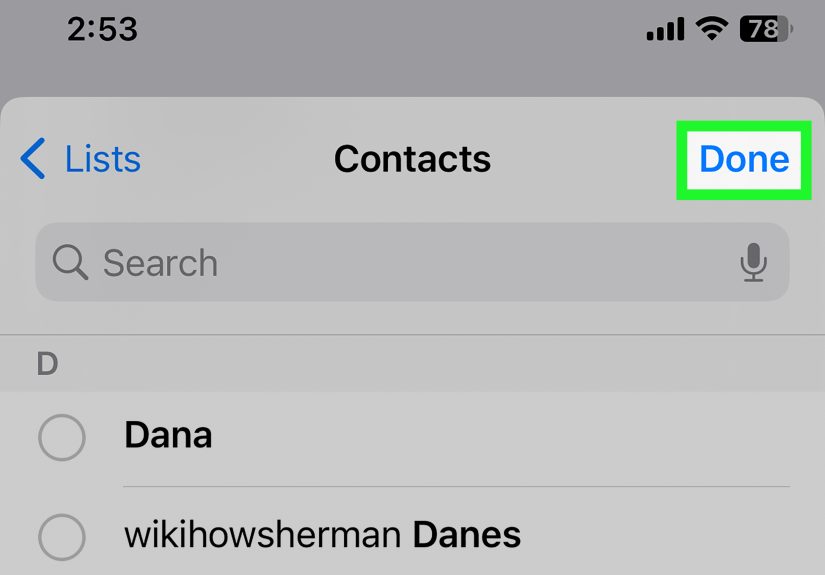
- Tap Done.
Once you turn it off for that contact, they can still message you, but they won’t see when your notifications are silenced. In other words, no status banner, no convenient Notify Anyway button for them.
Does This Work on iPad Too?
Yes. The Messages interface on iPad is slightly wider, but the logic is the same:
- Open the conversation
- Tap the contact info
- Toggle Share Focus Status off for that person
If you use both devices, this is a great way to keep your Focus mode privacy customized without turning the feature off entirely.
When This Method Is Better Than Method 1
Use Method 2 if:
- You want family members to still see your Focus status, but not coworkers.
- You want your manager to know you’re in a meeting, but not your fantasy football group.
- You want to keep the feature for emergencies, just not for everyone.
Think of it as a “VIP list” for who gets to know you’re in Focus mode.
Which Method Should You Use?
Here’s the quick cheat sheet:
Use Way 1 if you want a clean, global fix
- Fastest option
- Stops Focus status sharing across the board
- Best if you never use “Notify Anyway” and don’t want anyone to see your status
Use Way 2 if you want more control
- Lets you customize by person
- Great for balancing privacy and availability
- Best if you still want close contacts to see your status
If you’re not sure, start with Way 2. It’s more flexible, and you can always switch to Way 1 later.
Troubleshooting: Why “Notify Anyway” Still Shows Up
If you followed the steps and the option still appears, here are the most common reasons:
1) You turned off the wrong setting
Some people turn off a Focus mode itself instead of turning off Share Focus Status. That stops Focus entirely, which may not be what you want.
Double-check this path:
Settings > Focus > Focus Status
2) You only changed one Focus profile
If you left global sharing on and only disabled one profile (like Work), the status may still appear when another profile (like Sleep or Personal) is active.
Make sure the active Focus profile is also set the way you want.
3) You changed one contact, but the message is from a different thread
Per-contact settings are exactly that: per contact. If you mute sharing for one person but not another, the other person can still see your status.
Group chats can also behave differently depending on who is messaging and how the thread is set up, so check the specific conversation.
4) The Focus mode is syncing across devices
If you use an iPhone and iPad (or even a Mac), Focus settings can sync across devices. That’s convenient… until one device is set differently.
If something looks inconsistent, check Settings > Focus on both your iPhone and iPad and confirm your Share Focus Status and Focus profiles match.
5) You need a quick refresh
It’s not glamorous, but sometimes the fix is classic:
- Close Messages
- Toggle Focus off and back on
- Restart the device
- Update iOS/iPadOS if you’re behind
Apple settings occasionally take a minute to “settle in,” especially after changing multiple Focus options.
Best Practices for Using Focus Without Missing Important Messages
Turning off “Notify Anyway” is useful, but the bigger goal is to make Focus work for you, not against you. Here are a few smart ways to set it up:
Use a layered setup
- Work Focus: Share status on
- Sleep Focus: Share status off
- Personal Focus: Share status on only for certain people
This gives you privacy when you want it and visibility when it helps.
Use contact-level controls for repeat offenders
If one person keeps “urgent-ing” things that are not urgent, use Way 2 and quietly remove the shortcut. No drama. No speech. No courtroom scene.
Test your setup once
Ask a friend or family member to message you while a Focus mode is active. It’s the easiest way to confirm whether your current settings show the “notifications silenced” banner.
One quick test now can save a lot of “Why did this still happen?” later.
Common Mistakes to Avoid
- Turning off Do Not Disturb instead of Focus Status: Different thing.
- Forgetting the iPad: If you use both devices, check both.
- Disabling everything at once: You might lose a feature you actually liked for emergencies.
- Ignoring per-contact settings: This is the best tool if you want precision.
- Assuming all apps behave the same: The “notifications silenced” experience is mainly tied to Apple’s Messages and Focus status sharing.
Experience-Based Examples: What This Feels Like in Real Life (500+ Words)
One of the most common experiences people have with Notify Anyway on iPhone and iPad is discovering it by accident. You set up Focus mode because you want fewer interruptions, you feel proud for about 14 minutes, and then someone still gets through. That’s when the confusion starts. Many users assume Focus is “broken,” but in reality, it’s usually doing exactly what it was designed to do: silence notifications while still allowing a visible path for urgent contact.
A typical example is a student using Sleep Focus or Study Focus. They don’t want late-night chatter, but they also don’t want to miss a message from a parent. At first, they leave Share Focus Status on for everything. It works fineuntil a few friends notice the “notifications silenced” message and start tapping Notify Anyway for jokes. The student’s first reaction is often, “I need to turn Focus off entirely.” But once they learn the per-contact toggle in Messages, they realize they can keep Focus on, keep parents visible, and hide status from friends who treat every meme like a fire alarm. That’s the sweet spot.
Another common experience comes from people working hybrid jobs. They use Work Focus during meetings and deep work blocks, but they don’t want coworkers thinking they’re ignoring them. In that case, leaving Share Focus Status on can actually be helpful because it sends a polite signal: “I’m busy right now.” The issue is when they forget to limit it by profile. If Personal Focus and Sleep Focus also share status, the same coworkers can still see “notifications silenced” at odd hours. That can feel too revealing, even if the message is generic. A lot of users fix this by using Method 1’s profile-level controls: keep Work sharing on, turn the rest off. Suddenly, the setup feels intentional instead of messy.
Parents often have the opposite experience. They want the Notify Anyway option available for certain people because emergencies are real, but they also want peace during dinner, bedtime, or school events. The best setup here is usually not a global off switch. Instead, they use Way 2 and customize contacts. Grandparents, babysitters, and school contacts can stay on the “can see Focus status” side. Group chats, promotional messages, and chatty relatives who send “Are you up?” at 11:48 p.m. can get moved to the “no status shown” side. This keeps the phone quiet without cutting off the people who genuinely might need to reach them.
People who use both an iPhone and iPad also run into a practical issue: they change a setting on one device, but the result doesn’t match what they expected on the other. That’s usually a sync or profile mismatch problem, not a user mistake. For example, someone may turn off Share Focus Status for one Focus profile on the iPhone, but the iPad still has a different Focus active. Then they see “Notify Anyway” appear and assume the setting didn’t save. In reality, each active Focus and each profile’s sharing options matter. The fix is simplejust check both devices and confirm which Focus is activebut it’s a very common experience, especially for people who move between iPad and iPhone all day.
There’s also a “privacy comfort” angle that many users don’t expect. Some people love Focus but dislike the idea of broadcasting that they have notifications silenced. They don’t want people reading into it, guessing why they’re unavailable, or feeling invited to override the boundary. These users usually feel immediate relief after turning off Share Focus Status globally. Their Focus mode still works, their phone still stays quiet, and no one gets a built-in invitation to push through. It’s a small setting change, but it can make the iPhone feel much more personal and controlled.
The most successful setups usually come from trying one method first, living with it for a few days, and then adjusting. That’s the real-world pattern: start simple, notice what annoys you, then fine-tune. If everyone loses the “Notify Anyway” button and you miss the occasional urgent heads-up, turn sharing back on and use the per-contact method instead. If the per-contact method feels like too much maintenance, switch to the global toggle. The feature is flexibleand once you understand the two methods, it becomes a tool instead of a mystery.
Final Thoughts
If you want to turn off “Notify Anyway” on iPhone and iPad, the easiest fix is to manage Share Focus Status. You have two practical options:
- Turn off Share Focus Status for everyone (fast and simple)
- Turn it off for specific contacts (more control)
Both methods work well. The best one depends on whether you want a total shutdown or a more customized setup.
And that’s really the whole game with Focus mode: not just silencing your phone, but deciding who gets to know your phone is silenced. Your iPhone can be quiet and smart. No wizard hat required.