Table of Contents >> Show >> Hide
- Quick Heads-Up: Is Subscene Still Working?
- What You’re Downloading (So You Don’t Panic)
- Step-by-Step: How to Download Subtitles from Subscene
- Step 1: Search for the exact movie or show title
- Step 2: Select the correct result (movie vs. series vs. season)
- Step 3: Choose your subtitle language
- Step 4: Match the subtitle to your video version (the secret to perfect sync)
- Step 5: Open the subtitle page and click Download
- Step 6: Extract the ZIP file
- How to Use the Subtitle File (So It Actually Shows Up)
- Troubleshooting: Fix the Most Common Subtitle Problems
- Safety Tips (Because “Free Download” Buttons Are Liars)
- Best Alternatives If Subscene Isn’t Accessible
- FAQ
- Extra: Real-World Experiences Downloading Subtitles (The “I’ve Seen Things” Section)
- Conclusion
You know that rare, magical moment when you press play and the dialogue is perfectly clear… until someone whispers in a thick accent,
a spaceship alarm starts screaming, and the soundtrack decides to cosplay as a jet engine? That’s when subtitles go from “nice-to-have”
to “please save me.”
Subscene used to be one of the most popular places to find fan-made subtitles for movies and TV shows. If you’re trying to download
subtitles from Subscene, you’re not alonepeople have been doing it for years for language learning, accessibility, and just plain old
understanding what the heck was said.
This guide walks you through how Subscene downloads typically worked, how to choose the right subtitle file (the part most people
mess up), how to unzip and use your subtitles, and what to do if Subscene isn’t accessible anymore. We’ll keep it practical, a little funny,
and 100% focused on getting you readable subtitles without turning your laptop into a pop-up ad museum.
Quick Heads-Up: Is Subscene Still Working?
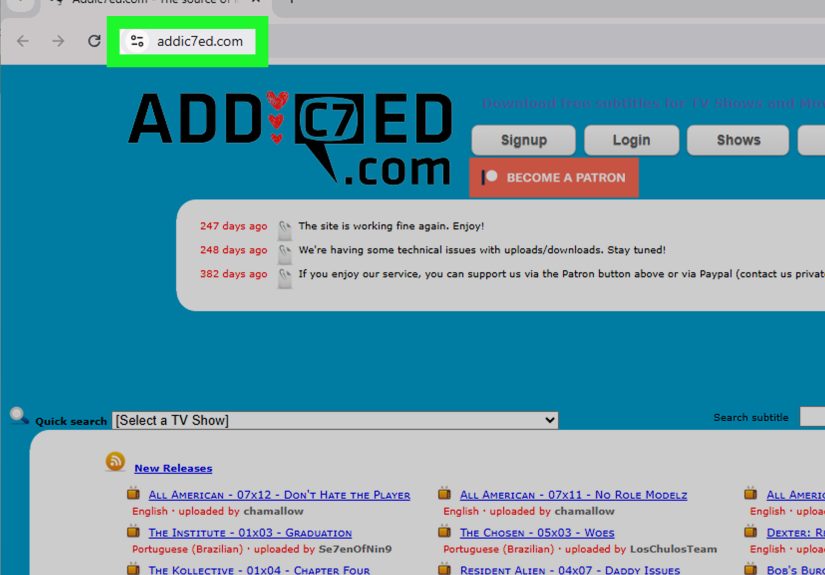
Before we jump into the steps, here’s the plot twist: the original Subscene (the classic site people used for years) has been reported as shut down.
Depending on where you live and what you search, you may run into look-alike sites, mirrors, or archives that mimic the original design.
Some might work. Some might be broken. Some might be sketchy.
So here’s the safe approach:
- If you can access a legitimate Subscene-style archive, the step-by-step process below will look familiar and still applies.
- If you can’t access it, skip to the “Alternatives” section for reliable subtitle sources and built-in options.
- Only download subtitles for content you’re legally allowed to watch (owned, rented, subscribed, classroom use, etc.).
What You’re Downloading (So You Don’t Panic)
Most Subscene subtitle downloads come as a ZIP file that contains one or more subtitle filesusually:
.SRT (the most common), sometimes .SUB/.IDX, or other formats.
SRT in plain English
An SRT file is basically a tiny text document with timestamps and lines of dialogue. It’s lightweight, easy to edit,
and supported by tons of video players.
Why ZIP?
ZIP makes downloads smaller and bundles multiple subtitle versions together (for example, “HI” subtitles for hearing-impaired viewers plus
a standard version). It also helps keep the website from serving raw text files directly.
Step-by-Step: How to Download Subtitles from Subscene
The exact buttons may vary depending on the version of the site you’re seeing, but the overall flow is usually the same:
search → pick title → choose language → choose release/version → download ZIP → extract subtitle file.
Step 1: Search for the exact movie or show title
In the search bar, type the official title. If the title is common (like It, Us, or Smileall excellent choices for confusion),
add the release year.
Example: Search “Dune 2021” instead of just “Dune.”
Step 2: Select the correct result (movie vs. series vs. season)
Subscene-style databases often show separate entries for the same franchise:
the movie, the TV series, and sometimes individual seasons. Click the one that matches what you’re watching.
Step 3: Choose your subtitle language
Once you’re on the title page, you’ll usually see subtitles grouped by language. Click the language you need (English, Spanish, French, etc.).
If you’re learning a language, you can even download two subtitle tracks and switch between them (more on that later).
Step 4: Match the subtitle to your video version (the secret to perfect sync)
This is the make-or-break step. Subtitles aren’t “one size fits all.” They’re often synced to specific releases:
BluRay, WEB-DL, HDTV, extended cuts, director’s cuts, and different runtimes.
Look for clues in the subtitle title/description such as:
- Release type: WEB, BluRay, HDRip, DVDRip
- Group tags: like “RARBG,” “YIFY,” or other release labels (these help match timing)
- Episode info for TV: S02E05 (Season 2, Episode 5)
- Runtime notes: sometimes people mention minutes/seconds or specific edits
If your video file is named something like:
Show.Name.S01E03.1080p.WEB-DL.x264,
try a subtitle that also mentions WEB-DL for that same episode.
Step 5: Open the subtitle page and click Download
Click the specific subtitle listing you want. On the subtitle’s page, you’ll usually see a big “Download” button.
Clicking it typically downloads a .zip file to your device.
Pop-up reality check: if you see multiple “Download” buttons, slow down. The real one is usually near the subtitle details.
Random flashing “DOWNLOAD NOW” banners are not your friend.
Step 6: Extract the ZIP file
After downloading, you need to unzip/extract the file. On Windows, you can usually right-click the ZIP and choose
Extract All. On macOS, double-clicking often works.
Inside, you’ll likely find an .srt file (sometimes more than one). That’s your subtitle file.
How to Use the Subtitle File (So It Actually Shows Up)
Option A: The “auto-load” method (easiest)
Put the subtitle file in the same folder as your video and make sure the filenames match.
Many players will automatically load it.
Example:
MovieName.mp4MovieName.srt
Option B: Add subtitles manually in VLC
VLC is popular because it supports tons of subtitle formats and lets you adjust timing easily. Open the video in VLC, then:
- Go to the Subtitles menu
- Choose Add Subtitle File (or similar wording)
- Select your
.srtfile and open it
Option C: Other players and devices
Different apps handle external subtitles differently:
- QuickTime (Mac): Works best with built-in captions or properly embedded subtitle tracks. External SRT support can be limited.
- Windows apps: Some players load SRT automatically; others require a manual add/import option.
- TV streaming boxes: External subtitles may require the file to be embedded or loaded through the app’s subtitle menu.
Troubleshooting: Fix the Most Common Subtitle Problems
Problem 1: Subtitles are out of sync
This usually means the subtitle doesn’t match your video version. Try a different subtitle listing that matches the same release type
(WEB-DL vs BluRay is a classic mismatch).
Quick fix in VLC: use subtitle delay controls to shift timing forward/back until it lines up. If you’re constantly fixing the same show,
you might want a subtitle editor (but start by simply choosing a better-matched file).
Problem 2: The subtitles show up… but they’re the wrong language
Yep. It happens. Double-check you clicked the correct language section and that the subtitle listing isn’t mislabeled.
If you’re learning a language, consider downloading two subtitle files and switching tracks.
Problem 3: Weird symbols or boxes instead of letters
That’s usually an encoding issue (like UTF-8 vs ANSI). Many players can handle UTF-8 well, but older subtitle files may need conversion.
A quick workaround: open the SRT in a text editor and re-save it as UTF-8, then try again.
Problem 4: The ZIP won’t open
The ZIP may be corrupted or incomplete. Re-download the file or choose a different subtitle listing.
If your system can’t extract it, a trusted unzip utility may helpbut Windows and macOS usually handle ZIP fine.
Problem 5: The site won’t load or downloads don’t work
If the original Subscene isn’t available, you’re likely hitting a dead link or an unreliable mirror. Don’t keep clicking random buttons hoping
one will magically become legitimate. Use a reputable alternative source instead (next section).
Safety Tips (Because “Free Download” Buttons Are Liars)
- Stick to subtitle files: SRT, SUB/IDX, VTT. If something tries to download an EXE or installer, close it.
- Watch for fake buttons: Real subtitle downloads are usually simple ZIP or SRT files.
- Scan downloads: Your device’s built-in security tools can scan files quickly.
- Avoid account sign-ups on clones: If a look-alike site pushes you to create an account immediately, be cautious.
Best Alternatives If Subscene Isn’t Accessible
If your goal is simply “I need subtitles that match my video,” you have options. Popular subtitle sources and tools include:
- Open subtitle libraries that let you search by title and language
- TV-focused subtitle sites that specialize in episodes and season releases
- Video-platform caption tools for online videos (where creators provide captions)
- Built-in accessibility captions offered by major streaming services (often the best-synced option)
If you’re watching through a legit streaming service, try the built-in captions first. They’re usually professionally timed,
tested, and don’t require you to download anything.
FAQ
Do subtitles always come as ZIP files on Subscene?
Traditionally, yesmany Subscene downloads came as ZIP files containing SRT (or similar) subtitle files. That’s why “download + extract” is a common workflow.
What’s the difference between captions and subtitles?
Subtitles usually show dialogue. Captions often include extra audio info like “(door slams)” or “(dramatic music).”
If you want the full context, look for “HI” or “SDH” versions.
Why do subtitles for the same movie have different versions?
Because movies and shows come in different cuts and releases. Even small timing differences can throw off subtitles.
Matching your release type is the fastest way to avoid sync issues.
Can I use subtitles on my phone?
Yes, if your video player app supports external subtitles. Many mobile players let you load an SRT file from local storage or cloud folders.
Extra: Real-World Experiences Downloading Subtitles (The “I’ve Seen Things” Section)
After you download subtitles a few times, you start noticing patternslike a subtitle detective who never asked for this job but somehow got promoted.
Here are some real-world experiences that can save you time, frustration, and the emotional damage of watching a mystery movie with totally wrong dialogue.
Experience #1: The “same title” trap is real. People search “Halloween” and end up with subtitles for the wrong decade.
Or they search “The Office” and pick the wrong country version. The fix is simple: include the year (for movies) or the season/episode code (for series).
Once you start doing that, subtitle hunting goes from chaos to calm.
Experience #2: Release matching is basically subtitle matchmaking. When your video file says WEB-DL and you choose a BluRay subtitle,
you’re creating a relationship that was never meant to last. The first 10 minutes might look okay, then the timing slowly drifts until every punchline lands
five seconds late (which is the comedy equivalent of stepping on a Lego). Choosing a subtitle that mentions the same release type or group tag is often the
difference between “perfect sync” and “why is everyone talking before they open their mouths?”
Experience #3: Hearing-impaired (HI/SDH) subtitles are secretly awesome. Even if you don’t need them for accessibility, HI/SDH versions can
be helpful when audio is messy. They include extra cues like “(phone buzzing)” or “(whispers)” that explain what’s happening when the soundtrack turns into
a wall of noise. Some people love them, some find them distracting. It’s worth trying both.
Experience #4: The best subtitle is often the one with comments… not the most downloads. Popular files can be great, but comments sometimes reveal
whether a subtitle is synced to a specific cut, includes missing lines, or has weird formatting. If a subtitle listing mentions “fixed timing” or “proper names,”
that can be a good sign. Meanwhile, if multiple people complain about timing, trust the crowdyour future self will thank you.
Experience #5: Encoding issues feel random until you recognize the pattern. If your subtitles show strange symbols, it’s usually not “broken subtitles”
as much as “wrong text encoding.” This pops up more with older files or certain languages. Re-saving as UTF-8 often solves it. Once you’ve fixed it once, you’ll realize
it’s not a mysterious cursejust computers being computers.
Experience #6: The safest workflow is boringand boring is good. Download a ZIP, extract it, confirm you have an SRT, then load it through your video player.
The moment you start clicking around shady pop-ups or downloading “subtitle managers” from random sites, things get messy. Real subtitles don’t need an installer. Real subtitles
are humble little text files doing honest work.
Experience #7: Built-in streaming captions are underrated. If you’re watching through a legitimate service, the built-in captions are often the best version:
accurate, synced, and available in multiple languages. Many people chase external subtitles out of habit, but if your player already has a CC button, that’s usually the smoothest
solutionespecially for newer shows.
Bottom line: downloading subtitles is easy. Downloading the right subtitles is the skill. Once you learn to match release types, verify language, and load subtitles correctly,
you’ll spend less time searching and more time enjoying your moviewithout yelling “WHAT DID THEY SAY?” at your screen like it owes you money.
Conclusion
If you can access a Subscene-style subtitle archive, downloading subtitles is usually straightforward: search the title, choose the correct language, match your video release,
download the ZIP, extract the SRT, and load it in your player. The real trick is picking a subtitle version that matches your exact video filebecause perfect sync is not luck,
it’s compatibility.
And if Subscene isn’t accessible? You still have solid alternatives, plus built-in captions on many streaming services. Either way, you’re now equipped to get subtitles working
without stress, without spammy downloads, and without turning your movie night into an accidental tech support internship.